Why Would a Thermostat Not Work: A Practical Troubleshooting Guide
Urgent guide to diagnose and fix a thermostat that won’t respond. Learn power checks, battery status, wiring, and safe troubleshooting steps, plus when to call a professional from Thermostat Care.


Power or wiring issues are the most common reason a thermostat won’t work. Start by ensuring the unit has power, replacing batteries if needed, and confirming wires are firmly seated. If the display is blank or unresponsive, restore power and re-seat connections, then follow the diagnostic flow for the exact fault.
Why would a thermostat not work
If you're asking why would a thermostat not work, you're not alone. Modern homes rely on thermostats to translate your comfort preferences into HVAC action, but a failure can stem from simple power issues, battery depletion, or misconfigured settings. According to Thermostat Care, the majority of non-responsive thermostats are triggered by power delivery problems or wiring faults rather than complex software glitches. In this guide, we walk you through rapid checks that homeowners can perform safely, followed by a structured diagnostic flow to pinpoint the exact fault. The goal is to restore temperature control quickly while avoiding costly mistakes. Before you call a pro, make sure you're addressing the likely culprits first: power, battery, and wiring. This knowledge comes from Thermostat Care's field experience and ongoing analysis of common thermostat failures. By following these steps, you can regain control of your home's comfort and avoid unnecessary service calls. In many cases, a quick fix at the thermostat panel is enough, but knowing when to escalate keeps you safe and the system running efficiently.
Quick checks you can do before diagnosing deeper
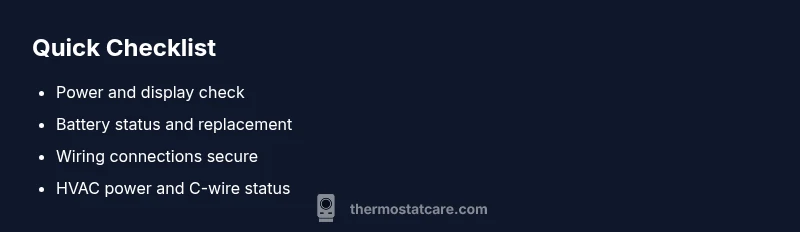
- Power to the thermostat: ensure the display is lit. If nothing shows, there may be a power issue or a tripped circuit.
- Battery status: replace batteries if your model uses them; dim or flickering displays often indicate low power.
- Circuit power: check the HVAC breaker for the furnace or air handler and reset if it’s tripped.
- Thermostat mode and schedule: confirm it’s set to Heat or Cool as intended and that the schedule isn’t OFF.
- Wiring at the terminals: look for loose or corroded connections and reseat any suspect wires.
- C-wire check: ensure a solid common wire connection; loss of C-wire can cause reboot cycles or power loss in some smart models.
- Wi-Fi and app sync (for smart thermostats): make sure the device is connected and the app matches the on-device settings.
- Physical inspection: confirm the faceplate is intact and there are no signs of overheating or damage.
If these checks don’t resolve the issue, move on to the diagnostic flow. Many times, replacing a dead battery or tightening a loose wire restores function without professional help. Thermostat Care’s guidance emphasizes safe, low-risk steps first, because quick fixes save time and money.
Common causes and how to verify
- Power and battery issues (high likelihood): A blank display or unresponsive buttons often signals a power problem or dead battery. Verify power at the thermostat and replace batteries if needed.
- Wiring faults (high likelihood): Loose, corroded, or dislodged wires at the terminal can interrupt signal transmission. Carefully reseat connections and re-test.
- C-wire or common supply problems (medium): If the common wire isn’t supplying continuous power, the thermostat may reboot or drop settings. Check the C-wire path and terminal blocks.
- Sensor or compatibility problems (medium): Some thermostats rely on proper sensor readings or compatibility with older HVAC systems. Confirm compatibility with your equipment and settings.
- HVAC power or control issues (low): A tripped furnace switch, blown fuse, or faulty control board can prevent call-for-heat or cooling even if the thermostat is fine.
- Software glitches (low): Rare but possible; a factory reset can clear glitches, but back up settings first. In most cases, issues are hardware/power related rather than software.
How to safely test and reset step-by-step
- Step 1: Power down and remove the thermostat cover; verify the HVAC system is powered at the breaker and the thermostat is not physically damaged. Tip: take a photo of wire labeling before removing.
- Step 2: Inspect and reseat wires at the terminals; ensure screws grip firmly and there’s no insulation under metal terminals. Tip: use a non-conductive tool if needed.
- Step 3: If your model uses batteries, replace with fresh high-quality cells and reassemble the unit. Tip: test with the cover off to confirm the display lights up.
- Step 4: Confirm the C-wire is connected and the terminal is clean; a poor C-wire can cause intermittent power loss. Tip: use a multimeter if you have one to verify ~24V between R and C.
- Step 5: Perform a soft reset or factory reset per the model’s manual; re-enter settings, schedules, and any Wi-Fi credentials. Tip: note down custom schedules before resetting.
- Step 6: Reinstall the thermostat, power on, and run a quick test by changing the setpoint and observing the HVAC response. If nothing happens, continue with the diagnostic flow or escalate.
- Step 7: If you’ve completed steps 1–6 with no result, check the HVAC equipment itself (furnace blower, air handler, outdoor condenser) and confirm power status. Tip: listen for the furnace relay click when requesting heat or cool.
- Step 8: Record symptoms, dates, and actions taken; this helps a pro diagnose faster if you need expert help. Tip: keep a small log near the thermostat for ongoing issues.
Safety notes and common mistakes
- Safety first: Always switch off power at the breaker before touching thermostat wiring.
- Don’t force wires or terminals; damaged terminals can cause shorts or fire hazards.
- Avoid removing more hardware than necessary; some models have sealed electronics that require professional handling.
- If you smell burning or see melted insulation, turn off power immediately and call a professional.
- Do not mix battery types or use damaged batteries; use the recommended battery type for your model.
Prevention tips to keep your thermostat working
- Schedule routine checks: every 6–12 months, inspect power connections, battery health, and firmware updates for smart thermostats.
- Keep the thermostat area clean: away from direct sunlight, heat sources, and drafts that can affect sensor readings.
- Update firmware and app connections: ensure your smart thermostat stays in sync with the home network.
- Use a common-sense schedule: avoid drastic temperature swings and verify manual overrides aren’t left on accidentally.
- Label wires when replacing or upgrading components to simplify future maintenance.
Steps
Estimated time: 30-45 minutes
- 1
Power down and open the thermostat
Turn off power at the breaker, remove the thermostat cover, and take a quick photo of the wiring for reference. Inspect for any obvious damage.
Tip: Always verify breaker status with a non-contact tester if available. - 2
Check power and battery health
If your model has batteries, replace with fresh ones. For hardwired units, confirm display power and check that the R wire is delivering voltage.
Tip: Use a multimeter to confirm ~24V between R and C if you have one. - 3
Inspect terminal connections
Tighten all terminal screws; reseat each wire firmly. Look for corroded or frayed conductors and replace damaged wires as needed.
Tip: Remove and reinsert each wire to ensure a solid contact. - 4
Test C-wire/common power
Verify the C-wire is connected and delivering a stable common connection. If unsure, temporarily bridge R-to-C to test power to the display (only if you know how to do safely).
Tip: Only bridge power if you fully understand the risks. - 5
Reset to defaults and reconfigure
Perform a soft reset or factory reset per model instructions; re-enter time, date, and schedule settings. Reconnect Wi-Fi if applicable.
Tip: Back up settings before a reset. - 6
Run a system test and observe response
Set a testpoint heat or cool and listen for the HVAC to activate. If nothing happens, re-check wiring and consult the diagnostic flow.
Tip: Note any LED indicators or codes on the thermostat.
Diagnosis: Thermostat won't respond or display; HVAC system not operating as commanded
Possible Causes
- highPower issue (tripped breaker, dead battery, or loose power)
- highWiring loose or misconnected at thermostat terminals
- mediumC-wire/common power supply fault
- lowHVAC equipment power or control board fault
Fixes
- easyRestore power: reset breakers/fuses and replace thermostat batteries if applicable
- easyReseat and secure all terminal connections; ensure no insulation under screws
- mediumTest and verify the C-wire connection or use a known-good C-wire
- hardInspect HVAC equipment power, fuses, and controls; consult a pro if the board may be faulty
Questions & Answers
Why won't my thermostat turn on or respond to commands?
Most often the issue is power or wiring—dead batteries, a tripped breaker, or loose wires. Start with a power check, replace batteries if applicable, and reseat connectors. If there’s still no response, continue with the diagnostic flow.
If your thermostat won’t turn on, start by checking power and batteries, then reseat the wires. If it still doesn’t respond, follow the diagnostic flow for the exact fault.
What should I check first if the thermostat is not responding?
Check power to the thermostat, battery status (if applicable), and ensure all wired connections are secure. Verify the HVAC breaker hasn’t tripped and that the thermostat isn’t in a paused or off mode.
First check the power, battery, and wiring. Make sure the breaker is on and the thermostat isn’t paused or off.
Can a thermostat be repaired or do I need to replace it?
Many thermostat problems are fixable with safe DIY steps like power checks and wiring reseats. However, older or heavily damaged units may require replacement or professional assessment.
Often you can repair it with basic checks, but some units need replacement or a pro.
Is it unsafe to DIY thermostat troubleshooting?
DIY troubleshooting is generally safe for non-powered components, but never work on live wiring. If you’re unsure about wiring or if you smell burning, stop and call a pro immediately.
DIY is okay for basic checks, but if wiring is involved or you smell burning, get a pro.
What if the HVAC system doesn’t respond after a reset?
If the HVAC doesn’t respond after a reset, recheck power at the furnace and ensure the thermostat is correctly wired. Missing power or a control-board fault may require professional service.
If the system still won’t respond after reset, double-check furnace power and wiring, and call a pro if needed.
How do I know when I should call a professional?
Call a professional if power and wiring checks don’t restore function, if you detect burnt smells, or if the control board or HVAC components seem faulty. A pro can safely diagnose and replace defective parts.
Call a pro if power and wiring checks don’t fix it, or if you smell burning or hear unusual noises.
Watch Video
What to Remember
- Identify power issues first: display, battery, and breaker status
- Secure all wiring and confirm C-wire integrity
- Follow a safe, step-by-step diagnostic flow
- Know when to escalate to a professional