Why Does My Thermostat Turn Itself Down? A Troubleshooting Guide
Discover why your thermostat turns itself down unexpectedly and how to troubleshoot common causes quickly and safely. This Thermostat Care guide provides practical checks, fixes, and guidance on when to call a professional.


Many thermostats lower the temperature on their own due to built-in setback features, energy-saving modes, or scheduled programs. Start by checking for active schedules, eco/auto modes, and occupancy-based settings. If the issue persists, verify power, batteries (if applicable), and sensor readings, then reset or update firmware as needed.
Why Your Thermostat Turns Itself Down
According to Thermostat Care, a thermostat turning itself down is almost never a single mysterious fault; it’s usually a combination of software, settings, and power interactions. In homes across 2026, many modern thermostats include setback features that reduce heat during certain hours or when occupancy is detected. When you notice the temperature dropping without manual input, start with the simplest explanations before assuming a device failure. The primary question homeowners search for is 'why does my thermostat turn itself down' and the answer often lies in schedule, eco mode, or sensor feedback rather than a malfunction. By understanding the logic behind these devices, you can quickly correct the course and restore comfortable temperatures without overhauling your system.
Understanding the Core Mechanisms Behind Self-Dimming Cooling
A modern thermostat can lower the setpoint automatically for energy savings, comfort optimization, or occupancy-based adjustments. In many models, time-based schedules tell the unit to cool at certain hours; geofencing detects if you’re away; and eco modes tighten the temperature window to minimize consumption. Firmware-level intelligence may also adjust readings for faster humidity or cooling efficiency. The Thermostat Care Team emphasizes that most fluctuations are by design rather than failure—they’re purposeful controls meant to save energy and maintain comfort. If you notice an unexpected drop when you didn’t program it, verify the schedule and mode settings first before assuming a fault. This quick understanding helps you prioritize checks and avoid unnecessary replacements.
Check the Very Basics First (Power, Batteries, and Settings)
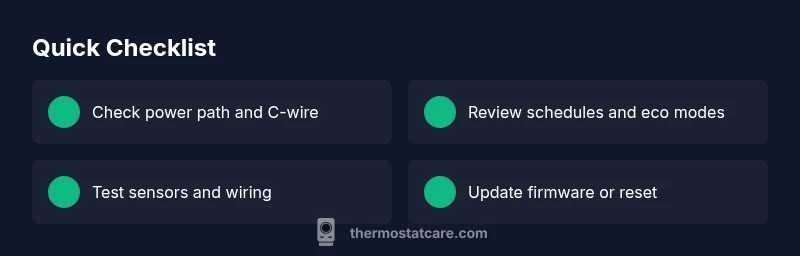
Before diving into sensors, look at the power path: is the thermostat powered by a C-wire or battery? A dying battery or loose power can cause erratic responses including a premature drop in heat to preserve itself. Check the wall outlet or the furnace control board if you have a wired unit. Confirm that the thermostat’s date and time are correct, as incorrect time settings can skew schedules. If you are using a wall-mounted thermostat with a battery, replace the batteries and observe if the problem persists for a few hours. Keeping the basics solid is the fastest way to validate whether the issue is truly 'why does my thermostat turn itself down' or just a temporary glitch.
Review Schedules, Auto/Eco Modes, and Geofencing
Many users see the temperature drop when a schedule or eco setting triggers. In this step, open the thermostat app or interface and confirm all active schedules, hold periods, and away modes. Disable any geo-fencing or adaptive recovery features temporarily to test whether the room stabilizes. If the device returns to your desired setpoint after turning these features off, you’ve identified the culprit. If not, proceed to sensor checks and power tests to rule out hardware causes.
Sensor Health: Temperature Sensors and Wiring
Faulty or drifting temperature sensors can misread the room and cause the system to compensate by lowering or raising the heat. Inspect inside the thermostat for any loose wires, corrosion, or damaged terminals. If your unit uses external sensors, check that they are positioned correctly and not near heat sources, drafts, or direct sunlight. A miscalibrated sensor can fool the control logic into thinking the space is cooler than it is, triggering a self-correction that drops the temperature. Re-seat connections carefully and look for any sign of wear.
Power Troubles: C-Wire, Breakers, and Batteries
Power issues are among the most common causes of unusual thermostat behavior. A loose C-wire, tripped breaker, or a dying battery can impair the device’s decision-making. If you hear buzzing, flickering lights, or the thermostat display dims, shut off power at the breaker before inspecting wires. Reconnect or replace the C-wire as needed or replace the batteries if your model runs on cells. If the power path is unstable, consider moving the thermostat to a more stable circuit or using a dedicated low-voltage transformer as per the manufacturer’s guidance.
Firmware, Updates, and a Full Reset
Software glitches can cause a thermostat to misbehave, including unexpected temperature changes. Check for firmware updates via the thermostat’s app or the manufacturer’s site and install if available. If updates don’t fix the issue, a factory reset can restore default settings and clear corrupted profiles. Note that a reset will erase custom schedules, so you may need to re-enter them. After resetting, reconfigure only essential settings first and test stability before adding more rules.
Smart Thermostats: Connectivity and App Behavior
If you own a smart thermostat, app interference can override local controls. Check the mobile app for remote schedules, scenes, or routines set by automation hubs (like IFTTT or smart home ecosystems). Disable or delete any routine that could be triggering automatic temperature changes. Make sure the device remains connected to Wi-Fi; intermittent connectivity can cause the thermostat to fall back to a fallback mode that appears as a self-imposed temperature drop.
Safety First: When to Stop and Call a Pro
If you smell gas, hear strange HVAC noises, observe smoke, or notice signs of electrical burning, stop using the unit and seek professional help immediately. Likewise, if you have attempted the steps above and the problem recurs, a licensed technician can diagnose wiring, control module faults, or refrigerant issues beyond homeowner scope. The Thermostat Care team stresses that ongoing temperature instability may indicate broader HVAC faults that require professional evaluation to prevent safety risks and ensure system efficiency.
Prevention: How to Keep It from Returning
Establish a clear schedule that matches your routine and keep it simple at first. Regularly update firmware and periodically test sensors. Replace batteries on a preventive cycle if your model uses cells. Label wires if you need to disconnect them and keep a copy of your settings in a safe place so a reset or replacement doesn’t erase your preferred comfort levels. A well-maintained thermostat reduces surprises and helps you stay comfortable with predictable temperatures.
Steps
Estimated time: 60-75 minutes
- 1
Gather tools and model information
Collect the thermostat model number, manual, and app access. This helps you follow manufacturer-specific steps and avoid guessing on wiring or modes.
Tip: Have the manual and warranty status handy for reference. - 2
Pause all schedules and eco modes
Open the thermostat app or interface and disable all active schedules, away modes, and eco/auto modes. Observe whether the temperature stabilizes after disabling.
Tip: Document any schedules you disable in case you want to re-enable them later. - 3
Check power supply and batteries
If your unit uses a C-wire, verify the circuit and connectors. For battery-powered models, replace batteries and test whether behavior changes.
Tip: Power off before inspecting wiring to avoid shocks. - 4
Inspect sensors and wiring
Back open the panel and look for loose, corroded, or damaged wires. Re-seat connectors and ensure external sensors are correctly placed away from heat sources.
Tip: Take a photo before unplugging anything to aid reassembly. - 5
Update firmware or reset
Check for available firmware updates and install. If unresolved, perform a factory reset, then re-enter core settings first.
Tip: Back up schedules and preferences if the option exists. - 6
Test after each fix
After each change, monitor the thermostat for several hours to verify stability before moving to the next step.
Tip: Keep a simple log of times and readings. - 7
Check smart-home integrations
If you have a connected ecosystem, review routines and scenes that might override local control. Disable automation temporarily to test.
Tip: Reset the integration if needed to clear conflicts. - 8
Call a professional if unresolved
If issues persist after all steps, a licensed HVAC tech can diagnose control modules, wiring faults, or refrigerant concerns.
Tip: Ask for a written diagnostic and quote before work begins.
Diagnosis: Thermostat lowers temperature on its own or drifts after a period.
Possible Causes
- highActive setback or schedule
- highEco/auto/occupancy modes
- mediumIncorrect time/date settings
- mediumFaulty sensor or wiring
- lowWeak batteries (battery-powered units)
- lowSoftware glitch or firmware issue
- lowExternal sensors or remote routines
Fixes
- easyReview and disable any active schedules or geofencing while testing
- easyTurn off eco/auto modes temporarily to observe changes
- easyCheck date/time settings and correct them; verify clock accuracy
- easyInspect power path: test C-wire, replace batteries, reseat power connections
- mediumUpdate firmware or perform a factory reset if supported by the model
- mediumInspect sensors and wiring: reseat connectors, check for damage
- easyConsult a professional if symptoms persist after basic fixes
Questions & Answers
Why does my thermostat keep lowering the temperature on its own?
This usually happens because of active schedules, eco modes, or occupancy-based features. Verify these settings first and disable them to determine if the issue is resolved before investigating hardware faults.
Most often, it’s due to a schedule or eco mode. Check settings first; disable them to see if the temperature stops dropping.
How can I stop automatic setbacks on my thermostat?
Open the thermostat app, navigate to schedules and eco modes, and temporarily disable automatic rules. If the drops cease, reconfigure schedules with simpler rules or adjust setback thresholds.
Disable automatic rules in the app and then re-add them gradually.
Can a dying battery cause the thermostat to drop temperature?
Yes. Batteries can cause unreliable readings or incomplete power delivery, leading the system to adjust conservatively. Replace batteries if applicable and observe changes.
Weak batteries can cause odd behavior; replace them and test again.
Is geofencing a common culprit?
Geofencing can trigger away modes when you leave a zone. If you frequently move in and out, it may drop temperature unexpectedly. Review and adjust the geofence radius in the app.
Geofencing might be triggering temperature changes; adjust the boundary in the app.
What should I do if the problem persists after these steps?
Document all steps you’ve taken and the outcomes, then contact a licensed HVAC technician for a diagnostic. Persisting issues may indicate wiring or control-module problems.
If it keeps happening, get a professional diagnostic.
When is it safe to call a professional?
Call a pro if you smell gas, hear unusual noises, see signs of burning, or if your tests don’t stabilize temperature. A professional can diagnose electrical or refrigerant concerns beyond DIY scope.
Call a professional if you notice safety concerns or persistent instability.
Watch Video
What to Remember
- Identify whether schedules or eco modes trigger the drop.
- Check power, batteries, and sensor health before replacing hardware.
- Update firmware or reset to clear software glitches.
- Test changes step-by-step and document results.
- Call a pro if stability does not improve after fixes.