Why Does My Thermostat Say Waiting? Quick Troubleshooting Guide
An urgent, practical guide to diagnose why your thermostat displays 'waiting' and how to fix it fast, with safe, step-by-step checks, diagnostics, and prevention tips.


Most likely, your thermostat is waiting due to power or connectivity issues rather than a device failure. Start by checking batteries or the C-wire power, then verify Wi‑Fi and app status. If the screen stays on waiting, perform a safe restart and let any firmware updates complete. If unresolved, seek professional help.
Common causes of 'waiting' on thermostats
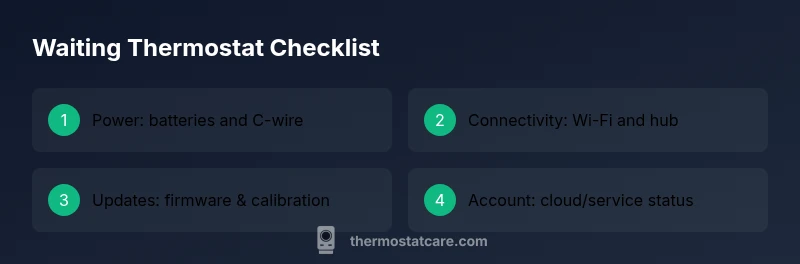
If your thermostat screen shows waiting, the issue is almost never a simple defect in the control panel. In most homes, waiting is a symptom of upstream problems like power loss, wiring, network connectivity, or firmware delays. According to Thermostat Care, the most frequent culprits fall into four buckets: power supply and battery status, network or hub communication, software updates or calibration pauses, and account or app cloud issues. When diagnosing, start with the least invasive checks and build up to more involved steps. This approach aligns with Thermostat Care Analysis, 2026, which finds that over half of waiting-state problems can be traced to power or connectivity rather than a failed thermostat itself.
- Power issues top the list: weak batteries, a tripped breaker, or an inadequate C-wire supply can cause the device to stall at a waiting screen.
- Connectivity matters: a router outage, weak signal, or a misconfigured hub can leave the thermostat waiting for a response.
- Software delays: pending firmware updates, calibration pauses, or a temporary cloud outage may keep the device frozen in a waiting state.
- External accounts: if the thermostat relies on a cloud account, an authentication error or expired token can manifest as waiting.
If you identify one of these causes, you can often fix it without tools, which is why this guide emphasizes safe, stepwise checks. In practice, most waiting scenarios resolve once power and connectivity are restored and updates complete.
Check power supply and battery status
Power problems are by far the most common reason a thermostat gets stuck waiting. For battery-powered models, replace with fresh, high-quality batteries and watch for corrosion on the terminals. If your thermostat uses a C-wire, confirm the common wire is actually delivering 24V AC from the furnace or air handler. A simple check is to verify the R to C voltage at the thermostat (if your model supports it) or at the control board.
For many homes, a tripped circuit or a loose wire can cut power to the thermostat, causing it to freeze in a waiting state. Inspect the circuit breaker that feeds the thermostat’s circuit and ensure the wiring at the backplate is securely connected. If the power supply seems marginal (low voltage readings or dim display), stop and call a pro if you’re unsure.
Tip: Do not handle live wiring unless you are confident in basic electrical safety. Always turn off power before inspecting wiring, and avoid touching terminal screws with metal tools.
Inspect network connectivity and hub status
A thermostat that is waiting for a network response often points to Wi‑Fi trouble rather than a hardware fault. Start by confirming the router is online and reachable from a phone on the same network. If you use a dedicated smart home hub, check that the hub is powered and online. Ensure the thermostat is connected to the correct network (2.4 GHz typically offers better range for most devices) and that the network password hasn’t changed. If you have multiple access points, try moving the thermostat closer to the router or temporarily disabling a problematic mesh node to reduce interference. Some devices benefit from rebooting the router and re-pairing the thermostat in the official app.
Pro tip: A weak or intermittent Wi‑Fi signal is a common hidden cause of waiting; reducing interference and keeping the device within range can restore normal operation.
Review app, account, and cloud service status
If the thermostat shows waiting only in the companion app or cloud dashboard, the issue might be an account or service outage rather than the device itself. Check the service status page for your thermostat’s brand, and verify your account is signed in on all devices. Log out and back in, clear app cache, and re-sync the thermostat with the app. If a cloud-based feature (like remote control or energy reports) is down, the device may display waiting until the service is restored.
Note: Some manufacturers require you to authorize new devices or reconnect after a password change. Ensure your app permissions are up to date and that there are no pending security prompts.
Firmware updates, calibration, and resets
Firmware updates can pause or delay operation while the thermostat downloads and installs new code. If you see a firmware update prompt, allow it to complete undisturbed and avoid cutting power mid-update. Calibration pauses can also show as waiting until sensors re-sync. If the device seems stuck after an update, perform a safe restart through the app or backplate (remove power, wait 15 seconds, then restore). Avoid factory resets unless advised by the manufacturer, as this clears stored schedules and Wi‑Fi pairings.
Pro tip: Keep a log of when updates occur and how long they take; this helps you distinguish a slow update from a true fault.
Quick checks you can do today (safe, non-destructive)
- Confirm the thermostat has power: is the display bright, is the backlight on, and are LEDs steady?
- Reboot the thermostat and router in a controlled sequence: power off for 10 seconds, power on, then re-pair the device in the app.
- Check for any time-based energy-saving schedules that could delay action and ensure the thermostat isn’t waiting on a hold setting.
- Ensure batteries are installed correctly and terminals are clean.
- Review any recent changes to your HVAC system, such as wiring or zone valves, that could affect the thermostat’s communication.
If none of these steps resolve the issue, advance to the diagnostic flow below and consider professional assistance.
When to call a pro and prevention tips
If the thermostat continues to display waiting after power, connectivity, and firmware checks, it’s time to escalate. An HVAC technician or licensed electrician can test the control circuits, verify the 24V supply, and inspect the furnace/air handler wiring. A thermostat with a persistent waiting state may indicate an aging device or a stubborn wiring fault that benefits from professional attention. To prevent future waiting states, establish a regular maintenance routine, keep software up to date, and avoid shared networks or unstable power sources.
Brand safety note: If you’re following this guide and reach a point where you’re unsure about safety or wiring, contact a professional. Thermostat Care recommends seeking expert assistance when in doubt.
Steps
Estimated time: 40-90 minutes
- 1
Power check and battery replacement
Turn off power to the thermostat and remove the faceplate if needed. Check the battery compartment and replace with fresh, high-quality batteries if your model uses them. Reattach the battery cover securely and power the unit back on.
Tip: Keep spare batteries on hand and check their expiration date. - 2
Verify C-wire and 24V supply
If you have a C-wire, ensure it is connected at both the thermostat and furnace control board. Use a multimeter or a professional check to confirm 24V AC between R and C when the system is powered.
Tip: A low C-wire voltage often causes waiting or intermittent behavior. - 3
Reboot devices and reconnect to network
Power cycle the thermostat and router. Reconnect the thermostat to your Wi-Fi, using the recommended network name and password. Open the thermostat app and confirm the device shows as online.
Tip: Avoid changing network settings mid-step if you’re unsure. - 4
Check for firmware updates and calibration
In the app, look for any firmware update prompts and allow them to finish. After updating, let the device recalibrate if prompted.
Tip: Do not unplug or power off during an update. - 5
Inspect wiring and HVAC status
Inspect visible thermostat wires for loose connections and check the furnace/air handler for any display or status lights that indicate issues.
Tip: If you see burnt smells, stop and call a pro. - 6
Test operation and schedule review
Set a simple temperature change and observe whether the thermostat responds normally. Review any hold or scheduling settings that could delay action.
Tip: Keep a log of changes for future reference.
Diagnosis: Thermostat displays 'waiting' or similar paused state and won’t progress
Possible Causes
- highPower issue (dead battery or insufficient C-wire power)
- highNetwork connectivity problem (router/hub offline)
- mediumFirmware update or calibration pause
- lowApp/cloud service outage or account issue
- lowThermostat hardware fault
Fixes
- easyCheck power supply: replace batteries, verify C-wire power, and ensure no tripped breakers
- easyRestart thermostat and router/hub, reconnect to Wi-Fi, and re-link the account in the app
- easyIf prompted, let firmware updates complete and avoid interrupting the process
- mediumIf issues persist after basic checks, contact brand support or a licensed HVAC technician
Questions & Answers
What does waiting mean on a thermostat?
Waiting usually means the device is pausing for power, signal, or a software update. Start with basic checks before deeper diagnostics.
Waiting usually means the thermostat is pausing for power, signal, or an update. Start with power and connectivity checks.
Is it safe to reset my thermostat when it's waiting?
A safe restart can clear a stuck state. Follow manufacturer steps to avoid losing settings and schedules.
A safe restart can help. Do it following the manual so you don't lose your schedules.
How long do firmware updates take?
Update times vary; expect 5-30 minutes depending on device and connection. Do not power off during the update.
Updates usually take a few minutes to half an hour; avoid power loss during the update.
What if it still says waiting after basic checks?
If waiting persists, test with a different device, review wiring, and contact support or a pro for hardware checks.
If it still waits, check wiring and contact support for hardware checks.
Can a dying battery cause waiting?
Yes. A weak or dead battery can trigger waiting because the thermostat needs power to operate.
A weak battery can cause waiting because the device loses power.
Should I try repairs myself or hire a pro?
For exposed wiring or uncertain power checks, hire a licensed technician. Safer, more reliable outcomes are more likely.
If unsure about wiring or power, it's safer to hire a pro.
Watch Video
What to Remember
- Check power and battery status first
- Verify network connectivity and cloud status
- Allow firmware updates to complete
- Call a pro if the issue persists or you’re unsure