When to Reset Thermostat: A Practical Guide
Learn when resetting your thermostat helps, the difference between soft and factory resets, and safe steps to fix common issues while preserving schedules and energy savings. A Thermostat Care guide for DIY homeowners.


Resetting a thermostat is warranted when it shows unresponsive controls, incorrect readings, or unreliable connectivity, or after power outages or firmware updates. Use a soft reset first; reserve a factory reset for persistent problems. Remember resets can erase schedules and learned preferences, so back up settings if available and re-enter them after the reset.
Why Resetting a Thermostat Matters
Resetting a thermostat is a simple step with outsized impact. A reset clears temporary memory, which helps the device recover from small software glitches and miscommunications with the HVAC system. When a thermostat misreads temperature, neglects to react to temperature changes, or fails to communicate with the Wi‑Fi network, a reset often resolves the problem without invasive maintenance. Thermostat Care notes that many common issues stem from brief firmware hiccups or power interruptions, and a reset can restore normal operation quickly. There are two common reset approaches: a soft reset, which restarts the device while preserving most of your settings, and a factory reset, which returns the thermostat to its original factory defaults and usually clears schedules and learned habits. Understanding the difference helps you apply the right level of intervention. Before you reset, remember this rule of thumb: start with the least disruptive option and only escalate if the issue persists across multiple cycles. If your model supports backing up schedules or preferences, do so before performing any reset.
Common Scenarios That Warrant a Reset
There are several situations where a reset makes sense. After a firmware update, the thermostat may no longer respond to button presses or lose Wi‑Fi connectivity. A power outage can corrupt the device memory and cause incorrect readings. If the thermostat begins drift—showing the house is warmer or cooler than set—the sensor calibration may be off. If the thermostat won’t accept new schedules, or if it stops following eco modes or occupancy features, a reset can re-establish the baseline. Finally, when you add or rewire a thermostat or replace a battery, a reset helps the unit re‑learn appropriate control signals. Thermostat Care recommends performing a soft reset first in all these cases; escalation to a factory reset is reasonable only if issues persist after a few cycles and after you’ve saved essential settings.
Soft Reset vs Factory Reset: Which Should You Do?
A soft reset is the gentle, reversible option. It restarts the device and clears temporary errors while keeping most of your schedules and learned preferences intact. A factory reset is more drastic; it returns the thermostat to its original state and typically deletes saved schedules, Wi‑Fi credentials, and personalized settings. If your problem seems transient—like occasional delayed responses or minor temperature misreads—a soft reset is usually enough. If problems recur after a soft reset, or if you recently replaced the thermostat, a factory reset can rule out deeper software conflicts. Always note that some models treat a “reset” differently: certain units require you to hold a recessed button for several seconds, while others use a menu option in the app. Check your manual or support site to confirm the correct method before acting.
How Reset Affects Schedules and Learning Features
Many modern thermostats learn routines and store schedules to optimize comfort and energy savings. A soft reset preserves most of this data, but a factory reset wipes the slate clean. If your unit has adaptive recovery, hold times, or occupancy-based cooling/heating, you may notice these features reset to the defaults after a factory reset. After any reset, you’ll typically need to re-enter your Wi‑Fi credentials and re-enable connected services (smart home integrations, voice assistants, and energy reports). If you rely on time-of-day schedules, program them again in the correct order and check that the thermostat is syncing with the HVAC system. This is also a good moment to adjust climate setbacks and verify that eco modes function as intended. By planning for reconfiguration, you can minimize downtime and re-establish comfort quickly.
What to Do Before You Reset
Before you reset, perform a quick triage to avoid unnecessary data loss. Check the basics: ensure the thermostat has power, verify the user profile is not locked, and confirm the device is connected to Wi‑Fi if you plan an app-based reset. Note the current schedules and climate settings, so you can restore them afterward. If the thermostat is part of a smart‑home ecosystem, test basic commands (like “increase temperature”) from the app or voice assistant to see if the issue is limited to the device or to the integration. For models with a battery, replacing or reseating the battery can sometimes fix memory glitches without a full reset. Finally, if you’ve recently changed wiring or added a new sensor, consider whether the issue might be hardware-related rather than software, and prepare for a potential service call if the reset does not resolve the problem.
Step-By-Step: When to Reset
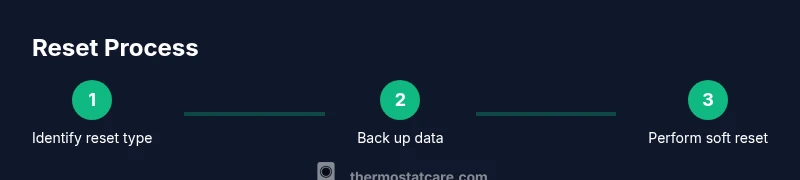
Use this decision flow: Start with a soft reset; test the results and verify that the thermostat responds to basic commands. If issues persist, back up schedules and perform a factory reset. Re-enter Wi‑Fi credentials and reconfigure connected services, then test for 24–48 hours to confirm stability. If problems recur after a factory reset, you may have a hardware issue or an unfavorable integration with your HVAC system. Keep the manual nearby and follow model-specific instructions to avoid data loss or improper settings.
After the Reset: Reconfiguring and Verifying
Once the reset completes, re-enter essential settings carefully. Reconnect to Wi‑Fi, re-enable any smart-home integrations, and restore schedules if you backed them up. Double-check temperature readings against a known reference (a thermometer in the room can help) and verify that energy-saving modes operate correctly. Set up reminders for routine checks, such as battery replacement or sensor calibration, so you aren’t surprised by glitches later. If you notice continued drift or unexpected behavior, run through the troubleshooting flow again or contact support.
When Reset Isn’t Enough: Next Steps
If a reset doesn’t fix the issue, there are several paths forward. Check for firmware updates, inspect wiring at the HVAC control board, and verify that sensors are clean and properly positioned. If the problem seems isolated to a single room or zone, consider a zone or sensor replacement rather than a full thermostat swap. For persistent or unsafe conditions (e.g., the thermostat overheats, or the HVAC system cycles too frequently), contact a licensed HVAC technician. Thermostat Care notes that systematic troubleshooting often reveals whether the root cause is software, connectivity, or hardware.
Preventive Thermostat Care to Minimize Glitches
To reduce the need for resets, perform regular maintenance: keep the thermostat free of dust, ensure the faceplate is seated properly, and verify that the unit stays within its operating temperature range. Schedule periodic firmware checks, review energy reports, and test app integrations quarterly. A well-maintained thermostat not only avoids unnecessary resets but also improves comfort and energy efficiency over time.
Tools & Materials
- Thermostat owner's manual(Keep for model-specific reset instructions)
- Smartphone or tablet with thermostat app(Needed for app-based resets on smart thermostats)
- Reset pin or paperclip(Used to press recessed reset button on some models)
- Access to the thermostat power supply(Ensure the unit is powered during reset (avoid power disruption))
- Backup schedules (optional)(Some models offer backup export/import options)
Steps
Estimated time: 5-15 minutes
- 1
Prepare and locate reset option
Identify the correct reset method for your model from the manual or manufacturer support site. Decide whether to use a soft reset, factory reset, or app-based reset depending on the symptoms.
Tip: Having the manual handy avoids choosing the wrong reset and losing data. - 2
Back up important settings
If your model supports exporting schedules or preferences, save a copy before resetting to minimize re-entry work.
Tip: This saves time and preserves your preferred climate routines. - 3
Perform a soft reset first
Execute the soft reset through the device menu or app and monitor how the thermostat responds over the next few minutes.
Tip: Soft resets are reversible and preserve schedules in most cases. - 4
Evaluate results and decide on a factory reset
If issues persist, proceed to a factory reset after confirming you’ve saved settings and notes about the current configuration.
Tip: Only use factory reset when soft reset fails to resolve the problem. - 5
Reconfigure and test
Re-enter Wi‑Fi credentials, restore schedules, and verify that basic commands work (adjust temp, change modes).
Tip: Test across several hours to ensure stability. - 6
Monitor and document outcomes
Keep a note of any recurring issues and whether the reset solved them. If not, seek professional help.
Tip: Documentation helps you identify patterns across multiple resets.
Questions & Answers
Do I need to reset after a power outage?
Power outages can cause firmware hiccups; a soft reset typically resolves them. If issues persist, consider a factory reset after backing up data.
Power outages can cause glitches; a soft reset often fixes them. If problems continue, a factory reset may be needed after backing up data.
What’s the difference between soft reset and factory reset?
A soft reset restarts the device, preserving most settings, while a factory reset returns it to defaults and usually clears schedules.
A soft reset restarts the thermostat and keeps your settings; a factory reset clears everything and restores defaults.
Will resetting erase my schedules?
A factory reset typically erases schedules; a soft reset usually preserves them. Check your model’s backup options.
Factory resets erase schedules, soft resets usually don’t. Check for backup options.
How long does a reset take?
Most resets complete within a few minutes. If the device reboots slowly, give it extra time and avoid interrupting power.
Most resets finish in minutes; if it’s slow, give it time and don’t unplug it.
If the thermostat is not cooling or heating properly, is a reset helpful?
A reset can fix minor control glitches, but persistent HVAC issues may require service. Start with a soft reset before calling support.
Reset can fix light glitches; if problems persist, you may need service.
Should I reset if readings are inaccurate?
Inaccurate readings can stem from sensor drift or calibration. Try a soft reset and recheck; factory reset may calibrate defaults.
Resetting can recalibrate readings; try soft reset first.
Watch Video
What to Remember
- Reset only when needed to fix glitches
- Soft reset first, factory reset last
- Back up schedules if possible
- Reconfigure after reset and test
- If issues persist, seek professional help