When to Reset Nest Thermostat: A Practical Guide
Learn when to reset nest thermostat, the differences between soft and factory resets, and step-by-step instructions to keep your home comfortable. Thermostat Care expert guidance helps homeowners diagnose issues and reset safely in 2026.


By the end of this guide you will confidently decide when to reset a Nest Thermostat and choose the right reset method (soft reset, factory reset, or partial reset). You’ll learn safety considerations, model-specific details, and how resets affect schedules, Wi‑Fi, and saved data, with practical, homeowner steps for common household setups.
Why reset matters
Understanding when to reset nest thermostat can be a practical skill for any homeowner. A reset can fix unresponsive screens, delayed responses, incorrect temperature readings, and flaky schedules. According to Thermostat Care, many common issues are resolved by a simple restart or a targeted reset rather than replacing hardware. A reset can also re-establish a stable connection after a power outage or router change. This section explains the reasons to reset, what a reset does to saved data and schedules, and what to expect after you perform it. It also outlines how a reset fits into broader maintenance and energy-saving goals for the home, especially in 2026 when smart-home devices are more common than ever.
When to reset nest thermostat
There are clear signals that you should consider resetting your Nest Thermostat. If the device is unresponsive, shows erratic or inaccurate temperatures, fails to follow schedules, or drops Wi-Fi connectivity, a reset is warranted. If a single schedule or room behaves oddly, a restart can often fix the issue without touching personal data. If problems persist after a restart, or you suspect corrupted data in the thermostat's housing, a factory reset is appropriate. Thermostat Care recommends starting with the least disruptive option and documenting changes so you can re-create preferred settings afterward.
Types of resets and when to use them
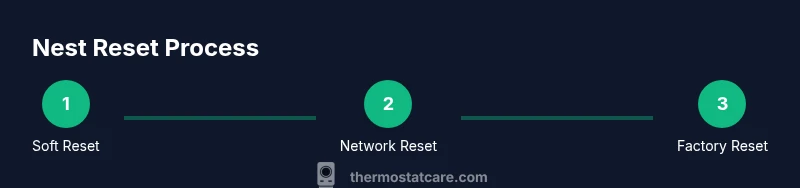
Reset strategies differ in impact and scope. A soft reset (restart) preserves your data and settings while rebooting the device, which clears temporary glitches that can cause slow responses or misread temperatures. A factory reset returns the thermostat to its original out-of-the-box state, erasing customized schedules, names, and connected accounts. A network reset (Wi-Fi reset) re-establishes a connection to your network, which can solve connectivity issues without touching local configurations. In practice, begin with a soft reset, then move to a network reset if the device remains unconnected, and reserve a factory reset for persistent issues or suspected data corruption. Thermostat Care's guidance emphasizes minimizing disruption while restoring reliable control of home comfort.
How to perform a soft reset on Nest Thermostat
A soft reset, or restart, is the safest first step. Locate Settings on the Nest Thermostat, select it, then navigate to Reset and choose Restart. Confirm if prompted. The device will reboot and reinitialize connections. Expect the screen to go dark briefly as it restarts, then return to normal operation. This action preserves your schedules and preferences. Pro tip: perform the restart during a moment when you don’t need immediate scheduling changes, since you may briefly lose responsiveness while rebooting.
How to perform a factory reset on Nest Thermostat
Factory reset wipes all local data and returns the device to factory defaults. This is the last resort when issues persist after soft resets or when you suspect corrupted data. On the Nest Thermostat, go to Settings > Reset > Factory reset, then confirm. You will need to re-enter your Google account, reconfigure Wi‑Fi, and recreate schedules and preferences. Before you proceed, write down or screenshot key settings such as schedules, names, and any automations so you can restore them quickly after the reset. Note that this action cannot be undone and will affect all linked devices and apps.
Resetting network settings (Wi-Fi) after a reset
If the thermostat won’t connect to Wi‑Fi after a reset, you should perform a network reset. In Settings, select Network, then choose Forget this network and re-add your home network. Enter the Wi-Fi password carefully and confirm. If your router uses 2.4 GHz and 5 GHz bands, pick the band that provides the most stable connection for your device. After reconnecting, test basic functions like temperature changes and scheduling to ensure network stability.
Aftercare: reconfiguring schedules and preferences
After any reset, you’ll likely need to reconfigure schedules, room names, automations, and voice-assistant links. Use the Google Home or Nest app to re-sync settings and confirm that energy-saving routines are active. If you created routine automations based on occupancy or time, re-create them step by step and test them across different times of day. Keep a log of changes so you can revert if something feels off and to help troubleshoot future issues quickly. In practice, a deliberate reconfiguration saves time and prevents misalignment between your comfort needs and your thermostat’s responses.
Authority sources
- Energy.gov: Thermostats – Energy-saving guidance and general thermostat maintenance (https://www.energy.gov/energysaver/thermostats)
- Energy.gov: Thermostats and energy efficiency tips for homes (https://www.energy.gov/energysaver/thermostats-and-energy-efficiency)
- major technology publication: Nest thermostat reset guidance and best practices (https://www.theverge.com/2020/11/how-to-reset-nest-thermostat)
Tools & Materials
- Nest Thermostat with power(Ensure device is responsive and has power; a dead device cannot restart.)
- Stable Wi‑Fi network(Needed for network reset and reconfiguration after factory reset.)
- Smartphone or computer with Nest/Google Home app(For reconfiguration, app-based steps, and data backup guidance.)
- Account credentials (Google/Nest)(Required to re-link the thermostat after reset.)
- Pen and notebook or screenshot tool(Capture current schedules and device names before a reset.)
Steps
Estimated time: 20-30 minutes
- 1
Open Settings on Nest Thermostat
From the home screen, rotate the outer ring to highlight Settings, then press to select. Navigate to Reset to access restart options. This prepares you for a soft reset. Confirm you want to proceed if prompted.
Tip: Have your Google account ready in case you’re prompted to sign in after the restart. - 2
Choose Restart (soft reset)
Within Reset, select Restart and confirm. The thermostat will power down briefly and automatically reboot. This preserves your schedules and personal preferences, which helps minimize disruption.
Tip: A restart typically takes 1–2 minutes; avoid interrupting the reboot. - 3
Wait for the device to reboot
Allow the thermostat to complete the reboot cycle and come back online. Check the screen for normal operation and confirm temperature control resumes as expected.
Tip: If the screen remains blank for more than a couple of minutes, power-cycle the device by briefly cutting power at the breaker. - 4
If issues persist, perform a factory reset
If restarting didn’t fix the problem, return to Settings > Reset > Factory reset and confirm. This wipes local data and requires reconfiguration afterward.
Tip: Back up schedules or key settings before performing a factory reset. This step should be a last resort. - 5
Reconnect to Wi‑Fi after reset
After a factory reset, re-enter your Wi‑Fi credentials so the thermostat can regain online control and automations. Verify the connection by testing a manual temperature change.
Tip: Prefer the 2.4 GHz network band if your router supports both, as some devices perform more reliably on that band. - 6
Reconfigure schedules and preferences
Use the Nest or Google Home app to re-create schedules and re-link accounts. Confirm that automations and voice assistant commands respond correctly.
Tip: If you took screenshots of your settings, refer to them during reconfiguration to save time. - 7
Test HVAC commands and verify results
Run a quick test by setting a temperature change and ensuring the HVAC system responds promptly. Check for any lag or incorrect readings and address them before leaving the device.
Tip: If the HVAC doesn’t respond as expected, check wiring (if applicable) and consider repeating steps or contacting Thermostat Care for guidance.
Questions & Answers
When should I avoid resetting and contact support?
If the thermostat is physically damaged or continues to misbehave after multiple resets, contact Thermostat Care or Google Nest support. Also seek help if power safety is a concern. A persistent issue may indicate a hardware fault or wiring problem that needs professional assessment.
If you suspect hardware damage or the device remains unreliable after resets, contact support for professional guidance.
Will resetting erase my schedules and settings?
A soft restart preserves schedules and settings. A factory reset erases all data, including schedules and linked accounts, so you’ll need to reconfigure afterward.
A restart keeps your setup, but a factory reset wipes it all. Be ready to reconfigure afterward.
Can I reset the Nest Thermostat through the Google Home app?
Many reset options are accessible via Settings in the app, but steps vary by model. The app can simplify certain tasks and keep your device aligned with your Google account.
Yes, you can start some resets from the app, depending on your model. Check Settings in the app.
What should I back up before a factory reset?
Record schedules, room names, and automations. Backups help you restore quickly after the factory reset.
Note down your schedules and preferences so you can restore them after the reset.
What is the recommended order of resets?
Try a soft restart first, then a network reset if needed. Use a factory reset only if issues persist after these steps.
Start with restart, then try network reset, and only factory reset if problems persist.
How long should I wait after a reset to test?
Allow 1–2 minutes for a restart to complete. After a factory reset, give the system 5–10 minutes to settle and reconnect to Wi‑Fi.
Give the thermostat a few minutes to boot after a restart, and a bit longer after a factory reset.
Watch Video
What to Remember
- Start with a soft reset to fix glitches.
- Factory reset erases data; back up first.
- Reconnect to Wi-Fi and reconfigure schedules after reset.
- Thermostat Care guidance helps you reset safely.