Restart Nest Thermostat: A Complete Troubleshooting Guide
Learn how to safely restart your Nest thermostat to troubleshoot common issues. This educational guide covers soft resets, power cycles, factory resets, and how each option affects schedules and learning features.


By following this guide, you will safely restart your Nest thermostat to resolve common performance issues. You’ll learn the difference between a soft reset, a power cycle, and a factory reset, plus when each method is appropriate. Have your Nest device, a stable Wi‑Fi connection, and a smartphone with the Nest app ready.
Why Restarting a Nest Thermostat Helps
Restarting a Nest thermostat can clear temporary glitches, refresh its connection to Wi‑Fi, and re-sync its schedules with your HVAC system. When you notice delays in temperature updates, slow responses, or odd readings, a restart often fixes the issue without altering your configured schedules. This section lays the groundwork, explaining what restarts accomplish and why they’re a safe first step in troubleshooting. Thermostat Care’s guidance emphasizes actionable, low-risk steps homeowners can perform themselves. Remember that repeated issues after a restart may signal a deeper problem with the thermostat or the HVAC wiring, which would require closer inspection.
Key idea: restart nest thermostat operations are designed to be non-destructive to your saved settings, but there are distinct restart methods with different outcomes. By understanding these methods, you’ll choose the right option for the symptom you observe and avoid unnecessary resets that erase data or learning preferences.
Quick Diagnosis Before Restart
Before you initiate any restart, perform a quick diagnosis to distinguish thermostat problems from HVAC or wiring issues. Check if the Nest app shows error codes, verify that the thermostat responds to taps and wheel actions, and confirm that your home’s Wi‑Fi is stable. If the device displays a blank screen, if the touchscreen is unresponsive, or if temperature readings jump erratically, note the exact behavior and any recent changes (app updates, power interruptions, or recent wiring work).
Keep a simple checklist handy: Is the thermostat connected to Wi‑Fi? Do other smart devices on your network operate normally? Has there been a recent power outage? Armed with these clues, you can tailor your restart approach and avoid unnecessary steps.
Soft Reset vs Power Cycle vs Factory Reset
Understanding the three main restart options helps you choose the safest path:
- Soft reset (restart via the app): Restarts the thermostat without erasing schedules or learning data. This is the quickest and least disruptive option when minor issues appear.
- Power cycle (cutting power to the thermostat): Involves powering down and back up the controller, which can clear deeper connectivity glitches but may interrupt ongoing HVAC operations temporarily.
- Factory reset: Restores the thermostat to its original out‑of‑the‑box state, erasing schedules, learned behavior, and connections. Use only when troubleshooting persistent problems or selling/trading the device.
Thermostat Care notes that starting with a soft reset is best practice, reserving power cycles for unresponsive devices and factory resets for problems that persist after other methods.
If you’re unsure which method to pick, begin with the least disruptive option and proceed step by step.
Step-By-Step Context for Restart Scenarios
There are two broad paths for restarting a Nest thermostat: through the Nest app (soft reset) and through electrical power control (power cycle). If your device is unresponsive or the app cannot communicate with the thermostat, a power cycle may be needed. If the device is reachable and mostly functioning, a soft reset frequently resolves minor glitches without affecting schedules. In both cases, ensure you have access to the Nest app and a reliable power source before starting.
Safety Considerations and Precautions
Always prioritize safety when restarting a thermostat that is connected to household power. If you must cut power, do so at the circuit breaker labeled for the HVAC system or the thermostat’s dedicated breaker. Do not work inside the wall box or tamper with wiring beyond what the manufacturer recommends. If you hear buzzing, smell burning insulation, or observe any signs of arcing, turn off power immediately and contact a licensed electrician. Use a digital thermometer or the Nest app to confirm that readings return to expected ranges after the restart.
Troubleshooting Common Post-Restart Issues
After a restart, you may encounter minor residual issues. The thermostat might take a few minutes to re‑establish a stable connection or re-download the latest software. Some users report momentary delays in temperature updates or brief misreads as the device re‑learns your schedule. If problems persist beyond 10–15 minutes, recheck your Wi‑Fi strength, verify the HVAC equipment is functioning correctly, and re-run the appropriate reset method. Thermostat Care’s approach emphasizes patience and methodical testing rather than jumping to a factory reset at the first sign of trouble.
How Restart Affects Schedules and Learning Features
Nest devices rely on learning over time, adjusting to your routines. A soft reset typically preserves schedules and learned behavior, while a power cycle can momentarily interrupt data collection but should not erase schedules. A factory reset, by contrast, wipes learning data and could require you to re‑enter routines. If you rely on geofencing, occupancy sensing, or time‑based schedules, plan for a brief re‑setup after a full reset. Thermostat Care recommends documenting your typical routines so that you can restore them quickly after any reset.
When to Seek Professional Help
If you have attempted soft resets and power cycles multiple times without stable results, or if you notice unusual HVAC behavior after a restart (short cycling, incorrect fan operation, or uneven heating/cooling), this may indicate a wiring or equipment issue. In such cases, consulting a licensed HVAC technician or a qualified electrician is advisable. Do not bypass safety protocols or attempt internal wiring repairs on a high‑voltage system. Timely professional help can prevent energy waste and potential equipment damage.
Maintain Your Nest Thermostat After Restart
Post‑restart maintenance helps keep your system reliable. Check for firmware updates in the Nest app, verify that the thermostat appears online, and confirm that all schedules and modes are intact. If you notice the screen dimming or slow to respond after updates, perform a quick soft reset to clear minor glitches. Keep the app updated and back up your preferred settings in case you need to recover them after a future reset. Regular checks reduce the likelihood of recurring restart needs.
Tools & Materials
- Nest thermostat device(Have the model handy (Nest Thermostat, Nest Thermostat E, or Nest Learning Thermostat) to follow model-specific steps.)
- Smartphone with Nest app(Ensure the app is updated to the latest version.)
- Stable Wi-Fi network(A reliable connection helps with app-based restarts and updates.)
- Circuit breaker labeled for HVAC(Needed only for a power cycle; identify the correct breaker before turning power off.)
- Small flathead or paperclip (reset hole) optional(Some Nest models have a recessed reset option.)
Steps
Estimated time: 20-40 minutes
- 1
Power cycle the thermostat (if unresponsive)
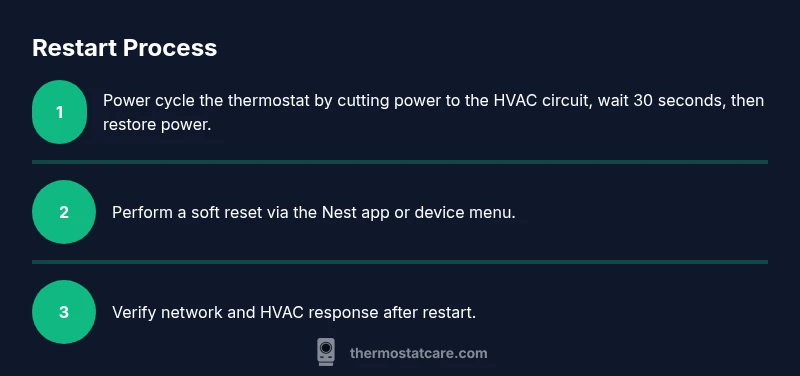
Locate the HVAC circuit breaker that supplies power to the thermostat. Flip it to the Off position, wait 30 seconds, then flip it back to On. This creates a full power cycle to clear stubborn connectivity or control issues without affecting saved data.
Tip: Label the breaker before turning it off so you can easily restore power later. - 2
Perform a soft reset via the Nest app
Open the Nest app, go to Settings > Reset, and choose Restart. The device will reboot, preserving schedules and learning data while refreshing connections.
Tip: If the app cannot connect, proceed to step 3 but avoid more aggressive resets until connectivity is restored. - 3
Restart using thermostat controls (if applicable)
On compatible models, navigate to Settings > Restart on the thermostat display and confirm. The device will reboot in place, which is quick and non-destructive to your programming.
Tip: If you cannot access the screen or settings, rely on the app-based restart or power cycle. - 4
Verify network and HVAC response
After the restart, test temperature adjustments, fan control, and mode changes. Confirm the thermostat reports the correct temperature and that the HVAC responds as expected.
Tip: Run a quick temperature spike and check if readings align with actual room temperature. - 5
Check schedules and learning after restart
Review that your programmed programs, geofencing, and occupancy features are intact. If learning behavior seems off, give the thermostat a day to re-adjust while monitoring performance.
Tip: Document your typical routines so you can quickly restore them if needed. - 6
Factory reset only if issues persist
If persistent glitches occur after multiple restarts, consider a factory reset. Note this erases schedules and learning data; re-enter your preferences after the reset.
Tip: Backup important settings and confirm you want to erase all data before proceeding.
Questions & Answers
What is the best way to restart a Nest thermostat?
Start with a soft reset via the Nest app. If unresponsive, perform a power cycle by cutting power at the HVAC circuit breaker, then re-apply power. Use a factory reset only if the problem persists after these steps.
Begin with a soft reset in the app. If that doesn’t help, power cycle the system at the breaker, and only consider a factory reset if issues persist.
Can I restart Nest Thermostat without removing it from the wall?
Yes. Soft resets via the Nest app or a built-in restart option do not require removing the unit. A power cycle may require turning off the circuit breaker.
Yes. You can restart from the app or the device if available; power cycling only needs the breaker.
Will restarting erase my schedules or learning data?
Soft resets preserve schedules and learning data. A factory reset erases all customization and learned behavior, so back up any critical settings before proceeding.
A soft reset keeps your schedules; a factory reset wipes everything, so use it with care.
How long does a restart take?
Most restarts complete within a few minutes. If you perform a factory reset, allow additional time for reconfiguring settings after the reset.
Most restarts finish in a few minutes; factory resets take longer because you’ll need to re-enter settings.
Should I restart after a power outage?
Yes. Power outages can affect connectivity and schedules. Restarting ensures the thermostat re-syncs with the HVAC system and your network.
Yes—restart after power returns to re-sync the thermostat with your HVAC and network.
What should I do if the screen is blank after restart?
Check that the thermostat is powered, and the display brightness is not turned down. If the screen remains blank, perform a power cycle again or contact support.
If the screen stays blank, verify power and brightness, then repeat the restart or seek help if needed.
Watch Video
What to Remember
- Start with a soft reset to preserve data.
- A power cycle can fix deeper connectivity issues.
- Factory reset erases schedules and learning data.
- Verify network and HVAC response after restart.
- Document routines to speed restoration after reset.