Nest Thermostat Issues: Troubleshooting Guide for Homeowners
Urgent, practical guide to diagnose and fix common Nest thermostat issues, including power, connectivity, and wiring problems. Learn safe, proven fixes to restore comfort quickly.


Most Nest thermostat issues stem from power loss, Wi‑Fi connectivity, or wiring problems. Start with the simplest checks: verify power to the thermostat, reboot the device, and re‑connect to Wi‑Fi. If the screen remains unresponsive, the thermostat won’t learn schedules, or it won’t heat or cool reliably, use this structured troubleshooting guide to identify the root cause and apply safe fixes.
Why Nest Thermostat Issues Happen
According to Thermostat Care, most Nest thermostat issues stem from power or connectivity problems, not mysterious hardware faults. In practice, the majority arise from a marginal 24V supply, a loose C-wire, an unstable wireless network, or an out-of-date firmware that causes the device to misread schedules or fail to update. Start by checking the basics: is the unit receiving constant power? Is the common wire connected securely at both ends? Is the router functioning normally with the Nest device authorized? By focusing on these root causes first, you can often restore stability quickly and avoid more invasive diagnostics. Many homeowners report that a simple power cycle, re-wiring a loose connection, or a router reboot resolves issues that seemed complex at first. The Thermostat Care team has seen this pattern repeatedly in 2026, reinforcing the idea that methodical checks beat guesswork.
Common Symptoms You Might See
If your Nest thermostat is malfunctioning, you’ll recognize a pattern: the screen is blank or unresponsive, the device fails to connect to Wi‑Fi, schedules aren’t applied, or the HVAC system ignores commands. You may notice inaccurate room temperature readings, delayed reactions to temperature changes, or the thermostat dropping offline from the cloud. These symptoms often point to a power issue (like a weak or missing C-wire), a connectivity problem, or outdated firmware that needs attention. The goal is to separate symptoms from root causes and tackle the simplest, most likely fixes first. Thermostat Care’s guidance emphasizes starting with power and network checks before diving into more intricate wiring or app configurations.
Quick Checks You Can Do Before You Call for Help
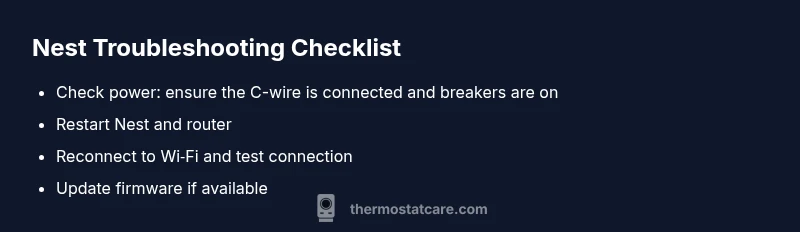
Begin with the fundamentals: verify that the thermostat is receiving power and that the C-wire is properly connected at both the thermostat and the furnace or air handler. Reboot the Nest thermostat via the settings menu and reboot your Wi‑Fi router. After reboot, try reconnecting the Nest to your home network and confirm the router is not blocking devices or limiting the Nest’s bandwidth. If you still see issues, check for firmware updates in the Nest app and attempt a soft reset. Document what you observe (screens, error codes, timings) to help with any future support.
Diagnostic Pathway: Symptom → Diagnosis → Solutions
This section guides you through a logical flow from common symptoms to probable causes and practical fixes. For example, if the Nest screen is unresponsive, the likely culprit is power or a failed C-wire; the remedy is a power check and secure wiring. If connectivity is the problem, the diagnosis points to Wi‑Fi signal strength or router settings. If readings are off, firmware and sensor calibration become the focus. Each symptom should trigger a narrow set of fixes designed to be safe for DIY homeowners, with professional help recommended for complex wiring or electrical concerns.
Step-by-Step Fixes for the Top Issues
The following steps address the most common Nest thermostat problems in a practical, hands-on sequence. Step 1 covers power and wiring checks; Step 2 focuses on rebooting devices; Step 3 guides re‑connecting to Wi‑Fi; Step 4 walks through firmware updates; Step 5 tests HVAC response. Each step includes a clear action, a rationale, and a tip to avoid mistakes. If at any point you feel uncertain about wiring or safety, stop and contact a licensed electrician or a Nest‑certified technician. Safety first.
Safety Considerations and Common Mistakes
Electrical work can be dangerous if mishandled. Never work on live mains wires, and do not bypass safety features on the control board. Always switch off power at the breaker before inspecting wires. Common mistakes include pulling on cables, mixing up R and C wires, and misconfiguring network settings. If you smell burning, hear sizzling, or notice melted insulation, immediately cut power and call a pro. Following manufacturer guidance and Thermostat Care best practices reduces the risk of damage to your system.
Prevention: How to Keep Nest Thermostat Healthy
Preventive care goes a long way. Regularly inspect the C-wire connections, ensure the thermostat is mounted away from direct heat or sunlight, and keep the device’s firmware up to date. Periodically reboot the router and thermostat to minimize drift in the network connection. Maintain a simple, consistent schedule so the thermostat can learn reliably and avoid overfitting to transient conditions. A proactive approach can dramatically reduce future Nest thermostat issues.
Thermostat Care’s Final Recommendations
To minimize Nest thermostat issues, treat power, network, and firmware as the three pillars of reliability. Maintain secure C-wire connections, keep software current, and ensure your home network remains stable. If you continue to see problems after following this guide, contacting a professional is advised. The Thermostat Care team emphasizes that steady, incremental checks yield the safest, fastest resolution and protect your home comfort system for the long term.
Steps
Estimated time: 30-60 minutes
- 1
Check power and C-wire
Turn off power at the breaker before inspecting the thermostat wiring. Confirm the C-wire is securely connected at both the thermostat and the furnace control board. If you don’t read a steady 24V between R and C with a multimeter, fix or replace the C-wire or contact an electrician.
Tip: Use a non-contact voltage tester to confirm there is no live voltage on exposed conductors before touching wires. - 2
Reboot the thermostat
In the Nest app, initiate a restart. If the screen is responsive, select Settings > Reset > Restart. Wait 60 seconds for the device to come back online, then test basic functions (heat, cool, and standby).
Tip: Avoid unplugging the device directly from power; use the reboot option to prevent firmware conflicts. - 3
Re-connect to Wi‑Fi
Open Settings > Network on the Nest, pick your network, and enter the password. If the connection fails, reboot the router, disable guest networks temporarily, and try again. Ensure the router firmware is current.
Tip: Move the router closer to the thermostat temporarily to improve signal during setup. - 4
Update firmware
Check for updates in the Nest app, then install them. After updating, restart the thermostat and rerun a quick system test (send a few commands to heat and cool).
Tip: Do not perform firmware updates during extreme weather conditions or when the HVAC is under heavy load. - 5
Test HVAC response
Set a simple schedule and observe whether the HVAC responds within 5–10 minutes. Note any delays or miscommunications between the thermostat and the equipment.
Tip: If there’s a delay, capture the exact times and commands to help with troubleshooting or escalation.
Diagnosis: Thermostat won’t power on or connect to Wi‑Fi
Possible Causes
- highPower issue (C-wire or breaker problem)
- mediumWi‑Fi network instability or router misconfiguration
- lowSoftware glitch or outdated firmware
Fixes
- easyCheck the C-wire and main breaker; verify 24V at the thermostat base with a multimeter.
- easyRestart the thermostat and router; re-connect the Nest to your Wi‑Fi network.
- easyUpdate the Nest firmware and perform a soft reset if available.
Questions & Answers
Why won't my Nest thermostat connect to Wi‑Fi?
Wi‑Fi problems are usually solved by ensuring the thermostat has power, rebooting the device and router, and reconnecting to the network. If the issue persists, verify network settings and router compatibility with the Nest.
Wi‑Fi issues usually come from power or network glitches. Start with a reboot and re‑connection, then check network settings if needed.
My Nest thermostat won’t power on, what should I check?
Check that the thermostat is receiving power, inspect the C-wire connection, and verify the breaker hasn’t tripped. If power still won’t come on, consider testing the 24V with a multimeter and consult a professional if needed.
Power issues typically come from wiring or breakers—check those first, then test with a multimeter if you’re comfortable.
How do I reset my Nest thermostat without losing all settings?
Resetting via the Nest app can restore the device without erasing major configurations, but best practice is to document your current settings first. If you must reset, use the app’s reset option and reconfigure afterward.
You can reset from the app and reconfigure your settings afterward; always back up important preferences.
My Nest readings seem inaccurate. What should I do?
Inaccurate readings often point to sensor calibration or environmental factors. Ensure proper installation, avoid proximity to heat sources, and recalibrate if the app provides that option. If the problem persists, firmware updates may help.
If readings are off, check placement and calibration, then update firmware if available.
Is it safe to DIY electrical wiring for a Nest thermostat?
Do not attempt mains wiring or bypass safety features. If the C-wire or control board wiring is uncertain, hire a licensed electrician. Your safety and system integrity come first.
Electrical work can be dangerous—better to hire a pro for wiring questions.
How often should I update the Nest thermostat firmware?
Keep firmware up to date to improve reliability and security. Check for updates monthly or when prompted by the Nest app, and install during low HVAC load periods.
Update firmware when available to keep things running smoothly.
What if the thermostat is still failing after following this guide?
If issues persist after following these steps, contact Nest support or a certified technician. Have your troubleshooting notes ready to speed up diagnosis and ensure appropriate help.
If problems continue after trying these steps, seek professional help with your notes handy.
Watch Video
What to Remember
- Check power and C-wire first.
- Reboot devices before deeper fixes.
- Update firmware and re‑connect to Wi‑Fi.
- Only perform wiring tasks if you’re confident—call a pro for safety.
- Prevent future issues with regular maintenance.