Nest Thermostat Repair: A Practical DIY Guide for Homeowners
Learn practical steps to diagnose and repair common Nest thermostat issues—power, connectivity, and firmware. This DIY guide covers safety, tools, and when to call a pro. Thermostat Care provides expert guidance for homeowners.


By following this guide, you will diagnose and repair common Nest thermostat issues, including power supply problems, connectivity errors, and unresponsive screens. Before you begin, ensure you have access to the thermostat and its C-wire circuit, plus a compatible screwdriver. According to Thermostat Care, most Nest issues stem from simple power or wiring faults that homeowners can fix safely with the right steps.
Understanding Nest Thermostat Repair: What It Entails
Nest thermostat repair encompasses diagnosing and addressing power, connectivity, and sensor issues that prevent the thermostat from operating as intended. In practice, most problems fall into a handful of common categories: power supply problems, wiring or C-wire faults, software glitches, and connectivity setbacks. According to Thermostat Care, a careful analysis of symptoms often points to the simplest fault first, which speeds up resolution while reducing the risk of unnecessary replacements. This section clarifies what repairs involve, why they matter for your home's comfort, and how a methodical approach builds reliability and safety. You’ll learn to differentiate between a temporary glitch and a genuine hardware fault, and to prioritize fixes that improve efficiency and longevity.
Safety and Best Practices for DIY Repairs
DIY repairs on thermostats can be safe for competent homeowners, but they carry electrical risks if mismanaged. Always turn off the circuit breaker feeding the thermostat before touching any wiring, and use a non-contact voltage tester to confirm there is no live power in the thermostat circuit. Keep a clean, dry workspace and organize screws so you don’t lose them. If your Nest is installed in a high-traffic or hard-to-reach location, consider using a stable ladder and someone to assist. In any case, avoid forcing components or using improvised tools. Thermostat Care emphasizes that safety and accuracy trump speed, especially when dealing with 24-volt HVAC circuits.
Pre-Repair Diagnosis: Tools, Checks, and Planning
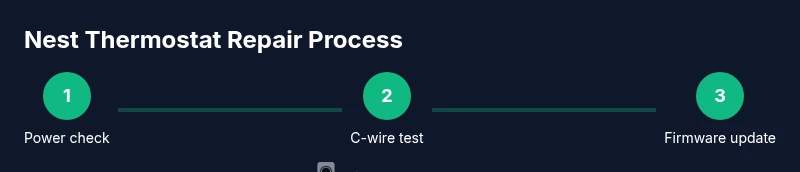
Before you reach for a screwdriver, outline a quick plan: identify the symptoms, gather the necessary tools, and determine if a simple reset might suffice. A basic toolkit should include screwdrivers (Phillips and flathead), a non-contact voltage tester, and a smartphone with the Nest app for remote checks and firmware updates. Take photos of the wiring at the base before you unplug anything so you can reassemble correctly. Create a simple checklist: confirm power availability, inspect the C-wire connection, verify the R-wire is intact, and document any error codes shown by the app. This planning stage minimizes missteps and saves time in the long run.
Power-Related Issues and the C-Wire Check
Power issues are among the most common reasons Nest thermostats misbehave. Start by ensuring the thermostat is receiving 24V AC from the HVAC system, and that the R and C terminals are clean and properly seated. A loose or corroded C-wire can cause intermittent power loss, leading to reboot cycles or display dimming. If you’re unsure about voltage levels, use a multimeter to measure the voltage between R and C; safely, a healthy Nest circuit should show approximately 24V. If the C-wire is missing or damaged, adding a dedicated common wire can stabilize power and prevent resets. Always power down before touching wiring and recheck connections after any adjustment.
Connectivity, Firmware, and App Integration
Connectivity problems often manifest as the Nest failing to connect to your home Wi‑Fi or repeatedly rebooting after an update. Ensure your router is broadcasting on a compatible frequency and that your Nest is within reliable range. In the Nest app, verify that the thermostat is enrolled in the correct Wi‑Fi network and that firmware updates have completed. Firmware issues can cause feature gaps or interface freezes; performing a controlled update can restore full functionality. If the device won’t connect after updates, you may need to re-enter network credentials or temporarily pause network security features that block new devices.
Common Fixes You Can Try (Carefully)
There are several non-invasive fixes you can attempt before calling a technician. Start with a soft reset from the Nest app or by pressing and holding the ring to access Settings, then choose Reset and restart. Clean the thermostat’s screen and panel with a dry microfiber cloth to remove smudges that obscure readings. Check that the thermostat is firmly mounted on its base and that the backplate is flush against the wall. If you notice a loose wire, reseat it and retighten the terminal screws. For power-related issues, replacing or tightening the C-wire connection can often resolve intermittent shutdowns. Remember to document each change in case you need to revert.
When to Call a Professional
If you’ve completed the basic checks and the Nest still won’t power on, won’t connect to Wi‑Fi, or reboots frequently, it’s time to involve a pro. Electrical safety and HVAC integration make professional repairs worth the investment when wiring or 24V control circuits are involved. A certified technician can test wiring integrity with appropriate equipment, confirm compatibility of the control board, and ensure that the thermostat is correctly communicating with the furnace or heat pump. Thermostat Care recommends seeking professional help when you’re unsure about wiring, if you detect scorching smells, or if the unit is under warranty constraints.
Maintenance Habits to Prolong Nest Lifespan
Ongoing care helps prevent repeat issues. Regularly update firmware to access the latest stability improvements and features. Keep the thermostat’s mounting area clean and free of dust, which can affect sensors and venting. Periodically check the C-wire for corrosion and confirm that the base screws remain snug. Finally, monitor energy usage and review any error codes in the app; early detection of anomalies can prevent larger problems. Thermostat Care notes that simple maintenance can extend the life of smart thermostats and improve performance over time.
Tools & Materials
- Screwdrivers (Phillips and flathead)(For removing thermostat faceplate screws and base screws)
- Non-contact voltage tester(To verify no live voltage before touching wiring)
- Smartphone with Nest app(For remote checks, updates, and step validation)
- Multimeter (optional)(Useful for measuring 24V between R and C if you’re comfortable)
- Notebook or photos app(Document wiring before disassembly and after wiring reassembly)
Steps
Estimated time: 30-60 minutes
- 1
Power down and safety check
Turn off the circuit breaker feeding the thermostat and confirm no voltage with the tester. This prevents shocks and protects the HVAC control board during inspection. If you’re uncomfortable with live wiring, skip to the professional option.
Tip: Always verify there is no power before touching any wires; err on the side of caution. - 2
Inspect mounting and wires at the base
Remove the faceplate and check that the base is securely attached to the wall. Look for loose screws or frayed wires and reseat any connections with the correct terminals. Don’t force wires into terminals; they should sit cleanly and snugly.
Tip: Take a photo of the wiring before removing anything, then reference it when reassembling. - 3
Test R and C connections
Using a multimeter or tester, verify that the R and C terminals are receiving ~24V and are not showing corrosion or loose contacts. If the C-wire is absent, consider running a dedicated common wire from the HVAC control board, or consult a pro for a safe solution.
Tip: If you see a low voltage reading, stop and seek professional help to avoid damaging the control board. - 4
Reset and update the Nest
In the Nest app, perform a soft reset or restart the thermostat. Check for available firmware updates and install them if offered. A fresh software state can clear glitches that cause freezing or misreadings.
Tip: Back up your settings before a reset to speed up reconfiguration. - 5
Reconnect to Wi‑Fi and verify operation
Reconnect the thermostat to your home Wi‑Fi network and run through basic functions: schedule, temperature adjustments, and sensor checks. Confirm that the device responds promptly and maintains a stable connection.
Tip: Keep a list of your Wi‑Fi credentials handy; incorrect passwords are a common source of connection failures. - 6
App and integration checks
Open the Nest app and ensure the thermostat appears online in the correct home setup. Verify that any integrations (Google Home, Alexa, or other automations) still function after the repair. If issues persist, compare app-reported error codes with official guides.
Tip: If a feature stops working post-update, try re-authorizing the app or removing and re-adding the device in the ecosystem.
Questions & Answers
Why won't my Nest thermostat turn on after an update?
Firmware updates can occasionally reset settings or require a full reboot. Ensure power is stable, then perform a clean restart from the app and recheck the energy settings.
If your Nest won’t power on after an update, restart the device from the app and verify the power supply and network connection.
What if I don’t see the C-wire in my thermostat base?
Some setups rely on a power-stealing method rather than a dedicated C-wire. If you lack a C-wire, you should consider adding a dedicated common wire from the HVAC control board or consult a professional.
If there’s no C-wire, you may need to add one from the furnace control board or get help from a pro.
How can I improve Nest Wi‑Fi connectivity?
Place the thermostat closer to the router if possible, reduce interference from other devices, and ensure your router supports the 2.4 GHz band. Reconnect in the Nest app and verify the signal strength.
Move the router or add a mesh extender, then reconnect in the app to improve signal.
When should I replace rather than repair a Nest thermostat?
If the device is repeatedly failing after multiple repairs or is out of warranty with costly issues, replacement may be more cost-effective and reliable in the long term.
If repairs keep failing and the unit is aging, replacement might be the better option.
Can I perform wiring repairs myself if I’m not an HVAC technician?
Basic checks like reseating wires and confirming connections are possible for confident DIYers, but anything involving 24V control circuits should be handled by a professional.
Basic reseating is okay for careful DIYers; for 24V controls, call a pro.
What signs indicate a failing Nest sensor or display?
If the display is intermittently unresponsive, colors shift, or sensors read incorrectly, it could indicate a faulty sensor or a degraded display that requires professional attention.
Unresponsive display or sensor readings that don’t match room conditions suggest a possible fault needing evaluation.
Watch Video
What to Remember
- Identify root causes before replacing components.
- Verify power, R/C wiring, and firmware updates in sequence.
- Maintain clear records of changes and settings during repair.
- Contact Thermostat Care if problems persist after basic fixes.