What is Wrong with Nest Thermostat? A Troubleshooting Guide
Urgent, step-by-step troubleshooting for Nest thermostat issues—from power and wiring to firmware and sensors. Learn to diagnose quickly and fix safely with practical tips.


Most Nest thermostat issues stem from power problems, wiring mistakes, or sensor misreads. Start with simple checks: ensure the thermostat has a live power source, test the C-wire, confirm batteries (if any) are fresh, and verify app connectivity. If this doesn't fix it, proceed with the step-by-step fixes and safety tips to avoid further damage.
Why what is wrong with nest thermostat often points to power or wiring
What homeowners and DIYers repeatedly encounter is a pattern: Nest thermostats behave oddly or stop responding when the basics aren’t solid. According to Thermostat Care, most early clues point to power delivery, wiring integrity, or sensor misreads rather than exotic hardware faults. This means you should validate the essentials before assuming a defective thermostat. Start with checking that the device is receiving proper voltage, that the C-wire (if used) is connected, and that there are no loose terminals. A clean, solid connection at the base and a recent restart can resolve many power-related glitches. By framing the question as what is wrong with nest thermostat in terms of these fundamentals, you can rapidly narrow down the root cause and avoid unnecessary parts replacement.
Quick checks you can do before touching wiring
Before you touch any wires, perform a fast, safe triage:
- Verify the thermostat is powered by a live circuit and the display is lit consistently.
- Confirm the batteries (if your model uses them) are fresh and inserted correctly.
- Check the thermostat’s connection to Wi-Fi and the mobile app; see if remote commands respond.
- Inspect the mounting plate for dust or corrosion and reseat the thermostat to ensure solid contact with the wall.
- Do not force wires or remove the faceplate without powering down the system.
If these checks don’t resolve the issue, move to more in-depth power and wiring diagnostics.
Power supply basics for Nest and why it matters
Nest thermostats rely on a stable power supply to maintain performance. If there isn’t a consistent supply, the device may reboot, display inaccurate readings, or fail to respond to button presses. A common scenario is a marginal C-wire or a power stealing design that can cause voltage dips. Understanding the role of the C-wire, the transformer, and the furnace/air handler can help you assess whether the issue is truly power-related. If you’re unsure, treat it as a high-priority safety matter and proceed with careful testing rather than guesswork. This approach aligns with best practices for thermostat troubleshooting and reduces the risk of voltage-related damage.
Wiring and installation pitfalls to avoid
Improper wiring is a frequent culprit when diagnosing what is wrong with nest thermostat. Loose terminals, shared wires, or incorrect wire color mapping can all trigger erratic behavior. Double-check that each wire is correctly terminated into the corresponding terminal on the Nest base and the furnace control board. If you added a C-wire, ensure it’s connected to the common terminal at both ends. Avoid splicing wires in the wall or tacking extra conductors into the wall cavity, which can introduce resistance and intermittent signals. If you find a mismatch, reterminate with the proper gauge wire and ensure a snug fit. In many cases, simply correcting wiring and reseating connections eliminates the fault quickly.
App, firmware, and connectivity: how software can influence behavior
Firmware bugs or app glitches can masquerade as hardware failures. Ensure you’re running the latest firmware and that the Nest app is up to date. A factory reset should be considered only after confirming there’s no user-related issue (account, location, geofencing). Connectivity problems—like weak Wi-Fi or router changes—can prevent the thermostat from receiving commands or reporting accurate data. If the device responds to local controls but not from the app, focus on network settings and re-link the thermostat to your account. Software fixes are often fast, inexpensive, and effective when hardware is sound.
Sensor readings, temperature interpolation, and placement impact
Sensors are only as good as their environment. If the Nest sits in direct sunlight, near a draft, or behind a large heat source, readings can drift. This misalignment might prompt the system to overcompensate, leading to overshooting or constant cycling. Move or shield the device if needed and allow an hour for readings to normalize after relocation. Pixel-level misreads can also stem from a dirty sensor face, so gently clean the sensor window with a soft, dry cloth. These environmental factors are common causes of what is wrong with nest thermostat and can be resolved without replacing hardware.
Error codes, faults, and when a reset helps
Many Nest models display generic fault messages rather than formal error codes. If you see a blinking LED, a disconnected icon, or a persistent error badge, consult the on-device troubleshooting guide and verify wiring again. A soft reset (restart) can clear minor glitches, but avoid frequent resets; repeated resets may mask deeper issues. If a reset doesn’t restore function, note the symptom and seek help. A professional diagnosis can uncover wiring or power delivery problems that aren’t obvious from the surface.
A practical look at the bottom line: top fixes you can try now
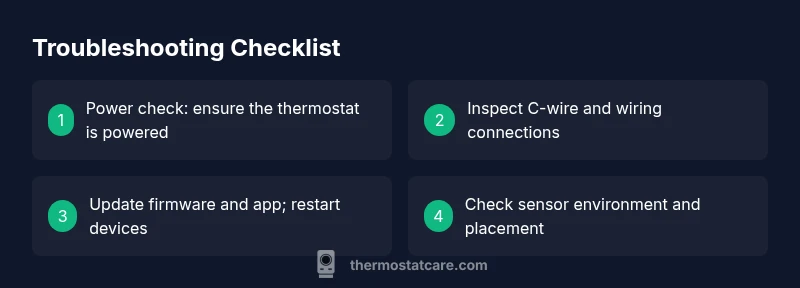
To prevent wasting time, concentrate first on power, then wiring, then software. If you’re comfortable, perform the following non-destructive checks: confirm power at the breaker, reseat all terminals, verify C-wire continuity, update firmware, and re-connect the thermostat to the app. When in doubt, pause and seek guidance. The goal is to restore reliable control without risking electrical safety or system integrity.
Steps
Estimated time: 30-60 minutes
- 1
Power check and safety confirmation
Turn off the main power to the thermostat at the breaker, then verify that the display reactivates when power is restored. Confirm the unit has a stable power source before proceeding with any other checks.
Tip: Always shut off power before touching wiring to avoid shock or equipment damage. - 2
Inspect C-wire and battery status
If your Nest uses a C-wire, ensure it is connected firmly at both ends and not pinched. Check batteries if the model supports them and replace if needed. A loose C-wire or dead battery can cause power instability.
Tip: Gently reseat wires and avoid bending copper excessively. - 3
Verify app connectivity and account linking
Open the Nest app and confirm the thermostat is online. Remove and re-add the device if it won’t respond to app commands. Check for recent firmware prompts within the app.
Tip: Make sure your phone’s network and VPN settings won’t interfere with local devices. - 4
Update firmware and perform a soft reset
If a firmware update is available, install it. After updating, perform a soft restart of the thermostat and the router to re-establish stable communication.
Tip: Do not interrupt the update; a partial install can brick the thermostat. - 5
Check sensor environment and location
Ensure the thermostat is not in direct sunlight, near vents, or adjacent to heat sources. Relocate if needed and allow time for readings to adjust.
Tip: Allow at least an hour for readings to stabilize after relocation. - 6
If unresolved, schedule professional help
When power and wiring checks fail to restore function, a licensed technician should assess the electrical system and control wiring for safety and compliance.
Tip: Document symptoms and steps tried to speed up diagnosis.
Diagnosis: Nest thermostat won't respond to changes or displays incorrect temperature
Possible Causes
- highPower issue (dead outlet, tripped breaker, dead battery)
- highWiring/C-wire problem or loose terminals
- mediumFirmware bug or app connectivity problem
- lowSensor misplacement or environmental interference
Fixes
- easyCheck the outlet and breaker; ensure the thermostat has power
- easyInspect and reseat all wires at the thermostat base and furnace board
- easyUpdate firmware and re-link to the app, then restart both devices
- mediumRelocate the thermostat away from sun, drafts, or heat sources; recalibrate readings
- hardIf issues persist, call a professional electrician or HVAC technician for power/wiring assessment
Questions & Answers
Why won't my Nest thermostat turn on even when the display is dark?
A dark display often indicates a power issue or a tripped circuit. Check the breaker, confirm power to the thermostat, and inspect the C-wire connection before replacing components.
If the display is dark, start with power and wiring checks, then consult the guide if it remains off.
Why is Nest not updating its temperature reading?
Temperature readings can drift due to sensor placement or environmental factors. Check for direct sunlight, drafts, or heat sources near the unit and relocate if needed.
If readings drift, inspect placement and wait for the sensor to recalibrate after any relocation.
What should I do if the Nest thermostat shows 'No power' error?
First confirm power at the breaker and test the C-wire. If power availability is confirmed, inspect wiring integrity and consider a firmware update before calling a professional.
No power usually means a power or wiring issue—check power and C-wire, then update firmware if needed.
Can I fix Nest thermostat wiring myself safely?
Wiring work should only be done with power fully disconnected and a basic understanding of HVAC wiring. If you’re unsure, contact a licensed HVAC technician to avoid hazards.
Only proceed if you’ve shut off power and understand the wiring scheme; otherwise call a pro.
Is it safe to reset the Nest thermostat?
A reset can clear glitches but won’t fix underlying power or wiring problems. Use resets sparingly and only after confirming the basics are sound.
Reset sparingly; it helps only after you’ve checked power, wiring, and connectivity.
How often should I update Nest firmware?
Keep firmware up-to-date to benefit from bug fixes and performance improvements. Schedule updates when you have time to monitor the device afterward.
Update when available and watch for improvements after installing.
Watch Video
What to Remember
- Check power and wiring first for quick wins
- Verify C-wire and app connectivity before hardware changes
- Update firmware and restart devices where possible
- Relocate sensor if readings seem biased by environment
- The Thermostat Care team recommends professional help if unresolved