Common Problems with Nest Thermostat: Troubleshooting Guide
This practical guide helps homeowners diagnose and fix common problems with Nest thermostat, covering power, Wi‑Fi, sensors, and software issues for fast, safe fixes.


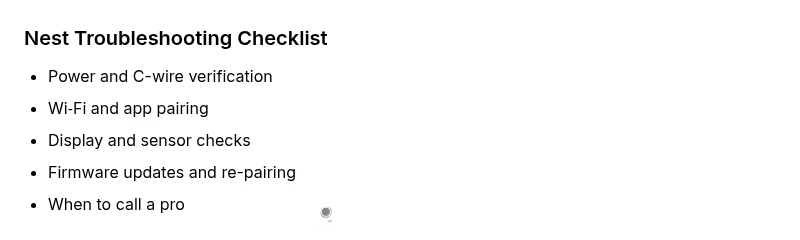
The most likely cause is a power or wiring issue, followed by network or firmware problems. Start by checking the breaker and the C-wire at both the thermostat and the furnace. If power is stable, recheck Wi‑Fi and app settings. If problems persist, consult the diagnostic flow and step-by-step fixes below.
Understanding Why Nest Thermostat Problems Happen
Nest thermostats can fail for a variety of reasons, but most issues fall into a few predictable categories: power supply, wiring stability, Wi‑Fi connectivity, and software or firmware glitches. When the thermostat won’t turn on, or the display is dim or unresponsive, start with the simplest checks before moving to more complex fixes. According to Thermostat Care, many common problems with nest thermostat begin with a marginal power supply or a loose wire. Recognizing the pattern helps homeowners triage quickly and safely, reducing the need for costly service calls. This section lays the groundwork by outlining typical failure modes and how they interact with your HVAC equipment. By identifying whether the symptom is power-related, connectivity-related, or software-related, you can prioritize steps that restore function without risking safety. Keeping a small diagnostic log—date, symptom, and the fix you tried—can speed future troubleshooting and prevent repeating steps. The Thermostat Care team emphasizes cautious, incremental testing so you stay in control of the resolution process.
Common Symptoms and Quick Checks
A blank screen, the absence of response to touch, or a thermostat that won’t power on are among the most frequent complaints. Before you touch live wires or attempt a reset, ensure the main power to the HVAC system is on and the thermostat is properly seated in its wall plate. If you’ve recently installed or moved the thermostat, re-check the wall wiring at both ends. Loose or damaged C-wire connections are a top culprit for power-related failures. If you see the display but it shows incorrect temperatures or drifts, this points to sensor calibration issues or firmware glitches. In all cases, avoid jumping to conclusions; systematic testing helps identify the root cause with less risk to you or your equipment. Thermostat Care recommends documenting symptoms, power status, and connectivity signals to guide the investigation.
Wiring and Power: The First Line of Defense
Power delivery through the C-wire and the 24-volt transformer is the life force of the Nest. If the thermostat isn’t waking up, it’s often due to a tripped breaker, blown fuse, or a loose wire at the thermostat or furnace control board. Inspect the circuit breakers or fuses dedicated to the HVAC system and reset or replace as needed. At the thermostat, verify that the C-wire is firmly connected and not pinched or damaged. At the furnace or air handler, ensure the C and Rh/Rc wires are secure and that the transformer is providing the correct voltage. If you cannot confirm power safely, contact a licensed HVAC technician. Handling electrical components carries a risk of shock or equipment damage, so proceed with caution and use proper PPE.
Connectivity and App Behavior
Wi‑Fi problems frequently manifest as the thermostat losing connection to the internet or failing to pair with the Nest app. Start by confirming your home network is active and stable. Reboot the router and restart the thermostat both, then retry the pairing process. If the thermostat shows weak signal strength, consider relocating the router or using a mesh system. Ensure you’re using the latest Nest app version and that the thermostat is linked to the correct Google account. If your network settings require a guest network or a firewall, you may need to whitelist the Nest service. Persistent connectivity issues could indicate firmware incompatibilities or account problems, which Thermostat Care recommends addressing with a full software update and re-pairing steps.
Display and Sensor Anomalies
Display issues—dim screens, freezing, or unresponsive touch—often indicate a sensor or calibration problem. Clean the screen gently with a microfiber cloth, then check if ambient light or temperature affects the touch responsiveness. Sensor drift can also cause inaccurate readings; re-calibrating or temporarily moving the thermostat away from direct sunlight or heat sources can help. If the display remains unreliable, a factory reset may be necessary, but this will erase saved schedules and preferences. Before resetting, back up any essential settings and confirm you can restore them afterward.
Firmware and Software Considerations
Software problems account for a surprising share of Nest troubles. Running outdated firmware or app versions can cause compatibility issues, random reboots, or misreadings. Check for firmware updates on the thermostat and ensure the Nest app is current. If updates fail, try a manual restart of the device and router, then attempt the update again. In some cases, removing and re-adding the thermostat to your Nest account resolves stubborn software glitches. Always back up settings if possible, and note any custom routines that might be affected by a reset or update.
HVAC System Checks: Safety First
If the Nest communicates that it is powering the HVAC equipment but the system doesn't respond, inspect the furnace control board and transformer. A weak transformer can cause intermittent power drops that manifest as thermostat resets. Look for signs such as buzzing noises at the air handler, warm or discolored wires, or a tripped furnace safety switch. Do not bypass safety components to test the system. If you suspect a transformer issue, call a licensed HVAC professional to test voltage and replace components safely. Keeping the control wiring clean and undamaged reduces future failure risk.
Step-by-Step Fixes for the Most Common Cause
When the symptom points to a power-related issue, start with the easiest checks. First, flip the HVAC breaker off and back on to reset the circuit. Then, at the thermostat, disconnect and reconnect the C-wire, ensuring a snug fit. Check the furnace control board connections for looseness and re-seat wires as needed. If the system still shows no power, measure the 24V supply at the furnace using a multimeter or consult a pro. For Wi‑Fi problems, reboot the router, reset the thermostat’s network settings, and re-pair to the Nest account. If none of these steps restore function, schedule a professional inspection to assess transformer health and wiring integrity.
Safety, Warnings, and When to Call a Pro
Electrical work or HVAC electrical components pose risk of shock or fire if mishandled. Always power down at the breaker before inspecting wiring, and never probe live connections with bare hands. If you can’t locate a loose wire, detect a burnt smell, hear buzzing from the blower, or see scorch marks, stop immediately and call a licensed technician. Thermostat Care notes that any significant hardware issue, such as a failing transformer or failed control board, requires professional handling to avoid further damage or safety hazards.
Prevention: Maintenance Tips to Avoid Future Issues
Regular maintenance reduces the odds of recurring Nest problems. Periodically confirm the C-wire remains secure and free from corrosion, clean dust from the thermostat vents, and update firmware promptly. Create a simple maintenance calendar: check connectivity quarterly, inspect wiring annually, and keep backup schedules in a safe location in case of resets. Invest in a basic power quality check for your HVAC circuit if you notice frequent resets or flickering displays. Over time, consistent upkeep translates to fewer outages and more reliable climate control.
Steps
Estimated time: 60-90 minutes
- 1
Power off and verify circuit safety
Turn off the HVAC breaker to reset power. Wait 60 seconds, then turn it back on. Check if the thermostat gains power or shows any display activity. If the screen remains blank, move to wiring checks.
Tip: Wear insulated gloves and use a non-contact tester on wires near the furnace. - 2
Inspect C-wire connections
Carefully remove the thermostat faceplate and inspect the C-wire at both ends. Re-seat the wire firmly and ensure the terminal is clean and free of corrosion. If the C-wire is damaged, replace it with a compatible wire gauge.
Tip: Take a photo of the wiring before changing terminals to guide reassembly. - 3
Check for loose or damaged wires
Inspect all wires connected to the furnace control board for looseness or burns. Tighten loose connections and replace any frayed wires. Ensure the wire colors match the thermostat’s wiring diagram.
Tip: Power off before performing any wiring inspection to avoid shocks. - 4
Re-test power and reconnect
Power the system back on and observe whether the thermostat powers up. If the display returns but shows incorrect readings, proceed to update firmware.
Tip: If you see an error code on the thermostat, note it for reference during updates. - 5
Update firmware and re-pair
Check for available firmware updates on the thermostat and app. Install updates, then re-pair the device to your account. Confirm the thermostat retains settings after the update.
Tip: Keep the device near the router during initial re-pair to ensure a stable connection. - 6
Test Wi‑Fi and app performance
If connectivity remains an issue, reboot the router, reset Nest network settings, and attempt a fresh connection. Verify the Nest app can control the thermostat without lag.
Tip: Temporarily disable VPNs or firewalls if they block device communication. - 7
Call a pro if issues persist
If you’ve exhausted the above steps and the thermostat still won’t power on or respond, schedule a professional inspection. A licensed HVAC technician can diagnose transformer health and wiring reliability safely.
Tip: Document symptoms and steps tried to accelerate professional troubleshooting. - 8
Record preventive steps
Create a short maintenance log with dates for firmware updates, wiring inspections, and power checks. Use the log to catch recurring problems early and reduce downtime.
Tip: Set calendar reminders to perform quarterly checks.
Diagnosis: Nest thermostat won't power on or shows a blank screen
Possible Causes
- highTripped circuit breaker or blown fuse
- highLoose or damaged C-wire connection
- mediumHVAC transformer or furnace control wiring issue
- lowOutdated firmware or app incompatibility
Fixes
- easyReset the HVAC circuit breaker and replace any blown fuses
- easyReconnect or replace the C-wire at both the thermostat and furnace
- mediumInspect and reseat wires on the furnace control board; replace damaged wires
- easyUpdate thermostat firmware and Nest app; re-pair devices
- hardConsult a licensed HVAC technician for transformer or control board replacement
Questions & Answers
Why is my Nest thermostat blank or unresponsive?
A blank screen usually points to power or wiring issues. Start by checking the circuit breaker and C-wire connections at both the thermostat and furnace, then verify power to the HVAC system.
If your Nest is blank, check power and wiring first, then verify the HVAC power is on. If it still doesn’t respond, continue with the troubleshooting steps.
How do I reset my Nest thermostat safely?
To reset, navigate to Settings > Reset > All Settings. This returns the device to factory defaults. Be sure to note your schedules before resetting since you’ll need to reconfigure after the reset.
Go to Settings, choose Reset, then All Settings. You’ll have to set it up again afterward.
Will Nest work without a C-wire?
Nest can operate without a C-wire in some configurations, but a proper C-wire reduces power draw issues. If you’re unsure, consult a professional to assess whether a common wire upgrade is needed.
It can work without a C-wire in some setups, but a C-wire is recommended for reliability. Consider a professional check.
How often should I update Nest firmware?
Install firmware updates when prompted. Updates fix bugs, improve security, and enhance compatibility with your HVAC system.
Update when available to fix bugs and improve reliability.
What if Nest won’t connect to Wi‑Fi after an update?
Restart your router and the thermostat, then re-pair the device to your account. Ensure your network password is correct and consider a temporary guest network if needed.
Restart both router and thermostat, then re-pair. Check the password and try a guest network if needed.
When should I replace my Nest thermostat?
If repeated issues persist after troubleshooting, or if the unit shows hardware failure symptoms, replacement may be more cost-effective than ongoing repairs.
If problems keep coming back after fixes, replacement might be the better option.
Watch Video
What to Remember
- Start with power and wiring checks before deeper fixes
- Keep firmware and app up to date to avoid glitches
- Prioritize safety and call a pro if you encounter wiring hazards
- Thermostat care and regular maintenance prevent future problems