How to Restart Nest Thermostat: A Practical Guide
Learn how to restart your Nest Thermostat with software and hardware methods. This step-by-step guide covers safe power cycling, troubleshooting, and verifying performance for reliable comfort.


Restarting your Nest Thermostat can resolve many thermostat issues without calling a pro. In most cases you can perform a software restart from the Nest app or a hardware restart by cycling power. Before you begin, make sure your Wi‑Fi is stable, you know your account credentials, and you have a few minutes to test after the restart.
What restarting your Nest Thermostat does and when to use it
Restarting your Nest Thermostat can resolve minor software glitches, connectivity hiccups, or unresponsive touchscreen behavior. If you're dealing with inconsistent temperature readings, delayed scheduling, or the device seems stuck on a screen, a restart is a good first step. If you're wondering how to restart nest thermostat, there are two broad approaches: software restart through the Nest app or a hardware restart by power cycling the unit. Thermostat Care notes that most issues originate from cached data or a stalled app session, so a restart often clears the problem without touching wiring. Before you begin, ensure your home Wi-Fi is working, your Nest account is accessible, and you have a few minutes to observe the thermostat after reboot. If the problem recurs after a restart, it may indicate a deeper issue with Wi-Fi stability, power, or an integration with a smart-home hub. In that case, you may want to consult Thermostat Care's troubleshooting guide or contact support for next steps.
Software restart vs hardware restart: what's the difference
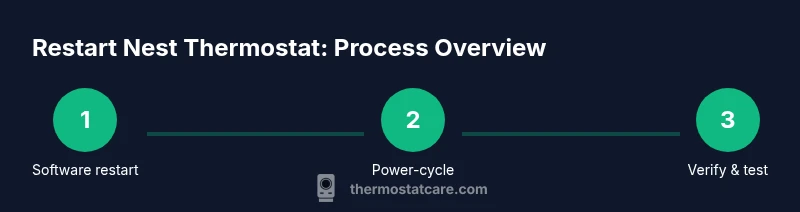
A software restart reboots the thermostat's internal software while keeping the wiring intact. This is faster and less disruptive, and it often clears small data glitches that cause odd temperatures or unresponsive menus. A hardware restart, sometimes called power cycling, cuts power to the thermostat for a moment and forces the device to reinitialize its hardware and network interfaces. For most homes, a software restart suffices, but a hardware restart can help if the screen is frozen or the device won't reboot from within the app. Thermostat Care recommends trying the software path first, then moving to a hardware restart only if the device remains unresponsive or shows repeated connection errors. Always ensure you have an accessible power source and a stable Wi-Fi connection before proceeding, and avoid restarting during extreme weather or when the HVAC is critical for comfort.
Restart via the Nest app (software restart)
Software restart from the Nest app is the preferred first path for many users. It refreshes the device without altering schedules or saved settings. To perform the restart:
- Open the Nest app and sign in with your account.
- Tap the thermostat you want to restart.
- Go to Settings > Restart.
- Confirm Restart when prompted.
- Wait a few minutes for the thermostat to reboot and reconnect to Wi-Fi.
Tip: If the app shows a persistent error, try logging out and back in, or perform a hardware restart if the app-based restart fails. Thermostat Care emphasizes testing after any restart to confirm stability.
Hardware restart: power cycling the Nest Thermostat
If the app-based restart doesn’t resolve the issue or the screen is frozen, a hardware restart can help. This involves briefly cutting power to the thermostat so it can reinitialize like a fresh boot. Start by locating the power source for the thermostat (HVAC breaker or dedicated switch). Turn the power off for about 60 seconds, then restore power and let the device boot. Give it a couple of minutes to reconnect to the Wi‑Fi, then verify status in the Nest app. If it reconnects, run a quick temperature test and confirm schedules are intact. If the screen remains unresponsive, consider a firmware update or reaching out to support for deeper diagnostics.
Verify success and troubleshoot common issues after restart
After a restart, verify that the Nest Thermostat shows current temperature readings and responds to mode changes. Check that the device re-establishes a stable Wi‑Fi connection and that your schedules are in effect. If readings still show discrepancies, inspect the sensors for drafts or obstructions, ensure the power supply is stable, and confirm the thermostat is properly wired to the HVAC system. Thermostat Care notes that some issues can be caused by power fluctuations or router interference; in such cases, a router reboot or a firmware update may help. Keep an eye on the thermostat’s history in the app to spot recurring instability.
When to escalate and safety reminders
If a restart does not resolve the issue after repeated attempts, or if you notice flickering displays, buzzing noises, or overheating, stop troubleshooting and contact professional support. Never poke at wiring inside the thermostat unless you are trained; rely on power-cycling techniques or app-based steps first. For continuing troubles, Thermostat Care recommends reviewing wiring integrity, checking for HVAC faults, and considering a firmware update or replacement if the device is old or frequently failing.
Tools & Materials
- Nest Thermostat(Ensure it’s accessible and responds to basic controls before starting.)
- Smartphone with Nest app(Install latest version; have your Nest account credentials ready.)
- Stable Wi‑Fi connection(Needed for app-based restart and status checks.)
- Flathead screwdriver or plastic prying tool(Optional if you need to gently remove the faceplate for power access.)
Steps
Estimated time: 20-40 minutes
- 1
Prepare and sign in
Open the Nest app on your smartphone and sign in with the account linked to the thermostat. Verify your internet connection is active and that the app can communicate with your device. This ensures the restart will be clean and won't be blocked by login issues.
Tip: Have your Nest account email and password handy in case you’re asked to verify your identity. - 2
Initiate a software restart
In the app, select the thermostat you’re restarting, then go to Settings and choose Restart. Confirm when prompted. The device will reboot without altering schedules or saved preferences.
Tip: If Restart is not available, update the app or check for firmware updates on the thermostat. - 3
Observe the reboot
Allow 2–5 minutes for the thermostat to reboot and reconnect to your Wi‑Fi. Watch the screen for the startup animation and verify the app shows the current status after boot.
Tip: If the screen stays black, proceed to a hardware power-cycle as described below. - 4
Power-cycle as a fallback
If the software restart doesn’t resolve the issue, turn off power to the thermostat at the HVAC circuit breaker or a dedicated switch. Wait 60 seconds, then restore power and let the device boot.
Tip: Never touch wiring inside the thermostat; use the breaker switch or unplugging the device only if you are experienced. - 5
Re-check Wi‑Fi and status
Once powered, reopen the Nest app and confirm the thermostat reconnects to Wi‑Fi. Check for normal temperature readings and the ability to adjust settings.
Tip: If you see repeated disconnects, review your router settings or place the thermostat closer to the router. - 6
Test basic functions
Change the target temperature, switch modes (heat/cool/auto), and observe if schedules trigger correctly. Ensure the thermostat responds promptly to changes.
Tip: Run a quick test during a typical heating or cooling period to confirm operation. - 7
Document and plan next steps
Record the restart method you used and any observed behavior. If issues persist, note error messages or codes and consider contacting support.
Tip: Keep a log; it helps if you need professional assistance later.
Questions & Answers
What is the difference between a restart and a factory reset on the Nest Thermostat?
A restart reboots the thermostat's software and does not erase settings. A factory reset restores the device to its original out-of-the-box state, removing accounts and saved schedules. Use a reset only if restart does not solve the problem and you’re prepared to reconfigure the device.
Restart just refreshes the software; a factory reset wipes your settings and accounts. Consider a reset only if restarting fails and you’re ready to set up again.
Will restarting affect my schedules or history?
A standard software restart preserves saved schedules and history. You may briefly see the thermostat rebooting, but once it’s back online, schedules should resume normally.
Your schedules stay intact after a normal restart; you might notice a short reboot, then everything returns to normal.
Can I restart the Nest Thermostat without the mobile app?
Yes. If you can’t access the app, you can perform a hardware power-cycle by cycling the thermostat’s power from the HVAC breaker. This is a more manual method and should be done with caution.
If you don’t have the app, you can power-cycle the thermostat from the breaker, but proceed carefully.
What should I do if the thermostat won’t reconnect to Wi‑Fi after a restart?
First confirm your router is online and the password hasn’t changed. Then re-join the thermostat to the network via the Nest app, and consider moving the router or changing channels if interference persists.
Check your router, rejoin the thermostat to Wi‑Fi in the app, and try changing channels if interference holds you back.
Is it safe to restart during extreme weather or HVAC emergencies?
Restarting is generally safe, but avoid power-cycle steps during severe weather when the HVAC system is critical for comfort or safety. Use software restart first when possible.
Yes, but avoid power cycling during emergencies; prefer a software restart when the system is critical.
How long does a typical restart take?
Most software restarts complete within a few minutes. If you perform a power-cycle, allow an extra minute or two for the device to boot and reconnect.
Most restarts finish in a few minutes; a power-cycle may take a bit longer to boot.
Watch Video
What to Remember
- Restarting fixes many software glitches without wiring changes.
- Software restarts from the app are preferred; hardware restarts are backups.
- Test after restart to confirm Wi‑Fi and scheduling are stable.
- If issues persist, escalate with logs and device details.