Reset Nest Thermostat: A Practical How-To Guide
Learn how to reset your Nest thermostat, when to use soft vs factory reset, and how to reconfigure after. This expert guide from Thermostat Care covers steps, cautions, and best practices for a smooth reset.


To reset your Nest thermostat, you can perform a soft reset from the device settings or a full factory reset from the Nest app or on-device. A soft reset preserves your schedules and connections, while a factory reset erases all data. Gather your Wi‑Fi password and Google account details before starting, and plan for a 10–15 minute setup afterward.
Why Reset Nest Thermostat Matters
Resetting a Nest thermostat can resolve stubborn glitches, improve connectivity, and refresh the device's behavior after software updates. According to Thermostat Care, a careful reset can fix misbehaving schedules, unresponsive controls, and flaky Wi‑Fi connections without needing a service visit or replacement parts. A reset is a deliberate restart of the thermostat's software and settings, not a physical repair, and it often restores normal operation with minimal downtime.
In practice, most homeowners encounter issues like delayed responses, wrong temperature readings, or difficulty connecting to the home network. A soft reset can address many of these symptoms by refreshing the system state while preserving user data such as schedules, room temperatures, and linked accounts. In contrast, a factory reset wipes all data and returns the thermostat to factory defaults, which requires reconfiguring the device from scratch. Understanding the difference helps you choose the right approach for your goal and avoid data loss and lengthy reconfiguration.
Soft Reset vs. Factory Reset: Definitions
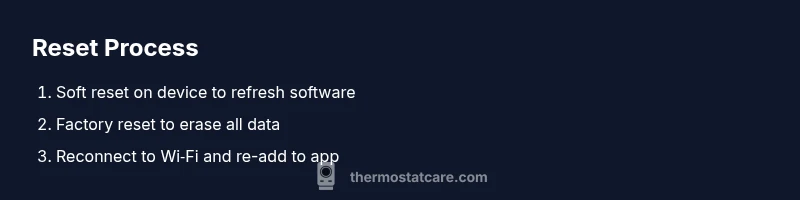
Soft reset reboots the device software and clears minor glitches without removing user data. It’s ideal for minor glitches and connectivity hiccups. Factory reset is a deeper restore that wipes all saved settings, schedules, and network credentials, returning the device to its original out‑of‑box state. After a factory reset, you must re‑pair the thermostat with your Nest account and re-connect to Wi‑Fi. The choice depends on the issue you face: try a soft reset first; move to factory reset only if problems persist or if you’re selling or giving away the device. This distinction helps you avoid data loss and lengthy reconfiguration.
When to Reset: Common Scenarios
Common scenarios include persistent temperature swings, a frozen screen, persistent connectivity problems after a network change, or after firmware updates that behave oddly. According to Thermostat Care analysis, most issues are resolved with a soft reset and a re‑pair to the network rather than a factory reset. If the thermostat fails to respond entirely or keeps losing settings after multiple attempts, a factory reset may be warranted. Always ensure the device has stable power and you have essential credentials ready for re‑setup.
Soft Reset via Device Interface: Step‑By‑Step
A soft reset is the gentler option and keeps your personal data intact. From the home screen, open Settings, select Reset, and choose Soft Reset. Confirm when prompted. The thermostat will reboot and return to operation with the previous schedules and accounts intact. If you notice continued issues, verify that your network is stable and your account is still linked correctly.
Soft Reset via the Nest App (If Applicable)
Some Nest models support initiating a soft reset from the Nest app. If your device supports this, open the app, navigate to the device settings, select Reset, and choose Soft Reset, then confirm. After the reset completes, test responsiveness by adjusting temperature and checking schedule rules. If the app doesn’t show a reset option, use the on-device method described above.
Factory Reset via the Nest App
Factory Reset via the app is less common but available on certain models. Open the app, go to device settings, select Reset, and choose Factory Reset. Confirm and wait for the device to reset. After this, you will need to re‑add the thermostat in the app and reconnect to your Wi‑Fi and Google/Nest account. This is a last resort when soft reset fails or when repurposing the device.
Factory Reset via Physical Buttons on the Nest Thermostat
If you prefer on-device control, power on the thermostat and access Settings. Navigate to Reset, then select Factory Reset and confirm. The device will reboot to its original factory state, erasing all user data. After reset, you must go through the initial setup again, including Wi‑Fi connection and account reauthorization. This method is reliable when the on-screen interface is responsive but app access is limited.
Post‑Reset Setup: Reconnecting to Wi‑Fi and Google Account
Once reset completes, you’ll be guided through the setup flow. Reconnect to your home Wi‑Fi network by selecting your SSID and entering the password. Sign in with your Google/Nest account to restore cloud services, schedules, and device history. Check time zone, location, and preferred heating/cooling schedules to ensure comfort right away. If you use voice assistants or hubs, re‑authorize them to control the thermostat again.
Troubleshooting Common Reset Issues
If the device stalls during reset or won’t reboot, ensure the thermostat has a steady power supply and the wiring is intact. If you can’t access the settings after a reset, try a hardware reset or reattempt from the app. Connectivity problems after reset may stem from an incorrect Wi‑Fi password or router security settings; re‑enter credentials and re‑authorize the device in your Nest account. For persistent problems, consulting a professional or using official support resources can prevent data loss.
Data Security and What to Expect After Reset
A reset can affect data integrity. A soft reset typically preserves personal data, while a factory reset clears it. After a factory reset, re‑link the thermostat to your Nest or Google account and reconfigure your schedules carefully. Review privacy settings to confirm what data is shared with cloud services. In most cases, a reset is an effective troubleshooting step that restores normal operation without hardware replacement.
Preventive Tips: Keeping Your Nest Thermostat Running Smoothly
Regular firmware updates, stable Wi‑Fi, and consistent power prevent many issues that would otherwise prompt resets. Keep the app updated and avoid frequent re‑authentications by preparing a long‑term password and robust security settings. Periodically review your schedules, room names, and device groupings to prevent miscommunications between devices. If problems recur, log changes and note when resets were performed to identify repeating patterns.
Troubleshooting and Healthy Habits: Practical Revisions
Keep a log of resets, including date, symptoms, and actions taken. Maintain current account credentials and verify router settings if you notice connection instability after updates. By following these steps and asking questions in community forums or Thermostat Care resources, you can lower the chance of recurring issues and extend the life of your Nest thermostat.
Tools & Materials
- Nest Thermostat device(Gen 3+ or current model; ensure it powers on.)
- Smartphone or tablet with the Nest app(iOS or Android; ensure you can access the app.)
- Wi-Fi network name (SSID) and password(Needed to reconnect after reset.)
- Google account credentials linked to Nest(Needed to re-link after reset.)
- Backup power source for thermostat (optional)(Ensure stable power during reset.)
- Pin or paperclip for recessed reset button (optional)(Use only if model has a recessed reset.)
Steps
Estimated time: 25-60 minutes
- 1
Power up and verify device responsiveness
Ensure the thermostat is powered on and awake. If the screen is dim or frozen, give it a moment and check that the circuit breaker feeding the thermostat is on.
Tip: If the screen is slow to respond, give it 30 seconds before proceeding. - 2
Open the Settings menu
From the home screen, rotate the outer ring to highlight the gear icon and press to enter Settings.
Tip: Use a smooth, deliberate motion to avoid misclicking other options. - 3
Navigate to Reset options
Scroll to Reset and select it to reveal Reset choices.
Tip: If Reset isn’t visible, ensure you’re on the main Settings screen. - 4
Choose Soft Reset
Select Soft Reset to refresh the software without wiping personal data.
Tip: Soft reset is quickest and preserves schedules and connections. - 5
Confirm Soft Reset
Confirm when prompted to begin the soft reset. The thermostat will reboot.
Tip: Do not unplug the device during reboot. - 6
Wait for reboot
Allow 2–3 minutes for the thermostat to reboot and return to the setup screen.
Tip: Avoid interacting with the device during reboot. - 7
If issues persist, start Factory Reset
If problems continue after a soft reset, access Reset again and choose Factory Reset.
Tip: Factory reset erases all data; back up credentials first. - 8
Confirm Factory Reset
Confirm the factory reset when prompted and wait for the device to reset to defaults.
Tip: Be prepared to re-enter Wi‑Fi and account details. - 9
Reconnect to Wi-Fi and Google account
After reset, reconnect the thermostat to your Wi‑Fi network and re-link your Google/Nest account.
Tip: Use strong Wi‑Fi security and a unique password. - 10
Reinstall the thermostat in the app
Open the Nest app and re-add the thermostat, following on-screen prompts to complete setup.
Tip: Ensure you select the correct home and room for organization. - 11
Test climate control and schedules
Run a quick test by setting temperatures and schedules to confirm proper operation.
Tip: If any problem persists, re-check Wi‑Fi and re-authentication.
Questions & Answers
What’s the difference between a soft reset and a factory reset?
A soft reset restarts the thermostat’s software and clears minor glitches without removing your data. A factory reset wipes all data, settings, and network connections, requiring full reconfiguration after.
A soft reset restarts the device and keeps your data; a factory reset erases all data and you’ll need to set it up again.
Will resetting delete my schedules or Wi‑Fi passwords?
A soft reset preserves schedules and saved connections, including Wi‑Fi, while a factory reset erases them. After a factory reset you must reconnect to Wi‑Fi and re-create schedules.
Soft reset keeps your data; factory reset erases it, including Wi-Fi settings and schedules.
Do I need the app to reset the thermostat?
A soft reset can be done on-device, while a factory reset can be done on-device or via the Nest/Google Home app depending on model. You may need the app for full reconfiguration after a factory reset.
You can reset on-device; for a factory reset, you might use the app or the device menu.
Can a reset fix connectivity problems after a router change?
Yes, many connectivity problems from router changes are resolved by reconnecting the thermostat to the new network during setup after a reset.
Reset often helps reconnect to a new router.
How long does a reset take from start to finish?
Most resets take a few minutes, but total setup time can range from 15 to 60 minutes depending on network speed and reconfiguration.
Expect 15 to 60 minutes overall.
What should I do if the thermostat won’t reset?
Ensure the thermostat has consistent power. If needed, try a different power source or contact support for guidance on model-specific steps.
If it won’t reset, check power and try again or contact support.
Watch Video
What to Remember
- Prefer a soft reset first and only reset to factory if needed.
- Have Wi-Fi and account credentials ready before starting.
- Reconfigure thoroughly after a reset to restore automation.
- Soft resets rarely affect saved schedules.
- Test the thermostat after setup to verify operation.