Nest Reset Thermostat: Step-by-Step Troubleshooting Guide
Learn how to safely reset your Nest thermostat, reboot issues, and reconfigure settings with a complete, step-by-step guide. Includes model differences, tips, and what to do after the reset.


You can reset a Nest thermostat to restore factory defaults or reboot for troubleshooting. For most Nest models, navigate to Settings > Reset > All Settings and confirm; you can also perform a simple reboot by cycling power. The exact steps vary by model, so consult your device’s support page if needed.
Why Resetting a Nest Thermostat Can Fix Common Issues
According to Thermostat Care, a reset can clear stubborn bugs, refresh connections, and restore expected behavior when schedules blur, sensors misreport, or the display freezes. The nest reset thermostat action is a powerful tool for homeowners and DIY enthusiasts who rely on reliability from their heating and cooling system. Before you reset, confirm you have the device ready for reconfiguration: a working smartphone or computer, access to your Nest account, and the Wi-Fi password for reconnecting after the reset. By understanding why resets work, you can avoid repeated troubleshooting cycles and move quickly toward a stable, accurate thermostat experience. This block explores typical symptoms that signal a reset may be appropriate, including unresponsive touchscreens, inaccurate temperature readings, missed schedules, or persistent connectivity drops. It also highlights how a reset fits into a broader maintenance routine that protects comfort and energy efficiency. If you’re unsure, Thermostat Care recommends attempting non-destructive steps first, such as rebooting or reloading the app, before a full factory reset.
Models and Reset Options: What Might Change by Nest Version
Nest has evolved across several generations, and reset paths vary slightly by model. The most common path—Settings > Reset > All Settings—appears on many current Nest Thermostat models, but some versions offer a dedicated reboot option or a “restore to factory defaults” choice under the same menu. For the original Learning Thermostat and some older generations, there may be a more involved process featuring button presses or a temporary access code. Because model behavior changes with updates, always check the official Nest support documentation for your exact device. Regardless of model, a reset typically erases user customizations such as schedules, preferred temps, and connected accounts, so plan to reconfigure after the reset. If your thermostat is part of a managed home system or a work account, ensure you have the necessary credentials to re-link the device after resetting.
Factory Reset vs Reboot: When to Use Each Method
A reboot restarts the device without removing personal data, which can fix minor glitches and free up stuck processes. A factory reset, in contrast, returns the device to its out-of-the-box state, wiping schedules, saved data, and even Wi‑Fi credentials. Use a reboot for short-lived issues like a frozen display or slow app response. Use a factory reset only when problems persist after a reboot, you plan to sell or give away the thermostat, or you need to wipe sensitive data before the device is removed from your account. If you’re troubleshooting complex connectivity problems, consider testing your Wi‑Fi network and credentials in addition to the reset. Always confirm you have a backup of your preferred settings if possible, since the factory reset will require reconfiguration from scratch.
How to Prepare for a Factory Reset (Representative Steps)
Before you start, ensure you have access to your Nest account and a reliable power source for the thermostat. You’ll also want to note your preferred temperature ranges, schedules, and any connected smart devices in case you want to re-create them after the reset. Keep your Wi‑Fi password handy, as you’ll reconnect the device to your network post-reset. It’s a good practice to temporarily disable or limit third-party integrations during the reset to minimize conflicts when you re-link services. If you share the thermostat with others, inform household members that the device will undergo a reset and may be temporarily unavailable until reconfiguration is complete.
Step-by-Step Factory Reset for Most Nest Models
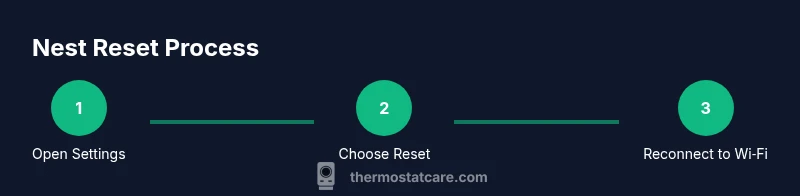
This section walks through a standard factory reset path that applies to many Nest Thermostat models. You’ll access the Settings menu, initiate the reset, and confirm your choice. After the reset completes, you’ll reconnect to Wi‑Fi and re-enter your Nest account. The exact button labels can vary by model and software version, but the general flow remains consistent: open Settings, choose Reset, select All Settings, confirm, and wait for the device to restart. If a step differs on your model, follow the on-screen prompts and refer to the model-specific Nest support article.
Reconnecting to Wi‑Fi and Reconfiguring After a Reset
After a factory reset, the Nest thermostat will prompt you to reconnect to your Wi‑Fi network. Use the Nest app to select your network, enter the password, and join your account. If you previously used a guest network or a secured enterprise network, ensure you have the correct credentials and any required captive portal information. Re-link any connected services, such as Google Assistant or other smart home ecosystems, and verify that your routines, schedules, and eco modes are in place. This reconfiguration is a good time to review energy-saving settings and confirm that the thermostat’s location and temperature thresholds align with your comfort needs.
Common Pitfalls and Troubleshooting After Reset
Even after a reset, problems can persist if there are underlying issues such as power instability, sensor faults, or router outages. A few common pitfalls include ignoring firmware updates, attempting to reset on a paused or restricted account, and failing to re-link the device to the Nest app after a reset. If your thermostat still misbehaves after a reset, test the power supply to the device, ensure the C‑wire is correctly connected (if applicable), and check for firmware updates in the Nest app. If you continue to see odd behavior, consult the official Nest help center or Thermostat Care’s troubleshooting guides for device-specific advice.
Maintaining Your Nest Thermostat After a Reset
Resetting is not a substitute for ongoing maintenance. Regular firmware updates, battery checks (where applicable), and periodic verification of sensor accuracy can prevent future issues. After a reset, schedule a quick energy audit to compare before-and-after usage, and adjust your schedules to reflect seasonal changes. Keep your Nest account credentials secure and monitor connected devices for any anomalies. By combining resets with proactive maintenance, you can extend the life of your thermostat and improve home comfort and energy efficiency.
Tools & Materials
- Smartphone or computer with internet access(Used to access the Nest app and initiate resets)
- Nest thermostat (any supported model)(Ensure the device is reachable and has power)
- Wi-Fi network name (SSID) and password(Needed to reconnect after reset)
- Nest app installed on your device(Optional if you’ll manage reset directly on the device)
- Temporary backup of schedules(Helpful for re-creating routines after reset)
Steps
Estimated time: 15-25 minutes
- 1
Open Settings on the Nest thermostat
Wake the display and access the main menu, then select Settings. This is the starting point for most reset procedures. If you’re using the mobile app, you can also navigate to the device settings from there.
Tip: If the screen is unresponsive, perform a quick reboot by powering the thermostat off for 30 seconds and then turning it back on. - 2
Choose Reset options
Within Settings, locate Reset or Restore options. Some models show Reset, while others present a combined Restore option. Select All Settings to perform a factory reset.
Tip: Confirm you want to erase all personal data and schedules before proceeding. - 3
Confirm reset
You’ll be asked to confirm your choice. Confirm to start the reset process. The device will restart automatically and return to its initial state.
Tip: Note the on-screen progress; avoid interrupting the process once it begins. - 4
Reconnect to Wi‑Fi
After the reset completes, your thermostat will prompt you to reconnect to Wi‑Fi. Choose your network and enter the password through the on-device prompt or via the Nest app.
Tip: If you have multiple networks, test the strongest signal for reliable connectivity. - 5
Re-link your Nest account
Sign in with your Nest/Google account to re-link the thermostat and recover saved settings where possible. If you don’t see your data, re-sync through the app.
Tip: Verify two-factor authentication is ready if enabled on your account. - 6
Test and adjust
Set a target temperature and observe the thermostat’s response. Check heating and cooling modes, fan, and energy-saving features to ensure proper operation.
Tip: Create or adjust a basic schedule now that the device is reset.
Questions & Answers
What does resetting a Nest thermostat do?
A factory reset returns the thermostat to its out-of-the-box state, erasing schedules and personal data. A reboot only restarts the device, which can fix temporary glitches without erasing data.
A factory reset wipes settings and schedules, while a reboot simply restarts the device to clear minor glitches.
Will resetting void my warranty?
Resetting does not by itself void the warranty. If a pre-existing issue remains after reset, contact support to discuss coverage options.
Resetting doesn’t automatically void the warranty; check with support for coverage if issues persist.
Can I reset without the phone app?
Yes. Many Nest models let you reset directly from the thermostat’s on-device menu. If the model or firmware requires the app, use the app to complete the reset steps.
You can often reset using the thermostat itself, but some models may require the app for final steps.
How long does a reset take?
A standard factory reset typically completes within a few minutes, but timing can vary with model and network conditions.
Most resets finish in a few minutes; if it’s taking longer, check the power and follow prompts.
What should I do if reset doesn’t fix the problem?
Double-check power and sensor connections, verify Wi‑Fi stability, and ensure firmware is up to date. If issues persist, contact support or Thermostat Care for guidance.
If reset doesn’t help, verify power, sensors, and firmware; seek expert help if needed.
Does a reset affect energy usage history?
Local data like schedules are erased, and some usage history may require re-sync with your Nest account. Check the app for any missing data after reset.
Energy data may need to re-sync with your account after a reset.
Should I reset after a firmware update?
Often not required after a firmware update, but if the update introduces issues, a reboot or factory reset can be considered as a last resort.
Only reset if you’re experiencing issues after an update; otherwise reboot may suffice.
Watch Video
What to Remember
- Resetting can fix stubborn issues after reboot attempts fail
- Factory reset erases data; plan to reconfigure afterward
- Re-link your Nest account and reconnect Wi‑Fi to restore operation
- Always verify model-specific steps in official support