How to Reset an Air Conditioning Thermostat
Learn step-by-step how to reset your air conditioning thermostat, when to reset, and how to avoid common issues. Practical, safety-focused guidance for homeowners troubleshooting thermostats.


Resetting a thermostat can resolve minor errors, restore default schedules, and improve overall comfort. If you’re wondering how to reset air conditioning thermostat, this guide covers safe methods for soft and hard resets, plus what to check after the reset. According to Thermostat Care, most residential models support a straightforward reset path via the device or app, often achievable without a professional visit. Time to get your system back on track.
Why Resetting Your Thermostat Matters
When your thermostat misbehaves—shifting temperatures erratically, failing to follow schedules, or showing erroneous readings—a reset can clear the fault codes and restore intended behavior. A reset does not fix hardware problems, but it can resolve software glitches, stale network connections, or corrupted temporary data that accumulate over time. The Thermostat Care team emphasizes that a reset is often the simplest first step before deeper troubleshooting. It also helps ensure that temperature readings align with actual room conditions, which improves comfort and energy use. In this section we explore the science behind resets, why they work for most models, and what you should expect from a typical reset process.
- Quick recap: a reset reboots the thermostat’s software, clears glitches, and may restore scheduled programming.
- Common culprits: software glitches, network disconnects, stale sensor data, and post-update quirks.
- What a reset does not do: repair hardware failures, recalibrate sensors without cause, or replace faulty wiring.
According to Thermostat Care analysis, homeowners who perform a guided reset report fewer follow-up calls for minor issues and quicker symptom resolution. Keep in mind that not all models use the same reset path, and some require a firmware update afterward for optimal performance. If your model supports mobile apps, you may also trigger a reset from the app with similar results. If you notice persistent issues after a reset, this is often a sign of hardware or installation problems rather than a software glitch.
When a Reset Makes Sense (and When It Doesn’t)
A reset is a practical step in several situations: the thermostat display is unresponsive, schedules are ignored, the HVAC system cycles oddly, or after a software update that seems to destabilize performance. It’s less useful when you suspect a hardware fault like a blown fuse, damaged wiring, or a failing temperature sensor. Before you reset, quickly verify power to the thermostat and HVAC system, confirm that the thermostat is receiving power (batteries or line power), and check for disconnected wires at the wall plate. If the system is still not behaving after a reset, the issue may require professional diagnosis.
From a reliability standpoint, a reset can also help when you’ve just changed or updated settings that aren’t sticking. Always note your current schedules before resetting so you can re-create them if needed. The Thermostat Care team notes that some issues mimic a scheduling error—resetting can restore expected behavior and reduce unnecessary adjustments.
Safe Preparation and Safety Considerations
Before you perform a reset, take a moment to prepare your workspace and gather the tools you’ll need. Working with an HVAC control device requires attention to electrical safety and knowing when to stop. If you’re unsure about any step, pause and consult a professional. Start by turning off power to the thermostat at the unit or circuit breaker to reduce the risk of electrical shock. If you’re dealing with a wired thermostat behind a wall plate, you may need a screwdriver to access the unit, and you should avoid handling any exposed wiring beyond your comfort zone. Wireless or battery-powered thermostats reduce some of these risks, but you’ll still want to verify that power is properly off before opening the device.
Remember: a reset does not replace a failed component, and repeated resets without improvement can mask deeper problems. If you smell burn or hear buzzing from the HVAC unit, stop and call a pro. This is a good time to review your model’s user manual or online support for model-specific guidance.
Step-by-Step: How to Reset Your Thermostat (Narrative Guide)
The reset process can vary by model, but most follow a similar flow. Read your manual for model-specific instructions and use the following high-level approach to inform your actions. If you encounter a step that doesn’t apply to your device, skip it and proceed with the general reset path.
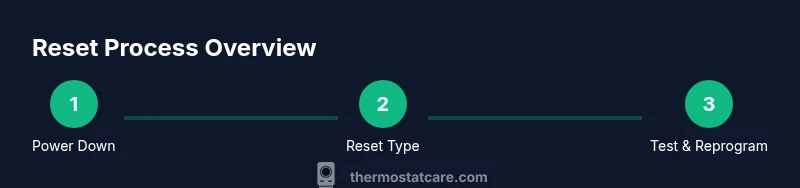
- Power down the system: Turn off power to the HVAC at the main breaker or switch and wait 60 seconds to discharge residuals. Why: a brief power-down ensures a clean reboot and reduces shock risk when you interact with the thermostat.
- Access reset options: Remove the faceplate if necessary and navigate to the reset option in the thermostat menu or app. Why: many thermostats embed reset within menus rather than a dedicated button.
- Choose reset type: Select a soft reset to restore defaults without erasing all data, or a factory/hard reset if recommended by the model. Why: soft resets often preserve user settings while solving glitches; hard resets wipe data and restore factory defaults.
- Confirm reset: Confirm the action if prompted and allow the device to reboot. Why: a confirmation step prevents accidental resets and ensures the reboot completes.
- Reconnect power and reconfigure: Restore power and re-enter essential settings, including time, date, and any scheduling preferences. Why: resets can revert to default values that don’t match your home, so reconfiguration ensures comfort and efficiency.
- Test system operation: Set a comfortable temperature and run a cooling or heating cycle to verify response. Why: validating performance after reset confirms the device is communicating with the HVAC system properly.
If your thermostat supports a quick reset via the app, you can perform many of these steps remotely, which reduces the need to access the wall unit. After finishing the reset, monitor the system for 24–48 hours to ensure it holds settings and responds to adjustments promptly.
Troubleshooting Post-Reset Issues
After a reset, some issues may appear briefly as the thermostat re-syncs with sensors and the HVAC system. If you notice the following, try these quick fixes:
- Temperature readings drift: recheck placement of the sensor or recalibrate if available in the model settings.
- Scheduling doesn’t stick: reprogram the schedule and confirm that the device is connected to a reliable network if using a smart thermostat.
- Humidity or fan operation seems off: verify that the correct mode (cooling/heating) is selected and that the fan is set to auto or on as intended.
- Display issues persist: replace batteries if your model uses them or ensure a solid power connection to the unit.
The Thermostat Care team recommends documenting any persistent post-reset problems and seeking support if the unit still misbehaves after a reset attempt. This helps isolate whether the cause is software, network, or hardware related.
Maintenance and Energy-Saving After a Reset
Resetting can be a good springboard for better energy efficiency. After you restore defaults and reprogram schedules, consider these practices to maximize comfort and savings:
- Optimize schedules: set temperature setbacks for when you’re away or asleep to reduce energy use without sacrificing comfort.
- Calibrate sensors: ensure the thermostat accurately reads room temperature; miscalibrated sensors can lead to overcooling or overheating.
- Update firmware: check for software/firmware updates that improve reliability and energy optimization.
- Regular maintenance: schedule seasonal checks for your HVAC system to prevent performance issues.
Thermostat Care’s guidance emphasizes that small, thoughtful adjustments after a reset can yield measurable energy savings while maintaining comfort, especially when paired with smart scheduling and occupancy sensing.
Tools & Materials
- Wall-mounted thermostat(Have the model handy to locate reset options in the menu.)
- User manual or model number(Use as reference for model-specific reset steps.)
- Screwdriver (Phillips #2)(Only if you need to remove the faceplate or access a wired unit.)
- Fresh batteries (if applicable)(Check if your thermostat operates on batteries.)
- Notebook and pen(Record current settings before resetting.)
- Safety gloves (optional)(Use if you are working near exposed wiring or panels.)
Steps
Estimated time: 15-25 minutes
- 1
Power down the HVAC system
Turn off power to the furnace/air conditioner at the main breaker or switch. Wait 60 seconds for a clean reboot and to minimize any electrical risk before handling the thermostat.
Tip: If you use a smart thermostat, you can also power it off via the app to avoid touching the wall unit. - 2
Open the thermostat panel
Carefully remove the thermostat faceplate if required by your model. Access the reset option in the settings menu or app.
Tip: Take a photo of the wiring before removing the faceplate to help you reassemble correctly. - 3
Choose reset type
Select soft reset to restore defaults without erasing your schedules, or factory reset if your device recommends it for a major glitch.
Tip: Soft reset preserves schedules; use factory reset only if software corruption is severe. - 4
Confirm and reboot
Confirm the reset action and allow the device to restart. This may take a few moments as the configuration boots up.
Tip: Do not power down mid-reboot; wait for the device to fully restart. - 5
Reconfigure essential settings
Restore time/date, location, and any critical schedules or preferences. This step is crucial for accurate temperature control.
Tip: Draft a quick baseline schedule to speed up setup on future resets. - 6
Test the system
Set a target temperature and run cooling/heating cycles to verify proper response and sensor accuracy.
Tip: Check that the system responds promptly within 2-3 minutes after changes.
Questions & Answers
Can I reset my thermostat without turning off power?
Many thermostats allow a reset from the device or app without cutting power, but a quick power-down can ensure a clean reboot. Always follow model-specific guidance from the user manual.
You can sometimes reset from the device or app, but powering down briefly can make the reset cleaner and safer.
What should I do if the display is blank after resetting?
Check the power source—batteries or wall power—and confirm the unit is receiving power. If needed, reinsert batteries or restore power at the breaker and retry the reset.
If the screen is blank after a reset, verify power to the thermostat and try the reset again if needed.
Will a reset erase my programmed schedules?
A soft reset typically preserves schedules, while a factory reset may erase them. Reconfigure essential times after the reset to maintain comfort and energy savings.
Soft resets keep your schedules, but a factory reset may wipe them. You’ll need to set them again afterward.
Is a hard reset the same as a factory reset?
Hard or factory resets restore factory defaults and wipe saved data. Use only if recommended by your model’s documentation and after simpler resets fail.
A hard reset returns the thermostat to factory defaults, which may erase schedules and custom settings.
How long does a reset take to reboot?
Most resets complete within a few minutes, but some models may take longer during reinitialization, especially if firmware updates run in the background.
Most resets finish in a few minutes, though updates can extend reboot time.
Can resetting fix temperature accuracy issues?
Resetting can address sensor or software glitches that cause inaccurate readings. If misalignment persists, check sensor placement and consider calibration if your model supports it.
Yes, a reset can help with temperature readings, but if problems persist, check the sensor and placement.
Watch Video
What to Remember
- Know your model’s reset path before starting.
- Soft resets fix glitches while preserving schedules.
- Power down safely and follow with post-reset testing.
- Document settings to streamline reconfiguration.
- If issues persist, hardware problems may be the cause.