What to Set Nest Thermostat To: A Practical Home Guide
Learn practical, energy-saving temperatures for Nest Thermostat. Baselines, Eco settings, schedules, and step-by-step guidance to optimize comfort and efficiency in your home.


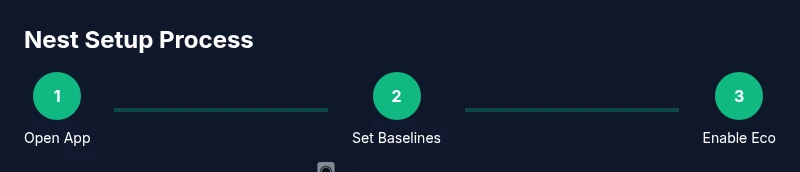
Goal: balance comfort and energy use by setting Nest to a sensible baseline. For most homes, set to about 68°F (20°C) in winter and 72-74°F (22-23°C) in summer as a starting point. Turn on Eco Temperatures when you’re away or asleep, and let the thermostat learn your routines. Adjust gradually over two weeks and monitor weekly energy reports to validate savings.
Why Getting Nest Thermostat Settings Right Matters
If you're wondering what to set nest thermostat to, starting from a thoughtful baseline matters more than chasing a single number. The Nest learns from your patterns, but your initial targets set the tone for comfort and energy efficiency all year. Thermostat Care emphasizes that small, consistent adjustments beat large, erratic changes. By choosing sensible baselines and predictable schedules, you reduce energy waste and improve overall comfort in every room. According to Thermostat Care, a practical, well-planned approach reduces unnecessary cycling and keeps temperatures within a comfortable band, which also supports long-term equipment health.
Baseline Seasonal Settings You Can Start With
Seasonal baselines are your foundation. In winter, many homes are comfortable around the mid-60s to low-70s; in summer, around the low to mid-70s. These ranges are suggestions; your climate, insulation, and HVAC system affect exact numbers. Start with a choice that feels comfortable for waking hours, then adjust for sleep. The Nest has learning features, so keep initial targets stable for 1-2 weeks to allow it to adapt. Thermostat Care recommends documenting any climate-specific considerations—like humidity or sun exposure—to refine these baselines.
Eco Temperatures and Scheduling for Real Savings
Eco Temperatures are designed to reduce energy use without sacrificing comfort. When you’re away or asleep, the Nest can automatically adjust to Eco settings or a wider setback. If you have a programmable schedule, align it with your daily rhythm: earlier wake times, pre-cool or pre-heat before home arrival, then revert. Thermostat Care notes that you should not rely on a single Eco setting; experiment with a few degree offsets for a week to see what works. This experimentation is safer when you log changes and verify comfort in different nights.
How Different Home Types Affect Nest Settings
Different homes demand different baselines. A well-insulated condo will keep temperature changes smaller than an older drafty house. A home with ceiling fans may feel cooler with a higher thermostat setting in summer. If you have a heat pump, make sure your heat pump's auxiliary heat settings and outdoor temperatures are considered. The Nest's adaptive features can tailor to your equipment, but initial inputs must reflect reality. In colder climates, a slight elevation in the standby setpoint during the day can prevent thermal stress on the system at startup.
Fine-Tuning with Humidity, Occupancy, and Zoning
Humidity and occupancy patterns influence perceived comfort. In humid climates, a slightly lower cooling setpoint can feel more comfortable than a drier air at the same temperature. Use occupancy sensing to adapt schedules; if you work from home several days, your thermostat can lean toward a more comfortable daytime setting. If your home has multiple zones, Nest can still manage overall heat with a good central baseline and zone-specific adjustments. Document how different rooms feel and adjust the main setpoint to reflect the most-used spaces.
Troubleshooting Common Temp Swing Issues
Temp swings usually come from sensor placement, drafty zones, or inaccurate wiring inputs. Start by confirming the thermostat is mounted away from direct sun, drafts, or heat sources. Check the Nest app for sensor readings and ensure the device is receiving accurate outdoor data if you use weather-based adjustments. If you suspect a wiring issue, turn off power and consult a professional before handling wires. Avoid abrupt, large changes that could trigger equipment cycling and wear.
Seasonal Transitions: Fall, Winter, Spring, and Summer
As seasons shift, review your baseline targets and reset Eco offsets gradually. A small seasonal adjustment can improve comfort and reduce energy use without noticeable changes in daily routine. Use the Nest learning period to filter out random fluctuations and let the system converge on stable preferences. Thermostat Care highlights that consistent seasonal tweaks typically yield better annual savings than ad-hoc, one-off adjustments.
Verifying Savings: How to Track and Adjust
Regular review of energy reports is essential. Use the Nest app to compare weekly energy usage and look for downward trends after you implement new baselines. If consumption isn't improving after several weeks, revisit your temperatures and schedule. Thermostat Care recommends documenting changes and testing one variable at a time for clarity. Consider pairing these checks with seasonal utility bill reviews to correlate thermostat behavior with actual costs.
Quick Reference: Typical Ranges and Hints
Start with 68°F (20°C) in winter and 72-74°F (22-23°C) in summer as a baseline. Use Eco Temperatures when you are away or asleep, and lean on gradual changes to avoid discomfort. For homes with zones, maintain a central baseline and adjust per zone as needed. Remember, small, consistent tweaks compound into meaningful savings over time. With care, you can tailor the Nest to your lifestyle while keeping energy use in check.
Tools & Materials
- Nest Thermostat (gen 3 or newer)(Ensure it is updated to the latest firmware)
- Smartphone or tablet with the Nest app(iOS or Android)
- Stable Wi-Fi connection(2.4 GHz or 5 GHz preferred)
- Wall plate and mounting hardware(If replacing an existing thermostat)
- Notebook or notes app(Record baseline temps and tweaks)
Steps
Estimated time: 30-60 minutes for initial setup; 1-2 weeks for learning
- 1
Open the Nest app and confirm connectivity
Launch the Nest app and verify that your thermostat is online and reachable. This ensures subsequent settings changes apply correctly. A quick refresh of the app often resolves minor sync issues.
Tip: If the device appears offline, check your Wi-Fi and power to the thermostat. - 2
Set winter baseline to 68°F (20°C)
Enter a comfortable winter baseline in the app. This creates a reliable starting point for your heating schedule and helps the Nest learn your daily warmth needs.
Tip: Choose a wake time when rooms feel most comfortable and keep this value steady for 1-2 weeks. - 3
Set summer baseline to 72-74°F (22-23°C)
Configure your cooling baseline for hot months. A midpoint range helps energy use stay reasonable while avoiding overcooling.
Tip: If you notice overheating in late afternoon, consider a slight adjustment of +1°F. - 4
Enable Eco Temperatures and away mode
Turn on Eco Temperatures for unoccupied periods and set an away routine. This reduces energy use without sacrificing comfort when you’re not home.
Tip: Test Eco offsets for a week to identify the best balance between savings and comfort. - 5
Create a simple daily schedule
Define wake, work, return, and sleep periods. A straightforward schedule helps the Nest anticipate your needs and minimize run times.
Tip: Avoid last-minute changes; consistent schedules yield better learning results. - 6
Allow 1-2 weeks for learning
Let the Nest refine its behavior based on real data. Resist drastic changes during this period to prevent confusing the learning algorithm.
Tip: Keep a log of any manual tweaks for later review. - 7
Review energy reports and adjust
After learning, check weekly energy reports and adjust one variable at a time (temperature, schedule) to optimize savings.
Tip: Use a conservative approach to avoid compromising comfort. - 8
Confirm sensors and placement
Ensure sensors aren’t exposed to direct sun, drafts, or heat sources. Poor placement skews readings and undermines performance.
Tip: If you re-locate the thermostat, re-evaluate baselines after a few days.
Questions & Answers
What is the best Nest thermostat schedule for energy savings?
A simple wake/leave/sleep schedule aligned with your daily routine usually saves energy. Keep it consistent for a couple of weeks to let the Nest learn.
For energy savings, start with a simple wake/leave/sleep schedule and keep it steady for learning.
Can Nest control temperatures in multiple rooms?
Nest can manage a central heating baseline and adjust per zone if your system supports zoning. You may need compatible hardware and, in some cases, a dedicated thermostat per zone.
Yes, Nest supports central control with potential per-zone adjustments depending on your system.
How often should I review and adjust settings?
Check energy usage weekly after implementing changes and reassess every few weeks or with seasonal shifts.
Review energy use weekly, especially after a season change.
What if Nest won’t connect to Wi-Fi?
Confirm network stability, try restarting the router, and re-pair the thermostat with the app. If issues persist, consult the Nest support pages and your internet provider.
If it won’t connect, restart devices and re-pair, then check Nest support if needed.
Does Eco Temperatures work with all heating systems?
Eco Temperatures are designed to work with most systems, but some high-load or specialized setups may require manual adjustments. Start with conservative offsets.
Eco Temperatures work in most setups, but some systems may need tweaks.
How long does learning take on Nest?
Learning typically unfolds over 1-2 weeks as the thermostat observes routines and weather patterns. Expect gradual refinements during this period.
Learning usually takes one to two weeks; expect gradual improvements.
Watch Video
What to Remember
- Set sensible baselines (winter ~68°F, summer ~72-74°F).
- Enable Eco Temperatures and use a simple daily schedule.
- Allow learning time and track energy reports for tweaks.
- Keep sensor placement optimal to avoid inaccurate readings.