Nest Thermostat Settings: A Practical Guide
Master Nest thermostat settings to boost comfort and cut energy bills. This step-by-step guide covers scheduling, Eco mode, away detection, app vs device controls, and how to verify savings.


By the end of this guide, you will know how to adjust nest thermostat settings for energy efficiency and comfort, using either the thermostat display or the Nest app. According to Thermostat Care, starting with a baseline schedule and Eco temperatures yields the best results. Expect clear steps, practical tips, and common pitfalls to avoid.
Understanding Nest Thermostat Settings
According to Thermostat Care, the most energy-efficient Nest thermostat settings start with a baseline schedule, a consistent presence pattern, and Eco mode that adapts to your climate. The Thermostat Care team found that most homeowners gain the biggest benefits by starting with a simple baseline and then layering in eco and away features. Nest thermostats are designed to optimize comfort and efficiency by learning your routines, adjusting temperature gradually, and leveraging occupancy data. In practical terms, you can control heating and cooling with a few key levers: daily schedules, Eco mode thresholds, away and presence sensing, fan behavior, and weather-aware adjustments. Whether you prefer adjusting settings on the wall unit or through the Nest app, the goal is to establish clear boundaries for comfort and energy use while keeping your settings intuitive and easy to tweak.
- Understand what you’re optimizing: comfort, energy savings, or a balance of both.
- Know which controls you’ll touch most: schedule blocks, Eco mode, and Home/Away.
- Plan a baseline period (two weeks) to see how changes affect bills and comfort.
A solid starting point is a simple wake/leaving/return/sleep schedule, with Eco mode enabled for the hours you don’t need precise temperature control. With Nest’s learning capabilities, you’ll rarely need to fine-tune every day once the system has observed your patterns.
Setting Goals Before Adjusting
Before you touch any levers, set clear targets for what you want to achieve. Is your priority reducing overall energy use, maintaining a consistent comfort level, or preventing overheating in summer and excessive heating in winter? Write down your goals briefly and use them as a compass while you tweak settings. For most households, a practical approach combines a reasonable daily schedule, a modest Eco temperature range, and a reliable away mode. Thermostat Care analysis suggests that homeowners who pair a simple schedule with Eco mode tend to see the most noticeable energy reductions without sacrificing comfort. If you rent or share a home, involve other occupants in the goals so everyone understands the intended outcomes.
- Define your baseline: typical wake/sleep times and when you’re away.
- Decide on Eco mode boundaries for heating and cooling ranges.
- Establish an away strategy that activates automatically when occupants are gone.
- Create a plan to review energy usage weekly for the first month.
Accessing Nest Settings: App vs Thermostat
You can control Nest thermostat settings from the wall unit, the Nest app on your phone, or both. The app provides a broad overview of your schedule, energy history, and device status, while the thermostat display allows quick changes when you’re at home. The Nest app makes it easy to copy a schedule to multiple days, adjust Eco mode with a couple of taps, and review energy usage trends. When you update settings, they sync wirelessly to the thermostat, so no cords or reboots are necessary. If you rely on voice assistants, you can link Nest to Google Assistant or other compatible systems for hands-free adjustments. In all cases, ensure the device and app are signed into the same home profile and that your Wi‑Fi network is stable to avoid lag or lost settings.
- Use the app for planning and bulk edits.
- Use the thermostat for quick adjustments while home.
- Verify that signed-in accounts match your home profile.
Creating a Daily Schedule
A practical schedule is a sequence of time blocks that align with your day. Start with four core blocks: wake, leave, return, and sleep. Set higher temperatures during wake periods in shoulder seasons and allow smaller adjustments during sleep hours. Don’t aim for perfection on day one; the first version should be simple, then refined over a couple of weeks based on comfort and energy data. Nest can learn your routine, but you’ll often get the best results by providing a clear initial structure. When you save a schedule, Nest will apply it consistently across days that match the pattern. If you have weekends that differ from weekdays, create separate blocks for Saturday and Sunday.
- Begin with four core blocks and refine over 1–2 weeks.
- Keep temperature changes gradual (1–2 degrees at a time) to avoid discomfort.
- Copy or modify blocks for days with similar patterns.
- Review energy history after a couple of weeks to gauge impact.
Eco Mode, Away, and Presence Sensing
Eco mode minimizes energy use by allowing the thermostat to hold temperatures within the user-defined Eco range during idle periods. Away mode triggers when Nest detects you are away or when a schedule indicates you’ll be out. Presence sensing uses your phone’s location and motion cues to adjust temperatures automatically, helping you save energy while you’re not home. The optimal setup is to pair Eco mode with a reliable away routine and cautious presence sensing so the system isn’t constantly chasing minor temperature fluctuations. If you travel frequently, consider extending Eco boundaries during your trips and enabling a stricter away setting. Regularly review the energy history to confirm you’re seeing savings when you’re away or asleep.
- Turn Eco mode on during the majority of unneeded hours.
- Ensure Away mode triggers reliably when you’re out.
- Fine-tune presence sensing to avoid over-cycling the HVAC.
Advanced Features: Fan Control and Weather Adaptation
Fan control can help with air distribution without running the heating or cooling at full power. Consider scheduling short fan runs during transitional periods to improve air circulation without a big energy hit. Weather adaptation uses local weather data to adjust setpoints more intelligently, preventing large swings when outdoor conditions change. If your Nest model supports it, enable Weather-based adjustments and experiment with small, safe increments to find a comfortable balance. For multi-zone homes, ensure each zone’s fan and setpoints reflect usage patterns, so you don’t end up cooling rooms you rarely use. Keep an eye on fan wear and shorten the duration of long fan runs to extend equipment life.
- Use modest fan durations to improve air mix.
- Enable weather-based adjustments for responsive control.
- Tailor zone settings to actual occupancy and use.
Privacy, Security, and Maintenance Tips
Smart thermostats collect data to optimize comfort. Review your privacy settings to limit data sharing and enable secure access such as two-factor authentication. Regular maintenance—like keeping the thermostat free of dust, checking for firmware updates, and verifying connectivity—helps ensure settings apply reliably. If you reset your device or switch homes, re-establish your baseline schedule and Eco ranges. Remember: your thermostat’s learning may slow after significant changes, so plan a short adjustment period. Thermostat Care recommends periodically exporting energy data or screenshots for comparison over time to validate savings and comfort improvements.
- Enable strong authentication and review sharing permissions.
- Keep firmware up to date to access new features.
- Re-establish baseline schedules after major changes.
Testing and Verifying Savings
The final step is to verify that your Nest thermostat settings are delivering the intended results. Use the Nest app to review energy history and compare monthly usage before and after changes. Look for trends such as reduced heating days, fewer temperature swings, and more predictable energy bills. If savings aren’t meeting goals after a few cycles, revisit your baseline schedule, Eco ranges, and Away settings. The Thermostat Care analysis highlights the value of a deliberate, iterative approach—start simple, monitor, adjust, and confirm. With consistent usage, you’ll gain confidence that your Nest settings are aligned with your comfort and budget goals.
- Review energy history weekly for the first month.
- Adjust one variable at a time to identify impact.
- Celebrate small wins and refine targets as needed.
Tools & Materials
- Nest thermostat device(Ensure it’s installed, powered, and connected to Wi‑Fi)
- Smartphone with Nest app(iOS or Android; log in to the home profile)
- Stable Wi‑Fi network(Reliable connection to sync app and device)
- Basic home schedule plan(Optional notes you’ll translate into blocks)
Steps
Estimated time: 20-35 minutes
- 1
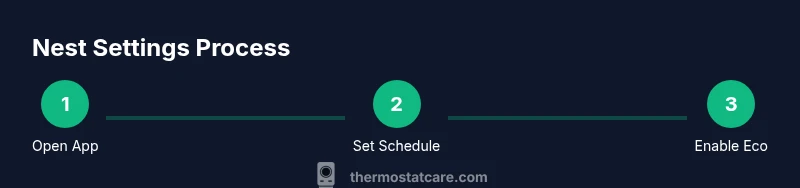
Open Nest app and access settings
Launch the Nest app and select your thermostat. Open the Settings menu to review current options, confirm you’re in the correct home profile, and check that the device is online.
Tip: If you’re switching homes, verify you’re editing the correct thermostat in the app to avoid cross-home changes. - 2
Create a baseline daily schedule
Add wake, leave, return, and sleep blocks. Set target temperatures within a comfortable range during active hours and gently reduce changes during sleep.
Tip: Start with two weekdays and two weekend profiles, then copy the weekday pattern if similar. - 3
Enable Eco mode and adjust thresholds
Turn on Eco mode and set the lower and upper bounds for heating and cooling. This helps the system hold temperatures within a range that saves energy when full control isn’t necessary.
Tip: Keep Eco bounds within a 2–4 degree band to balance savings with comfort. - 4
Configure Home/Away and presence sensing
Enable Home/Away and ensure presence sensing is active. Link phones in the household so the system can adjust temperatures automatically when people come and go.
Tip: Test geofencing by leaving and returning home to confirm automatic adjustments occur as expected. - 5
Tune fan controls and optional features
Set fan behavior to run during the transition periods or to assist air circulation without overheating. If available, enable weather-aware adjustments.
Tip: Avoid extended fan runs during peak energy pricing to minimize costs. - 6
Review and save; monitor impact
Save all changes and monitor energy usage after a week. Compare with the baseline to confirm savings or identify adjustments.
Tip: Record observations in a notebook or app notes to track what adjustments delivered the best results.
Questions & Answers
How do I access Nest thermostat settings?
Open the Nest app or press the thermostat to access the settings menu. From there you can adjust schedules, Eco mode, and device options. Make sure you’re signed into the correct home profile.
Open the Nest app and go to Settings to adjust your schedule and Eco mode. You can also tap the thermostat at home for quick changes.
What is Eco mode and should I use it?
Eco mode limits the temperature range to save energy when full comfort isn’t needed. It’s generally beneficial for long absences or overnight periods, but you can disable it temporarily for nights when you want precise comfort.
Eco mode helps reduce energy use by limiting how far the temperature drifts when you don’t need precise comfort.
How do I set a schedule for weekdays and weekends?
Create separate blocks for weekdays and weekends in the Nest app, then adjust times and targets. Copy patterns when appropriate to save time and ensure consistency.
Create a simple wake-leave-return-sleep schedule in the app and tailor it for weekends if your routine changes.
Can I adjust Nest settings for multiple thermostats?
Yes. In the Nest app, you can manage several thermostats within the same account. Use the home profile to ensure you’re editing the right device and apply consistent settings where desired.
You can manage more than one thermostat from the app by using the same home profile.
Why isn’t Nest learning my preferences quickly?
Autocalibration and learning depend on consistent routines. If you’ve recently reset or changed your schedule, give the system a couple of weeks to adapt before evaluating results.
Auto-Schedule learns over time; if you’ve changed routines, give it several days to adapt.
Watch Video
What to Remember
- Set a simple baseline schedule first.
- Enable Eco mode for energy savings.
- Use Away and presence sensing to automate when you’re not home.
- Review energy history and adjust gradually for best results.