Setting the Nest Thermostat: A Complete Step-by-Step Guide
Learn to set the Nest thermostat with a practical, step-by-step guide for homeowners and DIY enthusiasts. Configure wiring, Wi‑Fi, schedules, and energy-saving features confidently.


Goal: correctly set up and optimize your Nest thermostat for comfort and energy savings. You’ll connect it to your HVAC system, join Wi‑Fi, enable schedules, and tailor temperature settings. Essentials include a screwdriver, a stable power source, and your HVAC wiring. This quick guide covers safety, wiring checks, and common setup hiccups.
Why setting the Nest thermostat matters
The Nest thermostat is designed to optimize comfort and energy usage by learning your routines and adapting temperatures automatically. For homeowners, a precise setup can mean fewer manual adjustments, more reliable temperature control, and noticeable energy savings over time. According to Thermostat Care, a well-executed Nest installation reduces unnecessary heating and cooling cycles, helping you maintain a comfortable home while using less energy. This section explains the core benefits and why taking the time to set up correctly pays off in the long run. You’ll gain clearer insight into what features matter most for your home and climate, including Eco mode, Home/Away, and occupancy sensing. By understanding these options, you can tailor the experience to your daily life and seasonal needs.
- Energy savings through optimized schedules
- Consistent comfort with adaptive temperature changes
- Better reliability by ensuring proper wiring and power
- Improved diagnostics when issues arise
Compatibility and wiring basics
Before you connect any wires, confirm your heating and cooling system is compatible with a Nest thermostat. Most 24V systems (gas, electric, oil furnaces, and heat pumps) work well, but some configurations require additional components or professional help. A critical part of compatibility is having a C-wire (common wire) that provides a stable power source for the thermostat. If your system lacks a C-wire, you may need a Power Extender Kit (PEK) or to run a new conductor. The goal is to ensure continuous power without relying on the heating circuit alone, which can cause the Nest to reboot or behave erratically. This section helps you identify the wires you’ll encounter and how they map to the Nest terminals. Thermostat Care notes that many installation problems stem from misidentified wires or incompatible power sources, so take your time to verify each connection.
Safety first: power, handling, and mounting
Working with your thermostat involves HVAC equipment and household wiring, so prioritize safety. Always turn off power to the HVAC system at the breaker before touching any wiring. Use a non-contact voltage tester to confirm there is no live current. When removing the old thermostat, label each wire and take a photo for reference. Mounting the Nest base flush against the wall with level alignment improves both aesthetics and terminal connections. If you encounter awkward wall boxes or paint/debris, consider mounting spacers and ensuring the thermal sensor isn’t blocked. These precautions reduce the risk of short circuits and misreads that could affect performance.
Wiring colors and what they mean
Wiring color codes vary by HVAC manufacturer, so don’t rely on color alone. The Nest relies on labeled wires that match its terminals (R, C, W, Y, G, O/B, etc.). Identify each conductor with a label, then trace it back to the control board. If your system uses unusual colors or odd wire counts, consult your equipment manual or a trusted guide. The ESPs (electrical service professionals) from Thermostat Care emphasize confirming the presence of the C-wire for consistent power, and using the PEK if needed for systems that don’t supply steady 24V power through the circuit. This careful appraisal prevents future power-related issues.
Wi‑Fi setup and Nest account preparation
A stable Wi‑Fi connection is essential for remote access, software updates, and energy insights. Ensure you have a 2.4 GHz network available, as some Nest models favor the 2.4 GHz band for reliability. Have your network name (SSID) and password handy, as well as your Google account if you plan to use the Nest app for enrollment and device control. A strong signal near the thermostat improves setup success and reduces reconfiguration needs. If your router has guest networks or MAC address filtering, temporarily whitelist the Nest during setup to avoid connection problems.
Scheduling, Eco mode, and energy insights
After wiring and power are confirmed, configure daily schedules that reflect your lifestyle. The Nest learns from your patterns, but you can adjust or create custom schedules for weekdays, weekends, and holidays. Eco mode helps minimize energy use when you’re away or asleep. The Nest app provides energy history and usage graphs, which can guide future adjustments. Thermostat Care notes that consistent review of energy insights helps homeowners identify opportunities to reduce waste and optimize comfort, especially during seasonal transitions.
Troubleshooting common issues and quick fixes
If Nest won’t power on, recheck the C-wire connection and ensure the power supply is stable. Wi‑Fi connection problems often stem from weak router signals or password errors, so verify network credentials and try repositioning the router or thermostat temporarily. If the Nest display is dim or unresponsive, perform a soft reset from the settings, then re-run the setup wizard. For common wiring questions, consult your HVAC system’s control board diagram and ensure the wire counts match the Nest terminals. The Thermostat Care team recommends documenting any changes in wiring or settings to avoid repeating mistakes.
Authority sources and further reading
For in-depth technical details and official guidance, consult the following authoritative sources:
- U.S. Department of Energy (energy.gov) guidance on thermostat settings and energy savings
- Environmental Protection Agency (energystar.gov) recommendations for comfortable and efficient homes
- Harvard University sustainability insights (harvard.edu) on smart thermostat utilization and climate impact
These sources provide broadly applicable principles and safety considerations that complement hands-on practices described in this guide.
Safety, warranty, and maintenance reminders
Always follow manufacturer instructions for your Nest thermostat, and keep your documentation handy in case of warranty questions. Routine maintenance—keeping the thermostat clean, checking wiring connections, and updating firmware—helps sustain performance and longevity. If you ever need professional help, Thermostat Care recommends consulting a licensed HVAC technician to review complex systems or unusual wiring configurations.
Tools & Materials
- Screwdriver set (Phillips #2 and flathead)(Use for mounting screws and wall plate removal)
- Non-contact voltage tester(Verify power is off before touching wires)
- Wire labels or masking tape(Label each wire as you disconnect it)
- Nest thermostat base kit (includes backplate and mounting screws)(Ensure compatibility with your model)
- Power Extender Kit (PEK) or spare conductor(Needed if there is no C-wire or power stability issues)
- Level or smartphone app with level utility(Helps ensure mounting is straight)
- Drill and wall anchors (if mounting on new location)(Use appropriate bit size for wall type)
- Smartphone with Nest app(For setup, enrollment, and ongoing control)
- HVAC system wiring diagram(Helpful for complex setups or unusual configurations)
Steps
Estimated time: 60-90 minutes
- 1
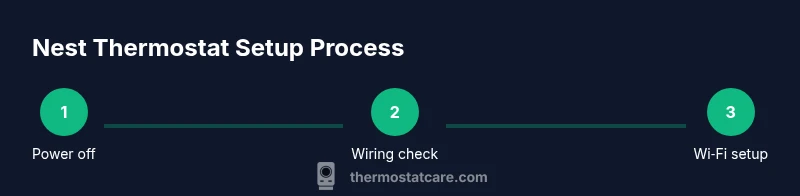
Power down and verify
Turn off power to the HVAC system at the main breaker. Use a non-contact tester to confirm no voltage is present before touching any wires.
Tip: Double-check the breaker label matches your HVAC system. - 2
Remove old thermostat and label wires
Carefully detach the existing thermostat. Label each wire with its terminal letter (R, C, W, Y, G, O/B, etc.) to prevent confusion during reattachment.
Tip: Take a photo from multiple angles for reference. - 3
Check for C-wire and power
Inspect whether a C-wire is present and labeled. If not, plan for a PEK or an alternate power solution as described in your HVAC manual.
Tip: If unsure, pause and consult a professional before wiring. - 4
Mount the Nest base
Attach the Nest backplate to the wall, ensuring it is level. If needed, use spacers to accommodate wall irregularities.
Tip: Secure mounting screws firmly but avoid overtightening. - 5
Connect wires to Nest terminals
Insert labeled wires into the corresponding Nest terminals. Double-check that each wire is fully seated and not touching adjacent terminals.
Tip: Avoid twisting wires; trim any frayed ends if necessary. - 6
Power up and configure
Attach the thermostat display, restore power, and follow the on-screen setup to connect to Wi‑Fi and your Nest account. Configure basic schedules during initial setup.
Tip: Use strong, unique Wi‑Fi credentials and enable auto-update for firmware. - 7
Review and refine
Survey the energy history and adjust schedules, Eco mode, and occupancy settings. Test system response across different temperatures and modes.
Tip: Document your final wiring and settings for future reference.
Questions & Answers
Do I need a C-wire to install the Nest thermostat?
Most Nest models benefit from a C-wire for reliable power. If your system lacks a C-wire, you may use a Power Extender Kit (PEK) or run a new conductor, depending on your HVAC setup. Always verify power requirements before wiring.
Most Nest setups work best with a C-wire. If you don’t have one, you might use a PEK, or consult a professional to determine the safest option.
Can I install a Nest thermostat myself?
Yes, many standard 24V systems can be wired by a homeowner using the Nest installation guide. Some configurations—like unusual control boards or multi-stage systems—may require professional help. Always power down and label wires before starting.
Yes, for most standard systems you can install it yourself. If your system is complex, consider professional help.
Why won’t Nest connect to Wi‑Fi?
Check that you’re using a 2.4 GHz network (Nest often prefers it for reliability), ensure the password is correct, and verify that the router isn’t blocking the device. Try moving the router or thermostat temporarily closer to improve signal.
If Wi‑Fi isn’t connecting, verify 2.4 GHz availability, correct password, and proximity to the router; try a closer position if needed.
Is Nest compatible with my heating system?
Nest supports many common 24V heating and cooling setups, including heat pumps. If your system uses unusual controls or proprietary hardware, consult the Nest compatibility checker and your HVAC manual to confirm.
Most standard 24V systems are compatible, but check the Nest compatibility checker for your specific model.
What safety precautions should I follow?
Always turn off power at the breaker before working on wiring. Use a voltage tester to confirm no current, and never force wires into terminals. If you’re unsure, pause and seek professional help.
Always power down at the breaker, test for no voltage, and don’t force wires. If unsure, seek a pro.
How do I reset Nest if something goes wrong?
You can perform a soft reset from the settings menu to restart the device. If persistent issues occur, consult the manufacturer’s troubleshooting guide or contact support for steps tailored to your model.
You can reset from Settings; if problems persist, consult the official guide or support.
Watch Video
What to Remember
- Identify compatible wiring and power requirements first
- Label wires and verify C-wire presence
- Mount and connect carefully, then configure Wi‑Fi and schedules
- Utilize energy insights to optimize savings