How to Set Up a Nest Thermostat: A Step-by-Step DIY Guide
Comprehensive, beginner-friendly instructions for installing and configuring a Nest thermostat, including compatibility checks, wiring basics, app setup, and energy-saving tuning. Learn proven methods from Thermostat Care to ensure a reliable, efficient smart‑home thermostat experience.


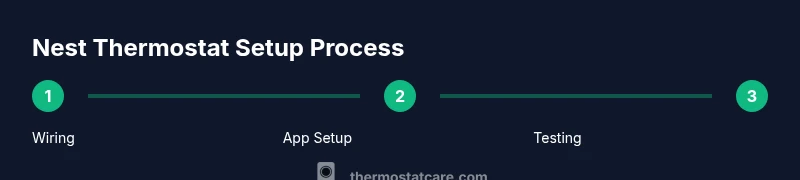
You will learn how to set up a Nest thermostat from unboxing to full integration with your home Wi‑Fi and Google account. Before you start, confirm system compatibility, gather essential tools, and ensure your electrical wiring (C-wire) is ready. According to Thermostat Care, following a structured setup saves time and reduces post-install issues.
Preparatory considerations before you start
Before you touch wires, take stock of your HVAC system type (gas, electric, heat pump) and your thermostat wiring. Nest supports many common setups, but some older or heat-only systems require additional adapters. According to Thermostat Care, starting with compatibility checks saves time and avoids unnecessary changes later. Gather essential data: the model of your furnace, whether you have a C-wire, and your Wi-Fi network details. If you’re unsure about compatibility, review the Nest compatibility checker online and compare your equipment to the supported configurations. Having a clear plan reduces frustrated trips to the basement and makes the installation smoother.
Compatibility and wiring basics
Nest thermostats use standard HVAC wiring terminology, typically including R (24V power), C (common), W (heat), Y (cool), and G (fan). Not every system uses all wires; some systems rely on heat-only configurations or have proprietary controls. Check your current wiring diagram and identify the terminal labels on your old thermostat. If you see more wires than Nest lists in its compatibility guide, photograph them and compare with Nest support. If your equipment lacks a C-wire, you may still complete a successful install with a Nest Power Connector or a common workaround, but plan to verify power stability after setup. Thermostat Care recommends confirming your wiring map before disconnecting anything to prevent miswiring.
Tools, safety, and workspace setup
Prepare a stable workspace with adequate lighting and a clean surface for parts. You’ll need a small screwdriver set (flat and Phillips), wire labels or masking tape, a pencil, a level, and optionally a wire stripper. A smartphone with the Nest app installed is essential for pairing and configuration. Power down the HVAC system at the breaker before you begin, and mark each wire so you can map it precisely to Nest terminals. If you encounter frayed wires or insulation damage, address those issues before attaching anything to the wall. Safety first keeps you from accidental shorts or shocks during installation.
In-wall installation: mounting the base and wiring
With power off, remove the old thermostat’s cover and take a photo of the wiring for reference. Mount the Nest base using the existing mounting screws; use a level to ensure a straight placement. Thread each wire through the Nest base and insert it into the corresponding terminal as labeled (R, C, W, Y, G, etc.). If you’re unsure about a wire’s function, label it and consult Nest’s wiring guide. Secure the display on the base and ensure the cable is not pinched when you snap the front plate in place. A neat, level installation prevents loose connections that can cause intermittent performance.
App setup and account linking
Power the Nest unit to activate it, then follow the on-screen prompts to connect to your home Wi‑Fi network. Open the Nest app on your phone and sign in with your Google account, or create a new one if needed. The app will guide you through selecting your HVAC system type, naming zones, and enabling features like Home/Away Assist. Ensure the app has permission to access location, notifications, and the microphone for voice prompts. A successful account link is key to remote control, energy insights, and future updates.
Personalization: schedules, energy saving, and hold modes
After successful wiring and app pairing, configure basic preferences: daily schedules, preferred cooling and heating setpoints, and vacation hold behavior. Enable energy-saving features such as adaptive recovery, true radiant temperature, and efficient hold settings. Test automatic changes during the day by simulating a typical schedule and observing how the Nest responds to temperature adjustments. Regularly check energy usage graphs in the app to fine-tune routines, especially during seasonal transitions. Thermostat Care emphasizes tailoring schedules to your routines for maximum comfort and savings.
Troubleshooting common setup issues
If the Nest cannot power on, check the wiring connections and ensure the C-wire is properly seated. If the display is blank or flickering, verify that the breaker is on and the wires are correctly inserted into the Nest terminals. For connectivity problems, ensure your Wi‑Fi is stable and the router is broadcasting on a compatible band. If your HVAC produces unusual cycling or if temperature readings seem off, recalibrate the sensors in the app and recheck wiring. In persistent cases, a quick consult with Thermostat Care can help diagnose power or compatibility issues without risking misconfiguration.
Final validation and next steps
Finish with a thorough test: switch between heating and cooling, confirm the thermostat responds to app commands, and verify that schedules trigger correctly. Observe the system for a full cycle to ensure no unexpected short cycling occurs. If you notice any thermostat codes or error indicators, refer to Nest’s official troubleshooting guides and re-run the setup wizard. Keep the Nest app up to date and periodically review energy insights to refine your routines for ongoing savings.
Tools & Materials
- Nest Thermostat (latest generation)(Verify compatibility with your HVAC system before purchase.)
- Flathead screwdriver(For terminal screws on the current thermostat.)
- Phillips screwdriver(For base mounting and cover screws.)
- Wire labels or masking tape(Label each wire to match Nest terminals.)
- Wire stripper/cutter(Optional if wires are not cleanly exposed.)
- Pencil and small level(Mark mounting holes and ensure the base is level.)
- Smartphone with Nest app(Needed for account linking and configuration.)
- Wi‑Fi network credentials(SSID and password for app setup.)
Steps
Estimated time: 45-60 minutes
- 1
Power off and remove old thermostat
Power down the HVAC system at the main breaker. Carefully remove the old thermostat cover and take a photo of the wiring for later reference.
Tip: Photograph wiring from multiple angles to avoid guessing terminal functions. - 2
Identify wires and label
Label each conductor with its terminal letter (R, C, W, Y, G, etc.) so you can map them to Nest terminals. Use the wiring diagram from your old thermostat for cross-checking.
Tip: Double-check that no bare copper is exposed beyond the insulation. - 3
Check C-wire and plan power path
Inspect whether a C-wire is present and properly connected. If your system lacks a C-wire, plan to use the Nest Power Connector or equivalent method recommended by Nest support.
Tip: If you’re unsure about C-wire usage, pause and review Nest’s wiring guidance before proceeding. - 4
Mount the Nest base and route wires
Attach the Nest mounting plate to the wall with screws; ensure the base is level. Thread the wires through the backplate and insert them into matching terminals.
Tip: Avoid crimped or nicked wires; use gentle bends to prevent wire damage. - 5
Attach display and restore power
Snap the Nest display onto the base and restore power at the breaker if you turned it off. The unit should start up and welcome you with a setup prompt.
Tip: If the screen shows an error, recheck terminal connections before retrying power. - 6
Connect to Wi‑Fi and sign in
Open the Nest app, select your home network, and sign in with your Google account. Complete the on-screen prompts to link your Nest to your account.
Tip: Make sure you grant app permissions for location and notifications to enable full functionality. - 7
Configure system type and zones
Indicate your HVAC system type (forced air, heat pump, etc.) and assign rooms or zones within the app. Personalize basic settings like target temperatures and hold preferences.
Tip: Accurately defining zones improves comfort and energy tracking. - 8
Test and finalize
Run a full test cycle for heating and cooling to confirm responsiveness. Save and review the energy reports to validate savings potential.
Tip: If anything feels off, return to the wiring map and re-verify connections before concluding.
Questions & Answers
Do I need special tools to install the Nest thermostat?
Mostly basic household tools are enough: a screwdriver set, wire labels, and a level. Having a smartphone with the Nest app speeds up setup. If you encounter unusual wiring, consult the Nest compatibility guide before proceeding.
You’ll typically only need standard screwdrivers, wire labels, and your phone with the Nest app.
Is a C-wire required for Nest to work properly?
A C-wire is commonly used to provide continuous power. If your system doesn’t have one, a Nest Power Connector can often bridge the gap, but you should verify power stability after setup.
Most homes use a C-wire, but Nest can sometimes work with a power connector if one isn’t present.
Can I install the Nest thermostat myself, or should I hire a pro?
Nest is designed for DIY installation, and most homeowners can complete it with care. If your system uses unusual wiring or a gas furnace with special configurations, a professional consultation is wise.
You can do it yourself, but if you’re unsure about your system, a quick professional check helps avoid mistakes.
How long does installation take?
Most installations take about 30-60 minutes, depending on wiring complexity and wall mounting. Allow extra time for app setup and testing.
Usually around an hour, including app setup and testing.
What if my HVAC isn’t compatible with Nest?
Check Nest’s official compatibility guide to confirm support for your system. Some heat-only or unusual configurations may require alternatives.
If it's not compatible, Nest may not work as expected—check the guide first.
Are there safety hazards to watch out for during installation?
Always turn off power at the breaker before wiring. Do not touch exposed conductors, and ensure wires are properly insulated to prevent shorts.
Turn off power before you start wiring to avoid shocks.
Watch Video
What to Remember
- Verify HVAC compatibility before wiring
- Follow the step-by-step wiring and app setup for reliability
- Connect to Wi‑Fi and sign in to enable features
- Test heating and cooling across cycles to confirm proper operation