What to do when Honeywell thermostat goes blank: Troubleshooting Guide
Learn fast, safe steps to revive a blank Honeywell thermostat. Power, battery, wiring, resets, and when to call a pro—expert guidance from Thermostat Care.


Most likely the thermostat is losing power or the display has reset due to a low battery or a tripped breaker. Start with power checks, replace batteries if needed, and perform a safe reset. If the blank persists, avoid risky DIY and contact a professional.
What to do when honeywell thermostat goes blank: quick initial checks
A blank display on a Honeywell thermostat is a red flag that usually points to power or wiring problems rather than a failed screen alone. What to do when honeywell thermostat goes blank should start with simple power checks rather than diving into complex diagnostics. In this guide, what to do when honeywell thermostat goes blank, you’ll follow a safe, practical approach to identify the cause and restore operation quickly. According to Thermostat Care, the two most common culprits are a loss of power (outlet or breaker) and a drained battery on models that use one. If your unit is installed in a busy hallway or near a heat source, consider relocating it to a cooler, lower-traffic spot to reduce wear on components. Before touching any wires, switch off power to the thermostat and the HVAC system if you notice overheating or sparking. Then re-apply power and attempt a basic reset if your model supports it. The goal is to revive the display without damaging wiring or the control board. If the screen remains blank after these checks, proceed with the diagnostic flow below — you’re not stuck yet.
Common causes of a blank Honeywell display
There are several plausible explanations for a blank Honeywell display. The most frequent is a power issue — the thermostat may not be receiving voltage from the outlet or the furnace’s control circuit. A secondary risk is a dead or weak battery on models that still rely on replaceable cells. Loose or corroded wiring at the thermostat terminals can interrupt signals and leave the screen dark. A failed display module or a temporary software hiccup can also produce a blank screen, especially after recent HVAC maintenance or a firmware update. If your thermostat is part of a larger smart-home setup, verify that the hub, Wi‑Fi network, and related apps are functioning, as communication drops can render the unit unresponsive. Thermostat Care analysis shows that power and wiring remain the dominant causes, with software glitches as occasional contributors.
Safety-first: power, wiring, and handling
Never compromise on safety when confronting a blank thermostat. Power off the thermostat and disconnect it from any power source before inspecting the wiring. If you must remove the front cover, use insulated tools and avoid touching metal terminals. Do not operate or test the HVAC equipment while wires are exposed. If you detect burning smells, melted plastic, or any sign of arcing, switch off the power at the breaker and call a licensed electrician immediately. Keep children and pets away from the work area. Finally, consult your model’s manual for model-specific reset procedures and warranty terms before attempting repairs that might void coverage.
Diagnostic flow: symptom-to-diagnosis workflow
This section walks you through a practical workflow from symptom to solution. Symptom: blank display. Causes to consider in order of likelihood: - power issue (high) - dead battery (medium) - loose wiring or faulty C-wire (low) - faulty display module (low). Fixes progress as you test each hypothesis: check power at the thermostat, verify the control circuit breaker, replace batteries if used, reseat all wiring terminals, and perform a safe reset. After each step, re-check the display and test basic function (adjust temperature, wake the screen, or press a button). If the screen remains blank, move to the next cause and apply its fix. If none of these steps restore the display, consider professional service or warranty options.
Step-by-step fix: the most common fix
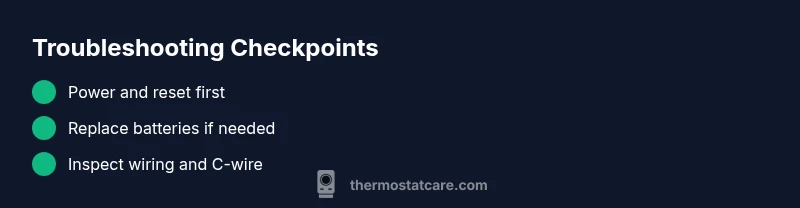
- Power check at the thermostat: confirm the backlight and display respond when you press a button. If there is no response, proceed to the next step. 2. Circuit breaker check: locate the HVAC circuit in the panel and reset if tripped; wait a minute, then restore power and test. 3. Battery replacement: if your model uses replaceable batteries, install fresh cells of the correct type and reassemble the unit. 4. Reset procedure: perform the model-specific reset (hold a button sequence or go through the settings menu) and allow the unit to reboot. 5. Wire inspection: power off again, remove the faceplate, tighten terminal screws, reseat wires, and confirm a solid C-wire connection if used. 6. Post-fix testing: re-power the system and verify heating/cooling respond normally. Pro tip: take a photo of the wiring before disconnecting anything to aid reassembly.
Prevention tips to avoid future blank screens
To prevent future blank screens, keep the thermostat in a stable, operation-friendly location away from direct sunlight and heat vents. Use a dedicated power source where possible and avoid frequent power cycling or unplugging. Replace batteries promptly if your model uses them, and schedule periodic checks of the wiring at the backplate for loose screws or corrosion. Maintain a line of communication with your HVAC system by keeping firmware up to date and ensuring your smart-home hub remains online. Finally, bookmark the manual and warranty terms so you know when a replacement becomes more cost-effective than repair.
Steps
Estimated time: 30-60 minutes
- 1
Power check at the thermostat
Confirm the display responds to input and that there is visible power to the unit. If the backlight is off, move to the next step. If you see any sign of damage, stop and seek professional help.
Tip: Use a non-contact tester if you’re comfortable; never probe live circuits with metal tools. - 2
Circuit breaker and supply
Locate the HVAC circuit breaker in the main panel and ensure it is in the ON position. If it tripped, reset it and wait 60 seconds for the system to reinitialize before retesting.
Tip: If breakers trip repeatedly, there may be a short or overload—shut down and call an electrician. - 3
Battery replacement (if applicable)
Open the battery compartment, remove old cells, and insert fresh batteries of the correct type. Reassemble and power the unit to test the display.
Tip: Discard old batteries safely and avoid mixing old and new batteries. - 4
Reset procedure
Follow the model-specific reset sequence from the manual or quick-start guide. Allow the thermostat to reboot and observe if the display comes back.
Tip: If you’re unsure about the exact steps, search the model number online for the official reset method. - 5
Inspect wiring & C-wire
With power off, remove the faceplate and check that terminal screws are tight and wires are intact. Re-seat the wires and confirm the C-wire is firmly connected if used.
Tip: Take a photo of the wiring before disconnecting anything to aid reassembly. - 6
Post-fix testing
Power the system, test basic functions (adjust temperature, change modes), and monitor for reoccurrence over 24 hours. If issues return, escalate to a professional.
Tip: Maintain a log of any codes or symptoms to help the technician diagnose quickly.
Diagnosis: Blank or non-responsive Honeywell thermostat display
Possible Causes
- highPower supply failure (outlet, switch, or furnace control)
- mediumWeak or dead batteries (where applicable)
- lowLoose or damaged wiring at thermostat terminals
- lowFaulty display module or software glitch
Fixes
- easyCheck that the thermostat is receiving power from the outlet or circuit; reset the breaker if needed
- easyReplace batteries if the model uses them and test the display
- mediumInspect and reseat wires at the thermostat terminals; ensure C-wire is connected if used
- easyPerform a safe reset per the model manual; if unresolved, contact a professional
Questions & Answers
Why is my Honeywell thermostat blank even when it's plugged in?
A blank screen is usually caused by power, battery, or wiring problems. Start with power checks, then battery replacement if applicable, and reseat any wiring. If the issue persists, use the safe reset or contact a professional.
A blank screen on a Honeywell thermostat is typically due to power, battery, or wiring problems. Start with power checks, then battery replacement if needed, and reseat wiring. If it persists, get professional help.
Could a dead battery cause a blank screen on a wired thermostat?
Yes, some Honeywell models rely on replaceable batteries. Install fresh batteries and see if the display returns. If not, the unit may require further diagnostics.
Yes, some models use batteries. Replace them and test the screen.
Is it safe to open the thermostat to inspect wiring?
Only with power off and if you’re confident handling electrical components. Improper handling can cause shocks or further damage. If unsure, contact a licensed technician.
Only if power is off and you know what you’re doing. If not, call a pro.
What should I do if resetting doesn't fix the blank screen?
Continue diagnosing power and wiring, verify the breaker, and inspect the C-wire if used. If still blank, the unit may need repair or replacement—consult a professional.
If reset fails, check power, wiring, and breaker. If it’s still blank, get a pro.
When should I replace the thermostat instead of repairing?
If the thermostat is old, shows repeated failures, or is out of warranty, replacement is often more cost-effective than ongoing repairs.
If it’s old or unreliable, replacing may be best.
Does the warranty cover blank-screen issues?
Warranty terms vary by model and purchase date. Check your warranty documents and contact the manufacturer or installer to confirm coverage.
Warranty varies; check documents and contact the maker to confirm.
Watch Video
What to Remember
- Power check comes first to revive the display
- Battery replacement can resolve many blank screens
- Reseat wiring and perform a safe reset when appropriate
- Call a professional if unresolved or warranty terms apply