How to Schedule Your Nest Thermostat for Peak Comfort and Efficiency
Learn how to schedule your Nest thermostat for comfort and energy savings. This expert guide from Thermostat Care walks homeowners through setup, testing, and optimization to keep your home comfortable year-round.


Set up your Nest thermostat to follow a daily schedule and save energy. This guide explains how to schedule temperatures, create separate weekday/weekend routines, and test changes across heat, cool, and eco modes. By the end, you’ll confidently program a optimized schedule that fits your routine. Whether you’re home most days or away frequently, scheduling helps balance comfort and energy.
Why scheduling your Nest thermostat matters
Scheduling your Nest thermostat to follow a daily routine is one of the simplest ways to improve comfort while trimming energy waste. When you schedule your thermostat, you ensure heating and cooling run only when you’re home, and you can tailor temperature changes to workdays versus weekends. According to Thermostat Care, developing a thoughtful schedule helps homeowners achieve better comfort with less manual adjustment, making the idea of "schedule nest thermostat" a practical habit for busy households. A well-crafted schedule also reduces the need for constant manual tweaks, so you can enjoy consistent temperatures without micromanaging every hour.
In addition to comfort, scheduling supports energy awareness. Nest learns from your patterns, but you still control the big picture: when you want warmer mornings or cooler evenings, and when you’ll be away. The result is predictable outcomes rather than reactive changes. Thermostat Care’s approach emphasizes starting with a simple baseline and then refining it as you observe how your house responds to outdoor conditions and occupancy. This makes scheduling accessible for homeowners and DIY enthusiasts alike.
Beyond personal comfort, a schedule helps with seasonal transitions. As daylight hours change or you shift between work-from-home days and travel, your thermostat can stay in sync with your lifestyle. The goal is a balanced climate that minimizes energy use while preserving your preferred comfort level. Remember: every home is different, so expect to adjust the baseline over the first few weeks.
Key scheduling concepts for Nest
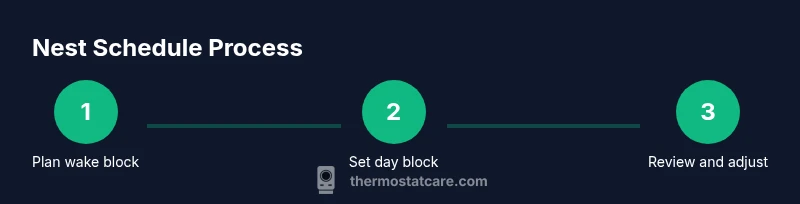
Modern Nest thermostats offer a mix of automatic learning and manual scheduling. The core concept is simple: define temperature targets for blocks of time across a 24-hour period, and Nest will adjust within those blocks. You can create separate schedules for weekdays and weekends, enabling lower temperatures when you’re away or asleep and higher settings during active hours. Eco mode and auto-away can complement those routines, allowing the system to respect occupancy without constant user input. To get the most out of scheduling, think in terms of a few core blocks: wake, away, day, and sleep, then layer on weekend variations as needed.
The Nest app visualizes these blocks as a calendar-like grid, which makes it easier to spot gaps or conflicts. If you use multiple thermostats or a separate Home/Away routine, ensure the settings don’t contradict each other. A consistent data flow between your app and your thermostat is essential for reliable scheduling.
A practical tip from Thermostat Care: start with a conservative baseline and gradually tighten your targets. This helps you gauge comfort versus energy savings without making drastic changes all at once. Also, remember that schedules can be seasonally adjusted—what works in winter may be too aggressive in summer.
Creating a basic weekly schedule
A solid weekly schedule is your foundation. Begin by mapping a 7-day pattern: wake, day, evening, and sleep periods for each day of the week. Start with a reasonable baseline: morning warm-up or cooling to a comfortable level a little before you rise, a daytime setpoint that reflects your occupancy, and a pre-bed setback to help with sleep quality. In Nest, you can set distinct temperatures for weekdays and weekends, which is especially helpful for families with different routines.
To implement this, open the Nest app, navigate to Schedule, and create a new block for each period. Use intuitive targets like 68–70°F (20–21°C) for winter days and 72–74°F (22–23°C) for living spaces in spring and fall. If you prefer Celsius, adjust accordingly. Save a baseline first, then live with it for a week before refining.
It’s also wise to label each block clearly (e.g., “Weekdays — Home,” “Weekends — Away”) so you can quickly review and adjust. As you become more confident, you can introduce small incremental changes to test comfort thresholds without overhauling the entire schedule.
Advanced scheduling: weekends, occupancy, and eco modes
Weekends are the perfect time to rework the schedule because family activity often differs from weekdays. Advanced scheduling considers occupancy signals—such as whether someone is home—and leverages Nest’s Home/Away features to adapt automatically. If you have a smart speaker or a home hub, you can streamline control by voice commands or scenes that trigger a preferred schedule when you return home.
Eco mode can be a powerful ally for energy savings. When you combine a well-tuned Eco setting with careful scheduling, you reduce heating and cooling during unoccupied hours while maintaining comfort during peak times. For homes with variable occupancy, consider enabling Nest’s occupancy-based rules: the thermostat can delay heating or cooling if it detects no one is present and switch back as people return.
Seasonal shifts require a lighter touch. In winter, you might raise morning temperatures slightly to compensate for slower warm-up from a cold night; in summer, you might start cooling earlier to prevent overshoot. The key is to keep the blocks intact while adjusting the baselines gradually. Thermostat Care recommends documenting changes so you can reproduce successful patterns next season.
Testing and validating your schedule
After you set a schedule, the testing phase is essential. Start with a full 24-hour observation period to see how the system responds to each block. Track comfort (your perceived temperature) and energy use, noting any annoying fluctuations or delayed responses. If you notice a block feels too warm or cool, tweak the target by a degree or two and re-test. It’s better to adjust in small increments.
Another practical approach is to compare energy usage before and after implementing the schedule. While Nest’s built-in reports provide insights, keep expectations realistic—schedule changes often yield gradual savings rather than immediate, dramatic drops. In many cases, a week of testing is enough to confirm whether you need a tweak or two.
If you rely on Home/Away, confirm that the system isn’t toggling too aggressively when you’re just stepping out for a quick errand. You can fine-tune by adjusting the sensitivity and the presence pause times in the app.
Common mistakes and how to avoid them
- Using a single, rigid schedule for all days: Your week isn’t identical every day. Create separate blocks for weekdays and weekends.
- Setting extreme temperature swings: Large gaps can create discomfort and negate energy gains. Make gradual adjustments.
- Ignoring seasonal changes: A winter baseline won’t work year-round. Schedule adjustments should reflect outdoor temperatures and your thermostat’s performance.
- Overriding schedules with manual changes: If you constantly adjust by hand, Nest may lose the learning benefit. Use manual changes sparingly and let the schedule reinstate itself.
- Not testing enough: A quick, one-day test isn’t enough to capture comfort and energy dynamics. Plan for a full week of observation before finalizing.
Pro tip from Thermostat Care: document every adjustment and the reason behind it. A simple log helps you reproduce successful configurations and avoids repeating unsuccessful experiments.
Next steps: refine and monitor energy use
With a solid schedule in place, your next steps are ongoing refinement and monitoring. Set a reminder to revisit your schedule every 4–6 weeks, especially around season changes or when there are significant shifts in your routine. Use Nest’s energy reports to identify blocks that consume more energy and adjust those blocks first. Consider pairing your schedule with additional energy-saving habits, such as setting back temperatures when idle longer than usual, or using occupancy-based modes to minimize energy waste.
Remember to share your findings with household members so everyone understands the program and can respond appropriately. A well-maintained schedule becomes part of your home’s normal rhythm, reducing energy costs and maintaining comfort across seasons. The Thermostat Care team recommends keeping a simple wrinkle-free routine that can be updated as needed without overcomplicating the system.
mainTopicQuery":"Nest thermostat scheduling"},
Tools & Materials
- Nest app installed on a smartphone or tablet(Ensure you’re signed in to the Google account linked to your Nest device.)
- Stable Wi-Fi connection(Required for real-time updates and cloud processing.)
- Nest thermostat installed and connected(Ensure firmware is up to date before scheduling.)
- Optional: Home/Away-enabled devices (smart speaker, hub)(Can streamline control via voice scenes.)
- Notebook or digital log(Useful for tracking changes and outcomes.)
Steps
Estimated time: 30-45 minutes
- 1
Prepare your Nest setup
Open the Nest app and verify that your thermostat is online, connected to Wi-Fi, and running the latest firmware. This ensures your scheduling changes will be applied without delays.
Tip: If you’re missing updates, connect to a stable network and check for firmware prompts in the app. - 2
Access the Schedule tab
Navigate to the Schedule section in the Nest app. Create a baseline block structure for wake, day, and sleep periods, ensuring you label weekdays and weekends distinctly.
Tip: Label blocks clearly (e.g., Weekdays–Home) so you can review at a glance. - 3
Set weekday baseline
Define morning warm-up, daytime comfort, and evening setback. Start with conservative temperatures and adjust in small increments after observing a full day.
Tip: Do not swing temperatures by more than 2–3 degrees at a time. - 4
Add weekend variations
Copy the weekday baseline and modify for weekend routines, which often include later wake times or different occupancy patterns.
Tip: Weekend blocks can be looser; focus on comfort while preventing excess energy use. - 5
Enable occupancy/eco features
Turn on Home/Away Assist and Eco mode where appropriate to let the thermostat respond to real-time occupancy while still honoring your schedule.
Tip: Review pause times and sensor sensitivity to avoid premature shutdowns. - 6
Test and adjust
Run a full 24-hour test, note any discomfort or energy spikes, and tweak one block at a time. Re-test as needed until balance is achieved.
Tip: Make small changes and reassess before making broader edits. - 7
Lock in and review weekly
Save your schedule and set a recurring reminder to review every 4–6 weeks, especially with seasonal shifts.
Tip: Keep a simple change-log to track which tweaks worked best.
Questions & Answers
Can I schedule a Nest thermostat without the app?
Scheduling is primarily done through the Nest app or compatible interfaces. Most basic scheduling tasks require the app to set blocks and review energy use. If you don’t have the app, you can pair a compatible smart home hub to access some scheduling features, but the full Nest experience is app-driven.
You usually need the app to set up schedules, though some hubs may let you adjust a few settings.
How many schedules can Nest hold?
Nest supports multiple schedules by block and can preserve different patterns for weekdays and weekends. You can adjust blocks over time, but the app provides a straightforward interface for managing these blocks rather than an unlimited list.
It supports several blocks, but you’ll manage them easily in the app.
What happens if I adjust the thermostat manually while a schedule is active?
Manual adjustments temporarily override the active schedule. Nest will eventually reinstate the scheduled settings unless you permanently change a block. If you rely on manual tweaks often, you may want to update the schedule to reflect those preferences.
Manual changes override the current schedule but Nest will return to the schedule after a short period.
Does Nest support geo-fencing or occupancy-based scheduling?
Nest supports occupancy-based adjustments through Home/Away Assist and presence sensing when enabled. These features complement schedules by automatically shifting to eco or away modes when the house is empty or people arrive.
Yes, occupancy features work with schedules to save energy when you’re away.
How can I tell if scheduling saves energy?
Use Nest energy reports and track indoor comfort over a couple of weeks. Compare days with a stable schedule to days with manual changes to gauge the impact on energy use and comfort.
Look at energy reports and comfort levels to confirm improvements.
How often should I revisit my schedule?
Review and adjust your schedule every 4–6 weeks, or whenever your routine changes (seasonal shifts, work patterns, or daylight saving time). Small refinements accumulate over time for better efficiency.
Revisit roughly every month or so as your routine changes.
Watch Video
What to Remember
- Schedule Nest thermostat to match daily routines
- Create separate weekday and weekend blocks
- Test changes with a full-day observation
- Adjust seasonally rather than year-round
- Utilize Home/Away and Eco modes to optimize occupancy