Nest Thermostat Programming: Step-by-Step Guide
Master nest thermostat programming with this step-by-step guide. Learn to schedule heating and cooling, enable eco modes, and troubleshoot common setup issues for smarter home comfort.


Learn nest thermostat programming to optimize comfort and energy use. This quick guide shows how to create daily and weekly schedules, adjust heat and cool routines, and enable Home/Away and Eco modes. The Thermostat Care team notes that clear programming reduces energy waste and simplifies daily comfort. Follow the steps below for a safe, effective start.
What nest thermostat programming is
Nest thermostat programming refers to configuring scheduled temperature settings within the Nest app or the thermostat interface. It lets you specify heating and cooling patterns for different times of day and days of the week so your home stays comfortable with minimal energy use. Proper Nest thermostat programming aligns your heating and cooling with occupancy, outdoor temperatures, and energy goals. According to Thermostat Care, clear, intentional programming reduces energy waste and simplifies daily routines for homeowners.
Why programming matters for energy savings
A well-planned program reduces wasted cycles by ensuring the system runs only when people are home or awake. With Nest, you can set separate schedules for weekdays and weekends, or create adaptive routines that adjust gradually. Thermostat Care analysis shows that thoughtful programming, not aggressive setpoints, yields the best long-term savings while maintaining comfort. The goal is predictable temperatures without overcooling or overheating. Small adjustments to overnight or early morning times can compound savings over a season.
Getting started with the Nest interface
Begin by ensuring your Nest thermostat is connected to Wi‑Fi and linked to your Google account. Open the Google Home app, select your Nest thermostat, and navigate to the Schedule tab. From here you can view today’s temperature, the current mode, and the ability to add new time blocks. If you’re new to Nest, sign in with the account associated to the thermostat, then follow the prompts to grant permissions and complete setup. The interface emphasizes clarity, making common scheduling tasks straightforward for homeowners and DIY enthusiasts.
Building a baseline schedule
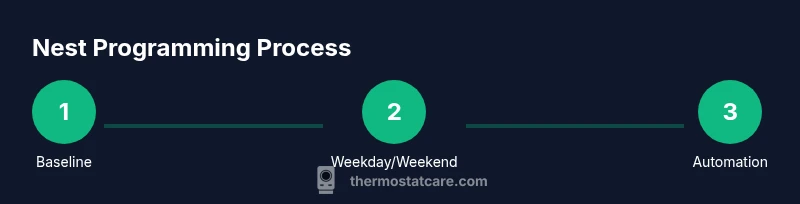
Start with a simple baseline: a 24-hour schedule that sets a comfortable temperature during waking hours and a cooler or warmer temperature when you’re asleep or away. Create blocks for morning, daytime, evening, and night. Keep changes gradual to avoid thermal shock. After establishing the baseline, temporarily hold changes to test how they affect comfort and energy use. Record observations about how different times of day feel and adjust target temperatures by 1-2 degrees to refine your baseline.
Fine-tuning by day type: weekdays vs weekends
Most homes follow a weekday routine and a different weekend pattern. Copy the baseline and adjust for mornings and evenings, considering work, school, and activity levels. For example, loosen temperatures during work hours and schedule a gentle ramp up before waking. Use the Nest Eco mode to reduce energy use when occupancy is low. Periodically compare your actual energy bills with predicted outcomes to verify the schedule is effective across multiple weeks.
Advanced features: Home/Away, Eco, and learning
Nest’s Home/Away sensing can trigger HVAC changes automatically when you leave or return. Eco mode helps balance energy savings with comfort during passive occupancy. If your thermostat learns from patterns, check the Learning screen to confirm that suggested adjustments match your routines. Review occupancy sensors and ensure any connected thermostats or devices are within range. For many homes, enabling these features reduces waste without sacrificing comfort.
Troubleshooting common issues during programming
If changes don’t save, verify you’re signed in to the correct account, and confirm the thermostat is connected to Wi‑Fi. Some users see lag due to slow network or app syncing. Reboot the thermostat or refresh the app, then re-enter your schedule. If problems persist, consult the official Nest Help Center or Thermostat Care for guidance. Keep in mind that sometimes a temporary outage or app update requires re-entering settings.
Quick-start checklist before you start programming
Before you begin Nest thermostat programming, ensure you have a compatible device, stable Wi‑Fi, and access to the Google Home app. Start with a simple baseline schedule and verify that the thermostat accepts changes in the app. Test the Home/Away and Eco modes to confirm the sensors respond. Finally, monitor comfort for a few days and adjust gradually. Having a notebook handy helps you track what works best and why.
Tools & Materials
- Nest thermostat (device)(Ensure it is installed and linked to Wi‑Fi.)
- Smartphone or tablet with Google Home app(Logged into the same Google/Nest account as the thermostat.)
- Stable Wi‑Fi network(2.4 GHz or 5 GHz network; avoid weak or guest networks.)
- Current heating/cooling schedule details(Have preferred temps and time blocks ready.)
- Notepad and pen(For jotting baseline times before entering them.)
Steps
Estimated time: 40-60 minutes
- 1
Verify compatibility and set up the app
Confirm your Nest thermostat is connected to Wi‑Fi and compatible with the Nest app. Install the Google Home app if you haven't, sign in with your Nest/Google account, and pair the thermostat to the app.
Tip: Check firmware version and update if prompted; a mismatch can cause sync errors. - 2
Connect to Wi‑Fi and sign in
Ensure the thermostat is on the same Wi‑Fi network as your phone. In the app, navigate to Settings > Network, and follow prompts to join the network.
Tip: Use a strong 2.4 GHz/5 GHz network; avoid networks that block devices. - 3
Open Schedule tab and review defaults
Open the Schedule tab in the Nest app to view default blocks. Take notes of current temps and times before editing, so you can revert if needed.
Tip: Document baseline settings before making edits. - 4
Create a basic 24-hour baseline
Add a few time blocks for morning, day, evening, and night with comfortable target temperatures. Use small changes (1-2 degrees) to avoid sudden shifts.
Tip: Start with one weekday baseline, then copy for other days. - 5
Copy baseline to weekdays and weekends
Use the app action to duplicate the baseline. Adjust morning wake times on weekdays and different patterns for weekends.
Tip: Label blocks clearly (Mon-Fri, Sat, Sun) to avoid confusion. - 6
Enable Home/Away and Eco modes
Turn on Home/Away features so the system responds to occupancy. Enable Eco mode for overnight or when the house is empty.
Tip: Run a quick test by leaving and returning to verify sensing works. - 7
Test and verify the schedule
Monitor temperatures during a few cycles and ensure there are no abrupt temperature swings. Make iterative adjustments.
Tip: Keep a log of adjustments and results for future tweaks. - 8
Save, monitor, and adjust
Save all changes and observe comfort and energy use over the next 1-2 weeks. Refine as needed.
Tip: Set calendar reminders to review every 2 weeks.
Questions & Answers
What is nest thermostat programming?
Nest thermostat programming is configuring scheduled temperature blocks in the Nest app or thermostat to automate heating and cooling. It helps align comfort with occupancy while saving energy. Start with a simple baseline, then refine over time.
Nest programming means setting scheduled temperatures in the Nest app to automate comfort and save energy. Start simple and adjust as you observe results.
Can I schedule different temperatures for weekdays and weekends?
Yes. Create separate blocks for weekdays and weekends, adjusting wake times and activity levels. This approach keeps mornings comfortable while reducing energy use during low-occupancy periods.
Absolutely. You can set distinct weekday and weekend schedules to match your routine.
How do I enable Home/Away mode on Nest?
In the Nest app, enable Home/Away sensing so the thermostat adjusts when you leave or return. Ensure occupancy sensors are active and the device has stable connectivity.
Turn on Home/Away in the app so it automatically adapts when you leave or come home.
What should I do if my schedule changes aren’t saving?
Check that you are signed in to the correct account and that the thermostat is online. If needed, reboot the thermostat and re-enter your schedule. Persistent issues may require re-syncing the app.
If your changes aren’t saving, verify login and connectivity, then try rebooting the device and re-adding the schedule.
Does Nest learning adjust my schedule automatically?
Nest can learn patterns over time and suggest adjustments. Review the Learning section to confirm suggested changes align with your routine, and fine-tune as needed.
Nest can learn from your habits and propose tweaks. Review and adjust to fit your actual routine.
How do I reset a schedule to defaults?
Open the Schedule tab, select the blocks you’ve created, and delete or reset them to defaults. Then recreate a fresh baseline to start anew.
To reset, delete your custom blocks and rebuild a new baseline schedule.
Watch Video
What to Remember
- Create a baseline schedule before refining it.
- Enable Home/Away and Eco modes to save energy.
- Test changes and adjust gradually over weeks.
- Document results to track impact and inform tweaks.