Resetting Honeywell ProSeries Thermostat: A Complete How-To
Learn how to reset a Honeywell ProSeries thermostat, including when to restart vs factory reset, with practical steps, safety tips, and troubleshooting guidance from Thermostat Care.


You will learn how to reset your Honeywell ProSeries thermostat, including when to restart versus perform a factory reset, and how to verify normal operation afterward. This guide covers safety checks, backup of schedules, and reconfiguration steps. By the end, your thermostat should respond accurately, display current readings, and resume reliable heating and cooling control.
Why Resetting Your Honeywell ProSeries Thermostat Matters
According to Thermostat Care, resetting a Honeywell ProSeries thermostat can clear transient software glitches, restore expected schedules, and fix minor connectivity quirks that pop up during seasonal changes. A reset is often a first step before calling for service because it refreshes the device’s internal memory and re-syncs with the HVAC system. For homeowners, understanding when a reset helps—and which reset type to choose—saves time and reduces frustration. This article guides you through safe, effective resets, backed by practical tips from the Thermostat Care Team.
Resetting: Restart vs Factory Reset — What You Need to Know
There are two common reset approaches: a soft restart and a factory reset. A restart reboots the device to clear temporary glitches without erasing customized schedules or Wi‑Fi settings. A factory reset wipes all user data and returns the thermostat to its original out-of-the-box state, which may be necessary if you suspect corrupted data or persistent programming errors. Thermostat Care analysis shows that most heating and cooling issues resolve after a simple restart, while factory resets are reserved for stubborn faults or when transferring ownership. Always note your preferred schedules before performing any reset.
Safety, Backups, and Preparation
Before you reset, make sure you have access to the device and its manual or official online guide. If your system uses a Wi‑Fi connection and a mobile app, plan to reconfigure those connections after the reset. Back up current schedules, temperature preferences, and any comfort routines so you can restore them quickly. If the thermostat sits behind a wall plate, avoid touching exposed terminals; use only the device’s buttons and on-screen prompts. A calm, methodical approach reduces the risk of misconfiguring settings during reconfiguration.
Step-by-Step Guide in Plain Language
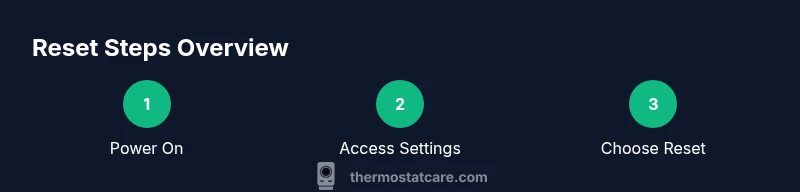
Resetting a Honeywell ProSeries thermostat is straightforward, but keeping a cool head helps. First, power up the unit and access the main Settings menu. From there, locate the Reset option; you may see both a soft restart and a factory reset. If prompted, confirm your choice to proceed, and allow the thermostat to reboot. After the reboot finishes, re-enter your language, time, and regional settings, then re-enable Wi‑Fi and reconnect any linked apps. Finally, run a quick test by setting heat and cool modes to ensure the system responds correctly. If anything seems off, stop and re-check the previous steps before continuing. The Thermostat Care Team recommends documenting the exact steps you took, in case you need to troubleshoot later.
After the Reset: Verifying and Reconfiguring
Post-reset verification is crucial. Start by confirming the current time is correct, the display reflects your preferred units (Fahrenheit or Celsius), and that the Wi‑Fi indicator shows a connected status. Reapply any schedules or routines you saved during the backup. If you use a smart home setup, re-link the thermostat to your voice assistants and mobile apps. Finally, monitor a full day of operation to ensure the system follows your programmed temperatures and responds promptly to changes in setting.
Common Issues After Reset and Quick Fixes
Common post-reset issues include lost schedules, slow connectivity, or delayed responses to temperature changes. If you notice these problems, start by rechecking Wi‑Fi settings and re-pairing the thermostat with the mobile app. Ensure the HVAC system power is stable and the breakers are not tripped. If the display seems dim or unresponsive, perform a secondary restart. In some cases, a full factory reset may be required, but only after backing up presets and confirming you have a working internet connection for reconfiguration.
Tools & Materials
- Honeywell ProSeries thermostat (model in use)(Ensure it's powered and responsive before starting)
- Owner's manual or official online guide(For exact reset steps and labels)
- Internet access (optional)(Needed to re-link apps after reset)
- Pen and paper(To write down current schedules and settings)
- Phone or tablet with app access(For reconfiguring the thermostat via the mobile app)
Steps
Estimated time: 10-20 minutes
- 1
Open Settings
Wake the thermostat, press the gear icon or Menu to access the Settings area. This is where reset options are displayed. The goal is to reach the reset function without forcing the device to restart unexpectedly.
Tip: If you can’t find Settings, consult the manual or online support for model-specific labels. - 2
Choose Reset Option
In Settings, select the Reset option. You may see both a soft restart and a factory reset. Choose the option that fits your goal: a soft restart preserves data, a factory reset wipes it.
Tip: If two options appear, opt for Restore Factory Settings only if you have backed up your schedules. - 3
Confirm Your Choice
Confirm the prompt to proceed. Some models may require a PIN or additional confirmation. If prompted for a PIN, refer to your manual or contact support rather than guessing.
Tip: Back up current settings before confirming, so you can restore them quickly. - 4
Wait for Reboot
Allow the thermostat to reboot completely. This can take 1–3 minutes, during which the screen may go blank briefly. Do not power off during this process.
Tip: Do not interrupt the reboot; interruption can leave the device in an inconsistent state. - 5
Reconfigure Initial Settings
Once the device restarts, reselect language, time, and regional preferences. If you use a smart app, re-link the thermostat to your account.
Tip: Keep a note of your preferred units (F vs C) and time format to avoid future misreads. - 6
Test Temperature Control
Set to heat and then cool to confirm the system responds correctly. If the HVAC doesn’t respond, recheck wiring and power to the HVAC unit.
Tip: If issues persist, perform a second restart or consult support.
Questions & Answers
What is the difference between restarting and factory resetting a Honeywell ProSeries thermostat?
A restart is a soft reboot that clears temporary glitches without erasing user data. A factory reset returns the device to its original state by deleting personalized settings and schedules. Use a factory reset only if persistent problems remain after trying a restart.
A restart is a quick reboot that keeps your settings. A factory reset wipes your preferences and schedules; use it only if problems persist after a restart.
Will resetting affect my Wi-Fi connection and app access?
Yes, a reset may require you to reconnect the thermostat to Wi-Fi and re-link any linked mobile apps or voice assistants. Have your network credentials handy.
After a reset, you’ll likely need to reconnect Wi-Fi and re-link mobile apps. Have your network details ready.
Can a reset fix inaccurate temperature readings?
Resetting can resolve software glitches that affect scheduling or display, but sensor accuracy may also depend on placement and HVAC calibration. Consider sensor placement and HVAC service if readings remain inaccurate.
A reset can fix software glitches that affect readings, but sensor accuracy might require check of placement or calibration.
How long does a reset take?
Most resets complete within a few minutes. A brief reboot is typical; longer resets may occur if you choose a factory reset.
Most resets take just a few minutes; factory resets can take longer.
What should I do if the reset doesn’t resolve the issue?
If problems persist after resetting, check power to the HVAC system, review wiring connections, and consider contacting support or a professional technician for further diagnosis.
If it still doesn’t work, check the HVAC power and wiring, then contact support or a technician.
Is a factory reset the same as replacing the thermostat?
No. A factory reset only erases data and reverts settings. It does not replace the hardware. If issues persist after a reset, you may need service or replacement.
No, reset doesn’t replace the hardware. If problems continue, service or replacement may be needed.
Should I back up schedules before resetting?
Yes. Backing up schedules helps you restore your preferred routines quickly after the reset, saving time and avoiding frustration.
Absolutely—back up your schedules so you can restore them fast after the reset.
Watch Video
What to Remember
- Identify reset type before proceeding.
- Back up schedules and settings to speed reconfiguration.
- Factory reset erases data; use only when necessary.
- Test HVAC response after reset to confirm proper operation.