How to Reset a Honeywell Thermostat
Learn how to reset a Honeywell thermostat to fix unresponsive screens, wrong temps, and connectivity issues. This guide covers software and hardware resets, model variations, and post-reset checks.


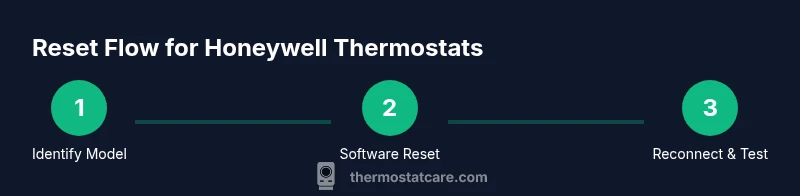
Resetting a Honeywell thermostat can resolve unresponsive screens, incorrect readings, or connectivity issues that disrupt comfort. Start by identifying your model and locating the reset option in settings or a back-panel shortcut for a hardware reset. Follow the steps below for a safe, effective reset. This quick intro is followed by detailed instructions for software and hardware resets, plus post-reset checks.
Why Resetting Helps
Resetting a Honeywell thermostat can salvage performance when the device becomes unreliable. Common symptoms include a blank or frozen display, incorrect temperature readings, delayed responses, and intermittent Wi‑Fi syncing with smart-home apps. By returning the thermostat to a known baseline, you remove corrupted settings, firmware hiccups, or stubborn cache data. According to Thermostat Care, a reset is often the fastest way to restore normal operation without needing a full replacement. This approach also minimizes energy waste caused by runaway heating or cooling cycles.
A reset isn't a magic fix for every problem, but it's a powerful first step for DIY troubleshooters. It helps you verify whether the issue lies in the thermostat or elsewhere in the HVAC system. If problems persist after a reset, you may need a wiring check, a sensor replacement, or professional service. The goal is to return the thermostat to predictable behavior so you can re-establish schedules and comfort settings confidently.
Determine Your Model and Reset Options
Honeywell publishes several families of thermostats, including legacy models and modern smart units. Before resetting, locate the model number (usually on the back of the device, inside the battery compartment, or in the app’s device details). Model options generally fall into software-reset paths (menu-driven) or hardware-reset paths (a physical button or pinhole).
Model differences impact which reset methods are appropriate. Some units offer a “Restore Factory Defaults” option through the settings menu, while others rely on a short hardware sequence. If you’re unsure, consult the user manual or the official Honeywell support site. Thermostat Care recommends confirming model-specific steps to avoid losing custom schedules or connectivity settings accidentally.
Software Reset: Quick Path for Most Models
Software resets are the preferred starting point for most Honeywell thermostats. They restore defaults while preserving basic network connections and room-temperature history where possible. Typical software reset steps include accessing Settings, choosing Reset or Restore Defaults, and confirming the action.
Expect a reboot during the process, which may take 30–90 seconds. After reboot, you’ll often need to re-enter essential preferences like time zone and scheduling preferences. If your unit is connected to a mobile app, you may need to re-pair it or re-sign in. Always verify that the current temperature readings align with the actual room temperature after the reset.
Hardware Reset: When Software Reset Isn’t Enough
Hardware resets bypass software state by using a physical action to revert the device. This method is useful when the display is unresponsive, the reset option is unavailable in software, or the unit won’t reboot properly. Most Honeywell models provide a recessed reset hole or a combination button press.
To perform a hardware reset, power off the thermostat if possible, insert a paperclip or pin into the reset hole for a few seconds, then release and allow the device to restart. After the reset, you may need to re-connect to Wi‑Fi and reconfigure schedules. Use hardware reset only when software options fail, and follow safety precautions to avoid short circuits.
After Reset: Reconnect Wi-Fi, Restore Schedules, and Verify
Post-reset setup is critical for returning to normal comfort. Reconnect the thermostat to your Wi-Fi network, re-enter the network password if prompted, and re-sync any linked smart-home devices or apps. Re-create or restore previously saved schedules to avoid sudden temperature swings.
Take a quick temperature check: compare the setpoint with the actual room temperature using a separate thermometer if available. If readings still seem off, consider calibrating the temperature sensor in the thermostat settings (if your model supports it) or performing a second reset after saving current schedules. These checks ensure reliable performance and energy efficiency.
Common Model Variations and Pitfalls
Not all Honeywell models interpret resets identically. Some units store schedules in the cloud, others locally on the device, and a few keep a separate “service” menu that requires a password. Always verify whether a factory reset will erase saved schedules or custom scenes and plan accordingly.
Pitfalls to avoid include inadvertently deleting important configurations, failing to update the time and date after reset, and ignoring firmware update prompts that can improve reliability. If you rely on voice assistants, re-link the thermostat with those services after any reset. Thermostat Care emphasizes keeping firmware up to date to minimize repeat issues.
Tools & Materials
- Honeywell thermostat manual(Model number on device or in app)
- Pin or paperclip for hardware reset(Use a non-metallic tip to avoid damage)
- Stable Wi‑Fi network(2.4 GHz commonly preferred for compatibility)
- Smartphone/tablet with Honeywell app(Used for setup, re-pairing, and monitoring)
Steps
Estimated time: 10-25 minutes
- 1
Identify model and locate reset options
Find the exact model number on the device or in the app. Check the manual or Honeywell support page to confirm whether a software reset or a hardware reset is recommended for your model.
Tip: Having the model number handy speeds up model-specific lookup. - 2
Back up schedules and preferences
Before resetting, document your current schedules, temperature setpoints, and any custom scenes so you can recreate them after the reset.
Tip: Take screenshots or jot down key settings. - 3
Initiate software reset
Access the thermostat’s Settings or Advanced menu, select Reset/Restore Defaults, and confirm the action. Some models require you to choose keeping or deleting schedules.
Tip: If unsure, opt to preserve schedules if the option appears. - 4
Wait for reboot
Allow the thermostat to reboot. This typically takes 30–90 seconds. Do not power off during the restart.
Tip: A calm, uninterrupted reboot reduces corruption risk. - 5
If software reset fails, perform hardware reset
Locate the reset hole or button. Power off if possible, press and hold for 5–10 seconds, then release and let the unit restart.
Tip: Use an unbent pin; avoid excessive force. - 6
Reconnect to Wi‑Fi and re-pair apps
After restarting, reconnect to your network and re-link any mobile apps or voice assistants.
Tip: Double-check network credentials and account permissions. - 7
Test and restore settings
Set a comfortable temperature, run a quick thermostat test, and compare actual room temperature to setpoint.
Tip: If discrepancies persist, consider sensor calibration options.
Questions & Answers
Will resetting erase my schedules and saved settings?
A software reset may reset some personalized settings. If the option exists, choose to preserve schedules or back them up before proceeding. Always verify settings after the reset.
A reset can affect saved schedules; check the options and re-create them if needed.
My Honeywell thermostat still won’t reset after following the steps. What should I do?
If the software reset fails, try a hardware reset if available. If issues persist, you may have a sensor or wiring problem and should contact professional support.
If resets fail, consider hardware reset or seek professional help.
Is a factory reset the same as a soft reset?
A factory reset restores all settings to original defaults and may erase schedules, while a soft/software reset typically preserves user data. Use factory reset only when necessary.
Factory reset returns the device to default settings; softer resets usually keep your data.
Do I need to re-enter the Wi‑Fi password after resetting?
Yes, most Honeywell resets require reconnecting to Wi‑Fi. Have your network password handy and re-link apps once the unit restarts.
You’ll likely need to reconnect to Wi‑Fi after a reset.
Can I reset Honeywell thermostat without using the app?
Yes, many Honeywell models offer hardware reset without the app. If you rely on cloud features, you’ll still need to re-pair after the reset.
You can reset without the app, but you may need to re-pair afterward.
How long does a reset take to complete?
Most resets complete within a few minutes, including reboot time. Real-world timing varies by model and whether you perform a hardware reset.
Resets usually take a few minutes to complete.
Watch Video
What to Remember
- Reset first with software options to avoid losing data
- Hardware reset is a last resort for persistent issues
- Re-connect Wi‑Fi and re-create schedules after reset
- Verify sensor accuracy and post-reset temperature readings
- Keep model info handy for model-specific steps