How to Set a Honeywell Thermostat: Step-by-Step Guide
Learn how to set a Honeywell thermostat with a clear, model-agnostic approach. Step-by-step instructions, safety tips, and energy-saving settings for better comfort and efficiency.


Set a Honeywell thermostat by confirming power, selecting your mode, and programming a basic schedule. Use the manual for model-specific steps. For more details, see our full step-by-step guide. This quick answer gives you the essential actions to start, plus a reminder to consult your model’s manual for nuances.
Understanding Honeywell Thermostat Interfaces
Honeywell makes a range of thermostats with different interfaces, from traditional dial-and-dial-like sliders to modern touchscreen panels and compact smart modules. Across models, you’ll typically encounter a home screen that shows current temperature, mode (heat, cool, auto, off), and a setpoint control. Some models offer fan control, scheduling, and energy-saving Eco or smart features. If you’re new to Honeywell, start by locating the model number on the back or inside the cover and downloading the official manual from Honeywell’s site. This ensures you’re following model-specific wiring diagrams and safety cautions. According to Thermostat Care, understanding your exact model and its interface is the foundation for a smooth setup, especially when you plan to use Wi‑Fi integration or mobile apps.
Gather the Right Tools and Prepare Your System
Before you touch wiring or power, assemble the essentials. A Phillips screwdriver, a small flathead screwdriver, labeling tape or a notepad, and a clean work surface are your friends. Have the thermostat manual handy, as it lists terminal labels (like R, RC, C, W, Y, G) and the required jumper configurations for dual-transformer systems. If you’re planning to connect to Wi‑Fi, ensure a stable internet connection and your mobile device. Budget extra time for safety checks and reassembly. Thermostat Care’s guidance emphasizes patience during the wiring phase to avoid mislabeling or loose contacts that can cause improper heating or cooling operation.
Prepare for Safe Setup: Power, Breakers, and Labels
Safety first: cutting power to the HVAC circuit at the breaker minimizes the risk of shock while you disconnect and reconnect wires. Take a photo of the existing wiring configuration before removing anything. Label each wire with its terminal letter (R, W, Y, G, C, etc.) so you can place them on the new thermostat correctly. If you’re replacing an older mercury-based thermostat, be aware of potential compatibility issues and how to reconfigure jumper wires as per the manual. The goal is to have a clean, labeled wiring harness that matches the new thermostat’s terminal layout, reducing chances of cross-wiring or missing a critical connection.
Basic Setup Workflow: A High-Level Roadmap
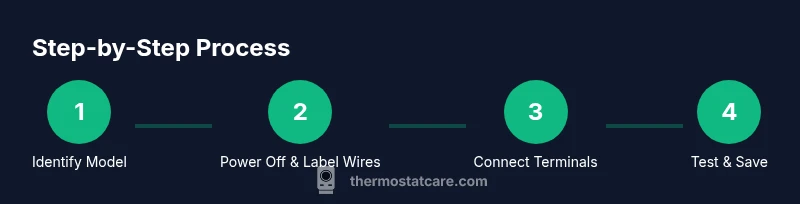
Most Honeywell thermostats share a core workflow: mount the base, connect wires to the correct terminals, reattach the thermostat body, and power up to configure initial settings. You’ll typically set date/time, temperature scale (Fahrenheit or Celsius), system type (heat only, cool only, heat-pump, etc.), and then craft a basic schedule or hold. Brand-agnostic lessons emphasize confirming power integrity and ensuring a stable Wi‑Fi connection if you plan to use the app. Thermostat Care notes that model-specific menus may differ, so treat this section as a framework and follow the manual for exact navigation cues.
Temperature Programming Basics: Modes, Schedules, and Holds
Understanding modes and schedules is key to personalized comfort and energy savings. A typical Honeywell model offers modes like Auto, Heat, Cool, and Off, plus fan options (On/Auto). Schedules let you set different temperatures for weekdays vs weekends and define wake, leave, and return blocks. A “Hold” option lets you maintain a setpoint for an extended period. If you’re starting fresh, begin with a simple two-period schedule: a daytime comfort setting and an overnight energy-saving setting. Over time, you can refine the hold times and adjust for seasonal shifts.
Energy Saving Settings and Comfort Optimization
Energy efficiency comes from balancing comfort with conservative temperature changes. Eco or economy modes can reduce daily energy usage without sacrificing comfort if you set reasonable setback temperatures (for example, 3–5 degrees difference from your usual routine). Enable adaptive or smart features if available, but test them against your real-life routine to ensure they don’t cause unexpected temperature swings. Keep an eye on power consumption if your model supports energy reports. Thermostat Care emphasizes that small, consistent adjustments often yield the best long-term savings without noticeable discomfort.
Common Pitfalls and Quick Fixes
Wiring errors are the most common setup headache. Double-check that each wire is in the correct terminal and that the labels match. If the thermostat shows a blank screen after power-up, confirm the jumper settings on a dual-transformer system and re-check battery status if the unit relies on batteries. If you encounter a “no power” error, inspect the common wire (C) connection and ensure the power is being supplied from the HVAC circuit. For smart features, verify Wi‑Fi strength and router compatibility. The Thermostat Care team finds that many issues resolve with a fresh battery, a clean touch panel, and an updated app connection.
Safety Considerations and When to Call a Pro
Electrical work around an HVAC system carries risk. If you’re uncomfortable with wiring, or if you encounter signs of damage (burn marks, frayed insulation, buzzing sounds), stop and seek professional help. Don’t bypass safety steps or force connections that don’t align with the terminal labels. A qualified HVAC technician can verify system compatibility, check for proper grounding, and confirm you’re using the correct wire gauge for your HVAC equipment. For simple replacements, a DIY approach is feasible when you follow the manual and safety guidelines, but never compromise electrical safety.
Quick Diagnostics After Setup: Tests to Run
Once wired and powered, perform a basic test: set a comfortable temperature, switch between Heat, Cool, and Auto modes, and observe how the system responds. If your system has a fan option, verify it runs on Auto rather than always On. If the thermostat supports a “Test” or diagnostic mode, run it to check sensor readings and contact closures. Finally, test the thermostat’s app or voice control integration if you plan to use smart home features. A successful test sequence confirms both hardware wiring and software configuration are correct.
Tools & Materials
- Thermostat manual for your Honeywell model(Used for model-specific wiring and setup steps)
- Phillips screwdriver (size #1 or #2)(For cover screws and mounting plate)
- Flathead screwdriver (small)(Optional, may be needed for terminal screws)
- Labeling tape or notebook(Label wires (R, C, W, Y, G, etc.) before removal)
- Pliers or wire stripper (if needed)(Assist with trimming or adjusting wires)
- Access to HVAC power (breaker or switch)(Turn off power before disconnecting wires)
- Smartphone or tablet (for app setup)(Helpful for Wi-Fi pairing and remote monitoring)
Steps
Estimated time: 40-60 minutes
- 1
Power down and remove front cover
Switch off the HVAC power at the breaker and remove the thermostat faceplate to access wiring. This minimizes the risk of shock while handling wires. Keep cover safe so you can reattach later.
Tip: If screws resist, don’t force them—gently apply a small amount of torque and check for hidden clasps. - 2
Document existing wiring
Take a clear photo of the current wiring layout. Label each wire with its terminal letter (R, W, Y, G, C) so you can replicate the connections on the new thermostat.
Tip: Double-check the labels against the thermostat’s terminal map in the manual. - 3
Disconnect power to the HVAC
Turn off the power at the breaker or switch to the furnace/AC. This step prevents accidental energization while you reconfigure terminals.
Tip: If unsure about the breaker, confirm by testing the furnace trim or blower with the cover off. - 4
Mount the base and prep wires
Attach the mounting plate to the wall using screws, then route wires through the plate. Prepare wires by trimming insulation and ensuring clean copper.
Tip: Keep wire lengths even; avoid bending wires at sharp angles that could break strands. - 5
Connect wires to corresponding terminals
Insert each wire into the correct terminal on the thermostat base (R to R, W to W, Y to Y, G to G, C to C, etc.). Ensure snug, straight contacts with no stray strands.
Tip: If your model uses jumpers, reinstall them exactly as shown in the manual. - 6
Attach the thermostat and restore power
Secure the thermostat body to the mounting plate and re-power the HVAC at the breaker. Listen for any hums or unusual sounds that may indicate a wiring issue.
Tip: Leave the faceplate off for a quick initial power-on check so you can access menus if needed. - 7
Configure basic settings
Set the date/time, temperature unit, and system type (e.g., Heat, Cool, Auto). Confirm that the screen responds and that you can adjust setpoints.
Tip: If you’re using Wi‑Fi, set up the connection during this initial phase to avoid later reboots. - 8
Test all modes and schedues
Switch between Heat, Cool, and Auto. Program a simple schedule if your model supports it and verify the temperature changes on schedule.
Tip: Run a quick temperature swing test to ensure the HVAC responds promptly. - 9
Install app and test remote control
Download the Honeywell app, pair the thermostat, and test remote control, alerts, and energy reports if available.
Tip: Keep your login credentials secure and enable two-factor authentication if offered.
Questions & Answers
Can I set a Honeywell thermostat without Wi-Fi?
Yes. You can configure basic settings and operate in manual mode without Wi‑Fi. Wi‑Fi is optional and adds remote access and app features.
Yes, you can set it up without Wi-Fi; you’ll just miss remote access features.
Do I need a C-wire for power on a Honeywell thermostat?
Many Honeywell models can run without a C-wire, using power stealing from the R wire. However, some units require a C-wire for reliable power. Consult your model’s manual for specifics.
Some models don’t need a C-wire, but others do. Check your manual.
How do I reset a Honeywell thermostat if settings get garbled?
Most Honeywell thermostats have a reset option in the settings menu or a hardware reset pin. Follow the manual’s reset procedure to restore factory defaults, then reconfigure.
Use the reset option in settings or the hardware reset, then set it up again.
What should I do if my thermostat won’t turn on after wiring?
Verify the power at the HVAC breaker, confirm terminal connections are secure, and confirm the display is not dim due to battery power. If unresolved, consult a pro.
Check power at the breaker, secure all wires, and test again; seek help if needed.
How do I set a schedule on a Honeywell thermostat?
Enter the Scheduling or Programs section, create wake/leave/return/bed times, and set target temperatures for each block. Save changes and test the schedule.
Go to Scheduling, add blocks like wake and bed, set temperatures, save, and test.
Is a pro installation recommended for complex systems?
If you have a heat-pump with auxiliary heat, multiple transformers, or unusual wiring, a licensed technician is advised to ensure safety and compatibility.
For complex HVAC setups, a pro is the safer choice.
Watch Video
What to Remember
- Identify your Honeywell model and interface clearly.
- Label wires before removal to prevent miswiring.
- Power off HVAC and verify connections during setup.
- Test all modes and set a simple schedule before expanding settings.
- Use app pairing to enable remote control and energy insights.