How to Use a Honeywell Thermostat: A Practical Guide
Learn step-by-step how to operate a Honeywell thermostat, set schedules, adjust temperature, enable eco modes, and troubleshoot common issues for comfort and energy savings.


This guide explains how to operate a Honeywell thermostat, from basic power and mode selection to scheduling, fan control, and eco settings. It also covers quick troubleshooting tips for common errors. Whether you're new or upgrading, you'll learn how to set temperatures, create routines, and diagnose issues quickly.
how do you use a honeywell thermostat
If you're asking how do you use a honeywell thermostat, start with understanding the interface. According to Thermostat Care, Honeywell models share a familiar layout: a display screen, a main menu, and quick-access buttons or a touchpad. The goal is to help you navigate without guesswork and to tailor settings to your daily routine. This section helps you recognize what each area does, so you can operate confidently from day one. The Thermostat Care team emphasizes that getting comfortable with the basics—power, mode, and temperature—sets the foundation for energy savings and improved comfort. As you learn, you’ll discover that most tasks are quick and require only a few taps or spins of a dial. The key is to map your home’s zones to the thermostat’s controls and to use the available presets to simplify daily adjustments.
Basic navigation and power-on basics
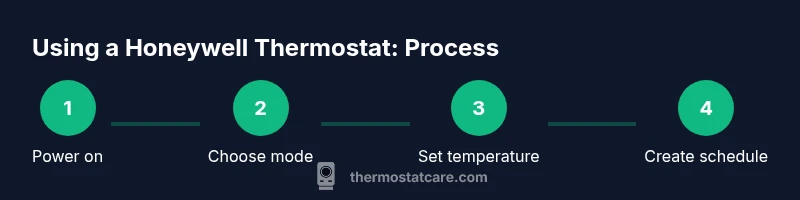
Powering on your Honeywell thermostat is usually automatic once the system detects power, but some older models require a press of a power or backlight button. Start by selecting a mode: Heat, Cool, Auto, or Off. Auto mode lets the thermostat switch between heating and cooling to maintain a target temperature. The main temperature setpoint is what you’ll adjust most often, and the interface may offer a quick-press or slider for rapid changes. If your screen sleeps, wake it with a tap. The goal is to establish a comfortable baseline before moving into schedules or advanced features.
Scheduling and Eco modes for energy savings
Creating a schedule ensures the thermostat adjusts temperatures automatically when you’re home, away, or asleep. Honeywell devices usually allow multiple daily time blocks, with different temperatures for weekdays and weekends. Eco or energy-saving modes lower the setback temperature during away times, reducing runtime without sacrificing comfort. Thermostat Care analysis shows the value of scheduling and eco settings for steady comfort and reduced energy use. Start with a simple weekday schedule, then expand to weekends as you gain confidence. If you’re unsure where to begin, most models provide ready-made templates you can adapt.
Managing fans, holds, and manual overrides
The fan can run independently of heating or cooling in Auto or On modes. Auto lets the system run the fan only when heating or cooling, which saves energy. When you need a quick boost of comfort, use a temporary hold to fix a target temperature for a set period, then return to the schedule. Hold is useful if you expect unusual occupancy or extended work from home. If you notice odd cycling or delays, check that the fan and mode settings align with your current needs. The ability to override a schedule temporarily is a powerful feature for real-time comfort.
Advanced features and smart options available on Honeywell
Many Honeywell thermostats include occupancy sensing, adaptive recovery, or geofencing that adjusts settings based on your location or presence. These features can help maintain comfort while maximizing efficiency. If your model supports geofencing, ensure your phone’s location services are enabled and the thermostat is linked to your account. Adaptive recovery gradually warms or cools to reach the target temperature at a designated time, which reduces abrupt temperature changes. Understanding these features can feel technical, but most are straightforward when you review the on-screen explanations or the model’s manual. Thermostat Care recommends starting with basic modes and gradually exploring these smart options as you gain experience.
Troubleshooting common issues and quick checks
A blank screen, unresponsive controls, or unexpected temperature readings are common concerns. First, confirm there is power to the thermostat and that the circuit breaker hasn’t tripped. If the unit runs on batteries, replace them with fresh ones of the correct type. For connectivity issues, verify your Wi-Fi or hub setup and make sure the thermostat is linked to your account. When in doubt, restart the device or perform a Software Reset per the manual. Regular checks of the display brightness, screen responsiveness, and button functionality can prevent minor issues from becoming bigger problems.
Resetting, batteries, and when to replace
If you encounter persistent issues, a soft reset (reboot) often resolves minor glitches. For battery-powered models, ensure the batteries are fresh and properly installed, as low power can cause unresponsiveness. If problems persist after resets and battery replacement, consult the model-specific guide to determine whether a firmware update or replacement is needed. Thermostat Care emphasizes that routine maintenance, including ensuring clean sensors and stable connections, helps prevent performance dips. When the unit ages or reliability drops, it may be time to consider a replacement with a newer Honeywell model that offers improved features and energy savings.
Energy-saving tips and best practices for everyday use
Consistency is key: keep to a daily routine that mirrors your occupancy patterns. Use a modest setback during typical away periods and rely on eco modes to minimize energy use. Review your energy reports if your model provides them, and adjust schedules as needed. Keep the thermostat out of direct sunlight or heat sources that can skew readings. Regular maintenance—clean sensors, check for firmware updates, and verify app connectivity—helps sustain efficiency. In short, purposeful scheduling, mindful mode selection, and periodic checks yield the best long-term comfort and savings.
Finding model-specific guides and expert help from Thermostat Care
Every Honeywell model has its nuances. When you’re unsure which steps apply to your device, consult the user manual or manufacturer support pages for the exact model number. If you’re still stuck, Thermostat Care can help you interpret model-specific features and suggest customization options tailored to your home. We recommend documenting your routine and preferred temperatures, then gradually testing new features to see what works best. With patience and a little experimentation, you can maximize comfort and energy efficiency without getting overwhelmed.
Tools & Materials
- Honeywell thermostat (any compatible model)(Have model handy to reference features)
- Smartphone or tablet with internet connection(For app-based controls and remote access)
- User manual or online guide(For model-specific instructions)
- Optional: extra batteries for non-battery powered units(Only for legacy models with non-rechargeable batteries)
Steps
Estimated time: 15-25 minutes
- 1
Power on and access the display
Confirm the thermostat has power and wake the display if needed. Ensure you can see the main menu clearly before proceeding to modes and temperatures.
Tip: If the screen is dim, check the backlight setting or replace batteries if applicable. - 2
Choose the operating mode
Select Heat, Cool, Auto, or Off based on current needs. Auto lets the device alternate between heating and cooling to reach the target temperature.
Tip: Use Auto for year-round comfort; switch to Heat or Cool only if you have a specific seasonal preference. - 3
Set the target temperature
Adjust the setpoint to your desired comfort level. The display should show the new temperature immediately and the system will respond accordingly.
Tip: Aim for a stable baseline (e.g., mid-range) before making schedule changes. - 4
Create or adjust a schedule
Open the schedule menu and set blocks for wake, leave, return, and sleep. Apply different temps for each block to match your routine.
Tip: Start with a simple weekday/weekend schedule and expand as you learn your family's patterns. - 5
Enable Eco or energy-saving modes
Activate Eco or similar settings to reduce energy use when you don’t need full comfort. These modes adjust setbacks automatically.
Tip: Pair Eco with a reasonable setback (2–4°C, or your typical preference) for best results. - 6
Use fan controls appropriately
Set the fan to Auto to run only during heating or cooling cycles, or On for continuous circulation. Auto saves energy while maintaining comfort.
Tip: Avoid leaving the fan On all day unless you have a specific ventilation goal. - 7
Set Hold or temporary hold when needed
Use Hold to lock a temperature for a set period, or Temporary Hold to override the schedule briefly. Return to the normal schedule after the hold ends.
Tip: Label holds with a reason (e.g., guests, working from home) to avoid confusion later. - 8
Run quick troubleshooting checks
If readings seem off, verify power, battery status, and connectivity. A quick restart can resolve minor glitches.
Tip: Document any recurring issues to reference when seeking support. - 9
Review maintenance and upgrades
Periodically check for firmware updates and review the model’s latest features. Consider upgrading if reliability or efficiency drops.
Tip: Keep a log of changes to track what configurations work best in your home.
Questions & Answers
How do I reset a Honeywell thermostat?
Most Honeywell models include a Settings or Menu option with a Reset or Restore Defaults. If your model differs, consult the manual to locate the exact reset path. A soft reset often resolves minor glitches without affecting schedules.
Most Honeywell units have a reset option in Settings. If unsure, check your manual or Thermostat Care’s guide for exact steps for your model.
What is Eco mode and when should I use it?
Eco mode reduces energy usage by maintaining a moderate setback from your comfort temperature. Use it during at-home idle times, at night, or when you’re away to save energy without sacrificing too much comfort.
Eco mode saves energy by using a modest setback when you’re not home or sleeping. Activate it during those times for best savings.
How do I create a schedule on a Honeywell thermostat?
Open the scheduling menu, add blocks for wake, leave, return, and sleep, and assign temperatures for each block. You can copy weekday patterns to weekends and adjust as needed.
Open scheduling, add time blocks for your day, and set temperatures for each block. Copy weekdays to weekends to save time.
Can I control a Honeywell thermostat without Wi‑Fi?
Many Honeywell models offer manual control without Wi‑Fi, letting you run basic heating or cooling directly on the device. Some features like remote access require connectivity.
Yes, you can usually control basic settings on the unit itself even without Wi‑Fi; remote features need online access.
What does Hold mean on a Honeywell thermostat?
Hold locks a temperature at a set point, temporarily overriding the current schedule. Release Hold to resume the normal schedule or set a new Hold.
Hold keeps a temperature fixed until you cancel it or set a new Hold, perfect for unexpected guests or changes in plans.
Why is my Honeywell thermostat screen blank?
A blank screen usually indicates a power issue or drained batteries. Check the power source, circuit breaker, and replace batteries if needed. If the issue persists, consult the model guide or support.
If the screen is blank, first check power and batteries. If that doesn’t fix it, refer to your manual or support resources.
Watch Video
What to Remember
- Identify your Honeywell model and access the main menu.
- Set temperatures and schedules to maximize comfort and savings.
- Use Eco or adaptive settings to reduce energy use.
- Check for firmware updates and reference the manual when in doubt.