Honeywell Home Thermostat How To Use: A Practical Guide
Master operating a Honeywell Home thermostat with step-by-step instructions, app setup, and troubleshooting tips to boost comfort and energy savings at home.


Goal: Learn how to operate a Honeywell Home thermostat, including setting temperatures, scheduling, and using the Honeywell app. This guide covers model identification, basic controls, Wi‑Fi setup, and routine maintenance to improve comfort and energy savings. Follow the step-by-step instructions to get the most from your Honeywell home thermostat.
What is a Honeywell Home Thermostat and Why Use It? Designed to regulate home heating and cooling, Honeywell Home thermostats help you stay comfortable while controlling energy use. They come in various models and interfaces, from simple touchscreen units to smart thermostats that learn your patterns. The goal is to keep your living spaces at the right temperature without wasting energy. As you explore your Honeywell device, you’ll notice features such as auto schedule, hold and resume settings, and notifications that remind you when maintenance is due. According to Thermostat Care, a proactive approach to programming and remote control can dramatically reduce unnecessary temperature swings and energy costs. This guide walks you through basic usage, so you can start saving immediately, whether you’re adjusting on the wall unit or via the app.
Key Features to Master on Honeywell Home Thermostats Honeywell Home thermostats offer a range of features designed to save energy and simplify daily life. Key capabilities include scheduled programming, hold or temporary override, adaptive recovery that pre-warms or pre-cools before scheduled times, and energy usage insights. Modern models integrate with mobile apps, Wi‑Fi, and voice assistants, enabling remote control from anywhere. Thermostat Care analysis shows that users who set up a weekly schedule typically see noticeable energy savings and more consistent comfort. Take time to understand which features apply to your specific model and how to access them from the wall interface or app.
Basic Controls: Wall Unit Interface vs. App On the wall unit, you’ll navigate via the physical controls or touchscreen to set temperature, select modes (heat, cool, auto), and toggle the fan. The Honeywell app mirrors these options, letting you adjust temps, review recent heating and cooling activity, and test the system. Start by learning the main screen layout, then practice switching between modes and using quick temperature adjustments. Consistency matters: familiarizing yourself with both interfaces helps you make fast changes when needed.
Setting Schedules and Hold Modes A well-tuned schedule reduces energy waste while keeping comfort levels steady. Create daily or weekly programs that reflect your routine, with distinct heat or cool targets for home and away periods. Use the hold function for temporary changes when you’re home late or traveling. After you save a schedule, monitor how quickly the system responds to changes and adjust start times if you notice lag or overshoot.
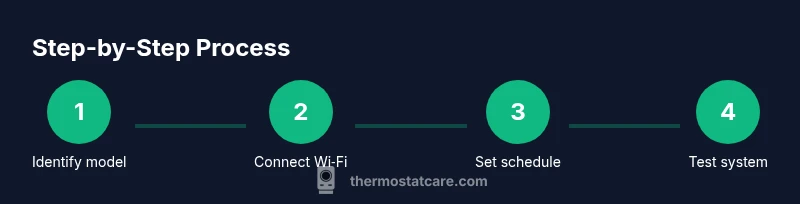
Connecting to Wi-Fi and Using the Honeywell App Connecting your thermostat to Wi‑Fi unlocks remote control, mobile alerts, and energy insights. Open the Honeywell app, follow setup prompts to pair your device, and sign in with your account. Ensure your home network is stable and the thermostat is within range. Once connected, you can set schedules, adjust temperatures, and receive maintenance reminders from anywhere.
Using Voice Assistants and Smart Home Integration Many Honeywell thermostats support voice control through platforms like Alexa, Google Assistant, or Apple HomeKit. Link your Honeywell account to your preferred assistant and enable the thermostat as a smart device. You can issue simple commands such as ‘set the temperature to 72 degrees’ or ask for status updates. Keep in mind that voice control depends on a correct pairing and a connected network.
Common Pitfalls and How to Troubleshoot Common issues include difficulty connecting to Wi‑Fi, slow response to temperature changes, or a blank screen. Start with basic checks: confirm the router is working, verify the thermostat is within range, and ensure the app is signed in to the correct account. If problems persist, consult the model’s manual for reset steps or contact support. Thermostat Care recommends documenting any error codes to speed up troubleshooting.
Maintenance and Best Practices Regular upkeep helps maintain reliability and energy efficiency. Clean the screen and vents periodically, replace batteries if your model uses them, and review your schedules quarterly to adapt to seasonal changes. For battery-powered units, keep extra batteries on hand and note when battery voltage may affect performance. Always use the official Honeywell app for updates and security patches. The Thermostat Care Team emphasizes maintaining a regular review cycle to sustain optimal performance.
Tools & Materials
- Honeywell Home thermostat model (e.g., Honeywell Home T9, T6 Pro)(Model number helps ensure steps match the interface)
- Smartphone or tablet(To use the Honeywell app and receive alerts)
- Wi-Fi network(Stable network for online features and remote control)
- Honeywell Home app account(Needed to pair and control remotely)
- Owner's manual or model-specific guides(Helpful for model-specific steps)
- Screwdriver or basic tools(May be needed for panel access on some models)
Steps
Estimated time: 60-90 minutes
- 1
Identify model and prep
Locate the model number on the thermostat or packaging. Confirm it’s a Honeywell Home unit and review safety notes before removing any panel covers. Having the exact model helps ensure screen prompts and controls match your device.
Tip: Check the manual or manufacturer site for model-specific steps. - 2
Access the interface
Wake the display if needed and navigate to the main screen. Familiarize yourself with the home, settings, and climate-control sections so you can make quick adjustments.
Tip: If the screen is unresponsive, try a gentle press on the screen corners or use the app as an alternative. - 3
Set basic temperature and mode
Set your target temperature using the wheel or touch controls. Choose the appropriate mode (heat, cool, auto) and enable the fan if you want continuous air flow for comfort.
Tip: For rapid changes, use the hold function to lock in a temp temporarily. - 4
Create a schedule
Open the scheduling feature and set different temperatures for wake, leave, and sleep times. Keep schedules consistent through the week for predictable comfort and energy use.
Tip: Avoid overly aggressive swings; small, gradual changes save more energy. - 5
Connect to Wi‑Fi and pair app
Launch the Honeywell app, add a new device, and follow on-screen prompts to pair with the thermostat. Verify that you can receive alerts and control the unit remotely.
Tip: Use a strong home Wi-Fi signal and update the app if prompted. - 6
Test and verify
Temporarily change the target temp and observe the HVAC response. Check that the system switches correctly between heat and cool and that the hold or schedule triggers as expected.
Tip: If you don’t feel a change within a few minutes, recheck the power and wiring connections. - 7
Explore voice control and integrations
If supported, link the thermostat to your smart home assistant and run a quick command to confirm everything works. This adds a hands-free layer of convenience.
Tip: Verify permissions and account links in the assistant app.
Questions & Answers
How do I reset my Honeywell Home thermostat?
To reset, locate the reset option in settings or perform a factory reset as described in your model's manual. This can clear temporary glitches and restore default settings.
You can reset your Honeywell thermostat from the settings menu; if problems persist, perform a factory reset per the manual.
How do I connect my thermostat to Wi‑Fi?
Open the Honeywell app, choose Add Device, and follow prompts to pair the thermostat with your home network. Ensure you’re connected to a stable Wi‑Fi signal.
Use the app to pair your thermostat with Wi‑Fi by following the on-screen prompts.
What is hold mode and how do I use it?
Hold mode locks in a chosen temperature for a set period, overriding the schedule. Use it when you’re home for a while or guests arrive.
Hold mode keeps the temperature steady temporarily without changing the schedule.
Can I control my Honeywell thermostat with my phone?
Yes. The official Honeywell app lets you adjust temperature, view history, and receive alerts from your phone or tablet.
You can control it from your phone using the Honeywell app.
How do I switch between heat and cool?
Use the mode control on the wall unit or app to switch between heat, cool, and auto. Ensure the HVAC equipment matches the selected mode.
Switch modes in the app or on the thermostat to heat or cool.
Why is my thermostat screen blank?
A blank screen can indicate power or battery issues. Check the power supply, replace batteries if needed, and verify connections before troubleshooting further.
If the screen is blank, check power, battery, and connections.
Watch Video
What to Remember
- Identify your model to ensure correct instructions
- Use both wall controls and the app for full control
- Create and refine schedules to save energy
- Connect to Wi-Fi for remote access and alerts