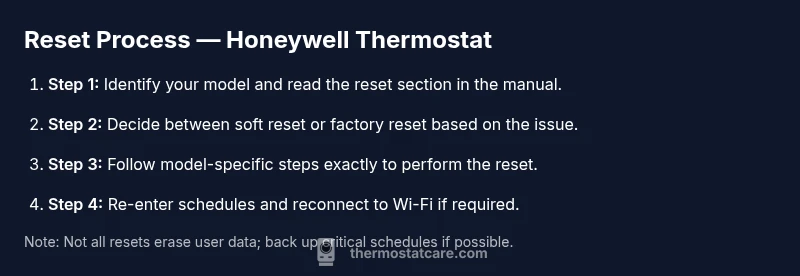
Reset Honeywell Thermostat: Complete How-To Guide
Learn how to safely reset a Honeywell thermostat with clear steps, model-aware guidance, and post-reset tips to restore comfort and efficiency in your home.


Resetting a Honeywell thermostat can fix unresponsive controls, inaccurate readings, or connectivity issues. This step-by-step guide covers soft and factory resets across common models, safety precautions, and post-reset setup. According to Thermostat Care, starting with a safe reset is often the fastest path to restore reliable comfort in a smart home. Follow these structured steps for a quick, safe restoration of your thermostat settings.
What resetting a Honeywell thermostat does and when you should consider it
Resetting a Honeywell thermostat can help resolve a range of software-related problems, from frozen displays to temperature swing and intermittent Wi‑Fi connections. A reset restarts the device’s software, clears temporary glitches, and restores communication with the HVAC system. It may or may not affect saved schedules depending on the reset type. According to Thermostat Care, starting with a safe reset is often the fastest path to restore reliable comfort in a smart home. Before you proceed, confirm you have the model number and a basic understanding of whether your unit is battery-powered or hardwired. This reduces the risk of data loss and ensures you pick the correct reset method for your model.
In many cases, a simple restart can resolve minor issues within a few minutes, while a factory reset should be reserved for persistent problems after other options have been exhausted. If you rely on smart features or a connected app, remember that a reset may require re-pairing the thermostat with your Wi‑Fi network and reloading schedules. The goal is to balance problem resolution with preserving user data whenever possible.
Different reset methods for Honeywell thermostats
There isn’t a single universal reset for all Honeywell models. Most devices offer a soft reset or restart, a app-based reset, and a factory reset. A soft reset restarts the device and clears temporary glitches without deleting user data. A factory reset reverts the thermostat to its original factory state, erasing schedules, custom settings, and network connections. Some models support in-app resets through the manufacturer’s app, which can be the easiest path for digitally connected units. Thermostat Care analysis shows that many issues are resolved by a simple soft reset, while factory resets are reserved for stubborn problems after other steps have been attempted. Always consult your model’s manual to confirm the available options.
How to prepare before resetting
Prepare carefully to avoid losing important configurations. First, locate your model number (often found on the back or inside the front cover) and skim the reset instructions in the manual. Write down or back up your schedules, holds, and connected devices so you can reconfigure them after the reset. Ensure the thermostat is accessible and the wall plate can be opened safely if you need to remove the cover. If your unit is hardwired, consider turning off the circuit breaker for a moment to minimize any risk of electrical shock while you work, then restore power after you finish. Have the appropriate tools handy (screwdriver, pry tool) and a reliable power source or fresh batteries if your model uses them.
Soft reset overview (non-destructive)
A soft reset restarts the thermostat’s software without removing personal data like schedules or connected devices. It’s ideal for unresponsive touchscreens, laggy menus, or minor sensor hiccups. To perform it, navigate to Settings or System, select Restart or Reset, and confirm the action if prompted. The unit will reboot and you should observe improved responsiveness and normal temperature tracking. If the issue recurs, move to a more robust option.
Factory reset overview (destructive)
A factory reset returns the thermostat to its original state, erasing all user data, schedules, and network connections. This step can fix deep-seated software corruption or after a device replacement. The exact path varies by model but commonly involves Settings > Advanced > Factory Reset, or a specific button sequence while booting. Expect the screen to guide you through initial setup afterward. After the reset, you’ll need to re-enter your time, date, schedules, and Wi‑Fi credentials.
Aftercare: reprogramming schedules and reconnecting to Wi‑Fi
Post-reset, re-enter the correct time and date, and recreate your schedules, holds, and smart routines. If your thermostat uses Wi‑Fi or a mobile app, reconnect and re-authorize the device. Keep notes of any network or app preferences, so you don’t forget critical settings. If you previously exported a backup of your configuration, import it to restore convenience and automation quickly. A quick check: confirm that your HVAC system responds to changes in real-time after a reset.
Troubleshooting common post-reset issues
If the display stays blank, double-check power and the wall connection. Connectivity problems may require rejoining Wi‑Fi or re-pairing with the mobile app. If temperatures don’t align with your readings, re-check sensor placement and zone settings. For any issues that persist, consult your model’s official manual or Thermostat Care’s model notes, and consider reaching out to support if needed.
Model-specific notes and where to find your manual
Model-specific steps vary, so use your exact model number to locate the correct reset instructions. Honeywell maintains an online support portal with manuals and step-by-step guides for many models. If you can’t locate your manual, search by model number plus “reset” on the Honeywell support site, or contact customer service for your region. Keeping a quick reference sheet of your model number and preferred reset method speeds up future troubleshooting.
Tools & Materials
- Phillips-head screwdriver (#2)(Used to remove thermostat mounting screws)
- Non-conductive plastic pry tool(Helps lift covers without scratching the display)
- Smartphone or computer(For app-based resets or manual lookup)
- User manual for your Honeywell thermostat(Keep model number handy; locator inside or on back of unit)
- Replacement batteries (if applicable)(Some older models use coin-cell batteries; check model specifications)
- Paper and pen(To record new schedules and network settings)
Steps
Estimated time: 15-30 minutes
- 1
Identify model and prepare
Locate the exact Honeywell thermostat model number and read the reset section in the manual. Confirm whether your unit is battery-powered or wired, and decide which reset method is appropriate based on the issue. This is the foundation for a safe, effective reset.
Tip: Having the model number handy ensures you follow the model-specific steps exactly. - 2
Back up schedules and settings
Before performing any reset, write down or export your current schedules, temperature holds, and any custom automations. This helps you quickly restore comfort after the reset and avoids losing essential configurations.
Tip: If your thermostat supports cloud backups or app exports, use them first. - 3
Power check and safety
If your unit is wired, consider turning off power at the breaker briefly while you access the thermostat. If it’s battery-powered, replace the batteries if they’re old before resetting. Ensuring power stability reduces the risk of corrupting firmware during reset.
Tip: Always prioritize personal safety; never work on live electrical connections. - 4
Access reset options
Open the thermostat’s Settings menu and locate the Reset or Restart option. Depending on the model, you may see Soft Reset, Restart, Reset All, or Factory Reset. Read the prompts carefully before confirming.
Tip: If you’re unsure which option to pick, start with Soft Reset. - 5
Choose reset type
Select Soft Reset or Restart for non-destructive restarting. If problems persist after a soft reset, or if you’re dealing with corrupted data, choose Factory Reset. Model-specific paths may differ, so follow the on-screen prompts precisely.
Tip: Avoid Factory Reset unless you must; you’ll need to reconfigure everything. - 6
Execute the reset
Confirm the reset and allow the thermostat to reboot fully. Do not power off during the reboot. Wait for the display to come back online and indicate readiness.
Tip: Watch for a confirmation message or a reboot indicator to ensure the reset completed. - 7
Re-enter settings
Re-create your time/date, schedules, holds, and any automations. Reconnect to your Wi‑Fi network if needed and re-authorize the thermostat with any linked apps.
Tip: Double-check time zone and climate settings to avoid rapid toggling. - 8
Test and verify
Test temperature changes, fan control, and any connected devices (if applicable). Confirm the thermostat responds accurately and the HVAC system engages properly. If readings still don’t match, re-check sensor placement or proceed with additional steps.
Tip: If issues persist, consult the manual or Thermostat Care’s troubleshooting notes.
Questions & Answers
What does resetting a Honeywell thermostat do?
A reset restarts the thermostat’s software and clears glitches. A soft reset fixes temporary issues without deleting user data, while a factory reset restores default settings and erases schedules. Always start with a soft reset if possible.
A reset restarts the unit and fixes glitches. Start with a soft reset, and only use factory reset if needed.
Soft reset vs factory reset: what's the difference?
A soft reset restarts the device and keeps your schedules intact. A factory reset returns the unit to its original settings, erasing schedules and networks. Use a factory reset only after other options fail to resolve the problem.
Soft reset restarts without erasing data; factory reset wipes everything and should be used last.
Will resetting erase my schedule?
A soft reset typically preserves your schedules, while a factory reset will erase them. If preserving schedules is important, start with a soft reset and only proceed to factory reset if necessary.
Soft reset usually keeps your schedule; factory reset removes it.
Do I need to turn off power to reset?
Power cycling is recommended for safety, especially on wired units. Turn off power at the breaker briefly if you’re comfortable, then proceed with the reset and restore power after completion.
If it’s safe, switch off the power briefly before resetting, then turn it back on after you’re done.
My thermostat won’t reset: what should I do?
If the reset doesn’t take, verify model-specific steps, ensure correct button presses, and check for firmware locks. If problems persist, consult the manual or Thermostat Care’s troubleshooting notes for model-specific guidance.
If it won’t reset, double-check your model’s steps and try again; otherwise, check the manual for model-specific tips.
How often should I reset a Honeywell thermostat?
Reset only when you’re experiencing issues that can’t be resolved by a soft reset or firmware update. Frequent resets can indicate a deeper hardware or compatibility problem that may require professional evaluation.
Only reset when needed; frequent resets may signal a bigger issue.
Watch Video
What to Remember
- Reset soft first to avoid data loss
- Back up schedules before resetting
- Factory reset only for persistent issues
- Reconnect Wi-Fi and reprogram after reset