Honeywell Home Thermostat Reset: Step-by-Step Guide
Learn how to safely reset your Honeywell home thermostat, troubleshoot common issues, and reconfigure settings. This guide covers screen and app resets, model variations, and tips from Thermostat Care.


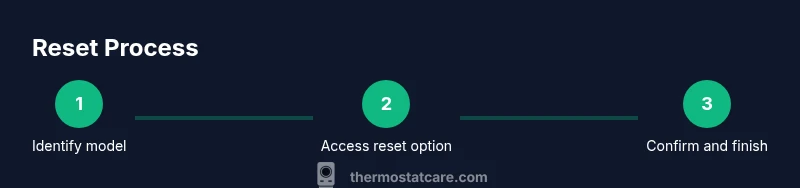
Resetting a Honeywell home thermostat can fix many common faults. Start by identifying your model, ensuring power, and choosing a reset type from the thermostat menu or app. After you confirm the reset, reconfigure time, schedules, and Wi‑Fi as needed. For model-specific paths and safeguards, follow the detailed steps below.
Overview and When to Reset
A Honeywell home thermostat reset is a practical first step when the system behaves erratically. Symptoms like a non-responsive touchscreen, temperatures that don’t match the room, repeated connection errors, or stubborn scheduling issues are common triggers. Resetting can clear transient glitches, refresh network connections, and restore expected operation in many cases. According to Thermostat Care, a careful reset can solve a surprising number of issues without needing a service call. If problems persist after a reset, there may be a deeper hardware or wiring concern that requires professional assessment. This guide emphasizes model-aware steps, preparation, and safe handling to set you up for success across Honeywell Home lines such as Lyric, T-series, and other Wi‑Fi thermostats.
Model Variations and Reset Options
Honeywell offers several thermostat families, and the exact reset path can vary by model. In general, you’ll find reset options under Settings, System, or Troubleshooting menus, with choices like Factory Default (reset to factory settings) or Reset & Relearn (relearns sensors and keeps some preferences). Thermostat Care notes that while a factory reset can clear stubborn faults, it also erases saved networks, schedules, and personalized configurations. Always have your model number handy to confirm the correct steps. The high-level idea remains the same: power up the unit, access the reset option, choose the reset type, and perform the confirmation.
Resetting Directly on the Thermostat Screen
On many Honeywell Home models, you can perform a reset directly from the device if you have physical access. Common pathways include tapping Settings > Reset > Factory Default or Settings > System > Reset. The exact menu names can vary by model. If your screen is unresponsive, you may need to try a power-cycle or use the app as an alternative. Regardless of method, follow the on-screen prompts carefully and avoid interrupting the process once it begins. Thermostat Care recommends keeping a note of your preferred settings to re-enter after the reset if needed.
Resetting via the Honeywell Home App
For models that support the Honeywell Home app, you can often initiate a reset from your mobile device. Open the app, select the thermostat, go to Settings or Advanced Settings, and look for a Reset option. Choose the reset type (Factory Default vs Reset & Learn) and confirm. After the reset, the app will guide you through re-linking the thermostat to your Wi‑Fi, and reconfiguring your schedules and preferences. This method is especially convenient if you prefer digital control or don’t have physical access to the wall unit.
Resetting via Web Portal or Other Interfaces
Some Honeywell thermostats support web portal management or voice-assisted interfaces. If your model offers a web-based reset, sign in to your account, navigate to the device control panel, and select reset options. The steps mirror the in-device and app methods: pick a reset type, confirm, and then reapply your settings. If your model relies more on on-device controls, you may not have a web option. Check your manual for interface availability and exact path.
What Happens During a Reset
A reset returns the thermostat to a known state. Factory Default typically clears all user data, schedules, network credentials, and learned preferences. Reset & Learn or similar options may preserve certain basics while refreshing sensors and pairing information. After a reset, you should expect prompts to set date/time, reconnect to Wi‑Fi, and re-enter schedules. Thermostat Care emphasizes documenting your usual schedules and comfort preferences so you can re-create them quickly.
Aftercare: Reconfiguring Settings and Wi‑Fi
Once the reset completes, reconfigure essential settings. Re-enter date and time, connect to your Wi‑Fi network, and restore your schedules. If your thermostat is part of a smart home ecosystem, re-link it to your hub or assistant (Alexa, Google Home, or Apple HomeKit, as applicable). Check that sensor readings align with your actual room temperature and make any necessary calibration adjustments. Periodically review fan settings, hold preferences, and energy-saving modes to optimize comfort and efficiency.
Common Issues After a Reset and How to Address Them
If readings still seem off after a reset, verify sensor placement and ensure the HVAC equipment responds correctly to commands. A misdetection may indicate a faulty sensor, a stuck relay, or a wiring issue rather than a software problem. If your thermostat won’t reconnect to Wi‑Fi, double-check password accuracy and network stability. When in doubt, consult the manufacturer’s support resources or your local technician. The Thermostat Care team recommends documenting any error codes for faster assistance.
Safety, Precautions, and When to Call a Pro
Resetting a thermostat is generally safe, but you should avoid power interruptions during the process. Ensure the device remains powered and avoid pulling wall plates or exposing wiring. If you encounter recurring fault codes, inconsistent readings, or heating/cooling misbehavior after multiple resets, it’s wise to contact a professional HVAC technician. Persistent problems may indicate electrical issues, sensor faults, or wiring faults that require hands-on service and safety considerations.
Maintenance to Prevent Future Issues
Regular maintenance—cleaning the thermostat interior if accessible, updating firmware when available, and keeping sensors unobstructed—helps minimize resets. Check for software updates in the app, be mindful of battery health if your model relies on batteries, and confirm your HVAC system is operating efficiently. Proactively monitoring temperature trends can help you notice anomalies sooner and prevent repeated resets. Thermostat Care’s guidance is to pair routine checks with a reset only when necessary.
Quick Reference Checklist
- Identify model and confirm power before resetting
- Choose the correct reset type (Factory Default vs Reset & Learn)
- Reconnect Wi‑Fi and re-enter schedules after reset
- Test heating and cooling functions immediately after reconfiguration
- Document settings and codes for future reference
Tools & Materials
- Honeywell thermostat(Know your exact model number (Lyric, T-series, etc.))
- User manual or model label(Have the model number handy for model-specific steps)
- Mobile device or computer(Needed for app or web-based reset methods)
- Stable power and fresh batteries (if applicable)(Power interruptions can corrupt reset progress)
- Wi‑Fi network credentials(Required to re-connect after reset on most models)
Steps
Estimated time: 20-40 minutes
- 1
Identify model and power the thermostat
Locate the model number on the label or inside the thermostat cover. Ensure the unit is powered (use the power switch or replace batteries if needed) before starting the reset.
Tip: Having the manual handy speeds up model-specific path confirmation. - 2
Access the reset option on the device
From the thermostat screen, open Settings, then look for Reset or Troubleshooting. If the screen is unresponsive, try a power cycle or use the app as an alternative.
Tip: If you’re unsure of the path, note the exact model and search for its reset sequence in the manual. - 3
Choose the reset type
Select Factory Default to erase all user data, or Reset & Learn to refresh sensors while preserving some config. The choice depends on whether you want a clean slate or to retain certain preferences.
Tip: Factory Default will require re-entering schedules and networks. - 4
Confirm the reset
Confirm when prompted and avoid interrupting the device mid-reset. Wait for the home screen or restart prompt to appear.
Tip: If the device hangs, power cycle once and retry the reset. - 5
Reconfigure date/time and schedules
Set the local time and date, then re-input your desired schedules and comfort preferences. This step ensures accurate temperature control going forward.
Tip: Note your typical wake/sleep times for quick re-entry. - 6
Reconnect to Wi‑Fi
Navigate to the Wi‑Fi settings and rejoin your home network. Enter the password carefully to avoid connection faults.
Tip: Keep your router information handy; some models require you to re-add devices to the hub. - 7
Test heating and cooling
Trigger heat and cool cycles from the thermostat and/or app to verify proper operation. Check for consistent temperature reads across rooms if you have multiple sensors.
Tip: If the HVAC doesn’t respond, check wiring and power to the furnace/AC unit. - 8
Document results and codes
Note any error codes shown during or after the reset. This helps when seeking support if issues persist.
Tip: Keep a written log of steps performed for future reference.
Questions & Answers
Will resetting delete my schedules and Wi-Fi settings?
Yes. A factory reset clears schedules and network credentials, so you’ll need to re-enter them after the reset.
Yes, factory reset clears schedules and Wi‑Fi settings, so you’ll need to re-enter them after.
Is it safe to reset a Honeywell thermostat?
Resetting is generally safe when following model-specific steps and ensuring the unit remains powered during the process.
Resetting is safe if you follow the model-specific steps and keep power steady.
Can I reset using the app only?
Many Honeywell models support app-based resets, but some require on-device access. Check your model's capabilities in the manual or app help.
Some models let you reset from the app, but others may require the thermostat itself.
What if reset doesn’t fix the issue?
If issues persist after a reset, try the alternative reset method (on-device vs app), verify power and wiring, and consider professional diagnosis for hardware faults.
If it still misbehaves after a reset, try another method and check wiring or get professional help if needed.
Do resets affect energy reporting or hold settings?
A factory reset will clear saved energy preferences and hold settings, so you may lose some energy history until you reconfigure.
Yes, a factory reset can clear saved energy and hold settings, so reconfigure afterward.
Are battery-powered Honeywell thermostats reset differently?
Battery-powered units behave similarly, but ensure batteries are fresh to avoid mid-reset power loss.
Battery-powered units still reset the same way; just make sure the batteries are fresh.
Watch Video
What to Remember
- Back up settings before reset
- Choose the appropriate reset type for your goal
- Reconnect Wi‑Fi after reset
- Test HVAC function immediately after reconfiguration
- Consult support if issues persist