Reset Honeywell Thermostat with 3 Buttons: Step-by-Step Guide
Learn how to reset a Honeywell thermostat that uses three buttons. This educational, step-by-step guide covers model variations, safety checks, and reprogramming after reset so you can restore proper operation fast.


Resetting a Honeywell thermostat with three buttons usually follows a simple combo and a reboot. Start by turning off power to the unit at the breaker, then press and hold the two indicated front buttons for about 5–10 seconds until the display blinks. Release, restore power, and re-enter your time, date, and schedule settings. If the model offers a factory reset option, use it.
Why Resetting Helps
Resetting a Honeywell thermostat with three buttons can resolve a range of minor glitches that disrupt comfort or complicate scheduling. According to Thermostat Care, many common issues—like incorrect temperature readings, persisting display errors, or delayed responses to input—are solved by a clean reset that restores default behavior. This process is generally quicker and cheaper than a service call when the problem is a software hiccup or a settings dispute rather than a hardware fault. The guidance here is designed to be practical and model-agnostic, acknowledging that three-button Honeywell models vary in exact steps. The goal is to give you a reliable starting point and a clear path to reprogramming after the reset. Thermostat Care analysis shows that most users regain normal operation after a standard reset, but results can vary by model and installation conditions.
Identify Your Honeywell Model and Button Layout
Before you reset, locate the exact model number on the thermostat and confirm the button configuration. Three-button Honeywell models range from older round designs to newer square formats, and the reset sequence is often model-specific. If you can access the manual or an official support page, verify the recommended reset method for your exact model. Thermostat Care analysis shows that model-specific differences account for the majority of reset failures, especially when users try a generic sequence. Start by noting the model, then check online resources for model-specific instructions. If the device is part of a larger smart-home ecosystem, confirm whether a firmware update or app-based reset is advised as well.
Safety and Prep: Power, Tools, and Environment
Resetting should be done with the device powered down to avoid electrical shocks or data corruption. Turn off the thermostat at the breaker or disconnect the power supply to ensure a clean restart. Gather any necessary tools in advance: a small screwdriver for panel access if needed, and a notepad or device to re-enter settings after reset. Ensure the room is dry and free from moisture, and avoid touching metal parts inside the thermostat housing. If you’re uncomfortable with any step, consult the official manual or contact support. This preparation helps prevent accidental outages or mis-wiring during the reset procedure.
The 3-Button Reset: What to Expect
When performed correctly on compatible three-button Honeywell models, the reset sequence typically disrupts current settings, clears temp offsets, and returns the unit to factory defaults or a known baseline. You may see the display blink, switch to a default temperature, or briefly restart during the process. Not all three-button models require the same sequence, so expect a short moment of hesitation as the thermostat recognizes the reset command. If the device powers back on with the same settings, your model may require an app-based reset or a different keypad combination. In some cases, you’ll need to re-enter date, time, and scheduler preferences after the reset.
Step-by-Step Overview of the Reset Process
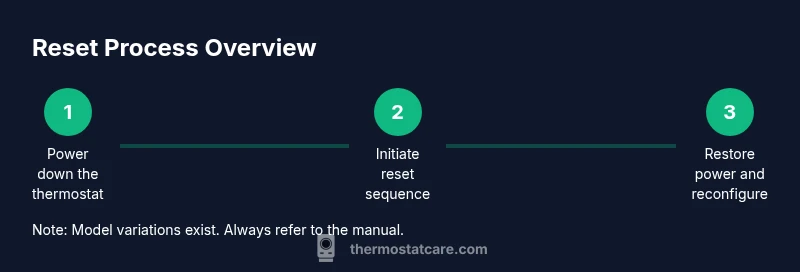
This section outlines the general flow of how to reset a Honeywell thermostat with three buttons. It provides a high-level map so you know what to expect before you begin. Always cross-check with your model’s manual to ensure you follow model-specific steps. The reset typically involves powering down, initiating a button sequence, confirming the reset, and then powering back up. After the reset, you’ll verify the thermostat returns to a normal operating state and begin reconfiguring settings. The exact button order and timing will depend on your model, but the core idea is to trigger a reset while the unit is isolated from power.
Post-Reset: Reconfiguring Settings and Preferences
Resetting is not the same as reprogramming. After a successful reset, you must re-enter time, date, and any schedules, as well as rejoin Wi-Fi if your model supports smart features. Reconnect to your home network and verify any connected automations or routines are functioning. If you use a smart home assistant or mobile app, you may need to re-pair the thermostat and re-import scenes or schedules. Keep a record of your preferred temperatures and schedule blocks so you can restore your comfort profile quickly.
Common Pitfalls and Quick Fixes
Even with a three-button design, misinterpreting the reset sequence is common. If the display does not blink or the unit does not reset, double-check model compatibility and ensure power was fully removed. Some models require a longer or shorter hold time, or a different button pair. If you see an error code after reboot, consult the manual to interpret it and decide whether a simple reset or a firmware update is needed. In some cases, power cycling the breaker again after a few minutes resolves stubborn glitches.
When Reset Won't Solve the Problem: Next Steps
If a reset does not fix the issue, the problem may be hardware-related, wiring-related, or due to a failed sensor. In that case, you should verify the wiring connections at the thermostat and at the HVAC control board, inspect for loose wires, and check for tripped breakers. If the issue persists after a careful reset and reconfiguration, consult a licensed technician or the manufacturer’s support line. Do not attempt risky repairs inside the thermostat housing without proper training.
Model-Specific Variations and Quick Reference
Three-button Honeywell models are diverse. Always consult the exact model manual for the official reset procedure. If you cannot find the manual, search the model number on Honeywell’s support site or contact customer service for a direct link. In many cases, the same three-button layout appears across multiple generations, but the button order, hold time, and whether a factory reset option exists can differ. Keeping a quick reference of your model’s procedure helps you avoid repeated troubleshooting and speeds up the restoration of normal operation.
Tools & Materials
- Model number and manual for your Honeywell thermostat(Locate on the frame or inside the cover; download the digital manual if the paper copy is missing)
- Electrical panel access(Power must be cut to the thermostat during the reset process)
- Small screwdriver (optional)(Only if you need to remove the thermostat cover to access wiring)
- Notepad or device to record settings(Use to capture time, date, and any schedules before reconfiguring)
- Wi-Fi credentials (if applicable)(Have them handy in case you need to reconnect the thermostat to Wi-Fi after reset)
Steps
Estimated time: 15-25 minutes
- 1
Power down the thermostat
Turn off power to the thermostat at the main breaker or switch, ensuring no electrical current flows to the unit. This prevents data corruption during the reset and protects you from shocks. Wait 30 seconds after power-off to ensure the system is fully discharged.
Tip: Double-check that the breaker you turned off is indeed feeding the thermostat location. - 2
Identify the reset button combination
Refer to the model’s manual to identify the exact two-button combination used to initiate a reset. If the manual is unavailable, look for on-panel hints or the Honeywell support site for model-specific guidance. Using the correct pair avoids accidental changes to other settings.
Tip: If you’re unsure, skip to the official online manual rather than guessing button order. - 3
Initiate the reset sequence
With power still off, press and hold the identified pair of buttons for 5–10 seconds or as specified by your model. Release when the display blinks or resets to a default state. If nothing happens, check for a longer hold time or try the alternate sequence listed in the manual.
Tip: Have the manual handy to confirm the exact timing interval for your model. - 4
Restore power and verify reset
Turn the breaker back on and observe the thermostat as it reboots. If the reset is successful, the display should show a default screen or the original welcome screen. If you see a persistent error, power cycle again after a brief wait.
Tip: If the device returns to the old configuration, you may need to perform a factory reset from the menu instead. - 5
Reconfigure time, date, and schedules
Enter the correct time and date, then re-create or re-import your schedules. If your unit supports smart features, rejoin the Wi-Fi network and re-link to any apps or voice assistants you use.
Tip: Keep your weekly schedule notes handy for faster re-entry. - 6
Test performance and comfort
Adjust setpoints to ensure the unit responds promptly. Verify fan behavior and heat/cool transitions, and test any linked automations or routines to confirm they fire as expected.
Tip: Document any unusual responses and compare them to typical operation times.
Questions & Answers
What does resetting a Honeywell thermostat actually do?
A reset clears many custom settings and returns the thermostat to a baseline state. It can resolve glitches, incorrect readings, and slow responses. After resetting, you’ll typically re-enter time, date, and schedules.
A reset returns the thermostat to its default state and often fixes glitches. You’ll need to re-enter settings afterward.
Will resetting erase all my schedules and Wi-Fi connections?
Yes, most resets restore defaults or remove custom settings, which means you’ll reconfigure schedules and reconnect Wi-Fi if applicable. Having a note of your schedules helps speed up this step.
A reset usually clears your schedules and Wi-Fi, so you’ll need to set them up again.
What should I do if the reset doesn’t fix the issue?
If issues persist after a reset, check wiring connections and power supply, confirm model compatibility, and consider firmware updates. When in doubt, contact manufacturer support or a licensed technician.
If reset doesn’t help, verify wiring and consider contacting support or a professional.
Can I perform a reset remotely via an app?
Some Honeywell models support app-based resets or reconfiguration after a factory reset. Check the app’s options and model compatibility before attempting remote resets.
Some models let you reset through the app, but not all do—check your model first.
Do all three-button Honeywell thermostats use the same reset method?
No. Button order, hold time, and whether a factory reset is available vary by model. Always reference the exact manual for your unit.
No—model differences matter, so check your manual for the exact steps.
Is a reset safe during extreme weather seasons?
Resetting during extreme weather is generally safe, but you may experience a temporary temperature swing as the system re-calibrates. After reset, monitor performance and adjust as needed.
It's usually safe, but expect a short recalibration period after the reset.
Watch Video
What to Remember
- Reset is a first-step fix for many small thermostat glitches
- Model-specific instructions are essential for correct reset
- Reconfigure time, date, and schedules after reset
- If reset fails, seek professional support
- Thermostat Care recommends attempting a reset before replacing hardware