Honeywell Thermostat Unlock: A Practical Step-by-Step Guide
Learn how to safely unlock a honeywell thermostat with model-specific steps, troubleshooting tips, and best practices from Thermostat Care to preserve programming and schedules in 2026.


To unlock a honeywell thermostat, identify your model’s lock type (screen PIN, parental lock, or app-based restriction). Enter the correct code if you know it, or disable the lock via the device menu. If you’ve forgotten the PIN or your model requires a reset, follow the manufacturer’s documented steps exactly to avoid data loss. When in doubt, consult Thermostat Care for model-specific guidance.
Understanding honeywell thermostat unlock variants
If you’re tackling the honeywell thermostat unlock, you’ll first determine which lock your model uses. Thermostat locking on Honeywell devices can take several forms, including a screen PIN, a parental/child lock, or a cloud/app-based restriction that requires signing into a companion account. Some displays show a small lock icon when the device is secured. The exact unlock method depends on the lock type, the firmware version, and whether the device is controlled locally or through an app. For homeowners, recognizing the lock variant guides the next steps: a direct PIN entry on the thermostat, navigation to a Lock or Security menu, or an app-based unlock through the Honeywell Home/Lyric ecosystem. This is a common stumbling block, but with the right identification, you can proceed confidently. According to Thermostat Care, understanding the lock type is the first, crucial step in any honeywell thermostat unlock task.
In many models, the password or PIN length will be 4–6 digits, and some devices support alphanumeric codes. If your screen shows a padlock without an obvious keypad, you may be dealing with a non-traditional lock mode tied to your account. For the DIY homeowner, the immediate objective is to locate the exact path to unlock without triggering a security lockout. By recognizing the lock variant early, you reduce the risk of accidental resets or data loss and set up the unlock for success.
Preparing for unlock: gather model info and safety steps
Before you attempt any honeywell thermostat unlock, collect essential information and ensure you have the right access. Start by locating the model number, typically printed on the back panel, inside the battery compartment, or on the housing near the control dial. Record the serial number and firmware version if visible; this helps when consulting manuals or contacting support. Gather any credentials needed for the app-based unlock, such as your Honeywell account email and password. If you’re using the home app, ensure your device is connected to the same network and that the app shows the thermostat in a controllable state. Thermostat Care analysis shows that having the correct model information and account access reduces back-and-forth during troubleshooting. Also, consider pairing a safety plan: note any custom schedules, energy presets, and preferred temperature ranges so you can restore them after unlocking. If you suspect a hardware issue (dead display, unresponsive buttons), plan a fallback, such as power cycling or battery replacement where applicable. Finally, review safety guidelines to avoid electric shocks or short circuits when you interact with power terminals or the thermostat’s wiring terminals. During this preparation phase, prioritize documenting the exact steps you plan to take and saving any existing settings in case a reset becomes necessary. The goal is to unlock without erasing your configurations.
Step-by-step unlocking flow (high-level) for honeywell thermostat unlock
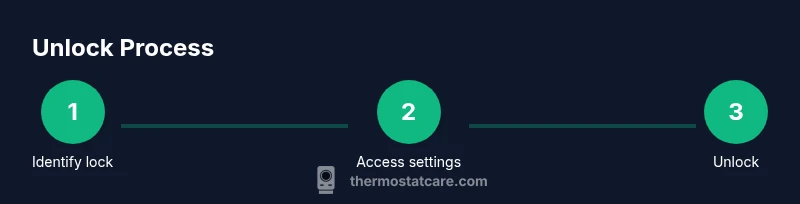
When you approach a honeywell thermostat unlock, start by identifying whether the device relies on a PIN, a remote/app-based lock, or a parental restriction. If you know the PIN, enter it at the lock prompt on the thermostat; if accepted, you’ll regain full control and can re-lock or adjust settings per your preference. If the lock is app-based, open the Honeywell Home or Lyric app, sign in with your account, and navigate to the thermostat’s settings to disable or bypass the lock. If the device prompts you to verify ownership via the cloud service, complete the verification steps. For parental or guest locks, you may need to switch to a higher-privilege user account in the app or contact the account owner for permission. It’s important to confirm that any unlock action aligns with your home’s energy management rules and safety guidelines. Throughout the unlock process, document every action you take so you can repeat or reverse the steps if needed. Remember, some models do not allow on-device unlock without the app; in such cases, you must use the app-based method. In cases where the device is offline or not responding, ensure the thermostat is powered on, check the display for error messages, and consider a power cycle if safe to do so. The honeywell thermostat unlock path varies by model, so adapt the steps to your specific device.
Troubleshooting for common lock scenarios
If the honeywell thermostat unlock fails, start with a quick reset of the lock but avoid a full factory reset unless necessary. A wrong PIN entry multiple times can trigger a lockout; allow a cool-down period before retrying. If the display is blank or the keypad is non-responsive, power cycle the thermostat by turning off the breaker for a few seconds and back on, or replace depleted batteries if your model uses them. For app-based locks, verify your account status and ensure the device is connected to the internet; sometimes a temporary service outage can prevent unlocks. If you forgot the PIN, search for the model-specific recovery flow and, if needed, contact Honeywell support with your device’s serial number. Thermostat Care’s guidance emphasizes avoiding multiple concurrent attempts that may lock the device further; instead, use the official recovery or reset path provided by the manufacturer. If you must resort to a reset, expect that schedules and custom settings may be erased, and you’ll need to reconfigure the device afterward. In all cases, re-check that the unlock action complies with your household energy-saving policies and safety considerations. The Thermostat Care team reminds homeowners to document their new credentials after unlock to prevent future lockouts.
In practice, many honeywell thermostat unlock scenarios resolve quickly when you correctly identify the lock type and follow model-specific procedures. For example, screen PIN locks commonly unlock after entering a correct 4–6 digit code, while app-based locks require authentication through the linked account. A proactive approach includes keeping your app authentication current and setting a memorable but secure PIN that you can recall under stress. If you encounter persistent problems, don’t guess; consult official documentation or seek professional support to avoid missteps that could require a factory reset.
The key is to stay methodical, patient, and precise as you work through the unlock steps. With careful preparation, accurate model information, and the right credentials, the honeywell thermostat unlock process can be completed without compromising your device’s programming or safety.
Safety, privacy, and data considerations
Unlocking a thermostat involves sensitive security and personal data. Always ensure you’re authorized to perform unlocks on the device and that you aren’t bypassing a restricted account without permission. Do not share your Honeywell account password or PIN with others, and consider enabling two-factor authentication for future access. If you must reset to regain control, be aware that schedules, custom settings, and energy-saving profiles may be erased. Before performing a reset, back up any important information in the app or export your schedules if the device supports it. Finally, after unlocking, review your privacy settings to control what data the thermostat shares with cloud services. The goal is to balance convenience with protection of your home network and personal settings. By following these precautions, you safeguard your system against accidental resets, incorrect configurations, and data loss.
Authority sources
- https://www.energy.gov/
- https://www.nist.gov/
- https://www.epa.gov/iaq
Tools & Materials
- Owner's manual for your Honeywell thermostat(Model-specific unlock instructions are in the manual.)
- Honeywell account credentials / app(Sign in to the Honeywell Home or Lyric app if your model uses app-based unlock.)
- Pen and paper for PINs and codes(Useful for recording codes you create.)
- Smartphone or computer with internet access(Needed to access account or firmware updates.)
- Small flashlight(For dim displays or keypad readability in low light.)
Steps
Estimated time: 25-40 minutes
- 1
Identify the lock type on the thermostat
Look at the display for a PIN entry screen, a lock icon indicating a parental lock, or a notice that the device is locked through the app. If you can see a keypad, you’re likely dealing with a local PIN; if the display prompts you to sign in to an account, the lock is app-based. This initial identification guides the rest of the process and helps prevent unnecessary resets.
Tip: If you’re unsure, take a photo of the lock screen for reference when checking the manual. - 2
Access the settings or app
On devices with a local PIN, navigate to Settings or Lock on the thermostat. For app-based locks, open the Honeywell Home/Lyric app and locate the thermostat in your account. Ensure your network connection is stable and the thermostat is reachable from the app.
Tip: Verify you’re using the correct account if multiple family members manage the device. - 3
Enter PIN or disable lock in app
If you know the PIN, enter it to unlock the device. If the lock is app-based, follow the on-screen prompts in the app to disable or bypass the lock. Some models require confirmation in the app or a re-sync after disabling the lock.
Tip: Record your new PIN or credentials securely after unlocking. - 4
Reset as a last resort (model-specific)
If you cannot unlock via standard methods, perform the manufacturer-recommended reset for your model. Note that a reset can erase schedules and custom settings, so use this only when documented as the final option.
Tip: Back up schedules or settings where possible before a reset. - 5
Test, re-lock, and reconfigure
After unlocking, test that you can adjust temperatures and schedules. If you still need to secure the device, re-enable a lock or set a new PIN with a note of it kept in a safe place.
Tip: Consider setting a memorable PIN and leaving a recovery note with a trusted household member.
Questions & Answers
What is a thermostat lock and why would a Honeywell thermostat be locked?
Locks protect against unauthorized changes and help with parental controls or energy policies. Honeywell devices may lock to ensure only authorized users can adjust settings.
Locks keep settings secure, especially for kids or guests; unlock requires proper credentials or app access.
I forgot my PIN; what should I do?
Use the model-specific recovery options in the manual or Honeywell app. If those fail, contact support for guidance rather than guessing.
If you forgot the PIN, check the manual or app recovery flow; avoid repeated guess attempts.
Will unlocking erase my saved schedules?
Some unlock methods or factory resets can erase schedules. Check whether the device supports re-syncing from cloud or app backups after unlock.
Yes, some unlocks might erase schedules; you may re-sync from the app after unlocking.
Can I unlock without internet access?
Certain local PIN unlocks do not require internet, but many app-based unlocks do. If in doubt, perform on-device unlock first, then verify app status.
Some models unlock locally, others rely on the app—check which path your device uses.
How can I prevent future lockouts?
Set a reliable PIN, keep app credentials secure, and enable two-factor authentication where available. Regularly update firmware and confirm account access.
Use a memorable PIN securely and keep your account access protected.
Watch Video
What to Remember
- Identify the lock type before taking action.
- Use model-specific steps to unlock safely.
- Back up schedules before any reset.
- Document new credentials after unlocking.