How to unlock a thermostat honeywell
Learn safe, practical methods to unlock a Honeywell thermostat with model-aware steps, app-based options, and expert tips from Thermostat Care. This guide covers common lock types, why locks exist, and when to seek help.


To unlock a Honeywell thermostat, you typically access the device’s service or lock menu and disable the lock with a PIN or installer code. Start by removing the front cover to reveal the keypad and lock indicator, then follow the model-specific prompts in Settings > Lock. If you’re using the Honeywell app or a linked smart hub, unlock privileges may also be controlled there.
Understanding why unlocking a Honeywell thermostat matters
Lock features on Honeywell thermostats serve important roles: child-safety, energy management, and preventing unintended changes when you’re busy or guests are present. However, a locked thermostat can be frustrating when you actually need to adjust temperature quickly, troubleshoot, or switch modes. According to Thermostat Care, most lockouts are caused by a configured child lock, an forgotten PIN, or a device managed by a connected app or smart hub. The first step in any unlocking process is to confirm the nature of the lock and the model you own. Honeywell produces a range of thermostats, from basic wall units to fully integrated smart thermostats that use companion apps. Knowing which category you have helps you choose the safest and most reliable method. This knowledge reduces the risk of accidental resets or data loss and keeps your home comfortable and energy-conscious in 2026. By understanding the lock’s purpose, you’ll avoid unnecessary frustration and stay on track with your comfort goals.
How to unlock a thermostat honeywell safely
Unlocking a thermostat honeywell safely begins with confirming you’re authorized to adjust settings and that the device is powered. If your model supports a physical lock, remove the front cover per the user guide and inspect the lock switch or PIN entry. If the device is part of a home automation system, unlocking may require the account that controls the hub (for example, a Honeywell Home or connected service). According to Thermostat Care, the most reliable path is to use the model’s own Settings menu: Lock or Security > Off, then confirm your choice. If your installation uses a supervised mode or energy saver lock, disable the feature in the same menu. Always return the device to normal operation after unlocking to preserve security and energy savings. Remember that exact navigation can vary by model, so keep your user manual handy and verify the steps for your specific Honeywell thermostat. Also ensure that any changes align with your household safety practices and energy goals.
Identify your Honeywell model and lock type
Knowing your model helps because navigation and options differ across Honeywell families. Look for a label on the back, inside the battery compartment, or on the packaging. Note the exact model name and whether the lock is on-screen PIN, a physical lock switch, or app-managed. If you’re using a smart Honeywell thermostat, the lock is frequently controlled via the Honeywell Home app or an associated account. In 2026, cloud-managed settings are common, so ensure your internet connection is stable when changing lock options. If you’re unsure, consult your installer or the official manual. Before attempting unlocking, document current settings so you can revert if needed.
Common unlock methods by Honeywell series
Different families of Honeywell thermostats offer different unlock paths. For basic non-smart models, a PIN or a small switch near the cover is common. For smart Wi-Fi models, you’ll often find the unlock option in Settings > Lock within the app, or via your linked account on the Honeywell Home platform. If a physical lock is present, you may need to toggle a tiny switch with a non-conductive tool. In all cases, avoid bypassing security controls or forcing hardware; such actions can damage the device and void warranties. If you’re unsure which method applies to your model, refer to the manual for your specific Honeywell thermostat and verify settings in the official app.
Step-by-step unlocking workflow (narrative)
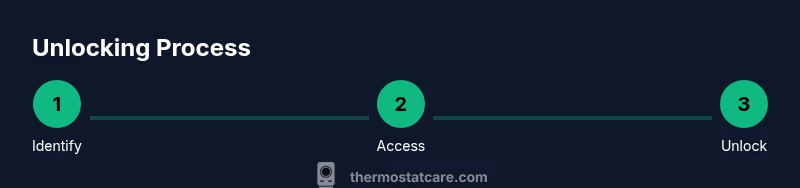
- Confirm model and power: Verify model number and ensure the thermostat is powered (batteries or mains). This prevents misinterpreting a dead device as a locked one. 2) Inspect for lock type: Determine whether the lock is PIN, physical switch, or app-controlled. 3) Prepare access: Have the user manual, PINs, and app authentication ready. 4) Access unlock controls: Open Settings and navigate to Lock or Security. 5) Disable or enter code: Turn the lock off, or enter the correct installer PIN. 6) Verify operation: Return to main screen and test temperature control. 7) Document changes: Note the new state in your house records and update any notes about codes. If a reset is required, follow vendor guidance to preserve as much configuration as possible.
Troubleshooting if unlock fails
If unlock attempts fail, verify you’re using the correct model instructions and that you have the necessary permissions. Check the app account if the device is integrated into a smart home hub. Misplaced codes or permissions are common culprits. If you still cannot unlock, consult the manual for a safe factory reset procedure, understand what data will be erased, and consider contacting Thermostat Care for model-specific guidance. Also check for firmware updates that may influence lock behavior.
Best practices to prevent future lockouts
Create a dedicated, secure place for storing PINs or codes; avoid sharing them widely. When using app-based locks, ensure account recovery options are up to date. Regularly back up your preferences and note any changes you make to lock settings. If you are a multi-user household, designate one trusted administrator who can unlock or reset as needed. Finally, review energy-saving modes to ensure you don’t lock yourself out during extreme weather or busy days.
When to contact support and Thermostat Care resources
If you cannot unlock after following the model-specific steps, contact official Honeywell support or your installer. Thermostat Care recommends documenting model information, lock type, and exact error messages when seeking help. Our team can guide you through a safe unlock or a controlled reset that preserves essential settings and avoids warranty issues.
Tools & Materials
- User manual for Honeywell thermostat (physical or digital)(Model-specific unlock instructions; find the lock settings path)
- Access to the Honeywell Home app or linked account(App-based unlocks or account permissions)
- Front-panel removal tool or small screwdriver (optional)(Only if your model uses a physical lock switch behind the cover)
- Fresh batteries (if powered by battery)(Ensure power is available during the unlock attempt)
- Notebook or device to record codes/settings(Helpful for future reference)
Steps
Estimated time: 15-25 minutes
- 1
IdentifyModelAndLockType
Locate the model name and inspect the thermostat for a visible lock indicator (PIN, physical switch, or app-controlled lock). This ensures you follow the correct unlock path for your specific Honeywell model.
Tip: Take a photo of the lock indicator and screen before making changes. - 2
GatherRequiredTools
Collect the manual, access to the app, and any PINs or credentials you might need. Having everything ready minimizes back-and-forth and reduces the risk of errors during unlocking.
Tip: Keep sensitive codes secure; do not store them in plain text on your device. - 3
AccessUnlockControls
Open Settings and navigate to Lock or Security. If a physical switch is present, locate it and prepare to toggle it off. For app-managed locks, ensure you are logged in with an account that has unlock privileges.
Tip: If the screen is unresponsive, try waking the panel or reloading the app. - 4
DisableLockOrEnterCode
Disable the lock by selecting Off or by entering the installer PIN when prompted. Confirm the change if asked to avoid leaving the thermostat in a partial unlock state.
Tip: If your installer PIN is unknown, consult the manual or support resources rather than guessing. - 5
VerifyUnlockedStatus
Return to the main screen and test temperature control and mode changes to confirm the unlock was successful. Check that the screen shows an unlocked state or the lock icon is gone.
Tip: Test basic functions (temperature, fan, and schedule) to ensure full operability. - 6
DocumentAndSecure
Record the new lock state and any codes in a secure location. If you opted for a reset, review what settings were affected and reconfigure critical preferences as needed.
Tip: Back up your configuration if your model supports cloud or local backups. - 7
IfUnlockedFails
If unlocking fails due to a lost PIN, access privileges, or hardware issue, do not force the device. Proceed with the manufacturer’s recommended reset or contact support for guided assistance.
Tip: Do not bypass safety features; this can void warranties or cause HVAC misbehavior.
Questions & Answers
How do I know if my Honeywell thermostat is locked?
Look for a lock icon on the screen or a Lock option in Settings. If the device uses an app, check the app’s Lock or Security section. If you see a PIN prompt or a switch labeled Lock, the device is locked and requires unlocking via the correct path for your model.
If you see a lock icon or a PIN prompt, your thermostat is locked. Check Settings or the app to unlock.
What if I don’t know the unlock code?
Refer to the user manual for default codes or use the account gateway if the device is integrated with a smart hub. If the code was changed, you may need to perform a safe reset per manufacturer guidelines.
If you don’t know the code, check the manual or app account. If needed, follow the safe reset steps in the manual.
Can I unlock Honeywell thermostat remotely via the app?
Many Honeywell Wi‑Fi models let you unlock or disable locks from the Honeywell Home app or linked account. Ensure you have the necessary permissions and a stable internet connection.
Yes, many models support unlocking from the app if you have access rights.
Will unlocking reset my settings?
Unlocking itself does not necessarily reset settings, but a factory reset will erase custom configurations. Always review what will be affected before a reset and restore critical preferences afterward.
Resetting can wipe settings, so read the manual first.
Is it safe to unlock a thermostat while power is on?
Yes, unlocking while the unit is powered is typically safe, but use caution to avoid touching sensitive components. If you must open the cover, ensure you’re not transmitting moisture or static electricity.
Power on is usually fine, but handle components carefully.
What should I do if the lock is due to service mode or a temporary lock?
Service or temporary locks often require a specific sequence or admin authorization. Check the manual for toggling service mode and contact support if the sequence is unclear.
Service mode locks need the right sequence or admin help; refer to the manual.
Watch Video
What to Remember
- Identify the lock type before attempting unlock
- Use model-specific menus or the app for the safest path
- Avoid forcing hardware and consider reset only as last resort
- Document codes and settings for future use
- Seek expert help from Thermostat Care when needed