Nest Thermostat WiFi Disconnected: Troubleshooting Guide
Urgent troubleshooting guide for homeowners to fix nest thermostat wifi disconnected issues. Learn router checks, account/app status, and step-by-step fixes to restore reliable connectivity quickly and safely.


The most likely cause of a Nest thermostat wifi disconnected is a weak or unstable Wi‑Fi connection or a temporary service issue. Begin with quick network checks: verify the router is online, the thermostat is on the same network, and the Nest app shows the device online. If needed, reboot both router and thermostat and rejoin the Wi‑Fi. If the problem persists, proceed with the step-by-step fixes.
Why nest thermostat wifi disconnected Happens
When a Nest thermostat wifi disconnected, the root cause is almost always network or account issues rather than a hardware failure. The Thermostat Care team has analyzed typical interruptions and finds that Wi‑Fi signal strength, router settings, and Nest service status are the top culprits. In many homes, simply moving the router closer to the thermostat or rejoining the Wi‑Fi fixes the issue. Other times, a firmware update or a temporary Nest server outage can cause a momentary disconnect. Recognizing these patterns helps you act fast and avoid unnecessary resets. Throughout this guide, we’ll focus on practical steps you can take today to restore a reliable connection without guessing.
Check Your Wi‑Fi Signal and Router Settings
A weak or unstable Wi‑Fi connection is the most common cause of nest thermostat wifi disconnected. Start by checking signal strength on the router and ensuring there are no dead spots in the area where the thermostat is located. If you use a mesh system, confirm that the thermostat is on the same network as your phone or laptop tests. Disable guest networks temporarily to see if that restores stability. Also verify that your router’s firmware is up to date and that QoS or parental controls aren’t inadvertently blocking the thermostat. If your router has a 2.4 GHz and 5 GHz band, ensure the thermostat is connected to the 2.4 GHz band for better compatibility.
Verify Nest Account and App Connectivity
Your Nest thermostat relies on an active Nest account and a working app connection. Open the Google Home or Nest app and confirm the thermostat appears online. Sign out and back in if needed. Check for any recent account changes, password resets, or two‑factor authentication prompts that might block the device from syncing. Ensure the app shows the thermostat as online; if the device shows as offline in the app but the router is healthy, the issue may be account or server related. Thermostat Care notes that most disconnects are resolved when the app can communicate with Google/Nest servers again.
Diagnostic Flow: Symptoms to Diagnosis
When nest thermostat wifi disconnected, follow a simple diagnostic flow: observe the symptom, list potential causes, apply quick fixes, and re-test. Common causes include weak signal, router misconfigurations (such as MAC filtering or guest network), and temporary service outages from Nest servers. If the thermostat reconnects after a router reboot but drops again, suspect inconsistent wifi coverage or a secondary device hogging bandwidth. Document the exact moment of disconnect (time of day, what devices were active) to help pinpoint the root cause.
Step-by-Step Fixes for the Most Common Cause
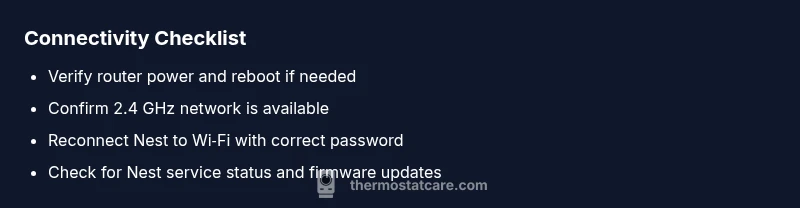
- Restart router and modem: power down the router and modem for 60 seconds, then power back on and wait 2–3 minutes for devices to re‑establish. 2) Reconnect Nest to Wi‑Fi: in the Nest app, forget the network and then reconnect with the correct password. 3) Check 2.4 GHz vs 5 GHz: many Nest devices perform best on 2.4 GHz; ensure the thermostat is on the 2.4 GHz band or has a stable backhaul. 4) Update firmware: verify both the thermostat and router firmware are current. 5) Last resort, factory reset: if all else fails and you can safely reconfigure, perform a factory reset and set up from scratch. Each step should be tested after completion before moving to the next.
Safety Tips and Common Mistakes
- Do not power off electrical circuits near the thermostat while it is installed; cutting power can harm the thermostat or HVAC control board. - Avoid monthly or frequent password changes during an ongoing troubleshoot, as the device may lose its saved network. - Always back up router settings and note current passwords before making changes. - If wiring or power issues appear, stop and seek professional help rather than attempting risky DIY fixes.
Prevention: Keeping Nest Connected
Preventing future wifi disconnects starts with a stable home network. Place the router centrally and away from interference, update firmware on both router and thermostat, and keep the Nest app up to date. Consider a reliable mesh network or wired backhaul if signal strength is inconsistent. Schedule periodic reboots of router and thermostat to maintain health, and enable notifications for device offline events so you can respond quickly.
Steps
Estimated time: 20-30 minutes
- 1
Restart router and modem
Power down both devices for 60 seconds, then plug them back in. Allow 2–3 minutes for the network to reinitialize and devices to reconnect. This clears temporary network glitches that can cause the Nest to drop Wi‑Fi.
Tip: Label your network on the router so you know which SSID to reconnect to when testing. - 2
Reconnect Nest to Wi‑Fi
Open the Nest app, select the thermostat, choose the Wi‑Fi settings, and remove the current network. Reconnect using the correct password and confirm the thermostat shows online in the app.
Tip: If you use a password manager, copy the password directly to avoid typos. - 3
Check network bands
Ensure the thermostat is connected to the 2.4 GHz band if your router is dual-band. Some Nest devices have trouble on 5 GHz networks and may disconnect intermittently when the 5 GHz network is used exclusively.
Tip: Prefer a single SSID for 2.4 GHz to avoid device confusion. - 4
Update firmware
Check for firmware updates for both the Nest thermostat and your router. Apply any available updates and re-test connectivity after the update completes.
Tip: Enable automatic updates where possible to maintain ongoing compatibility. - 5
Last resort: factory reset
If nothing else works, perform a factory reset on the Nest thermostat and set it up again from scratch. This clears persistent network bugs but requires reconfiguring all settings.
Tip: Before resetting, export or note your preferred settings to re-create them quickly.
Diagnosis: Nest thermostat shows Wi‑Fi disconnected or cannot reach internet
Possible Causes
- highWeak or unstable Wi‑Fi signal
- mediumRouter misconfigurations or network isolation (guest network, MAC filtering)
- lowNest service outage or account/auth issues
Fixes
- easyMove the thermostat closer to the router or remove physical obstacles; ensure the device is on a strong, stable network (prefer 2.4 GHz)
- easyForget the network on the Nest and reconnect with the correct password; verify SSID name matches across devices
- easyReboot router and thermostat; check for firmware updates on both devices and apply them
- mediumIf issues persist, perform a network reset on the thermostat or consider a factory reset as a last resort
Questions & Answers
Why is my Nest thermostat not connecting to Wi‑Fi?
Most disconnects come from network or account problems rather than hardware faults. Start with router reboots, ensuring the thermostat is on the correct network, and verify the Nest app shows the device online. If the issue persists, check for a Nest service outage or account prompts that block syncing.
Most disconnects are network or account related. Start with rebooting your router and reconnecting the thermostat, then check the Nest app for online status.
How do I reconnect Nest to Wi‑Fi after a disconnection?
Open the Nest app, remove the current network, then reconnect by entering the correct password. Confirm the thermostat shows online in the app and try a couple of tests like streaming a video or loading a weather app to verify stability.
Open the app, forget the network, reconnect with the password, and test connectivity.
Should I reset my Nest thermostat to fix connectivity?
Factory resets can resolve stubborn network bugs, but they erase customized settings. Use a reset only after trying the standard reconnection steps and updating firmware. Reconfigure the thermostat carefully after the reset.
Only consider a reset if standard fixes fail; it erases settings, so be ready to reconfigure.
Can a weak 2.4 GHz signal cause Nest not to connect?
Yes. Nest devices typically perform best on 2.4 GHz due to longer range. If your router uses a busy 2.4 GHz band, try moving closer or enabling a dedicated 2.4 GHz network for the thermostat.
A weak 2.4 GHz signal is a common culprit; ensure the thermostat has a strong 2.4 GHz connection.
Is there a known Nest service outage that could cause disconnects?
Occasional Nest server outages can interrupt connectivity. Check the Nest status page or Thermostat Care analysis for current notices and wait until services resume before attempting fixes.
Sometimes outages happen on Nest's side; check status and wait if needed.
What safety precautions should I take while troubleshooting?
Always avoid tampering with wiring or power sources beyond the thermostat’s own connections. If you notice burning smells, loose wires, or overheating, stop and contact a professional.
Be careful with wiring or power; contact a pro if you see anything unusual.
Watch Video
What to Remember
- Check Wi‑Fi signal strength first
- Rejoin the Nest network to restore connection
- Keep firmware up to date on router and thermostat
- If unresolved, seek professional help