Nest Thermostat is Offline: Quick Troubleshooting Guide
Struggling with a Nest thermostat that won’t connect? This urgent guide walks homeowners through a practical, step-by-step plan to diagnose and fix offline issues, with safety tips and prevention to keep your system running smoothly.


Most likely the Nest thermostat is offline due to a network or power issue. First check that your Wi‑Fi is online and the thermostat is receiving steady power. If still offline, reboot the thermostat, reconnect to Wi‑Fi, and run a quick test of the HVAC connection. If it remains offline, Thermostat Care recommends seeking professional help.
Why Nest Thermostat Is Offline
When the nest thermostat is offline, its ability to communicate with your home network and HVAC system is disrupted. According to Thermostat Care, most offline issues start with simple network or power problems rather than a faulty device. Start by confirming the thermostat has a reliable power source and can reach your home Wi‑Fi. If the device remains offline after basic checks, you’ll want to methodically verify network stability, router settings, and Nest account status. Keeping a close eye on these fundamentals often resolves the problem without professional help. In this guide, you’ll learn to distinguish between a transient outage and a persistent fault so you can act quickly and with confidence.
Common Causes of an Offline Nest Thermostat
There are several frequent culprits behind a Nest thermostat not showing online. A power issue (duff battery or loose wiring) is a common starter, especially for battery-powered Nest devices. Wi‑Fi instability or router changes—such as a new SSID, password, or guest network—can cut the thermostat off from the cloud. Firmware or app mismatches can also put the device into offline mode. Finally, a temporary service outage with Nest’s cloud services or an account issue (like an expired login) can prevent online status. By checking each potential cause in order, you can quickly narrow down the root problem.
Diagnostic Flow: Quick Checks to Narrow Down the Problem
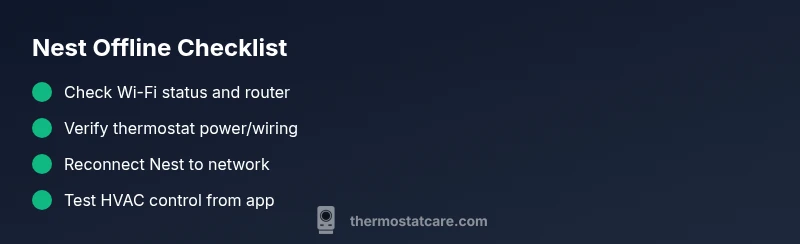
If your Nest thermostat is offline, begin with the most accessible checks. Confirm the router is online and the home network is stable. Verify the thermostat is powered (no dead batteries and secure wiring if it’s wired). Attempt to reconnect the thermostat to Wi‑Fi and reauthenticate in the Nest app. If reconnecting fails, try a soft reboot of both the thermostat and the router. Finally, check Nest’s service status to rule out cloud outages. This ordered approach helps you distinguish local network issues from cloud-related problems.
Step-by-Step Fixes for the Most Common Cause
The most common cause of offline status is a power or network issue. Begin by ensuring the thermostat has power and the cables are secure. Next, reboot the router and reconnect the thermostat to a stable network (preferably a 2.4 GHz network if available). After rejoining the network, verify the Nest app shows the device online and that HVAC control responds. If the thermostat still appears offline, sign out of the Nest account and sign back in, then re-add the thermostat. For persistent issues, consult the diagnostic flow below and consider a professional check.
Safety, Warnings, and Prevention Tips
Always turn off power before inspecting wiring or batteries and follow manufacturer safety guidance. Do not force a connection if you notice damaged cables or signs of arcing. Regular maintenance helps prevent offline status: keep the thermostat firmware up to date, reset your router when you change network credentials, and ensure the Nest device has a stable power supply. A poorly configured network or intermittent power is the leading cause of recurring offline states; addressing those basics reduces risk and downtime.
Steps
Estimated time: 15-25 minutes
- 1
Verify power supply
Ensure the thermostat is receiving power. If wired, check the C-wire and ensure the breaker hasn’t tripped. If battery-powered, replace with fresh batteries and observe if the status changes to online.
Tip: A loose connector is a common hidden culprit; reseat wires firmly. - 2
Check Wi‑Fi network
Confirm the home network is active and stable. If your router recently changed settings or passwords, update them in the Nest app. A weak signal can cause intermittent offline status.
Tip: Aim for a strong signal where the thermostat sits; consider relocating the router or adding a mesh extender if needed. - 3
Reboot devices
Power cycle the thermostat by turning it off and on, or by removing and reapplying power for 15–30 seconds. Reboot the router as well to refresh the network connection.
Tip: Never unplug the thermostat for longer than 30 seconds; this can trigger a reset. - 4
Reconnect to the Nest account
Open the Nest app and ensure the device is listed. If not, re-add the thermostat using the pairing flow. Verify you’re signed into the correct Google/Nest account associated with the device.
Tip: Sometimes removing the device and re-adding resolves cloud linking issues efficiently. - 5
Test HVAC control
From the app, run a quick HVAC test to confirm that changes propagate to the system. If it responds, the offline status was resolved; otherwise escalate to deeper diagnostics.
Tip: Document the outcomes of each test to guide any follow-up support.
Diagnosis: Nest thermostat shows offline in the app or on the device screen
Possible Causes
- highPower issue (dead battery or loose wiring)
- highWi-Fi connectivity problem (router, SSID, password change)
- mediumNest service outage or account issue
Fixes
- easyCheck thermostat power source and wiring; replace batteries or secure wiring if needed
- easyRestart router, reconnect to 2.4 GHz network if available, and rejoin Nest to the network
- easyVerify Nest service status and account login; sign out/in and re-add the device if required
Questions & Answers
Why is my Nest thermostat offline even though my Wi‑Fi is working?
Offline status often stems from a power issue or a router change. Start by confirming the thermostat has power and can reach the network. If the problem persists, check for a cloud outage or account linking problems.
Offline status is usually caused by power or network issues. Check power, then reconnect to Wi-Fi, and verify no cloud outage affecting your account.
How long does it take for Nest to reconnect after a reboot?
Reconnection typically takes a few minutes. If it takes longer or fails, recheck the network and sign back into the Nest app to reestablish the device connection.
Usually a few minutes; if it drags on, verify network settings and re-sign into the app.
Do I need a technician if the Nest remains offline?
Not always. Start with power, network, and cloud status checks. If the issue persists after following the diagnostic flow, a professional may be needed to inspect wiring or replace components.
Often not required, but if checks fail, consider professional help.
Can I fix this without altering my router or network?
Some issues can be fixed by re-adding the device or updating credentials in the Nest app without changing router hardware. If the router is blocked or misconfigured, however, adjustments may be necessary.
You may fix it by re-adding the device; router changes might be needed if configured incorrectly.
Watch Video
What to Remember
- Start with power and Wi‑Fi checks
- Reboot devices before deep diagnostics
- Reauthenticate and re-add if needed
- Check for cloud service outages before service calls