Nest Thermostat Troubleshooting: Quick Fixes and Diagnostics
Urgent guide to diagnose and fix Nest thermostat issues fast—from power and Wi‑Fi to scheduling and sensors. Practical steps, safety tips, and when to call a pro.


Nest thermostat troubleshooting often boils down to power and connectivity. Start by verifying the thermostat is powered, the C-wire is secure, and the Wi‑Fi is stable via the Nest app. If the screen is blank or unresponsive, perform a quick reboot, then rejoin the network. For persistent issues, a controlled reset can restore normal operation.
Quick diagnostics you can run without tools
According to Thermostat Care, many Nest thermostat problems originate from simple, easily fixable causes like power loss, loose wiring, or a hiccup in the Wi‑Fi connection. Begin with the basics before diving into HVAC specifics. Check that the thermostat is physically powered (not blinking or dim), examine the C-wire connection at both the thermostat and furnace control board, and confirm the Nest app shows the thermostat as online. If you notice the display is dim or blank, a gentle reboot often clears temporary glitches. Keep your router nearby and ensure your phone or tablet can reach the network; a weak connection is a frequent culprit that leads to delayed or failed commands from the app.
Power and connectivity are king
Power issues are the most common reason for erratic Nest behavior. If the thermostat reports low power or the display flickers, re-seating the power wires and verifying the 24V supply to the HVAC system can resolve many symptoms. For wireless problems, run through a quick network check: reboot the router, forget and re-add the thermostat on the Nest app, and ensure your Wi‑Fi signal is strong where the thermostat sits. If the Nest stays offline after these steps, it may indicate a deeper power or wiring fault that needs targeted attention.
Scope and limitations of DIY fixes
This guide targets homeowners and DIY enthusiasts troubleshooting Nest devices. Do not attempt risky wiring work if you are unsure about HVAC electrical systems. When unsure, prioritize safety and contact a licensed technician. If you have a known heat pump or multi-stage system, document your system type and any error codes you see in the Nest app to speed up diagnosis later.
Step-by-step flow you can follow
Use this structured approach to narrow down issues efficiently. Start with universal fixes, then proceed to device-specific checks. If an item on the diagnostic flow fails, move to the next item rather than repeating the same test. This keeps you moving toward a resolution without getting stuck on one potential cause.
Safety, maintenance, and future-proofing
Regular maintenance helps reduce surprises. Clean the thermostat screen, ensure vents aren’t blocked by furniture, and confirm the thermostat’s mounting is secure. Protect against power surges by using a dedicated HVAC circuit and avoiding extension cords. After any fix, monitor performance for a few days to catch intermittent issues early.
Steps
Estimated time: 30-60 minutes
- 1
Verify power supply and C-wire
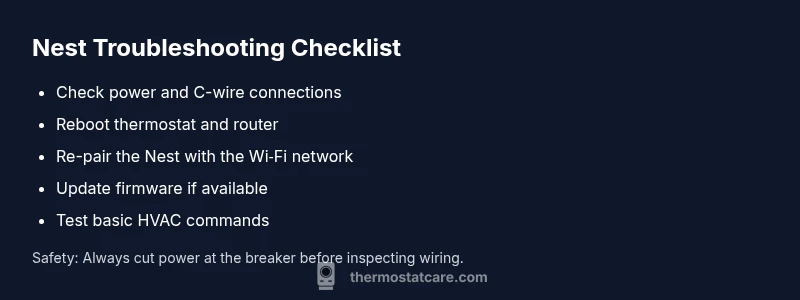
Begin by inspecting the thermostat's power indicators. Confirm the C-wire is securely connected at both the thermostat and the furnace control board. If you see loose wires, power off, reseat, and re-tighten connections before reapplying power.
Tip: Always turn off the HVAC circuit breaker before touching wires to prevent shock or equipment damage. - 2
Reboot the thermostat
Perform a soft reboot by cycling power: turn off the HVAC circuit, wait 30 seconds, then restore power. If if your Nest has a reset option, run a gentle restart from the device menu to clear temporary faults.
Tip: A short reset often resolves unresponsive screens without affecting schedules. - 3
Check wiring at the furnace/control board
Inspect all thermostat wires for corrosion, fraying, or loose terminals. Ensure the wires are fully inserted and secured under their respective terminals. If you detect a damaged conductor, replace the wire segment or consult a professional.
Tip: Take a photo of the wiring before changes to help restore connections correctly. - 4
Reconnect to Wi‑Fi
Open the Nest app, remove the device from your account, and re-add it. Run a quick network test—move the thermostat closer to the router if needed and reduce interference from other devices.
Tip: Use 2.4 GHz Wi‑Fi if your router supports both bands, as some Nest models have better stability on that band. - 5
Check for firmware updates
In the Nest app, look for available software updates and install them. Updates often fix compatibility issues with recent routers or energy-saving features.
Tip: Enable automatic updates if your environment allows so you don’t miss critical fixes. - 6
Test basic climate commands
Try forcing heat and cool modes to confirm the thermostat can trigger HVAC actions. Listen for blower activity or air changes to confirm operation.
Tip: If you hear no fan or if cycles are abnormal, document the symptoms for later reference. - 7
Backup plan: factory reset (last resort)
If all else fails, perform a factory reset via the Nest app settings. This will restore default schedules and may require reconfiguring your home setup.
Tip: Only reset after saving or exporting schedules; you’ll need to re-enter preferences afterward. - 8
Call a professional when in doubt
If you encounter dangerous wiring, inconsistent power, or you’re unsure about the transformer, contact a licensed HVAC technician. Warranty considerations may apply.
Tip: Document error codes and steps you’ve taken to speed up service.
Diagnosis: Nest thermostat shows no power or fails to respond to commands
Possible Causes
- highPower supply issue to the thermostat (e.g., wiring or transformer problem)
- mediumLoose or disconnected wires at the thermostat or furnace control board
- mediumWi‑Fi connectivity problems preventing app synchronization
- lowFirmware corruption or app-related glitch
Fixes
- easyCheck and reseat thermostat wires; ensure the C-wire is connected firmly at both ends
- easyPower-cycle the thermostat and HVAC equipment; shut off power, wait, then restore power
- easyReboot router and re-connect the Nest thermostat to Wi‑Fi; verify network stability
- hardIf issues persist, perform a factory reset from the Nest app/settings after saving schedules
Questions & Answers
Why is my Nest thermostat not turning on or displaying anything?
Power and wiring issues are the most common culprits. Check the C-wire connection, ensure the power supply to the thermostat is stable, and perform a controlled reboot. If the screen remains blank, a reset may be required after confirming power integrity.
If your Nest won’t turn on, start with power and wiring checks, then reboot. If it’s still blank, you may need to reset after verifying power.
How can I tell if the C-wire is properly connected?
Inspect both ends of the C-wire at the thermostat and furnace control board. It should be firmly secured under the C terminal with no loose strands. If you’re unsure, consult a wiring diagram for your system or contact a pro.
Check that the C-wire is firmly under the C terminal at both ends and not loose or corroded.
Can I reset the Nest thermostat without losing schedules?
A factory reset will erase schedules and settings; you can back up or re-create them after the reset. For non-destructive steps, try a software reboot or re-adding the device to your account first.
A factory reset will erase schedules, so back them up if possible. Try rebooting or re-adding the device before a full reset.
What does a 'No power to thermostat' error mean?
This typically indicates a power supply problem or a disconnected wire. Check the breaker, confirm the HVAC power, and verify the C-wire is secure. If the issue persists, a professional assessment may be required.
No power usually means a wiring or power supply issue—check the breaker, power, and C-wire connections.
Is it safe to replace thermostat wiring myself?
Wiring changes can be hazardous and may affect warranties. If you’re not trained in HVAC wiring, it’s safer to hire a licensed technician. For simple connections and power checks, you can proceed with caution following manufacturer guidelines.
If you’re not experienced with HVAC wiring, it’s best to hire a professional to avoid hazards and warranty issues.
How often should firmware updates occur for Nest?
Firmware updates are released by Nest to improve reliability and compatibility. Check for updates in the app periodically and enable automatic updates if allowed by your setup, so issues are less likely to recur.
Check for updates in the Nest app and enable automatic updates when possible to keep the device current.
Watch Video
What to Remember
- Power first: rule out wiring and transformer issues before deeper diagnostics.
- Reboot and re-connect: most issues resolve with a quick restart and Wi‑Fi refresh.
- Wiring matters: ensure C-wire integrity and secure terminals on both ends.
- Factory reset as last resort: save schedules before performing reset.
- Know when to call a pro: safety and warranty considerations trump DIY fixes.