Nest Thermostat Is Not Cooling: Urgent Troubleshooting
Diagnose and fix a Nest thermostat that won't cool. Quick checks, diagnostic flow, step-by-step fixes, safety tips, and expert guidance from Thermostat Care.


Nest thermostat is not cooling? The most common causes are simple: cooling mode not active, incorrect setpoint, or a power/wiring issue. Start by confirming cooling mode is on, the setpoint is below room temperature, and the thermostat has power. If those basics are correct, restart the device and check for airflow or a tripped breaker. If it still won’t cool, move to the diagnostic flow for deeper checks.
Why nest thermostat is not cooling
According to Thermostat Care, when a nest thermostat is not cooling, homeowners often mistake a setting for a failure. The Thermostat Care team found that many cooling issues stem from mode mistakes, power glitches, or routine maintenance lapses rather than a broken device. If you notice that nest thermostat is not cooling, start with the simplest checks: ensure cooling mode is active, verify the current room temperature vs. setpoint, and confirm the thermostat has power. This guide walks you through a safe, methodical path to diagnose and fix the most common culprits, with practical notes for DIYers and safety reminders.
In addition to the thermostat itself, remember that your HVAC system, air filters, and even outdoor unit power can influence cooling performance. A misread from the thermostat can mirror a problem in the AC equipment, so keep the scope broad but purposeful as you proceed.
Quick checks you can perform before deeper diagnostics
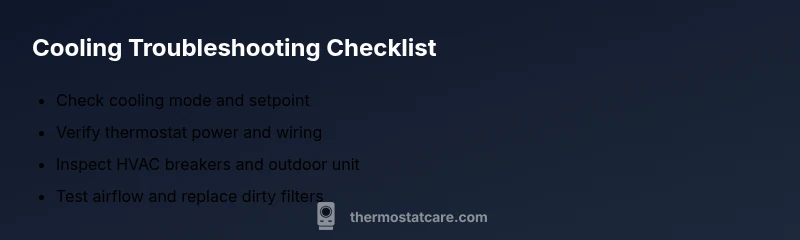
- Verify the cooling mode is active. If the thermostat is in heat mode or auto with an elevated setpoint, cooling won't engage. - Check that the temperature setpoint is below the current room temperature. - Ensure the HVAC power is on: check the circuit breaker and any external disconnects near the outdoor unit. - Confirm the thermostat has power: check the display and ensure batteries (if applicable) are fresh. - Inspect the fan and airflow. Poor airflow can mimic a cooling failure. If any of these are off, correct them and re-test. If the problem persists, continue with the diagnostic flow.
Common causes behind cooling failure
A non-cooling condition is rarely a broken thermostat right away. In many cases the issue is a simple software setting, power issue, or HVAC-side fault. Common culprits include: incorrect or stuck cooling mode, high or incorrect setpoint, power or wiring issues causing the device to misread, a tripped breaker or outdoor unit shutoff, a dirty air filter restricting airflow, and thermostat offline due to Wi‑Fi connectivity. The Thermostat Care team notes that such problems are often resolved with targeted checks rather than a full replacement. Recognize that nest thermostat is not cooling can sometimes be addressed by software updates or resyncing with the HVAC.
Diagnostic flow: symptom → diagnosis → solution
Symptom: Nest thermostat shows cooling mode but the room remains uncomfortable. Diagnosis path: 1) If the display is blank or unresponsive, power issue; 2) If the thermostat is online but not triggering cooling, check setting and wiring; 3) If the HVAC outdoor unit isn't running, check breakers and outdoor disconnects; 4) If the filter is clogged or airflow is poor, address airflow. Solutions follow accordingly and should be tested one by one to confirm the root cause.
Step-by-step fixes for the most common cause
- Reboot the thermostat: power off at the breaker for the HVAC, wait 30 seconds, then turn back on and allow the thermostat to boot up. Tip: note any schedules or routines that may re-assert themselves after restart.
- Verify cooling mode & setpoint: in the app and on-device, confirm cooling is selected and the setpoint is comfortably below the room temperature. Tip: after adjusting, allow a few minutes for the system to respond.
- Check wiring and C‑wire: ensure all terminals are tight, especially the C-wire if present. Tip: power off before touching wiring, and avoid jumper wires that aren't manufacturer-recommended.
- Inspect HVAC power: check the outdoor unit power and the interior air handler breaker. If a breaker has tripped, reset it and monitor. Tip: if the breaker trips again, there may be a HVAC fault that needs professional diagnosis.
- Airflow and filter check: replace dirty filters and ensure vents are open. Tip: schedule regular filter changes every 1–3 months.
- Run a cooling test: after completing the steps, set to cool and observe the compressor and fan cycling for several minutes. Tip: keep a log of results to share with a tech if needed.
Safety and when to call a pro
If you detect burning smells, buzzing sounds, or any signs of wiring damage, stop immediately and contact a licensed HVAC technician. Do not bypass safety devices or attempt complex wiring. Thermostat Care recommends scheduling a professional check if basic troubleshooting does not restore cooling, or if you suspect HVAC-side faults beyond the thermostat. Regular maintenance can prevent many issues so you stay ahead of future cooling problems.
Steps
Estimated time: 60-90 minutes
- 1
Power cycle the thermostat
Turn off power to the HVAC at the main breaker for about 60 seconds, then restore power. This allows the thermostat to reboot and clears minor glitches. After reboot, check the display and try cooling again.
Tip: Note any playlists or schedules that reappear after reboot; you may need to re-sync them. - 2
Verify cooling mode and setpoint
In both the thermostat and the Nest app, ensure cooling mode is selected and the setpoint is sufficiently below the current room temperature. If you’re using Eco or Auto modes, switch to a dedicated Cool mode for testing.
Tip: Give the system a few minutes to respond after changing settings. - 3
Check wiring and C-wire
Power off the HVAC circuit again before inspecting the thermostat terminals. Make sure all wires are properly connected, especially the C-wire if present. Re-seat any loose wires and avoid improvised fixes.
Tip: Use the wiring diagram for your model to confirm correct terminal placement. - 4
Inspect HVAC power
Look at the breakers for the indoor air handler and outdoor condenser. If a breaker is tripped, reset it and watch for the unit to start. If it trips again, there may be a fault in the HVAC system.
Tip: If you’re unsure about the electrical panel, consult a licensed electrician. - 5
Test airflow and replace filter
Check for restricted airflow by inspecting vents and replacing dirty filters. A clogged filter reduces cooling efficiency and can cause the thermostat to read incorrectly.
Tip: Set reminders to replace filters every 1–3 months depending on use and pets. - 6
Run a cooling test and observe
Set the thermostat to Cool and monitor for 5–10 minutes. Listen for the compressor cycling and verify the room temperature is dropping. If it doesn’t, record observations for a pro.
Tip: Document any unusual noises or partial cooling patterns.
Diagnosis: Nest thermostat does not trigger cooling despite setting to Cool
Possible Causes
- highCooling mode not active or setpoint too high
- highPower or wiring issue causing thermostat to misread
- mediumHVAC equipment issue (tripped breaker, outdoor unit off)
- lowWi-Fi connectivity or thermostat offline leading to stale settings
Fixes
- easyDouble-check cooling mode and setpoint, then test again
- easyPower cycle the thermostat and check for loose wiring; reconnect C-wire if present
- easyInspect HVAC breakers and ensure outdoor unit is powered; reset breaker if needed
- mediumConfirm thermostat online status and update firmware; if persists, call a pro
Questions & Answers
Why is my Nest thermostat not cooling even though it's set to cool?
Common causes include cooling mode mis-set, incorrect setpoint, or power/wiring issues. Start with basic checks and progress through the diagnostic flow before replacing equipment.
Most cooling issues start with settings or power. Follow the step-by-step guide to identify the root cause.
Can a dirty air filter affect the thermostat’s cooling ability?
Yes. A clogged filter reduces airflow, which can trigger temperature readings that interfere with cooling. Replace filters regularly to maintain performance.
A dirty filter can cause poor cooling; replace it and test again.
Should I replace the thermostat if cooling keeps failing?
Usually not. Start with power, wiring, and HVAC checks. If those fail, consider contact with a pro before replacement.
Most issues aren’t thermostat failures; try fixes first, then consult a pro if unresolved.
What should I do if the thermostat display is blank?
A blank display can indicate a power issue or dead battery. Check the power supply and, if supported, replace batteries and reboot the device.
If the display is blank, check power and reboot the thermostat.
Is Wi-Fi required for the Nest to cool?
Not strictly required for basic cooling, but Wi-Fi enables updates and remote control. If offline, you can still test locally.
Wi-Fi helps updates and remote control, but you can test cooling without it.
Watch Video
What to Remember
- Start with simple setting checks before deep diagnostics
- Power cycling the thermostat fixes most minor glitches
- Wiring, breakers, and HVAC health are common roots
- Call a pro if the issue persists after systematic troubleshooting