Nest Thermostat Black Screen: Troubleshooting Guide
Urgent, step-by-step guide to diagnose and fix a Nest thermostat black screen. Power checks, resets, wiring tips, and when to call a pro.


A Nest thermostat black screen is usually a power issue or a software glitch. First confirm the thermostat is getting power (C-wire or base power) and perform a quick restart by holding the outer ring for 10 seconds or using the app’s restart option. If the screen stays dark, power-cycle the device for 60 seconds and reattach to restore the display.
Common causes of a Nest thermostat black screen
When your Nest thermostat screen goes dark, the alarm bells should ring for power and software health rather than a hardware apocalypse. According to Thermostat Care, most black screens stem from power delivery problems or a simple software glitch rather than a failed display. The Thermostat Care team found that a loose C-wire, a tripped breaker, or a disabled HVAC circuit are among the top culprits that cut off power to the thermostat. Start by confirming the base is firmly attached to the wall plate and that the HVAC system is powered on. If the thermostat is wired to a heat-only or cooling-only circuit, ensure the corresponding equipment is energized and not isolated by a fuse or breaker. If you recently swapped or adjusted the thermostat, recheck the wiring against the installation guide. While hardware faults exist, they are far less common than power-related issues, especially in modern Nest models that are designed to recover from minor glitches with a reboot.
Key takeaway: Power delivery problems are by far the most frequent cause of a dark screen, and most fixes are quick and non-destructive.
Safety and power basics you must check first
Safety comes first. Before poking around the thermostat, switch off or cut power at the breaker to avoid electric shock or damaging the HVAC circuit. Verify the 24V supply to the thermostat is present when the HVAC blower is on, and inspect the C-wire and connector at both the thermostat and the furnace control board. If you see loose screws or frayed wires, stop and call a pro. Thermostats rely on a stable power source; a marginal supply can cause the display to vanish temporarily. Always use the correct wall plate and avoid using extension cords or power strips for thermostat power. If you recently updated wiring, consult the installation guide and recheck every connection.
Simple resets and power-cycle techniques
A quick restart can clear minor software glitches that cause a black screen. Try a standard restart by holding the thermostat ring for 10 seconds until it reboots, or use the Nest app to perform a restart. If that doesn’t help, power-cycle the device: disconnect the thermostat from its base, wait 60 seconds, then reconnect. Confirm the HVAC system is powered on and the C-wire remains securely connected during this process. After reboot, watch for the welcome screen and allow a few minutes for the setup to reinitialize.
Diagnostic flow you can follow (symptom → diagnosis → fix)
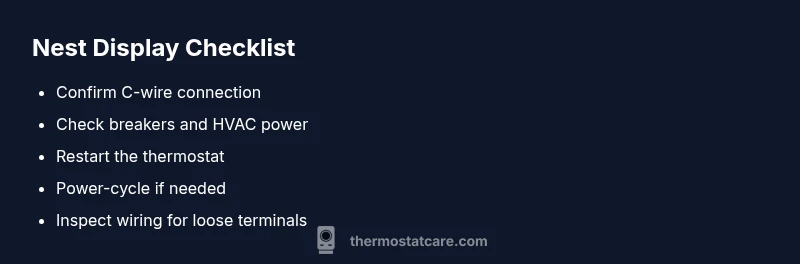
Symptom: Nest display is completely black. Causes: Power issue from C-wire/base (high), HVAC power off (medium), software glitch (medium), display hardware fault (low). Fixes: Check power and breakers (easy), restart the thermostat (easy), power-cycle the unit (easy), inspect wiring for loose terminals (medium), replace or consult pro if hardware fault is suspected (hard).
Step-by-step fix: reconnecting power and harnessing the C-wire
- Turn off power at the breaker to the thermostat and HVAC system. 2) Remove the Nest base from the wall plate and inspect the C-wire connection for secure seating. 3) Verify the furnace control board shows 24V when the system is powered. 4) Reattach the base firmly, restore power, and perform a restart via the ring or app. 5) If the screen remains dark, try a full power cycle by disconnecting again for 60 seconds and then reattaching. 6) If you still see no display, test with a known-good C-wire or consult a pro to avoid wiring mistakes.
Common mistakes to avoid and safety warnings
- Do not bypass safety by poking around the control board while power is on. - Avoid using unofficial adapters or third-party power supplies. - Don’t ignore a buzzing sound or burnt smell from the furnace area; shut down power and call a pro. - If you’re unsure about wiring or circuit safety, stop and seek professional help. These steps reduce the risk of damage or personal injury.
Prevention: maintenance tips to avoid future black screens
Keep the thermostat and mounting plate clean and free of dust, and regularly check that the C-wire is secure. Ensure the HVAC circuit breaker remains on and that your furnace/air handler shows no tripped statuses. Periodically review the Nest app for firmware updates and install them when available. If you notice intermittent power loss, consider upgrading to a dedicated C-wire or having the wiring re‑terminated by a licensed technician to ensure reliable power supply.
Steps
Estimated time: 30-45 minutes
- 1
Power down safely
Turn off power at the breaker for both the thermostat and the HVAC system. This prevents shock and protects wiring as you inspect connections.
Tip: Double-check that power is truly off before touching wires. - 2
Inspect C-wire and base
Remove the thermostat from its base and verify the C-wire is firmly seated at both ends. Look for any signs of damage or loose terminals.
Tip: If the C-wire is damaged, do not force it; plan for a safer replacement. - 3
Check furnace control board
If accessible, inspect the 24V feed to the thermostat on the furnace board. A missing voltage often indicates upstream power loss.
Tip: Only touch what you can clearly see; avoid any high-voltage components. - 4
Reconnect and restart
Reconnect the base firmly, power the system back on, and perform a ring hold restart for 10 seconds or use the app to restart.
Tip: Give the thermostat a minute to initialize after restart. - 5
Power-cycle if needed
If the screen stays dark, power-cycle by removing power for 60 seconds, then reattach and reboot again.
Tip: Persistent issues after cycle may indicate wiring or hardware faults. - 6
Evaluate progress or call pro
If no display returns, assess if you should call Thermostat Care or a licensed electrician/tech for a deeper check.
Tip: Having a professional verify the wiring reduces risk of damage.
Diagnosis: Nest display is completely black
Possible Causes
- highPower issue from C-wire/base
- mediumHVAC power off or breaker tripped
- mediumSoftware glitch or corrupted cache
- lowFaulty display hardware
Fixes
- easyCheck outlet, breaker, and HVAC power; restore power if needed
- easyRestart the thermostat from the ring or app
- easyPower-cycle the device by removing and reattaching after 60 seconds
- mediumInspect wiring for loose/C-wire terminals and ensure proper connection
- hardIf hardware fault is suspected, replace the thermostat or contact a professional
Questions & Answers
Why is my Nest thermostat screen black?
Most often this is a power delivery issue or a software glitch, not a hardware failure. Start with power checks and a restart, then proceed to a power-cycle if needed.
Most often, a black screen is due to power or software issues. Start with power checks and a restart.
Can I fix this myself?
Yes for basic checks like power, restarts, and careful wiring inspections. If you’re unsure about wiring or breakers, contact a professional.
Yes, you can do basic checks yourself, but if wiring or breakers feel risky, seek a pro.
Will resetting erase my schedules?
A simple restart does not erase schedules in the account. A factory reset may wipe locally stored settings and require reconfiguration in the app.
A restart won’t erase schedules, but a factory reset might require reconfiguration.
Is it dangerous to power cycle the thermostat?
Power cycling is generally safe when done carefully and with the power off. Avoid touching live terminals and never bypass safety features.
Power cycling is usually safe if you power off first and avoid live terminals.
When should I replace the thermostat?
If the display remains dark after power checks and resets, and the device is out of warranty or hardware fault is suspected, replacement may be necessary.
If the screen stays black after checks, replacement might be needed, especially if under warranty.
Do I need a C-wire for Nest?
Most Nest models require a C-wire for reliable power. If you don’t have one, explore compatibility options or power-related accessories.
Yes, a C-wire is usually needed for reliable power; if you don’t have one, consider compatibility options.
Watch Video
What to Remember
- Check power first and restart the thermostat
- Power-cycle if the screen remains black
- Inspect C-wire connections for security
- Call Thermostat Care if issues persist or warranty is involved