How to Use a Thermostat: A Practical DIY Guide
Learn how to use a thermostat effectively, set schedules, choose modes, and troubleshoot common issues. A homeowner-friendly guide from Thermostat Care for reliable comfort and energy savings.


You will learn how to use a thermostat to control heating and cooling, set comfortable temperatures, create schedules, and utilize smart features. The guide covers basic operation, different modes, adjusting for energy savings, and common troubleshooting tips for most home thermostats.
Understanding Your Thermostat Interface
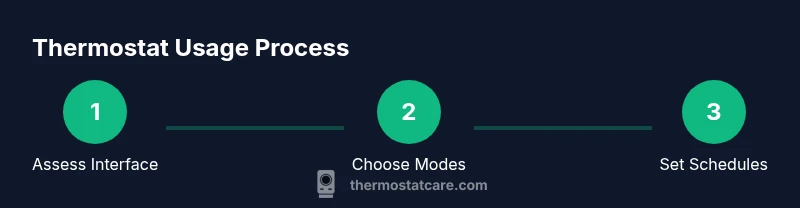
Most thermostats share a common layout: a digital display, a set of buttons or a touchscreen, and one or more knobs. The main elements to know are the current temperature reading, the mode selector (heat, cool, auto, off), the fan control, and the schedule or program options. Familiarize yourself with the icons in the user manual for quick identification. If your thermostat is a smart model, you may also see connectivity indicators, a menu for room sensors, and energy reports. Knowing these basics helps you navigate without hesitation and reduces the chance of accidental changes when you’re trying to adjust comfort quickly.
Tips for easier use:
- Start by setting a comfortable baseline temperature and lock yourself out of accidental changes if your device supports it.
- Use the energy-saving mode or schedule whenever you’re away from home to minimize wastage.
- Keep the display readable and the battery fresh if your model is battery-powered.
Thermostat Care Note: According to Thermostat Care, understanding your interface is the first step toward reliable, consistent climate control.
Choosing the Right Mode for Comfort
Modes determine how the system responds to temperature changes. Heat activates the furnace or heat pump when the room is below the setpoint, Cool runs the air conditioner when too warm, Auto toggles between heat and cool to hold a single target temperature, and Off stops heating or cooling entirely. For most seasons, Auto is convenient because it adapts to outdoor conditions, but you may prefer Heat or Cool when you want rapid response or to counter morning chill or afternoon heat.
Practical approach:
- Use Auto during shoulder seasons to maintain comfort with minimal manual adjustments.
- Switch to Heat or Cool temporarily if you notice your home is consistently warmer or cooler than your desired comfort level.
- In milder climates, turning the system to Auto with a moderate target reduces unnecessary cycling and wear.
Thermostat Care Insight: The Thermostat Care team notes that selecting the correct mode is foundational for stable comfort and optimized energy use.
Setting Temperatures and Ranges
Setting the right temperature is a balance between comfort and efficiency. Start with a reasonable baseline and adjust in small increments to see how the system responds. If you have a smart thermostat, you can rely on learning schedules and occupancy sensing to fine-tune automatically over a week. Avoid large swings in temperature and don’t override the system frequently; this can waste energy and strain equipment. If you’re unsure, test a range over a few days to identify your personal comfort zone.
How to proceed:
- Establish an evening baseline when you’re home and awake.
- Allow a transition period after any change to avoid overworking the system.
- When away for extended periods, raise or lower the setpoint gradually rather than using a single drastic change.
Thermostat Care Observation: Consistent, moderate adjustments are more sustainable than abrupt changes, improving both comfort and efficiency.
Scheduling and Energy-Saving Practices
A schedule aligns comfort with your daily routine and reduces energy waste. Most thermostats let you create programs for weekdays and weekends, with different setpoints for morning, day, and night. When you’re not home, many people switch to an energy-saving schedule or use an away mode. Smart thermostats enhance this with geofencing and learning capabilities, automatically adapting to your patterns over time. If your device supports it, enable hold or vacation modes for extended absences to prevent accidental changes.
Guidelines to follow:
- Create a daily schedule that matches your presence at home and typical wake/sleep times.
- Use away mode during vacations or business trips.
- Revisit schedules every season to reflect changes in daylight, daylight saving time, and routine.
Thermostat Care’s guidance emphasizes that thoughtful scheduling yields meaningful energy savings and better comfort consistency.
Smart Features and Connectivity
Smart thermostats connect to your home Wi-Fi and can be controlled from a mobile app, voice assistants, or home hubs. Features often include remote temperature control, energy usage reports, occupancy sensing, and compatibility with smart home ecosystems. To maximize benefits:
- Keep firmware up to date and connect to a reliable network.
- Use energy reports to identify wasteful patterns and adjust schedules accordingly.
- Enable automation—routines that adjust temperature when you leave home or come back.
Thermostat Care Note: Smart features can improve comfort and reduce energy use, but ensure your network security is up to date to protect devices and data.
Troubleshooting Common Issues
If your thermostat misreads temperature, disconnects from Wi-Fi, or ignores schedules, start with basic steps: check power supply and batteries, verify it’s set to the correct mode, and confirm the schedule is active. For non-responsive touchscreens, perform a soft reset if supported by the model. If readings differ significantly from a wall sensor or thermometer, recalibrate or replace the sensor if accessible. When in doubt, consult the user manual or contact support.
Common fixes:
- Replace batteries or ensure stable power supply.
- Re-enter or reset schedules.
- Reconnect to Wi-Fi and reconfigure linked services.
- Calibrate if the device allows it.
Thermostat Care adds that systematic troubleshooting reduces frustration and protects HVAC reliability.
Maintenance, Battery, and Wiring Considerations
Regular maintenance keeps your thermostat functioning reliably. Replace batteries when they show low power indicators or when you notice reduced responsiveness. For wired models, ensure the C-wire connection remains solid and insulated. If you’re installing or replacing a thermostat, turn off power at the breaker first and follow the installation steps carefully to avoid damaging the HVAC system or triggering safety features. Schedule professional service if you’re not comfortable with wiring changes.
Maintenance tips:
- Inspect the mounting location for dust and ensure vents remain unobstructed.
- Clean the touchscreen or keypad with a microfiber cloth.
- Verify C-wire continuity and confirm the wire gauge is appropriate for your unit.
Thermostat Care emphasizes safe handling and proper wiring practices to ensure long-term reliability.
Security, Privacy, and Reliability Considerations
Smart thermostats bring convenience but expose you to potential privacy and security risks if not properly configured. Use strong, unique passwords, enable two-factor authentication where available, and keep the device firmware updated. Avoid exposing sensitive information in energy reports or third-party integrations. If you have children or guests in your home, consider settings that prevent accidental temperature changes.
Key points:
- Update software regularly and review connected apps’ permissions.
- Use guest mode or restricted access if available.
- Regularly back up settings if the device supports it.
Thermostat Care recommends focusing on secure setup and routine maintenance to preserve both comfort and data privacy.
Authority Sources
To deepen your understanding, consult reputable sources on thermostat usage and HVAC efficiency, including government and university publications. These references provide foundational guidance on safe operation, energy-saving strategies, and best practices for different climate zones. Always cross-reference guidance with your specific model’s manual and local building codes.
Relevant sources will be listed in the Authority Sources section for quick access.
Tools & Materials
- Thermostat manual for your model(Keep a digital or printed copy handy)
- Screwdriver (Phillips #2)(For panel access or mounting plates)
- Flathead screwdriver(If terminal screws are slotted)
- Smartphone or tablet(For app-based control and updates)
- Stable Wi-Fi network(Needed for online features and updates)
- Batteries (if your model is battery-powered)(Check replacement indicating power levels)
- Small flashlight(Helpful when viewing wiring in a dim area)
Steps
Estimated time: 30-45 minutes
- 1
Power down and prepare
Turn off the HVAC system at the breaker and page through the thermostat manual to locate power or battery options. This prevents accidental shocks or shorts while you inspect the unit.
Tip: If your thermostat is wired, avoid touching terminals directly without proper tools. - 2
Inspect and document current settings
Note the current mode, setpoints, and schedule. Take a photo of the display for reference during reconfiguration, especially if multiple programs exist.
Tip: Documenting simplifies returning to a preferred comfort level after adjustments. - 3
Test mode function and fan
Switch to the test or run mode if available to verify heat or cool responses. Check fan operation separately to ensure airflow is not obstructed.
Tip: If the fan does not start, check the fan settings or consult the manual before probing wiring. - 4
Set a basic comfort temperature
Choose a baseline comfort temperature for day and night. Adjust gradually in 1–2 degree steps and observe HVAC response.
Tip: Give the system time to reach the new setpoint before making further changes. - 5
Create or adjust the schedule
Program a simple weekday/weekend schedule with different setpoints for morning, day, and night. Save the program and confirm activation.
Tip: Use a temporary hold if you’re testing the schedule before finalizing it. - 6
Connect to Wi-Fi (smart models only)
Open the thermostat app, follow the setup wizard, and connect the device to your home network. Verify remote control works and that push notifications are enabled.
Tip: Place the thermostat near a stable router signal for best connectivity. - 7
Test system in both modes
Run both heating and cooling sequences to ensure the system responds properly in each mode. Listen for unusual noises or delays in response.
Tip: If responses lag, power cycle the thermostat and re-run the test sequence. - 8
Finalize and monitor
Return the power to normal operation, recheck settings, and monitor for a full cycle. Revisit the schedule after a few days to tune further.
Tip: Keep a short log of adjustments and outcomes for future reference.
Questions & Answers
How do I know which mode to use for my HVAC system?
Start with Auto for general comfort. Switch to Heat or Cool as needed if you notice persistent temperature imbalances. Always refer to your system's compatibility guide in the manual.
Begin with Auto for most days. If your space is consistently too warm or cold, switch to Heat or Cool and adjust gradually.
Can I program a thermostat if I have a simple older model?
Many older models offer basic scheduling or a manual hold. If scheduling isn’t available, consider upgrading to a programmable or smart thermostat for easier control and energy savings.
If your old thermostat lacks scheduling, upgrading to a programmable model can simplify control and save energy.
What should I do if my thermostat reads a different temperature than the room thermometer?
Calibrate the thermostat if your model supports it or replace the room sensor if it’s external. If readings remain inconsistent, verify proper installation and consider professional inspection.
If readings don’t match, calibrate or replace sensors and check installation. Seek help if the issue persists.
Is a smart thermostat required for energy savings?
Not required, but smart thermostats often provide more precise scheduling, remote control, and energy reports that help optimize usage. Savings vary by habits and climate.
Smart models aren’t required, but they often make saving energy easier with automation and reports.
How often should I replace batteries in a wireless thermostat?
Check the battery indicator in the app or display. Replace when low to avoid interruptions in operation. Some models are wired and do not require batteries.
Watch the battery indicator and replace when needed to prevent odd behavior or outages.
What safety steps should I take before wiring a new thermostat?
Always turn off power at the breaker before touching wiring. Use the correct tools and consult the manual for terminal labeling. If unsure, hire a licensed HVAC technician.
Power off first, use the right tools, and follow the manual. If unsure, get professional help.
Watch Video
What to Remember
- Know your thermostat interface and essential controls.
- Choose modes and schedules that fit your daily routine.
- Use gradual temperature changes to maximize comfort and efficiency.
- Smart features amplify energy savings when configured properly.
- Regular maintenance prevents misreads and extends device life.