How to Use Thermostat to Cool Your House: A Step-by-Step Guide
Learn practical steps to cool your home with your thermostat, including setup, scheduling, and energy-saving tips. Thermostat Care provides expert guidance for programmable and smart models to keep you comfortable efficiently.


You will learn how to use your thermostat to cool your house by enabling cooling mode, adjusting setpoints, using the fan efficiently, and building a practical schedule. This guide covers programmable and smart thermostats, common pitfalls, and actionable steps you can take today. You’ll also find safety checks and energy-saving tips to help reduce waste while keeping your home comfortable.
Understanding why cooling with your thermostat matters
Cooling your home efficiently starts with understanding how your thermostat controls the HVAC system. If you’re wondering how to use thermostat to cool house, the answer isn’t just turning down a dial. It’s about using cooling mode correctly, pairing it with an appropriate setpoint, and aligning fan operation with occupancy and outdoor conditions. According to Thermostat Care, a well-tuned thermostat reduces energy waste, keeps rooms comfortable, and minimizes temperature swings. The result is lower utility bills and a calmer, more consistent indoor environment. Before you adjust anything, take a quick inventory of your equipment: is it a basic analogue unit, a programmable thermostat, or a modern smart model? Each type has its own best practices, but the core principles of cooling remain the same: proper mode, reasonable temperature targets, and smart scheduling.
Assessing thermostat capabilities
Thermostats vary widely in features; some old units simply turn heat on/off, others support multiple cooling stages, remote access, and adaptive schedules. Thermostat Care analysis shows that newer models often lead to tangible energy savings when used for cooling compared with legacy units. Determine whether your unit offers cooling-specific modes, sensor-based temperature control, and fan control. If you have a smart thermostat, verify that the app is linked to your HVAC equipment and that occupancy settings are calibrated for your home. Start by identifying the model family (programmable, non-programmable, or smart) and note any limitations or extra features you can leverage for efficient cooling.
Setting up cooling mode correctly
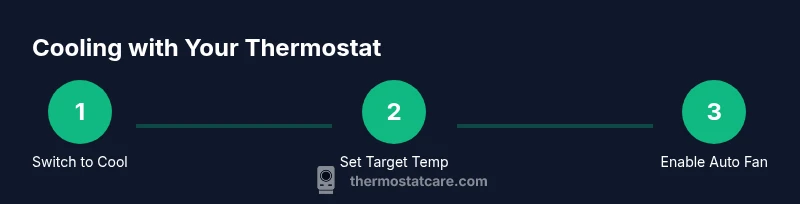
To begin, ensure your thermostat is set to Cool (not Heat or Auto) and that the fan is configured to Auto rather than On. If you’re using a heat pump, confirm that auxiliary cooling features are enabled and that the system recognizes its cooling capacity. For many devices, you’ll press a mode button and select Cool, then confirm a target temperature within your comfort range. If you share living spaces with others, communicate the new settings so everyone understands when cooling will occur and when it won’t. A quick sanity check after switching modes helps prevent premature calls for service.
Optimizing temperature setpoints and scheduling
A practical approach is to establish a reasonable comfort range and a consistent schedule that matches occupancy. Instead of chasing a fixed number, focus on consistency: keep the thermostat within a steady range during the day and allow a slightly higher target when the house is empty. Use the scheduling features to lower cooling during work hours or nights and raise it before you return home. For smart models, enable occupancy-based routines or geofencing if you trust automation. The goal is to minimize heat gain while avoiding energy waste from overcooling.
Using fan modes effectively
Fan settings influence cooling efficiency and air distribution. Use Auto mode for most days; the fan will run only when cooling is active, which saves energy and reduces fan wear. In rooms that heat up quickly, temporarily setting the fan to On can help circulate cool air after a cooling cycle, but avoid leaving it On for extended periods unless you have a specific comfort need. For homes with long periods of sun exposure, consider scheduling fan use around the hottest part of the day to prevent uneven cooling across rooms.
Smart features and occupancy-based cooling
Modern thermostats offer features like adaptive schedules, occupancy sensing, and remote control. When used correctly, these tools can trim energy use without sacrificing comfort. For example, enable auto-away or geofencing so cooling ramps down when no one is home. If you have a learning thermostat, give it a couple of weeks to build an accurate profile of your routines. Always review device permissions and ensure app data is secured. Thermostat Care recommends balancing automation with manual overrides during extreme weather to maintain consistent comfort.
Common mistakes and how to avoid them
Avoid common pitfalls that waste energy and reduce comfort: lowering the temperature drastically and leaving it there all day, placing the thermostat in direct sunlight, or blocking air vents with furniture. Do not rely on the thermostat to cool a space that lacks proper insulation or has poor airflow. Regularly check that air filters are clean and that outdoor units are free of debris. Keep sensors in a representative location—avoid placing them in kitchens or near heat-producing appliances. These adjustments improve accuracy and cooling performance.
Maintenance and sensor care
Regular maintenance supports reliable cooling. Clean the thermostat’s temperature sensor area if it appears dusty, and ensure the device is mounted away from direct sunlight or heat sources. Change batteries if your model uses them, especially before peak cooling seasons. Periodically compare thermostat readings with a room thermometer to confirm accuracy. If your home has zones, verify that zone thermostats share consistent setpoints or adjust zone timing to prevent hot pockets.
Troubleshooting quick fixes
If cooling seems slow to respond, confirm that power is on and that the HVAC circuit breaker hasn’t tripped. Check that the thermostat is communicating with the HVAC system and that the display shows the Cool mode. If a reset is needed, follow model-specific steps rather than cutting power abruptly. For persistent issues, consult your manual or Thermostat Care’s troubleshooting guides and consider scheduling a professional assessment if you notice erratic readings or failing sensors.
When to call a professional
Some cooling issues require professional inspection, especially if there are refrigerant concerns, outdoor unit obstruction, or unfamiliar error codes. If your thermostat appears to function but cooling remains inconsistent after calibration and maintenance, it may indicate HVAC component wear or a refrigerant leak. A licensed technician can diagnose electrical problems, verify sensor accuracy, and ensure your system operates within safe specifications. Always document model numbers and recent changes when calling for service.
Verifying energy savings after changes
After implementing new cooling settings, monitor your energy bills and the HVAC runtime. Look for a quieter operation, fewer temperature swings, and more even comfort across rooms. If you have a smart thermostat, use the energy reports and runtime graphs to identify improvement opportunities. Maintain a log of adjustments and outcomes to refine future strategies and sustain long-term savings. Thermostat Care emphasizes that consistent practices yield the best balance of comfort and efficiency.
Seasonal readiness and final checklist
Before the warm season begins, perform a quick readiness check: confirm mode is set to Cool, verify the schedule aligns with home occupancy, inspect air filters, and ensure outdoor condenser coils are clean. If you use a heat pump, review any seasonal transition settings to prevent short cycling. Keep a simple seasonal checklist handy so you can repeat the process annually and avoid unnecessary calls for service.
Tools & Materials
- Smart thermostat (programmable or smart model)(Essential for controlling cooling modes and scheduling.)
- User manual or model-specific online guide(Keep for reference on features and reset procedures.)
- Smartphone or computer with internet access(Helpful for remote control and monitoring.)
- Step stool or small ladder(Use safely to reach wall-mounted units.)
- Clean air filters(Replace if dirty; improves airflow and efficiency.)
Steps
Estimated time: 15-25 minutes
- 1
Access thermostat controls
Power the thermostat and review the current mode. Confirm it’s distraction-free and in a readable position. If you’re unsure how to navigate, consult the manual for navigation steps and on-screen indicators.
Tip: Use the device’s app if you’re away to verify settings before leaving home. - 2
Switch to cooling mode
Set the mode to Cool (not Heat or Auto unless you intend to manage both). Ensure the compressor is enabled and the display shows cooling status. If you’re using a heat pump, verify that auxiliary cooling functions are activated if needed.
Tip: Some units require confirming a saved profile to apply the change. - 3
Set target temperature
Choose a comfortable target within your home’s typical living areas. Don’t overcorrect; small changes yield quicker comfort without overspending. If you share space, align with others to avoid rebound requests.
Tip: Aim for gradual adjustments rather than large swings. - 4
Configure fan operation
Decide between Auto or On. Auto runs the fan only when cooling is active, saving energy. On can help circulate cooled air, but it may waste energy if used continuously.
Tip: Use Auto for most days; switch On only during staged cooling or in rooms that warm quickly. - 5
Create or adjust a schedule
Set consistent times for cooling reductions when the house is empty and pre-cool before arrival. If you have a smart thermostat, enable occupancy-based routines or geofencing to automate cooling.
Tip: A well-timed schedule prevents temperature drift and saves energy. - 6
Enable energy-saving features
Turn on Eco or adaptive recovery features if available. These features align cooling with occupancy and weather patterns, reducing unnecessary runtime.
Tip: Review energy reports monthly to adjust efficiency strategies. - 7
Check sensor placement
Ensure sensors are located in representative living spaces, away from drafts, sunlit windows, or heat-producing appliances. Incorrect placement can misread temperature and drive over- or under-cooling.
Tip: Relocate or shield sensors if readings don’t reflect room comfort. - 8
Test the system and verify
Run a short cooling cycle and observe whether rooms reach the target within a reasonable time. Listen for compressor cycling and confirm airflow from registers. If readings seem off, reassess mode, schedule, and sensors.
Tip: Document any discrepancies for future tweaks.
Questions & Answers
Why won’t my cooling turn on after I switch to Cool?
Check that the thermostat is powered, the mode is set to Cool, and the setpoint is above the current room temperature. Inspect the circuit breaker and verify the HVAC system accepts cooling input. If needed, consult your unit’s manual for model-specific steps.
Make sure the power is on, the mode is Cool, and the setpoint isn’t already lower than the room temperature.
Should I use the Auto or On fan setting for daily cooling?
Auto is typically more energy-efficient, as the fan runs only with cooling. On keeps air moving constantly, which can help with comfort in hot rooms but uses more energy. Choose based on comfort needs and energy goals.
Auto is usually best for daily use; switch to On only when you want continuous air circulation.
Can I rely on a smart thermostat to save energy indoors?
Smart thermostats can learn schedules and optimize cooling, leading to energy savings. Ensure occupancy features are enabled and that the device is connected to a reliable network for updates and monitoring.
Yes, with proper setup and occupancy features enabled, a smart thermostat can improve energy use.
What safety checks should I perform before adjusting the thermostat?
Ensure power is off when handling wiring or sensors, keep the unit away from moisture, and consult the manual for reset and wiring guidance. If you’re unsure, stop and seek professional help.
Turn off power if you’ll be handling the thermostat and follow the manual’s safety steps.
How often should I calibrate my thermostat?
Calibrate or verify readings periodically, especially after moving or if readings seem inconsistent. Regular checks help ensure your cooling decisions stay accurate.
Check readings every few weeks or after major changes to ensure accuracy.
Watch Video
What to Remember
- Set cooling mode and stable setpoints for comfort
- Use Auto fan for efficiency; avoid constant On mode
- Leverage schedules and smart features to save energy
- Regular maintenance keeps cooling reliable