How to Turn On a Thermostat: A Step-by-Step Guide
Learn how to turn on your thermostat safely and efficiently. This educational guide covers power checks, startup steps, troubleshooting tips, and energy-saving practices to ensure reliable climate control.


Goal: Learn how to turn on a thermostat and verify it’s communicating with your HVAC system. Start with power and mode checks, ensure the display is active, and set a comfortable temperature. The steps also cover common smart-thermostat quirks and safety reminders. By following this guide, you’ll have your heating or cooling ready to run efficiently.
Why Turning On Your Thermostat Matters
Turning on a thermostat correctly is the first step toward reliable comfort and energy efficiency. If you’re wondering how to turn thermostat on, you’re addressing a core task that triggers your heating or cooling system to respond to your settings. According to Thermostat Care, a proper startup reduces energy waste and helps prevent equipment strain. A startup that skips power checks or uses a wrong mode can lead to delayed heat, inconsistent temperatures, or unnecessary cycling. This section explains why power, mode, and connectivity matter, and how a safe startup lays the groundwork for dependable climate control. You’ll learn the signs that indicate the device is ready to communicate with your HVAC equipment and what to inspect if it isn’t.
Types of Thermostats and How They Power Up
Thermostats come in several flavors, from basic non-smart units to feature-rich smart models. Knowing how each type powers up helps you approach the task with confidence. Traditional manual thermostats rely on a wired supply and sometimes batteries; smart thermostats depend on a constant power source or a battery-backed C-wire, plus network connectivity. Thermostat Care notes that recognizing your model’s power source prevents unnecessary repairs and ensures you follow the correct startup sequence. In this section, you’ll learn how different power configurations affect the “turn on” process and what to expect in terms of display behavior, prompts, and screen wake.
Quick Diagnostic Before You Power On
Before you press the power button, do a quick diagnostic to save time. Check the display (visible or blank), verify the breaker supplying the HVAC and thermostat isn’t tripped, and confirm batteries are fresh if your unit uses them. If you see a scrambled or dim display, it may indicate low power, a loose connection, or a dead battery. Thermostat Care analysis aligns with this practical approach, emphasizing that a clean power source and secure connections are the foundation of a successful startup. Keep the manual handy to confirm battery types and wiring details for your model.
Step-by-Step: Turn On Your Thermostat (Non-Smart and Smart)
-
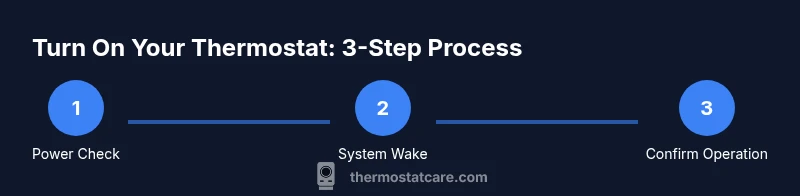
Check power and connections. Confirm the thermostat display is on. If there’s no display, inspect the breaker, fuse, and battery (if applicable). Ensure the HVAC equipment is powered. Why: a lack of power is the most common reason a thermostat won’t turn on.
-
Access the thermostat interface safely. If your model has a removable cover, use the appropriate screwdriver to open it and avoid touching live wires. Why: a clean, safe inspection prevents accidental wiring damage.
-
Confirm mode and setpoint. Ensure the thermostat is set to Heat or Cool as needed and that the setpoint is within a reasonable range. For energy efficiency, avoid extreme temperatures when starting up. Why: wrong mode or an out-of-range setpoint can trigger immediate resets or ineffective operation.
-
Verify HVAC communication. After powering on, wait 5–10 minutes to observe whether the furnace or AC responds and the fan engages. If there’s no response, re-check the C-wire connections and power source.
-
For smart thermostats, check the app. Open the thermostat app, verify the device is online, and confirm the schedule is active. Why: smart models may reboot into a different state or require app authentication after a power interruption.
-
Test changes and finalize. Adjust the temperature up or down and listen for system cycling. Confirm the thermostat returns to your chosen setting and the room stabilizes. Why: a final test confirms reliable startup and operation.
Troubleshooting If the Display Remains Blank or Unresponsive
A blank display is a common hint that power or a connection is missing. Start by cycling power: turn off the breaker for the thermostat’s circuit, wait 10–15 seconds, then restore power. If the screen remains dark, replace or reseat batteries if your model uses them. Check the C-wire for a secure connection, and verify the HVAC is powered and not tripped on a higher-level breaker. If symptoms persist, consult the manual or contact a professional. Thermostat Care recommends documenting any codes or lights seen during startup to speed up diagnosis.
Best Practices After Turning On: Scheduling, Energy Savings, and Maintenance
Once your thermostat is on and responding, set a simple daily schedule that accounts for your routine. Use separate winter and summer programs to minimize energy use while maintaining comfort. For smart thermostats, enable learning features cautiously and verify firmware updates regularly. Keep spare batteries and your manual in an accessible place, and inspect wires for wear during routine maintenance. This approach aligns with Thermostat Care’s guidance on maintaining stable temperatures and reducing energy waste over time.
Safety and Common Pitfalls to Avoid
Avoid forcing covers or altering wiring without proper knowledge. Never bypass safety devices or disconnect power while the panel is live. If you hear buzzing, smell burning, or see scorch marks, turn off power at the breaker and seek professional help. Common startup pitfalls include using the wrong mode, selecting improbable setpoints, and ignoring battery or power issues. By staying mindful of these risks, you reduce the chance of damage to equipment and ensure a smooth startup.
Thermostat Care Recommendations for a Reliable Start
Thermostat Care emphasizes building a reliable startup routine: keep the manual handy, verify power and mode, and confirm the thermostat communicates with the HVAC system. A consistent startup approach reduces the likelihood of erratic temperatures and energy waste. For homeowners, pairing a systematic check with routine maintenance yields better performance and longer device life. The Thermostat Care team stands by these practices as the core of effective thermostat operation after power-up.
Tools & Materials
- Owner’s manual/model guide(Keep model-specific instructions handy for wiring and power details.)
- Flat-head or Phillips screwdriver(For opening the thermostat cover if needed.)
- Replacement batteries (if applicable)(Use the battery type specified in your manual.)
- Smartphone or tablet with thermostat app(Helpful for smart thermostats to verify online status.)
- Non-contact voltage tester (optional)(Only if you’re uncertain about wiring; not required for all models.)
Steps
Estimated time: 10-15 minutes
- 1
Check power and connections
Verify the thermostat display is on and that the HVAC system is powered. If the screen is dark, inspect the breaker and fuse, and replace batteries if necessary. This step prevents wasted time chasing non-issues.
Tip: If the screen is completely dark, start with a power cycle by turning the breaker off for 15 seconds before restoring power. - 2
Open the thermostat panel safely
Gently remove the cover if required using the correct screwdriver, keeping fingers away from live components. Avoid touching wiring beyond the outer shell. This keeps you safe while inspecting connections.
Tip: Have a flashlight handy in case the display is dim or hidden behind the cover. - 3
Confirm mode and setpoint
Make sure the thermostat is set to Heat or Cool as needed and the setpoint is sensible for the current conditions. Avoid extreme temperatures at startup to prevent sudden cycling.
Tip: If you’re unsure, set a comfortable baseline (e.g., 68°F/20°C) and adjust after a few minutes of operation. - 4
Verify HVAC communication
Wait 5–10 minutes to see if the furnace or air conditioner responds and the fan runs. If there’s no activity, re-check C-wire connections and power supply.
Tip: A loose C-wire is a common cause of startup failure; reseat it firmly. - 5
Check the app for smart models
Open the thermostat app, confirm the device is online, and ensure scheduling is enabled. This ensures the smart thermostat starts with correct settings after a power event.
Tip: Sign in after power loss to re-sync with the cloud if needed. - 6
Test and finalize
Adjust the temperature and confirm the system responds to changes. Once the readings stabilize, close any panels and store the power cycle notes for future reference.
Tip: Document any codes shown during startup for future troubleshooting.
Questions & Answers
Why won’t my thermostat turn on?
Check the power source and the HVAC breaker, verify batteries if used, and confirm the unit’s mode is appropriate. If there’s still no response, consult the manual for specific reset steps. If codes appear, note them for troubleshooting.
First, check power and batteries, then the HVAC breaker. If nothing responds, refer to your manual for the reset steps and any error codes.
How do I turn on a smart thermostat manually?
Wake the screen, press the power button, or initiate a power-on from the app if the device doesn’t respond to physical input. Ensure the device is online and not in a restricted mode.
Wake the screen or use the app to turn it on, and confirm it’s online.
What should I do if the display is blank after turning on?
Double-check power at the breaker, replace or reseat batteries if applicable, and ensure wiring connections are secure. If still blank, perform a controlled power cycle and consult the manual for model-specific steps.
If the display is blank, check power and batteries first, then reseat connections and try a power cycle.
Is frequent turning on/off safe for my thermostat?
Frequent toggling isn’t generally dangerous, but it can cause unnecessary wear on mechanical components and energy waste. Use a stable schedule to minimize rapid changes.
It’s okay to turn it on and off, but try to use a steady schedule to save energy and reduce wear.
How do I reset my thermostat if it won’t respond?
Use the reset option in the settings or perform a power cycle as described in the manual. If issues persist, contact support and note any error codes.
Try a soft reset in the settings or restart the device. If it still won’t respond, check the codes and reach out for help.
Watch Video
What to Remember
- Power up safely and verify the display first
- Know your thermostat type to follow the correct startup sequence
- Test system response after startup to confirm operation
- Smart thermostats require app verification post-startup
- Establish a simple schedule to maximize energy savings