How to Turn Nest Thermostat Off
Learn how to safely turn off a Nest thermostat across on-device, app, and voice controls. Includes safety tips, troubleshooting, and a plain-language power-down checklist for homeowners.


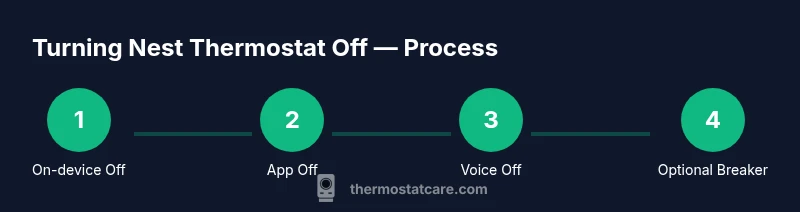
According to Thermostat Care, you can turn off your Nest thermostat by stopping HVAC operation in three quick ways: on the thermostat itself by setting the mode to Off, in the Nest app by tapping the thermostat controls and selecting Off, or with a voice command like 'Hey Google, turn off the thermostat.' If you need a full power-down, switch the circuit breaker off.
Understanding what turning off a Nest thermostat does
Turning off a Nest thermostat primarily halts heating and cooling commands, but it doesn't necessarily cut all power to the HVAC equipment. In practice, setting the thermostat to Off stops the current cycle and prevents the system from responding to temperature changes. For homeowners, this is usually sufficient to stop energy usage without affecting programmable schedules. However, it's important to understand how Nest handles power: some models rely on a continuous power supply to maintain Wi‑Fi connectivity and system status. If your goal is a complete hardware shutdown, you may need to cut power at the circuit breaker.
According to Thermostat Care, there are distinct states to consider: On, Off, and Eco mode. Eco mode saves energy but still allows some components to remain powered for sensors and connectivity. When you set Off, the thermostat stops issuing calls to the furnace or air conditioner; the HVAC equipment should remain idle. But the indoor blower and other connected devices might still have energy use if other circuits are active. If your home has a third-party smart hub or integration, ensure that that hub is not reactivating the thermostat automatically.
Before you start, confirm you have access to the Nest app or the device interface, and ensure you understand the difference between temporary hold and permanent Off. If you're troubleshooting a non-responsive unit, this is a common first step to regain control and verify whether the issue lies with the thermostat or the HVAC system.
On-device Off: Set the Nest to Off
The quickest way to stop the Nest from calling for heat or cooling is to use the thermostat's on-device controls. Turn the wheel to reveal the main menu, then select Mode and pick Off. This is the safest first step because it does not disrupt power to other devices in your home. If the display is unresponsive, press and hold the ring for a few seconds to wake the unit, then try Off again. After you set Off, give the thermostat a minute to settle before checking the HVAC status. For the Nest Thermostat, Off is a no-call state; the system will not start a new heating or cooling cycle until you change the setting. This approach is especially helpful when you're nearby and want immediate relief from an active schedule without altering other smart home routines.
Off remotely via the Nest app
Using the Nest app is a convenient way to turn off from anywhere. Open the app, choose the thermostat card, tap the On/Off control, and set the thermostat to Off. You can also adjust schedules or pauses to ensure no future calls occur during the Off period. If you use Eco mode, keep in mind it may still draw power for sensors and connectivity even when the active call is Off. Regularly syncing the app with your thermostat ensures the Off state is respected across all connected devices.
Voice control with Google Assistant
Pair your Nest thermostat with Google Assistant if you haven’t already. Say, "Hey Google, turn off the thermostat" or "Hey Google, set Nest to Off." Voice control is handy when your hands are full or you’re away from the app. If you have multiple thermostats in your home, specify the correct device (for example, "Turn off the living room thermostat"). Note that some assistants may interpret Off as pausing all heat calls rather than powering down, so verify the response by checking the Nest app or device display.
When to use a circuit breaker for a full shutdown
Powering off at the breaker cuts all power to the Nest and the HVAC equipment. Use this only if you must guarantee no energy draw or when the thermostat is unresponsive and you need a reset. Locate the main service panel, switch the appropriate breaker to Off, and wait at least 60 seconds before restoring power. If your system requires a restart after loss of power, follow the manufacturer’s instructions or contact Thermostat Care for guidance.
Troubleshooting if the Off setting doesn't stop calls
Sometimes, the HVAC may still run due to a stuck schedule, a connected smart home routine, or an alternate controller. Check the Nest app for any active schedules, and disable Eco or Home/Away routines that might trigger calls. If you recently updated firmware, ensure it's not re-enabling earlier timer settings. If problems persist, you may need to reset the thermostat or consult Thermostat Care's troubleshooting guide.
Post-off checks and reactivation
After you turn Off, observe the system for a few minutes to confirm no calls are being placed. Re-enable the system by setting Mode to a desired state or reactivating schedules when you’re ready. When powering back on, ensure the thermostat re-syncs with Wi‑Fi and the HVAC equipment; you might need a quick re-pair with the app. Always verify that the next heating or cooling cycle will not start unexpectedly when you re-enable.
Tools & Materials
- Nest thermostat or Nest app(Have the device or app accessible on your phone or tablet)
- Smartphone or tablet with internet connection(Needed to access the Nest app remotely)
- Access to circuit breaker panel (for full power-down)(Only if you need to guarantee no power draw)
- Google Assistant-enabled device (optional)(For voice control convenience)
- User manual or Nest support page (optional)(Helpful if your model has unique steps)
Steps
Estimated time: 8-15 minutes
- 1
Open the Nest interface
Access the thermostat interface on the device or open the Nest app on your phone. Confirm which mode is currently active so you understand the starting point before making changes.
Tip: If the device is unresponsive, wake it by pressing the ring for a moment before proceeding. - 2
Set mode to Off on the device
Use the dial to open the main menu, select Mode, and choose Off. This stops the thermostat from calling for heat or cooling immediately.
Tip: Allow up to a minute for the system to register the Off command. - 3
Turn Off from the Nest app
In the app, select the thermostat card, tap the On/Off toggle, and set it to Off. This remotely halts HVAC even if you’re away from the home.
Tip: If you use schedules, disable them to prevent automatic reactivation. - 4
Use voice control (optional)
Ask Google Assistant to turn off the thermostat using a command like, "Hey Google, turn off the thermostat." Verify the response in the app or on the device.
Tip: If you have multiple thermostats, specify the room name to avoid switching the wrong unit. - 5
Consider a full power-down if needed
If the thermostat remains active despite Off commands, switch the main breaker to Off and wait 60 seconds before turning it back on. This ensures no residual power is feeding the unit.
Tip: Only perform this if you are comfortable with your electrical panel. - 6
Check for overrides or overrides
Inspect any connected smart hubs, routines, or third-party integrations that might override Off commands and reactivate the thermostat.
Tip: Temporarily disconnect third-party automations if you suspect interference. - 7
Test and re-enable
After turning Off, test by setting a new mode (Heat or Cool) or reactivating a schedule to confirm the system responds as expected.
Tip: Document the exact steps you took for future reference.
Questions & Answers
Can turning off the Nest thermostat disable all power to the HVAC?
No. Turning Off stops thermostat calls, but some components may still receive power. A full power-down requires switching the circuit breaker to Off.
No. Off stops the thermostat from calling for heat or cool, but some components can stay powered. Use the breaker for a complete shutdown if needed.
Will turning off affect my scheduled routines?
Yes, active schedules and routines may reactivate or re-establish during re-powering. Check and disable routines before turning Off if you want a clean shutdown.
Yes, routines can come back once you re-enable the thermostat. Review schedules before turning Off.
Is it safe to turn off the Nest while the heating is running?
Turning Off stops the current heat call, but avoid abrupt shutdowns during extreme weather without a plan. Ensure you understand the potential impact on comfort and equipment.
It stops the current heating call, but be mindful of weather conditions and system behavior.
What should I do if Nest won’t turn Off?
Try on-device Off, then app Off. If still active, check for overrides or resets and consider power-cycling the thermostat or contacting Thermostat Care for guidance.
If it won’t turn off, try the app and device, check for overrides, and consider a reset or professional help.
How do I re-enable after turning Off?
Set the thermostat back to Heat or Cool, or restore a saved schedule. Ensure the device reconnects to Wi-Fi and reports correct status before resuming normal operation.
Set it back to Heating or Cooling and re-enable schedules, then verify connectivity.
Watch Video
What to Remember
- Switch the Nest mode to Off on the device.
- Use the Nest app to disable Off remotely when possible.
- Voice control offers a quick alternative if you’re away from the app.
- If necessary, cut power at the circuit breaker for a full shutdown.
- Verify system behavior after power-down and re-enable when ready.