How to Use Nest Thermostat Without the App
Learn to operate a Nest thermostat locally without the app. This educational guide covers on-device controls, safety tips, troubleshooting, and steps to re-sync with the app when you’re ready.


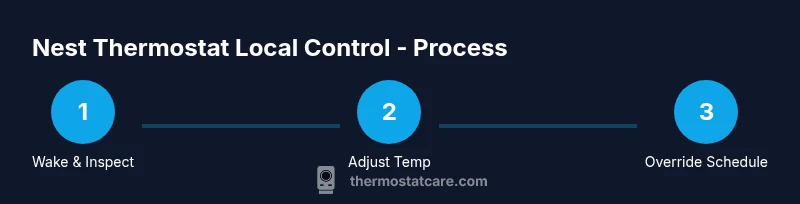
Yes—you can operate a Nest thermostat without the app by using its built‑in controls. Decrease or increase temperature by turning the dial, switch between heat, cool, and eco modes, and override a scheduled program locally. Basic local control works so long as the thermostat has power and is mounted on its base.
What You Can Do Without the App
According to Thermostat Care, you can operate a Nest thermostat directly from the device, which keeps basic comfort control accessible even when your phone isn’t connected. You can rotate the dial to adjust temperature, switch between heat, cool, and eco modes, and override a scheduled program locally. This on-device control relies on the thermostat’s built-in logic and does not require an active app connection. Use it for quick changes during busy days or when your phone isn’t handy. The reliability of local controls is a key reason DIY homeowners continue using Nest devices without app access. When the app is unavailable, you still have a practical way to keep your home comfortable while avoiding temperature swings that waste energy.
When the App Is Helpful (and When It Isn’t)
The Nest app unlocks remote control, energy reports, and advanced scheduling. Thermostat Care analysis shows that most homeowners rely on the app for remote access, especially when away from home. If you’re troubleshooting connectivity or preparing for a vacation, the app is valuable; if you just need to tweak the thermostat today, local control suffices. Remember that app-based features also include firmware updates and diagnostic data that can guide maintenance. In short, use local controls for quick, immediate needs and turn to the app for long-term management and insights.
Preparing Your Nest Thermostat for Local Control
Before you rely on local controls, ensure the thermostat has power and is properly mounted on its base. A loose wire or a power interruption can make the dial unresponsive. If you replaced batteries recently or performed a hardware reset, confirm the display lights up and the menu is accessible. Keep the HVAC system’s breaker in the ON position while you experiment with manual changes to avoid unexpected shutoffs. A secure installation reduces the chances of intermittent power loss, which is a common reason users think the device isn’t functioning without the app.
How Local Control Works: Modes, Hold, and Overrides
The Nest thermostat uses a combination of the dial and on-screen menus to manage heat, cool, and eco modes. To adjust, wake the screen, rotate the dial to your target temperature, and press to confirm. You can place a temporary hold on a temperature or switch to Eco mode to save energy. Understanding these basics helps you stay comfortable without needing the app. If you want a longer hold, learn the hold/unhold functionality in the device’s settings, which persists the selected temperature beyond the current cycle. This section helps you predict how your home will respond to mid-day changes and sleep schedules.
Safety Tips and Common Pitfalls
Avoid forcing the dial if it feels stiff; apply gentle, consistent turns to prevent wear on the mechanisms. If the screen is unresponsive, verify the power supply and reseat the thermostat on its base. Do not attempt to modify wiring or bypass safety features; local control is safe only when the device is correctly installed and powered. If issues persist, consult a qualified HVAC technician. Regular inspections and keeping the base clean reduce the risk of misreads or sluggish response while you operate without the app.
Reconnecting to the App Later: Best Practices
If you plan to re-enable the Nest app later, open the app and follow the setup prompts to re-link your thermostat to your account and Wi‑Fi network. Ensure the phone and thermostat are on the same network during reconnection. The Thermostat Care team recommends performing a quick test after re-linking to confirm remote control channels are working again. After you re-sync, you can monitor energy usage and set up schedules more efficiently than you could with on-device controls alone.
Tools & Materials
- Nest thermostat (on-base) device(Ensure it has power and is mounted securely on its base)
- HVAC system power supply(Keep circuit breaker ON; avoid power interruptions during testing)
Steps
Estimated time: 6-12 minutes
- 1
Wake the thermostat and verify power
Press the outer ring to wake the display and confirm the screen is responsive. If the display is blank, check that the HVAC power is on and the thermostat is properly seated on its base. This step ensures you have a reliable starting point before making any manual changes.
Tip: If the screen doesn’t wake, gently reseat the thermostat on its base and wait 30 seconds for the display to initialize. - 2
Rotate the dial to adjust temperature
Slowly turn the dial to the desired temperature. Stop at a degree you’re comfortable with and press to confirm if required by your model. This is the most direct way to control comfort without the app.
Tip: Make small adjustments and monitor how quickly the room responds—HVAC systems often take a few minutes to reach the new setpoint. - 3
Switch modes manually
Use the on-device menu or dial to switch between Heat, Cool, and Eco. This lets you control climate behavior when you’re away from the app. View the mode icon on the display to verify your current selection.
Tip: If you don’t see the mode options, access the thermostat menu by pressing the ring and navigating to Mode. - 4
Override or hold a temperature
To keep a temperature longer than the current cycle, place a temporary hold or set a manual hold. This is useful for nights or when guests are present. The device will maintain the chosen setpoint until you release the hold.
Tip: Use the hold function for longer overrides to avoid frequent adjustments. - 5
Test system response
Turn the dial to a noticeable temperature and wait for the HVAC to respond. Listen for the system turning on or off and confirm airflow behavior matches your setting. This confirms the local control is functioning as expected.
Tip: If nothing happens after 5–10 minutes, double-check power and consider a quick reboot by cycling power at the thermostat base. - 6
Reconnect to the app later
Open the Nest app when you’re ready and follow the prompts to re-link the thermostat. Ensure both devices are on the same Wi‑Fi network and that the app has permission to access your Nest account.
Tip: After reconnecting, run a quick control test via the app to confirm remote access is restored.
Questions & Answers
Can I still adjust temperature with Nest without the app?
Yes, you can use the device's dial to adjust temperature and switch modes. Remote features require the app.
Yes, you can adjust with the dial and menus on the thermostat itself.
Will schedules work if I don't use the app?
Local controls allow manual adjustments and may retain on-device schedules. Remote scheduling requires the app.
Local controls can override a schedule on the device, but remote scheduling needs the app.
What features are lost without the app?
Remote access, energy reports, and some configurability are unavailable without the app.
Without the app you lose remote access and some settings, but the thermostat still runs locally.
How do I re-connect the thermostat to the app after using local controls?
Open the Nest app and follow prompts to re-link your thermostat to your account and Wi‑Fi.
Open the app and re-link the thermostat to your account and network.
Is it safe to use Nest without the app?
Yes—it's safe if power and installation are correct; avoid hardware modifications.
It's safe to use the device without the app as long as it's powered and installed properly.
What should I do if the thermostat won’t respond locally?
Check power, reseat the base, and cycle power if needed. If it still fails, seek a technician.
Make sure it’s powered, re-seat the base, and reboot if necessary.
Watch Video
What to Remember
- Operate Nest locally with the dial and on-device menus
- App is optional for local control; remote features require app
- Override schedules safely with hold and temp adjustments
- Re-sync to restore full app features after using local controls