How to Set Thermostat When Leaving House: A Practical Guide
Learn how to set your thermostat when leaving the house to save energy, stay comfortable, and protect your home. This guide covers away/eco modes, holds, scheduling, and smart features for homeowners and DIY enthusiasts.


To set your thermostat when leaving the house, switch to an energy-saving mode (away/eco), set a practical temperature range, and enable scheduling or a temporary hold if available. Make sure the thermostat is connected to Wi‑Fi or the app, and verify any smart features (geofencing, occupancy sensors) are enabled for automatic adjustments.
Why leaving the house matters for your thermostat
When you step out, your home still uses energy to maintain temperature, humidity, and equipment readiness. The question of how to set thermostat when leaving house isn’t just about comfort—it’s about energy efficiency and protecting your system. A thoughtful departure plan can reduce energy waste, keep pipes safe in cold weather, and ensure quick comfort once you return. The Thermostat Care team emphasizes that even small changes—like using an away mode or a hold—can add up to meaningful savings over time. If you use a smart thermostat, you can automate these actions so they trigger when your phone leaves the home or when your schedule shows vacancy.
Understanding Your Device: Why different thermostats respond differently
Thermostats range from basic models with a single dial to sophisticated smart systems with app control, geofencing, and occupancy sensing. The core idea remains the same: reduce energy use when no one is home, while avoiding extreme settings that strain the system or risk frozen pipes in winter. If you own multiple zones, you may also configure each zone differently. Start by identifying which thermostat controls which area, then map your leaving routine to those zones. Thermostat Care analysis shows that having a clear rule set is far more effective than random adjustments.
Away Mode, Eco Mode, and Hold: What they do and when to use them
Away mode typically lowers heating or raises cooling to conserve energy during absences. Eco mode offers a balanced savings approach by maintaining a comfortable baseline while cutting back on broad energy use. A temporary hold freezes a chosen setting for a set duration, then resumes the programmed schedule. When you leave for long trips, away or eco mode is usually best, but a hold can be useful for shorter departures when you want to maintain a specific comfort level for returning home.
Quick-start workflow for most homes
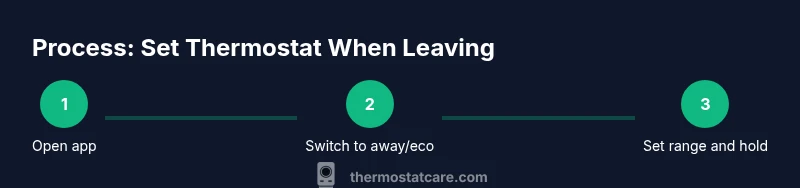
If you’re unsure where to begin, follow a simple workflow: identify your thermostat model, confirm app connectivity, switch to away/eco mode, set a reasonable temperature range, enable a hold or schedule, and finally test the settings via the app or thermostat display before leaving. This keeps your home energy-efficient while preserving safety and comfort. For households with smart features, enable geofencing to auto-adjust as you approach or leave the house.
Seasonal considerations: Winter and summer leaving habits
Cold months require a careful balance to prevent frozen pipes while avoiding energy waste. In winter, you can set a lower baseline and rely on the system’s heat to maintain safe temperatures. In warm months, avoid leaving the home in a high cooling mode that aggressively chills the interior. The goal is a safe, energy-conscious compromise that protects your home and saves on bills without sacrificing comfort on your return.
Common mistakes to avoid when leaving the house
Avoid turning the thermostat off completely in freezing climates, as that can allow pipes to freeze. Don’t leave settings so extreme that the system cycles excessively when you return. Check that your Wi-Fi and app permissions are functioning; a disconnected device won’t execute your away rules. Finally, don’t neglect multi-zone setups—each zone may need its own leaving plan to prevent uncomfortable hot or cold spots.
Authority sources for further reading
- Energy.gov: Thermostats and home energy savings tips. https://www.energy.gov/energysaver/thermostats
- Energy.gov: How to use smart thermostats for better energy efficiency. https://www.energy.gov/energysaver/thermostats-and-hvac-system
- NIST resources on energy efficiency and building controls. https://www.nist.gov/topics/energy-savings
Smart features and advanced strategies
If your thermostat supports geofencing, occupancy sensing, or learning schedules, you can automate away mode and adjust to your patterns. Review the app’s settings to ensure permissions, location services, and privacy preferences align with your leaving routine. Smart features work best when they have clean data from your regular routines, so keep the app and firmware updated.
Tools & Materials
- Smart thermostat with app control(Ensure the device supports away/eco modes and scheduling)
- Stable Wi-Fi connection(Needed for remote access and automatic rules)
- Smartphone or tablet with the thermostat app(Install the latest version and sign in)
- Thermostat user manual or model-specific online support(Helpful for model-specific steps and features)
- Screwdriver or basic tools(Only if you need to adjust mounting or wiring during setup)
Steps
Estimated time: 15-25 minutes
- 1
Prepare the thermostat and app
Open the thermostat app, verify you can reach the device, and confirm the current schedule. This ensures you can implement departure rules without delays. If you’re away from home, confirm the device is online before you leave.
Tip: Have the app open on your phone and test a remote change to confirm connectivity. - 2
Switch to an energy-saving mode
Set the thermostat to Away or Eco mode to begin reducing energy use during your absence. This is the primary action that reduces heat or cooling based on your climate and settings. If your model uses a simple on/off, select the lowest practical setting for your heating or the highest practical setting for cooling.
Tip: If your system allows, enable geofencing so the mode flips automatically as you leave or approach home. - 3
Set a safe temperature range
Choose a temperature range that protects the home (and pipes in winter) while avoiding excessive energy use. For many homes, this means a winter range around the mid-60s Fahrenheit and a summer range around the mid-70s, but adjust for local climate and home insulation.
Tip: Use a reachable range to minimize load changes when you return. - 4
Enable a schedule or hold if appropriate
If you anticipate a predictable return time, set a hold to resume your normal schedule automatically. Alternatively, keep a temporary hold for shorter trips. This helps prevent unnecessary cycling when you’re away for a few days.
Tip: Document the hold duration to avoid surprises when you come back. - 5
Check multi-zone or HVAC connections
If your home has multiple zones, confirm each zone follows the same departure logic or adjust individually as needed. Check dampers and zoning controls if your system provides them.
Tip: A quick walk-through of each thermostat in the home saves post-departure adjustments. - 6
Test the setup before you leave
Review the current mode, temperature range, and hold settings on the thermostat or app. Confirm the schedule updates as expected and that alerts, if enabled, will notify you of any issues.
Tip: Run a quick check by simulating a command from your phone while you’re still at home. - 7
Document your departure plan
Create a simple checklist for leaving and returning, especially if you have a home with multiple zones or advanced smart features. This reduces confusion after a trip and helps maintenance stay consistent.
Tip: Keep a one-page guide near your thermostat for easy reference.
Questions & Answers
Should I always leave my thermostat in away or eco mode when I leave for a long day?
In most cases, away or eco modes save energy while maintaining a safe baseline. Adjust the mode based on season, climate, and how long you’ll be away. For extended trips, this is typically the most efficient approach.
Usually yes. Away or eco mode saves energy while keeping your home safe; adjust for season and trip length.
What temperature is best for energy savings without risking pipes or comfort?
Aim for a safe, moderate baseline that prevents extreme swings. In winter, a lower baseline like the mid-60s Fahrenheit works for many homes; in summer, a comfortable mid-70s range can reduce cooling load. Always tailor to your climate and insulation.
Aim for a safe, moderate baseline that prevents extreme swings; adjust by season and insulation.
Can I use away mode if I don’t have a smart thermostat?
Yes. If your thermostat is not smart, manually set it to a lower heating or higher cooling level for long absences, or use the hold feature if available. If not, rely on a simple, static setting that maintains safe temperatures.
Yes. Manually set to a lower heating or higher cooling level and use the hold if available.
Is it safe to leave the system on while I’m away for extended trips?
Leaving the system on with energy-saving settings is generally safe and practical. Completely turning off can risk humidity issues and potential pipe concerns in cold climates. Use an energy-saving mode and scheduled changes instead.
Energy-saving mode is usually safe and sensible; avoid fully turning off in cold climates.
How often should I update my departure settings?
Review and adjust departure settings seasonally or when your schedule changes. Regular checks ensure your rules remain aligned with actual use and weather conditions.
Review seasonally or when your schedule changes to stay aligned with conditions.
What if I forget to adjust before leaving?
If you realize you forgot, use remote access to update the settings. Most smart thermostats support quick changes from an app, even after you’ve left the house.
Use the app to update settings remotely if you forget before leaving.
Watch Video
What to Remember
- Identify your departure goals: energy savings, safety, and comfort.
- Use away/eco mode and a sensible temperature range to balance efficiency and comfort.
- Leverage schedules or holds to match your return plan.
- Test connectivity and automation before you leave.
- Review zones and smart features for consistent results.