How to Set Braeburn Thermostat: Step-by-Step Guide
Learn how to set your Braeburn thermostat with a clear, step-by-step guide. This home DIY tutorial covers temperature, modes, schedules, and energy-saving tips to maximize comfort and efficiency in 2026.


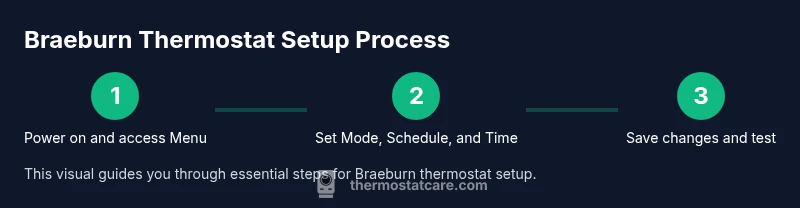
To set a Braeburn thermostat, open the main menu, select Settings, then adjust Schedule, Temperature, and Mode to your comfort. Ensure the unit is powered and your HVAC system is compatible. Use the step-by-step guide to tailor daily temperatures, overrides, and hold times for energy savings and consistent comfort throughout the day.
Understanding Braeburn Thermostats and Models
Braeburn thermostats come in several programmable models with similar interfaces but varying menu names. According to Thermostat Care, most models share a common pathway for settings: main menu → Settings → Schedule/Program → Temperature/Mode. The Thermostat Care Team found that clear labeling and consistent naming across days helps avoid unintended changes. While exact labels can differ by model, the core concepts remain the same: you control temperature targets, system mode, and when changes occur. Recognize that some Braeburn units use a touch interface, while others rely on physical buttons. If you ever feel uncertain, start with the quick glance of the default day schedule and compare it to your usual routine. This helps you decide which changes will save energy without sacrificing comfort.
In practice, you’ll rarely need to redo the entire design week from scratch. Most homeowners can adapt a tested routine by tweaking a few time blocks. Keep in mind that the thermostat’s software may receive updates; if you notice menu names shifting after an update, recheck the mapping between Settings, Schedule, and Temperature/Modes. The goal is a predictable, repeatable comfort pattern that aligns with your daily life and seasons.
Safety and Power Considerations
Before you begin any programming, ensure your Braeburn thermostat is safely powered and accessible. If you’re replacing an old unit, turn off power at the circuit breaker for a few minutes to reset the electronics, then reapply power. Avoid touching terminals while power is on, and never attempt wiring if you’re unsure of the connection. If your system uses a separate outdoor condenser or air handler, verify that the thermostat’s connections match your HVAC equipment and that the control board supports the requested modes. If you rely on a battery-powered backup, check battery health and replace as needed. These precautions prevent short circuits and data corruption in the thermostat’s memory, ensuring your schedules operate correctly once you begin programming.
Accessing the Settings Menu
Start from a powered-on Braeburn display and press the Menu or Settings button to access the main settings. Use the navigation wheel or touch controls to move through options. Look for headings labeled Settings, Schedule, Program, or similar, then select Temperature or Mode. If a model uses a two-stage or multi-stage setup (e.g., for heat pump systems), you may see submenus such as Equipment Type or System Type. When in Settings, make a small change first (for example, the current day) to confirm you’re editing the correct field. If a screen looks blank or unresponsive, check the power source, ensure the screen is illuminated, and try a quick reset by holding the reset button for a few seconds if you know your model supports it.
Setting Temperature, Modes, and Fans
With the Settings menu open, set your target temperatures for the current mode. In Heat or Cool modes, you’ll typically choose a comfort range (e.g., 68–72 °F for winter or 72–76 °F for summer) and decide whether to leave the fan on Auto or On. Auto typically saves energy by running the fan only when heating or cooling is actively needed. If your Braeburn model features an Auto-Changeover option, enable it to allow the thermostat to switch between Heat and Cool automatically based on the room temperature. Be mindful of any screen prompts that ask you to confirm changes, and avoid making simultaneous adjustments to conflicting fields, such as a high cool setpoint and a low heat setpoint.
Creating Schedules and Programs
Most Braeburn thermostats support a weekly or daily scheduling pattern. Start by setting wake, leave, return, and sleep temperatures for each day type you want (Weekdays vs Weekends). For energy efficiency, align higher cooling/heating needs with your presence and lower demands when you’re away or asleep. If your model supports multiple programs, label each as needed (e.g., Weekday Morning, Weekend Night) and ensure each program has clearly defined start times. Save your changes after each block, then quickly test the schedule by progressing through a simulated day or waiting until the next desired transition. This helps you confirm that the thermostat triggers events at the intended times.
Energy-Saving Tips and Common Pitfalls
Energy savings come from consistent scheduling and sensible setback temperatures. Start with modest adjustments, such as 2–4 °F offsets from your typical comfort range, and observe how your system responds over a few days. Use Auto mode where possible to let the thermostat balance temperature changes with outdoor conditions. Avoid overfilling the schedule with minor changes that conflict or create churn in the HVAC system. If you have a humid environment, prefer gradual temperature adjustments to avoid excessive cycling. Remember to review daylight saving time changes and update the clock accordingly so schedules don’t drift.
Troubleshooting and Maintenance
If a change doesn’t take effect, recheck the active mode and ensure you haven’t left a hold active that conflicts with the schedule. Confirm that the thermostat is communicating with the HVAC controller and that there are no tripped breakers or blown fuses in the system. If the display becomes dim or unresponsive, try powering the device off and on, or perform a soft reset per the user manual. Regular maintenance includes cleaning the screen (gentle wipe), updating firmware if available, and replacing batteries if the unit uses them. If you notice erratic behavior (e.g., rapid temperature swings), verify wiring and sensors, or contact Braeburn support for guidance. The Thermostat Care team recommends documenting any changes so you can revert if needed.
When to Upgrade or Seek Help
Older Braeburn models may lack the scheduling features found in newer units. If you find that current programming isn’t meeting comfort or efficiency goals, consider upgrading to a newer Braeburn thermostat with improved scheduling, connectivity, and energy reporting features. If you encounter persistent issues after following the steps above, seek assistance from a licensed HVAC technician or Braeburn support. As of 2026, many households benefit from device-integrated energy insights and remote control capabilities that help optimize performance with minimal manual intervention.
Tools & Materials
- Braeburn thermostat (installed)(Ensure model supports programmable features.)
- Screwdriver (Phillips #2)(For wall plate and terminal screws.)
- Small flathead screwdriver(For terminal tabs if needed.)
- Owner's manual or model-specific guide(PDF or printed copy; used to confirm menu names.)
- Pen and notepad(For recording schedules and changes.)
- Power source (batteries) if applicable(Some Braeburn units use batteries; check model.)
Steps
Estimated time: 15-25 minutes
- 1
Power on and open the main menu
Ensure the thermostat is powered. Press Menu or Settings to access the main settings screen. If the screen is dim or unresponsive, verify the power source or battery condition and retry.
Tip: If the screen won’t respond, confirm the circuit breaker is on and the device has power. - 2
Enter Settings and choose Schedule/Program
Navigate to Settings and select Schedule or Program. Note that menu labels vary by model, but the path typically leads to temperature and mode controls.
Tip: If you can’t locate Schedule, check the manual for the exact label used on your model. - 3
Set the system mode and fan behavior
Choose the appropriate mode (Heat, Cool, Auto). Set the fan to Auto for energy efficiency or On if you want continuous airflow.
Tip: Auto mode usually provides the best balance of comfort and efficiency. - 4
Configure date and time
Set the clock to local time and adjust the time zone. Accurate time is essential for correct scheduling.
Tip: If your clock is off by more than a few minutes, schedules may shift. - 5
Create or adjust a daily schedule
Program wake/leave/return/sleep temperatures for each day type. Keep patterns simple to avoid conflicts and ensure consistency.
Tip: Label routines (e.g., Weekday Morning) to stay organized. - 6
Test an override and hold
Apply a temporary hold to verify the system responds correctly and then returns to the scheduled program after the hold ends.
Tip: Test at a realistic time to see how quickly the system reacts. - 7
Save, exit, and review
Save changes, exit all menus, and monitor performance for at least one full cycle. Make notes for future tweaks.
Tip: Keep a quick reference of the new settings for easy future adjustments. - 8
Document and plan future improvements
Record your final settings and consider tweaks based on comfort levels and energy usage over the next week.
Tip: A simple chart helps you compare before/after results.
Questions & Answers
What models does this guide cover?
This guide covers common Braeburn programmable thermostats. Menu names can vary by model, but the general steps apply to most. If you have a non-programmable unit, adapt the approach to basic temperature and mode settings.
This guide covers common Braeburn programmable thermostats; expect minor menu differences by model.
Can I program Braeburn without Wi-Fi?
Yes. Offline programming is supported on many Braeburn units. You can set schedules and modes locally without an active internet connection. Connectivity may offer additional features like remote control.
Yes, you can program it offline.
Why aren’t my changes saving or taking effect?
Check that you are editing the correct mode, ensure there’s no conflicting hold, and verify that the HVAC system is powered. If the screen froze, perform a soft reset if available on your model.
If changes don’t take effect, verify mode and schedule and confirm power.
How do I reset the Braeburn thermostat to factory settings?
Use the Settings menu to locate the reset option. Note that factory reset will erase custom schedules; you’ll need to reprogram after the reset.
You can reset from the settings menu.
Where can I find the user manual for my Braeburn thermostat?
The official Braeburn support site hosts manuals for current and older models. You can also check the model number on the back of the unit and download the matching guide.
Check the manual or Braeburn support.
Watch Video
What to Remember
- Plan your schedule before programming.
- Use Auto mode for energy efficiency.
- Test changes with a temporary hold.
- Document your settings for easy future tweaks.