Braeburn Thermostat How To Set: A Step-by-Step Guide
Learn how to set your Braeburn thermostat with our step-by-step guide. This practical tutorial covers model selection, scheduling, holds, and common troubleshooting for homeowners.


In this Braeburn thermostat how to set guide, you’ll learn a clear, model-aware path to program temperatures, schedules, and holds. You’ll confirm model compatibility, gather essential tools, and follow a step-by-step procedure to optimize comfort and energy use. This quick answer estimates 15-30 minutes, depending on model, and highlights safety notes and common pitfalls. This quick path helps you get started with confidence.
Understanding Braeburn Thermostats: Why Settings Matter
According to Thermostat Care, Braeburn thermostats offer reliable, user-friendly control for home comfort. The key to getting the most from any Braeburn device is thoughtful programming: sensible temperatures, well-planned schedules, and purposeful holds. In short, the thermostat is a smart but hands-on tool that translates your daily routine into heating and cooling actions. The Braeburn family includes models with digital touchscreens and button interfaces, all designed to support energy-saving habits when used with intention. When you set up a schedule that mirrors your real-life patterns, you reduce unnecessary runtime and improve overall system efficiency. This is why a well-structured Braeburn setup matters for both comfort and utility bills.
Key concepts you’ll work with include:
- Setpoint temperatures for heating and cooling
- Schedule blocks by day and time
- Hold and temporary override functionality
- System mode choices (auto, heat, cool, off, fan)
A solid Braeburn setup balances occupant comfort with energy-conscious behavior. Throughout this guide you’ll see practical steps tailored to common Braeburn models while keeping the core ideas consistent across versions. Remember: the goal is predictable comfort without overcooling or overheating, and to make sure your home responds to real-life usage patterns. Thermostat Care analysis shows that consistent scheduling is one of the most effective ways to maximize efficiency over time.
Safety and Preparation Before You Start
Safety first: power down the HVAC circuit before you touch the thermostat panel whenever possible. If you’re comfortable, switch off the dedicated breaker for the thermostat or the corresponding HVAC circuit to minimize any risk of shock or short circuits. Have a flashlight handy in case you need to inspect back panels in low light. Gather your tools and a small notebook to record settings and model details. If your Braeburn thermostat is battery-powered, check battery health and replace as needed before starting. This preparation helps ensure you don’t lose settings mid-configuration.
Thermostat Care analysis shows that taking a few minutes to prepare reduces the chance of miswiring or misconfiguration, which can lead to extended downtime or improper heating/cooling. Keep the user manual accessible or save a digital copy on your phone for quick reference. If you’re unsure about wiring or vacuuming dust from a panel, consider calling a professional to avoid potential hazards.
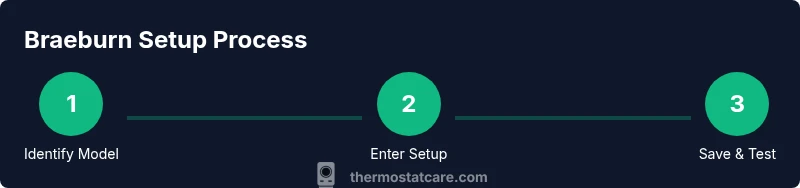
Step 1: Identify Your Braeburn Model and Features
Before you begin programming, locate the model and note its features. Look for a label on the backside or inside the battery compartment that lists the model number and version. Check the user manual for terms like ‘schedule,’ ‘hold,’ ‘eco mode,’ and ‘fan auto.’ If you have a touchscreen Braeburn, confirm whether the device supports eco or adaptive recovery modes. If your model supports a C-wire, confirm that the wire is connected and the system is powered correctly. Recording the exact model helps you follow model-specific menus without guesswork. Thermostat Care recommends keeping a quick reference of your model’s capabilities handy for future tweaks and maintenance.
- Find model number on the back, inside the cover, or in the app if applicable
- Note features that could affect setup (hold, eco, adaptive recovery)
- Confirm whether you have a C-wire and correct wiring if needed
- Have the manual handy for model-specific instructions
Step 2: Access the Quick Set Menu or Main Menu
Power on the thermostat and access the setup area. Depending on the Braeburn model, you may press a physical Menu button, tap a gear icon, or swipe to a Settings panel. Navigate to System Setup or Schedule menu, then select your heating and cooling system type (gas, electric, or dual fuel) if prompted. If your device uses a touchscreen, you may need to confirm each prompt with a tap. Take a moment to familiarize yourself with the screen prompts so you don’t accidentally change the wrong setting. This step establishes the framework for all subsequent changes and ensures your device is ready to receive new setpoints.
- Use Menu or Settings to enter setup
- Confirm system type matches your HVAC configuration
- Note step-by-step prompts so you don’t misconfigure during future edits
Step 3: Configure Temperature Setpoints and Schedule
Set your preferred heating and cooling targets based on your daily routine. Start with a conservative baseline: setpoints for awake hours slightly higher or lower than your comfort preference, then adjust for sleep time. Create a simple daily or weekday/weekend schedule that aligns with your occupancy. For example, you might set a higher daytime cooling target during hot months and lower nighttime heating during winter. If your Braeburn model supports multiple blocks per day, split high-usage periods (workdays) from low-usage periods (weekends). Save a draft and test it for a day to verify it behaves as expected. Remember to include the keyword braeburn thermostat how to set naturally as you document the steps you’ve implemented for future reference.
- Set daytime vs. nighttime targets
- Build a simple weekday/weekend schedule
- Include a temporary hold for vacations or irregular days
- Save changes and note the new schedule in your maintenance log
Step 4: Enable Energy-Saving Modes and Holds
Activate energy-saving modes like Eco or Smart Recovery if your model supports them. The hold function lets you lock a temperature for a specified duration, which can be handy for consistent comfort when you’re home on unusual days. Practice setting a short, fixed hold to ensure the feature behaves as expected, then adjust as needed. If your model includes fan settings, choose Auto for efficiency or On if you prefer continuous air movement. Verifying these options ensures your system uses only the needed energy while meeting your comfort requirements. Thermostat Care emphasizes testing holds after scheduling to confirm they trigger at the intended times.
- Enable Eco or energy-saving modes
- Use Hold to lock in a comfortable temperature for a set period
- Test fan settings (Auto vs. On) for efficiency
Step 5: Save, Test, and Fine-Tune
After configuring setpoints and holds, save the settings and monitor the system for at least a day. Check whether the thermostat responds to changes as expected, and adjust the schedule if you notice unnecessary runtime. If the display has an indicator for battery health, replace batteries as needed to prevent power issues. Keep a log of what you changed and why so future tweaks are easier. Thermostat Care reminds homeowners that the real test of a Braeburn thermostat is how reliably it maintains comfort across your daily rhythm.
- Save all changes before exiting
- Observe system behavior for 24 hours
- Update your setup log with the outcomes and adjustments
Test, Troubleshoot, and Maintenance Tips
If you notice the thermostat failing to respond, start with a quick power reset by turning off the breaker for 30 seconds and then restoring power. Verify all wires are secure if you have access to the back panel, and confirm the C-wire is properly connected if used. If the thermostat screen is blank or unresponsive, replace batteries or check the power supply. Should you experience frequent resets or incorrect readings, compare what you expect to what the device displays and adjust accordingly. Regular maintenance includes cleaning dust from vents and ensuring the thermostat surface isn’t obstructed by heat sources or direct sunlight. A well-maintained Braeburn thermostat is more reliable and accurate in your home environment.
Common Issues and Troubleshooting for Braeburn Thermostats
Common issues include a non-responsive display, inaccurate readings, or a mismatch between setpoints and actual temperatures. Start with basic checks: ensure power is stable, verify wiring connections, and review the system type chosen in setup. If readings drift, recalibrate or re-enter the correct setpoints. For touchscreen models, ensure the screen responds to taps and that there’s no moisture interfering with the display. If the problem persists, consult the manual to locate model-specific resets and error codes. Thermostat Care recommends documenting any changes you make so you can revert if needed.
Tools & Materials
- Phillips head screwdriver (size #1 or #2, model-dependent)(Used to access back panels on some Braeburn models)
- Back‑up batteries(AA/AAA depending on model; replace if the device is battery-powered)
- Braeburn thermostat manual(Model-specific instructions a must-have for accurate menus)
Steps
Estimated time: 15-30 minutes
- 1
Power off and prep
Turn off the thermostat and, if safe, switch off the HVAC circuit to minimize shock risk. Gather tools and note your model details before opening any panels.
Tip: Label wires with tape before disconnecting anything to avoid miswiring later. - 2
Enter the setup menu
Access the Menu or Settings panel, then navigate to System Setup. Confirm the HVAC type (gas, electric, or dual fuel) matches your system.
Tip: If your model uses a touch screen, use slow, deliberate taps to avoid accidental changes. - 3
Set temperatures and schedule
Input your preferred heating and cooling setpoints and create a simple schedule for weekdays and weekends. Save as a draft before activating.
Tip: Start with conservative setpoints and adjust after a 24-hour test period. - 4
Enable holds and energy modes
Configure Hold and Eco/Smart modes if available. Set the hold duration to your typical days off or vacations.
Tip: Test holds for a short interval to ensure they trigger correctly. - 5
Save, test, and fine-tune
Save changes, monitor system response for 24 hours, and refine as needed. Keep a log for future reference.
Tip: Document every change to simplify future updates.
Questions & Answers
Do Braeburn thermostats require a C-wire for power?
Many Braeburn thermostats can operate with a common wire (C-wire), but some models may run on battery power or power stealing. Check your model’s manual to confirm the power requirements and ensure proper wiring.
Most Braeburn models need a C-wire for stable power, but check your specific manual to be sure.
What is the hold function on a Braeburn thermostat?
The Hold function locks the current temperature for a defined period, ignoring the regular schedule. Use Hold when you’ll be home for a few days with a different comfort level.
Hold locks in a temperature for a set time so you don’t disrupt your routine.
How do I reset a Braeburn thermostat?
Reset options vary by model. Generally, you can access a Reset or Restore option from the Settings menu. If you’re unsure, consult the manual or Thermostat Care guidance to avoid losing preferred configurations.
Use the reset option in Settings if your unit behaves oddly, but refer to your manual first.
Why is my Braeburn thermostat not responding after a change?
Non-response often indicates a power issue, a blocked sensor, or a misselected system type. Verify power, re-check wiring, and re-enter the correct system settings if needed.
If it won’t respond, check power and system settings, then try re-saving the configuration.
Can I control a Braeburn thermostat from an app?
Some Braeburn models offer app-based control or integration with smart home ecosystems. Refer to your manual or Thermostat Care’s guide for model compatibility and setup steps.
Certain Braeburn models support app control; verify your specific model’s capability.
Watch Video
What to Remember
- Follow model-specific menus to avoid misconfiguration
- Create a simple, realistic schedule for weekdays and weekends
- Use Hold to maintain a stable temperature during time away
- Test settings for 24 hours before finalizing
- Document changes for easy future tweaks