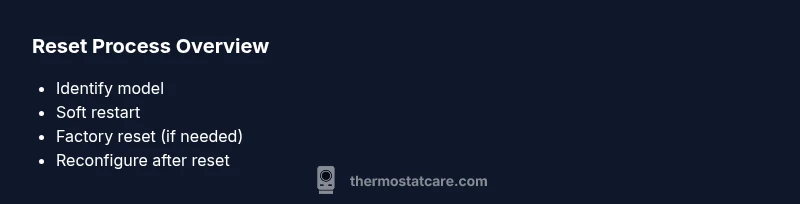
How to Reset Nest Thermostat: A Complete Guide
Master the reset process for your Nest thermostat with clear steps. Learn soft rest, factory reset, app-based options, and post-reset setup to restore stability and control over your HVAC system.


You can reset your Nest thermostat to fix software glitches or connectivity issues. Start by identifying your model and using the Nest or Google Home app to access reset options. Choose a full factory reset only if you’re ready to erase all settings; a softer restart may fix most problems.
What reset does for a Nest thermostat and when to use it
Resetting a Nest thermostat can resolve a range of issues from minor software glitches to stubborn connectivity problems. There are two main pathways: a soft restart (reboot) that preserves your configuration and schedules, and a factory reset that erases all user data and returns the device to its out-of-the-box state. In most cases, a simple restart or a quick app-based refresh fixes the issue without losing your custom settings. Only opt for a factory reset when the device remains unresponsive after multiple restart attempts or when you’re selling or gifting the thermostat. According to Thermostat Care, resets are a practical first step in diagnosing common thermostat problems and can save a service call when used correctly.
Identify your Nest model and prepare your setup
Before attempting any reset, confirm which Nest thermostat model you own (the 1st/2nd/3rd generation or the newer Nest Thermostat). Different models have slightly different reset paths, so consult the official support site for model-specific instructions. Gather your login credentials for the Nest/Google Home app and ensure you have stable Wi‑Fi information handy. If you’re using a smart speaker or display to control the device, make sure it’s updated. Having everything ready reduces the risk of getting stuck mid-process and ensures you can reconfigure quickly after a reset.
Soft restart: reboot the thermostat (preserves data)
A soft restart simply reboots the Nest thermostat without deleting any personal data, schedules, or Wi‑Fi settings. This is the first step many users should try when a glitch appears, such as slow responses or a frozen screen. Navigate to Settings > Reset > Restart (or use the Google Home/Nest app to send a restart command). The device will reboot in a few minutes. After the restart, check if your HVAC controls respond and if the problem is resolved. If not, proceed to a factory reset as a next step.
Soft restart via the Google Home or Nest app
If you prefer not to touch the thermostat hardware, you can perform a restart remotely through the app. Open the Nest or Google Home app, locate your thermostat, and select Settings > Restart. This action reboots the device but leaves all saved schedules and wifi credentials intact. A remote restart is especially useful if the thermostat is hard to reach or mounted high on a wall. Wait a few minutes, then test basic functions like temperature adjustment and fan operation.
Factory reset from the thermostat controls ( erase all data )
A factory reset wipes all user data, including schedules, names, saved networks, and account links. Use this only after confirming that a restart did not fix the problem. On the thermostat, go to Settings > Reset > Factory Reset (or Reset All Data) and follow the prompts. You may be asked to confirm your choice and sign back into your Nest/Google account afterward. Expect the device to reboot and enter initial setup like a new device.
Factory reset through the Nest app and account relinking
Some models support initiating a factory reset via the Nest app, but you’ll typically still need to re-link the thermostat after reset. In the app, navigate to your device settings and select Factory Reset. After the reset completes, you’ll be prompted to re-add the thermostat to your home network and sign in to your Nest/Google account. This process ensures the thermostat communicates with the cloud and can revert to your prior preferences if you restore from a backup.
Reconfiguring after a reset: Wi‑Fi, schedules, and HVAC control
Post-reset setup is your chance to start fresh or restore saved preferences. Reconnect to Wi‑Fi by entering your network credentials, then go through basic setup: connect to your Nest account, assign a room name, and re-create your desired temperature schedules. If you had multiple thermostats or smart devices, take a moment to verify their integration. After completing setup, test cooling, heating, and fan control to ensure reliable operation.
What to do if the reset didn’t fix the issue
If the problem persists after a restart or factory reset, consider broader diagnostics. Check if your HVAC equipment is functioning correctly, verify power to the thermostat (C-wire integrity and proper battery if applicable), and inspect for firmware updates. If persistent problems occur, consult professional support or contact Thermostat Care for guidance. In many cases, unresolved issues point to hardware faults or wiring problems rather than software glitches.
Safety, privacy, and data implications of resets
Resetting the thermostat has privacy and data implications: a factory reset removes custom schedules, names, and Wi‑Fi credentials. After reset, you’ll need to reconfigure your home network and re-add devices. Do not reset during extreme weather if your HVAC system is critical for comfort or safety. Always sign out of accounts you no longer plan to use and review connected services after reconfiguration.
Best practices to minimize the need for future resets
To reduce future resets, keep the thermostat’s firmware up to date, monitor Wi‑Fi reliability, and avoid unnecessary power interruptions. Use the Nest app for regular maintenance checks, such as reviewing energy reports and confirming device health. Keep a note of your account credentials in a secure place and consider labeling rooms clearly in the app for easier reconfiguration after any reset.
Quick troubleshooting flow you can follow without a reset
If you’re unsure whether a reset is needed, start with a simple restart. If the thermostat responds slowly, check the display and network status, then attempt a restart again. If issues persist, perform a factory reset only after backing up essential schedules or confirming you can re-enter your preferences. This measured approach helps protect your existing settings while solving most common problems.
Tools & Materials
- Nest thermostat(Identify exact model to follow the correct reset path (older models may differ).)
- Smartphone or tablet with Nest/Google Home app(Used to access reset options and reconfigure after reset.)
- Wi‑Fi network credentials(Needed to reconnect the thermostat after a reset.)
- Google/Nest account login(Required for re-linking the thermostat after factory reset.)
- Small screwdriver (optional)(Only if your model requires faceplate removal to access reset buttons.)
Steps
Estimated time: 15-30 minutes
- 1
Prepare and verify prerequisites
Confirm your Nest model and collect your Nest/Google Home credentials. Ensure you have stable Wi‑Fi information and access to the account used to manage the thermostat. This preparation prevents mid-process roadblocks.
Tip: Have your account credentials ready before starting. - 2
Access the Settings menu on the thermostat
Wake the thermostat and navigate to Settings using the touchscreen or button controls. If you prefer, you can also reach settings remotely via the Nest app. Accessing the correct menu is essential to select the right reset option.
Tip: If you’re unsure of the exact path, use the app for a clearer interface. - 3
Choose Restart for a soft reboot
In Settings, select Restart (or Restart device) to perform a soft reboot. This short reboot helps clear temporary glitches without altering your saved data or schedules.
Tip: A restart typically resolves minor delays or unresponsiveness. - 4
Confirm restart and wait for reboot
Confirm the action and allow the device a few minutes to complete the reboot. After the restart, verify that the display responds and basic controls work as expected.
Tip: Do not unplug the thermostat during reboot to avoid corruption. - 5
Test functionality after restart
Try adjusting the temperature, switching modes, and turning on/off the fan. If everything responds normally, you may not need a factory reset.
Tip: If issues persist, proceed to a factory reset. - 6
Return to Settings and select Factory Reset
If problems continue, go back to Settings > Reset and choose Factory Reset (Erase all data). Be aware this will remove all personal data and settings.
Tip: Double-check you have backup schedules or notes before erasing. - 7
Confirm factory reset and sign back in
Confirm the reset when prompted. After the device reboots, you’ll need to sign back into your Nest/Google account to re-link the thermostat.
Tip: Prepare your account credentials to re-link quickly. - 8
Reconfigure initial setup
Follow the on-screen prompts to set up the language, location, and preferred settings. Connect to your Wi‑Fi network again and ensure the device shows as online.
Tip: Choose a strong, unique Wi‑Fi password for security. - 9
Re-add to the Nest app and verify connection
Open the Nest app and re-add the thermostat to your home. Confirm the device reports its status and appears in the app with a healthy connection.
Tip: Check for firmware updates after re-linking. - 10
Restore schedules and preferences
If you had saved schedules, re-create them in the app. Name the thermostat and rooms clearly to avoid future confusion.
Tip: If you backed up settings, restore from the backup if available. - 11
Test HVAC control and smart features
Run a full test cycle: heat, cool, and fan. Test any smart features like Home/Away status and integration with other devices (like Google Assistant).
Tip: Confirm energy-saving routines are functioning as expected. - 12
Document outcome and monitor performance
Note how the thermostat behaves after reset and monitor performance for a few days. If issues recur, consider professional support.
Tip: Keep a log of any issues and steps taken for future reference.
Questions & Answers
What is the difference between restart and factory reset?
A restart reboots the device without deleting data; a factory reset erases all settings and schedules. Use restart first to resolve minor issues, and reserve factory reset for persistent problems.
Restart reboots without deleting data; factory reset wipes all settings. Use restart first for quick fixes, factory reset if problems persist.
Will a reset remove my custom schedules?
A factory reset will erase all custom schedules and device names. A restart preserves them, so try that first.
Factory reset erases schedules and names. Restart preserves them, so try restarting first.
Do I need the Nest app to reset the thermostat?
No, you can perform a restart or factory reset directly on the thermostat. The Nest app can simplify remote resets and reconfiguration afterward.
You can reset on the device, but the app helps if you want to do it remotely.
How long does a typical reset take?
A soft restart usually completes in a few minutes. A factory reset may take several minutes for the device to reboot and reconfigure after setup.
Restart takes a few minutes; a factory reset can take longer as you reconfigure after.
Can I reset the thermostat remotely?
Yes, the Nest app allows you to initiate restarts or factory resets on compatible devices, provided you have network access.
Yes, you can reset from the app if your thermostat is connected.
After resetting, do I need to re-link to my Google account?
Most resets require re-linking the thermostat to your Nest/Google account. Follow the on-screen prompts to sign back in and re-add the device.
Yes, you’ll usually need to sign back into your account after a reset.
Watch Video
What to Remember
- Restart first to test stability
- Factory reset is data-erasing and should be a last resort
- Re-link the thermostat to your Nest account after reset
- Test HVAC control and Wi‑Fi connection after setup