Nest Thermostat Not Working: Urgent Troubleshooting Guide
Nest thermostat not working? This urgent guide covers quick fixes, diagnostics, and safe steps to restore control and prevent future issues in your home.


If your Nest thermostat isn’t working, the most likely causes are power or wiring issues, Wi‑Fi connectivity problems, or a stalled app. Start with a quick power cycle at the thermostat and ensure the C‑wire is properly connected. Then check your Wi‑Fi, the Nest app status, and any recent firmware alerts before you try a full reset.
Why Your Nest Thermostat Not Working: Common Culprits
When the Nest thermostat isn’t working, homeowners most often encounter power/wiring issues, Wi‑Fi connectivity problems, or app/account sync failures. A missing C‑wire, a tripped breaker, or a loose terminal can prevent the thermostat from powering on or communicating with the HVAC system. Temperature readings may jump or appear as error codes if the thermostat isn’t getting steady power. In many cases, issues stem from simple wiring or network problems rather than a defective device. By understanding the common culprits, you can quickly target the fix and restore reliable climate control in your home.
Key takeaway: start with the power and wiring, then verify network connections before moving to more complex steps. The Thermostat Care team recommends keeping a basic wiring diagram handy for reference during any fixes.
Quick At-Home Checks You Should Do Now
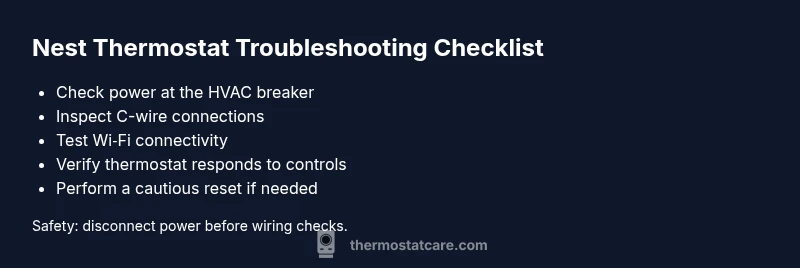
Before you dive into advanced troubleshooting, perform these safe, at-home checks. First, confirm the thermostat is receiving power: check the circuit breaker for the HVAC system and ensure the thermostat’s display is on. If the display is dim or unresponsive, a power issue may be present. Next, inspect the C-wire and relevant terminals for loose connections or corrosion. A loose C-wire is a frequent cause of Nest not working, especially after renovations or doorbell wiring changes. Then verify your Wi‑Fi network and router settings. If the thermostat can’t reach the network, it won’t download firmware updates or sync with the app. Finally, confirm the Nest app shows the thermostat online. If the device appears offline, a network or account issue is likely.
If you discover a loose wire, a tripped breaker, or a faulty router, address those immediately. If the Nest display remains blank or unresponsive after confirming power, wiring, and network, proceed to the diagnostic flow for deeper checks. Throughout this process, avoid poking at the internal circuitry beyond basic terminal checks.
Diagnostic Flow at a Glance
- Symptom: Thermostat shows an error code or won’t power on.
- Diagnosis: Power/wiring issues are most likely; network problems are common when the device cannot communicate with the HVAC or the cloud.
- Solutions: Reconnect loose wires, restore power, reset network settings, or perform a controlled reset if needed. If problems persist after these steps, a professional evaluation is recommended.
Step-by-Step Fix for the Most Common Cause (Power/Wiring)
This section walks through a safe, methodical approach to resolve power and wiring issues that commonly cause the Nest thermostat not working. Follow each step in order, and only proceed if you feel confident handling low‑voltage wiring. If you encounter any uncertainty, contact a licensed electrician or HVAC technician.
- Power cycle the thermostat and HVAC equipment
- Turn off power to the HVAC system at the breaker, wait 30 seconds, then restore power. This can clear transient faults and reinitialize the 24V circuit that powers the thermostat.
- Tip: If you hear buzzing from the air handler, or see flickering indicators, stop and call a pro rather than continuing.
- Inspect the C-wire connection
- Remove the thermostat cover and verify the C-wire is firmly connected to both the thermostat and the C terminal on the control board. Loose C-wires are the leading cause of Nest not working.
- Tip: If there is no C-wire, consider using a Power Connector accessory or upgrading to a compatible power‑sharing solution.
- Check other wires for tightness and corrosion
- Tighten any loose terminals (R, Y, G, W) and look for corrosion on the metal contacts. Corrosion can disrupt the 24V feed and sensor readings.
- Tip: Do not overtighten; snug is sufficient and prevents damage.
- Verify the HVAC equipment responds to thermostat commands
- With power off, disconnect the thermostat temporarily and test the equipment manually at the control board to ensure it responds to basic calls for heat or cool.
- Tip: If the system does not respond, the fault may be in the control board or wiring harness rather than the Nest itself.
- Reconnect and re-test in normal mode
- Reinstall the thermostat cover, power the system back on, and test a few cycles (cool, heat, fan). Confirm the Nest shows current temperature and setpoints accurately.
- Tip: Leave the thermostat in a 68–72°F range during testing to simplify observations.
- If issues persist, perform a controlled reset
- If the Nest still won’t power on after power/wiring checks, perform a factory reset only as a last resort, then reconfigure the device from scratch. Keep yourNest account credentials handy.
- Tip: A reset will remove saved schedules and settings; back them up if possible before proceeding.
Estimated total time: 25-40 minutes
Safety, Warnings, and When to Call a Pro
Working with low‑voltage HVAC wiring should be done carefully. Always shut off power to the HVAC circuit before touching wires to avoid shock or equipment damage. If you notice burning smells, melted insulation, or buzzing at the control board, stop immediately and contact a licensed professional. If you’re unsure about wiring diagrams or HVAC compatibility, a pro can verify C-wire availability and confirm the thermostat’s compatibility with your system. Remember that improper handling can void warranties.
Prevention: Keeping Your Nest Healthy
- Schedule regular inspections of your thermostat wiring and HVAC connections.
- Use a compatible power accessory if your system lacks a dedicated C-wire.
- Keep your Nest app updated and monitor firmware notifications to catch issues early.
- Maintain a stable Wi‑Fi network to prevent communication problems that mimic thermostat failures.
- Create a simple fallback plan (manual controls, room thermometers) so you’re not left without climate control during troubleshooting.
Final Thoughts
A systematic approach—starting with power and wiring, then addressing network and app synchronization—usually resolves a Nest thermostat not working. By following the steps outlined here and noting any warning signs, you’ll minimize downtime and protect your home comfort. The Thermostat Care team emphasizes patience and safety; if a fix feels beyond your comfort level, professional help is the safest path.
Steps
Estimated time: 25-40 minutes
- 1
Power cycle the system
Turn off power to the HVAC at the main breaker, wait 30 seconds, then restore power. This clears transient faults and reinitializes the 24V circuit powering the Nest.
Tip: If you hear crackling or see smoke at the breaker, stop and contact a pro. - 2
Check the C-wire and terminal connections
Open the thermostat and inspect the C-wire to ensure a solid connection at both ends. A loose C-wire is a common reason for Nest not working.
Tip: Gently tug on wires to verify connection security without loosening terminals. - 3
Inspect other thermostat wires
Look for loose screws on R, Y, G, and W terminals and signs of corrosion. Tighten and clean as needed.
Tip: Avoid over-tightening; snug fit is sufficient. - 4
Test HVAC response at the control board
With power off, simulate a call for heat or cool at the control board to ensure the system responds without the Nest.
Tip: If the system doesn’t respond, the issue may be with the control board rather than the Nest. - 5
Reinstall and test in normal mode
Reconnect the thermostat cover, restore power, and run several thermostat cycles (heat, cool, fan) to verify operation.
Tip: Document observed readings to compare later if problems recur. - 6
Consider a reset if problems persist
If issues remain, perform a factory reset of the Nest and reconfigure from scratch. Back up schedules if possible.
Tip: A reset erases saved settings; have your account info ready.
Diagnosis: Nest thermostat won’t power on or clearly communicates status
Possible Causes
- highPower issue (tripped breaker, blown fuse, or missing/loose C-wire)
- mediumWi-Fi connectivity problem or cloud service outage
- lowOutdated firmware or corrupted app data
Fixes
- easyReset power to the HVAC system and verify 24V supply to the thermostat
- easySecure and clean all wiring connections at the thermostat and control board
- mediumReconnect or replace the C-wire if needed; consider a power connector accessory
- hardReset the Nest thermostat from settings or perform a factory reset if no other fixes work
Questions & Answers
Why is my Nest thermostat not powering on even though the display is blank?
A blank display often means a power issue, such as a tripped breaker or a loose C-wire. Start by turning off power to the HVAC, inspecting the C-wire, and reseating all connections. If the display remains off after power restoration, a professional check may be needed.
A blank display usually points to a power problem like a loose C-wire. Check power at the HVAC, reseat the C-wire, and try again; if it stays off, call a pro.
Do I need a C-wire for my Nest thermostat?
Most Nest thermostats require a common C-wire for reliable operation, especially with heat pumps or high-demand systems. If your current setup lacks a C-wire, consider installing one or using a compatible power accessory.
A C-wire is usually needed for reliable Nest operation. If you don’t have one, you might need to install it or use a compatible power accessory.
What should I do if the Nest app can’t find my thermostat?
First ensure both the thermostat and phone are on the same Wi‑Fi network and that the thermostat is online. Restart the router and re-link the device in the Nest app. If issues persist, remove and re-add the thermostat in the app.
Make sure both devices are on the same network, reboot your router, and re-link the thermostat in the Nest app. If needed, re-adding the device usually fixes it.
Is it safe to reset the Nest thermostat?
Yes, a factory reset is safe but should be a last resort. It erases saved schedules and settings, so back them up if possible before proceeding.
Resetting is safe, but it wipes your saved settings. Try all other fixes first.
How long does a Nest thermostat typically last before issues arise?
With proper care, a Nest thermostat can last several years, but performance can be affected by wiring, power supply, and network conditions. Regular maintenance helps extend reliability.
A Nest can last several years, but wiring and power conditions matter. Regular checks help keep it reliable.
When should I call a professional for Nest thermostat issues?
Call a professional if power/wiring checks don’t resolve the issue, if you suspect control board problems, or if you’re uncomfortable working with low voltage wiring.
If basic fixes don’t work or you’re unsure about wiring, it’s best to call a professional to avoid damage or safety risks.
Watch Video
What to Remember
- Power and wiring first—the most common Nest issues.
- Ensure the C-wire is secure and intact.
- A stable Wi‑Fi network helps avoid sync problems.
- Use resets cautiously and back up schedules if possible.
- Call a pro if you’re unsure about wiring or control board faults.