Nest Thermostat Troubleshooting Guide: What to Do When It Stops Working
Practical, step-by-step guidance to diagnose and fix a Nest thermostat that won't respond or control your HVAC. Learn checks, safe fixes, and when to call a pro.


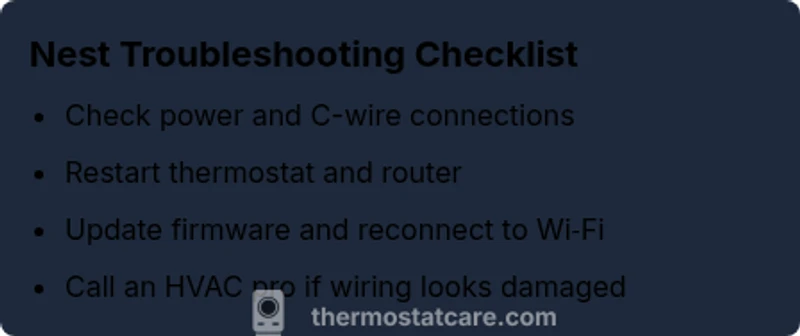
According to Thermostat Care, if your Nest thermostat isn’t working, start with three quick checks: ensure power is reaching the thermostat, verify the C‑wire connections at the furnace, and reboot the thermostat and your router. If problems persist, update firmware and re-pair to Wi‑Fi, then consult a pro if needed. Safety first, then methodical troubleshooting.
Common Causes of Nest Not Working
When a Nest thermostat stops responding, three broad areas usually explain the issue: power delivery, wiring, and connectivity. According to Thermostat Care, most Nest problems fall into power, wiring, or connectivity categories, with power issues being the most frequent culprit in older homes. Understanding these categories helps you prioritise fixes and avoid unnecessary steps. In practice, many failures arise from a loose wire at the furnace, a tripped breaker, or a drained power supply that prevents the Nest from drawing enough current to stay awake. By recognizing the patterns—blank screens, slow response, or inability to connect to Wi‑Fi—you can narrow down whether the problem is hardware, software, or a network issue and apply the right remedy.
Quick Safety Checks Before You Dig In
Safety first is not just a slogan—it's a practical requirement when dealing with electrical devices and HVAC wiring. Start with simple, reversible checks:
- Confirm the thermostat display is powered and the screen is responsive. If the screen is completely black, the issue is more likely a power problem.
- Check the circuit breaker or fuse box for trips that might have cut power to the HVAC system. Reset any tripped breakers and test again.
- Inspect visible wiring at the thermostat for loose screws or disconnected conductors. Do not tug on wires; gently re-seat them and tighten screws if they are loose.
- Ensure the thermostat plate is securely mounted to the wall and that there are no loose or damaged wires pressing into the back of the unit. A loose mount can create intermittent contact that looks like a malfunction. If you observe burnt smell, melted insulation, or any visible damage, stop and call a licensed professional immediately. Safety cannot be compromised when dealing with house wiring.
Understanding Nest Power and Wiring: What to Inspect
Nest thermostats rely on a stable power supply and proper wiring to communicate with your HVAC system. The most common power-related issues involve the C‑wire (common) and the R (power) lead. If the C‑wire is missing, loose, or misconnected at either the thermostat or furnace control board, the Nest may intermittently reboot or fail to stay awake. Some installations use a “power stealing” method that can work in a pinch but may cause voltage drops under heavy HVAC loads. Inspect both ends of the C‑wire at the thermostat and at the furnace control board; reseat wires, trim any frayed ends, and ensure the screws are tight. If you don’t have a C‑wire, consider adding a dedicated C‑wire or using an official Nest Power Connector as recommended by Thermostat Care to stabilize power delivery without overloading the device.
Diagnostic Flow: Symptoms to Diagnoses
A systematic approach makes troubleshooting faster and safer:
- Symptom: The display is blank or unresponsive. Diagnosis: likely power or wiring issue. Fix: verify power, inspect cables, and test the R/C connection.
- Symptom: The thermostat shows offline or cannot connect to Wi‑Fi. Diagnosis: connectivity problem or router/firewall interference. Fix: reboot router, rejoin network, and ensure the thermostat is within range.
- Symptom: HVAC won’t respond or cycles abnormally. Diagnosis: power supply fluctuating or wiring fault at the furnace. Fix: check the 24‑volt transformer, C‑wire, and controller board connections.
- Symptom: Firmware update fails or keeps restarting. Diagnosis: software glitch. Fix: retry update, reset network, and re-pair to Wi‑Fi. If you still can’t identify the issue after these checks, it’s commonly a sign to involve a pro, especially when dealing with high‑voltage components or burnt wiring.
Step-by-Step: The Most Common Fix (Power/Wiring)
Step-by-Step: The Most Common Fix (Power/Wiring)
- Power down safely: Turn off the circuit breaker that powers the HVAC system to prevent shock while inspecting wiring.
- Inspect the C-wire: Remove the thermostat cover and confirm the C-wire is securely connected at both ends. If the wire is damaged, replace it and re‑terminate.
- Check the R and other thermostat wires: Ensure all conductors are firmly screwed in and not corroded or bent; reseat as needed.
- Re-seat at the furnace: Open the furnace panel, locate the wiring harness at the control board, and gently reseat the R and C connections. If you find corrosion or damage, replace the wiring bundle.
- Restore power and test: Turn the breaker back on, wait for system boot, and observe whether the Nest powers up and connects. If there is still no response, proceed to firmware steps or consider professional service.
- Optional: Install an official Nest Power Connector if your system lacks a reliable C-wire, following the manufacturer’s instructions. Tip: Take photos of wiring before you disconnect anything so you can re-create the original configuration if needed.
Step-by-Step: Firmware and Connectivity (If power is stable)
Step-by-Step: Firmware and Connectivity (If power is stable)
- Reboot the Nest: Navigate to Settings > Reset > Restart. This clears minor software glitches without affecting saved schedules.
- Re‑connect to Wi‑Fi: On the thermostat, go to Settings > Network, forget the existing network, and reconnect with your Wi‑Fi password.
- Check for updates: Go to Settings > Software Update and install any available firmware. Ensure your phone, router, and thermostat are on compatible versions.
- Re-pair to the hub: If your system uses a smart home hub, remove and re‑add the Nest to the hub to restore integration with automations.
- Test HVAC control: After updates, set a few simple temperature changes to verify the Nest can control heating and cooling reliably.
- Restore a prior working configuration if available: If the new firmware introduces issues, revert to a previous stable version if your equipment supports it. Tip: Keep a log of firmware versions and network changes to help pinpoint recurring issues.
When to Seek Professional Help and Prevention Tips
If you encounter any signs of electrical damage, persistent power irregularities, or if you are unsure about wiring, do not proceed. A licensed HVAC technician can safely test the transformer, confirm the compatibility of your control board, and ensure that wiring meets code requirements. Regular maintenance can prevent many Nest issues: replace dirty or damaged air filters, confirm the HVAC blower isn’t overloaded, and verify outdoor sensors are clean and clear of obstructions. Thermostat Care recommends scheduling a yearly quick Check‑up to maintain reliable operation and extend equipment life.
Steps
Estimated time: 25-40 minutes
- 1
Power check and safety prep
Turn off the HVAC circuit breaker to ensure safe inspection. Remove the thermostat cover to access wires and confirm there’s no visible damage before touching anything.
Tip: Always err on the side of caution—if you see burnt wire insulation, stop and call a pro. - 2
Inspect the C-wire and R-wire
Confirm the C-wire is securely connected at both the thermostat and the furnace control board. R should be firmly attached and not loose or corroded.
Tip: If the C-wire is missing or damaged, consider adding a dedicated C-wire or using the Nest Power Connector. - 3
Re-seat wires and mount
Re-seat all wires at the thermostat screws and ensure the plate is flush against the wall. A loose mount can produce intermittent contact.
Tip: Take a quick photo before removing wires so you can return to the original setup. - 4
Restore power and test
Restore power at the breaker, wait for system boot, and check if the Nest powers on and connects to Wi‑Fi.
Tip: If the display is still blank, proceed to firmware steps or seek professional help. - 5
Firmware and network sanity check
Restart the Nest, reconnect to Wi‑Fi, and install any available firmware updates. Verify that a stable network allows reliable control.
Tip: Avoid changing multiple network settings at once to isolate issues. - 6
Decide on professional help
If wiring appears damaged or the unit still won’t function after these steps, contact a licensed professional for a safe and proper fix.
Tip: Provide the technician with notes from the troubleshooting log to speed up diagnosis.
Diagnosis: Nest thermostat won’t turn on, won’t respond to input, or won’t control HVAC
Possible Causes
- highPower supply issue or tripped breaker
- mediumLoose or damaged C-wire or R-wire connections
- mediumWi-Fi connectivity problems or router issues
- lowSoftware glitch or failed firmware update
Fixes
- easyCheck breaker and power to HVAC; reset as needed
- mediumSecure or replace C-wire/R-wire connections at thermostat and furnace
- easyReboot thermostat and router, rejoin Wi‑Fi, and update firmware
- mediumInstall Nest Power Connector if no reliable C-wire is present
- hardConsult a licensed HVAC technician for wiring or transformer issues
Questions & Answers
Why is my Nest thermostat screen blank or unresponsive?
A blank or unresponsive screen usually points to a power or wiring problem. Check the breaker, verify that power is reaching the thermostat, and inspect the C-wire at both ends. If the issue persists, a firmware reset or professional inspection may be required.
A blank screen usually means a power or wiring issue; check breakers and wiring, then try a firmware reset if needed.
How do I reconnect my Nest to Wi‑Fi after a reset?
Go to Settings > Network on the Nest, forget the current network, and reconnect with your Wi‑Fi password. Ensure your router is working and the Nest is within range.
Go to Network settings, forget the network, then reconnect with your password.
Can I run a Nest without a C-wire?
Nest can operate without a C-wire in some setups using power‑stealing methods, but this can cause instability. If you frequently see rebooting or dim displays, consider adding a dedicated C-wire or using the Nest Power Connector.
Some setups work without a C-wire, but it often causes instability; consider adding C-wire or a connector.
Should I reset my Nest to factory settings?
Factory resetting can solve software glitches but will erase schedules and settings. Use it as a last resort after backing up important configurations.
Factory reset should be a last resort because it wipes your settings.
How can I tell if the problem is with the HVAC system vs the thermostat?
If you can control some functions via the app but the thermostat still won’t respond locally, the issue may be software or wiring on the thermostat. If neither the app nor the thermostat can control HVAC, the problem is likely with the HVAC wiring or components.
If control fails on both app and thermostat, the issue is probably HVAC wiring or components; if only the thermostat is off, focus on the device itself.
Watch Video
What to Remember
- Check power and wiring first to identify the root cause
- Keep Nest firmware up to date for stable performance
- Only perform electrical work if you’re confident—safety first
- Call a pro for dangerous or unresolved wiring issues