How to Reset a Thermostat: A Practical Guide
Step-by-step instructions to safely reset any thermostat—non-programmable, programmable, or smart. Learn soft power cycles, factory resets, and post-reset reconfiguration.


How do I reset a thermostat? You can reset most thermostats to clear glitches, restore connectivity, or restore default settings via a soft power cycle or a factory reset. This guide covers non-programmable, programmable, and smart thermostats, describing when to use each method and what to expect after the reset. Always consult your model’s manual for precise steps.
When Resetting Helps and Safety Considerations
Resetting a thermostat can resolve several common problems, from unresponsive screens to incorrect temperature readings and dropped schedules. Before you begin, consider whether the issue is purely software-related or if a hardware fault could be involved. According to Thermostat Care, resets address many glitches by clearing temporary memory and reinitializing communication between the thermostat and its connected devices. If your thermostat is not responding after a power interruption or display is blank, a reset is often the simplest first step.
Safety first: power off the thermostat or the circuit supplying it, especially if you need to remove the cover or reach the wiring. Do not attempt to reset a thermostat while the HVAC system is actively running. If you share the line with a furnace or air handler, shut off the corresponding breaker to avoid shocks or triggering unsafe startup sequences. For battery-powered units, the power supply is internal, but you should avoid removing batteries during an active operation. When to reset? Use a reset only after basic troubleshooting (screen freeze, unexpected temperature changes, failure to follow schedules) has been attempted. If you are unsure about the wiring or the model’s exact reset method, consult the manual or contact support.
Thermostat Care analysis notes that model variability matters: some units use a thermostat-level reset, others require an app-based or account-based reset. Always read the manual for your exact model to determine whether a soft power cycle, a factory reset, or a full reinstallation is needed. After resetting, verify that the device reboots properly and returns to a known default screen before continuing.
Soft Reset vs Factory Reset: What’s the Difference?
A soft reset, or power cycle, simply restarts the thermostat without changing any stored data. It clears temporary memory and can restore normal operation without reconfiguring schedules or Wi‑Fi settings. A factory reset, by contrast, restores the thermostat to its original out‑of‑the‑box state. All saved schedules, Wi‑Fi credentials, and connected accounts are erased, and you will need to re-enter information.
Deciding which reset to use depends on the symptom. If the display is responsive but behaving oddly (wrong readings, delayed responses, or wrong scheduling), a soft reset is usually enough. If problems persist after a soft reset, or you suspect corrupted data or a compromised account, a factory reset is warranted. Remember: after a factory reset, you’ll have to reconfigure settings from scratch. Thermostat Care recommends starting with a soft reset when possible to preserve your existing configurations.
How to Reset a Non-Programmable Thermostat
Non-programmable thermostats are the simplest to reset. Start by powering down the unit or cutting power at the circuit breaker if needed. Wait 30–60 seconds, then restore power and watch the thermostat reboot. If the display remains blank or the unit stays unresponsive, perform a soft reset by following the manufacturer’s instructions (often a button hold or a sequence like holding the up and down arrows for several seconds).
If a soft reset doesn’t fix the issue, check for a small reset button on the housing. If present, press and hold briefly, then release and observe the reboot. If no reset button exists, continue with a power cycle and re-test. After reboot, verify that the thermostat displays current readings and responds to basic commands. Thermostat Care notes that some non-programmable models may require replacement if issues persist after resets.
Tip: Take a photo of any labels or dip switches before you start, so you can restore any factory-default settings if needed.
How to Reset a Programmable Thermostat
Programmable thermostats store schedules and settings that can be lost during a reset. Begin with a soft reset to see if the issue resolves without altering schedules. If your unit still misbehaves, you can perform a factory reset, but be prepared to re-enter time, date, and all programmed schedules.
Before you reset, document your current settings or export a backup if the model supports it. After a soft reset, re-check the display and connectivity. If you perform a factory reset, you’ll be prompted to re-connect to Wi‑Fi and reconfigure your schedules. Expect a brief re-sync with the HVAC system as it re-learns your preferred temperatures and timing.
Thermostat Care reminds users to confirm whether the reset will erase saved favorites or scenes, especially if the thermostat is integrated with smart home routines.
How to Reset Smart Thermostats (Nest, Ecobee, Honeywell)
Smart thermostats add account and app-based layers to the reset process. A soft reset via the device or app can resolve minor glitches without losing your accounts. If problems persist, a factory reset through the app or device settings will return the unit to its default state. After a reset, you will need to re-link the thermostat to your home Wi‑Fi and re-add it to your smart home ecosystem.
For Nest, Ecobee, and Honeywell, use the respective app to navigate to Settings > Reset or similar. Confirm the reset and follow prompts to reconnect to Wi‑Fi and your other devices. If you use voice assistants or automations, re-establish your routines after the reset. The Thermostat Care team notes that some integrations may require re-authorizing permissions.
If you rely on a shared account, inform other household members of the change, since schedules and preferences will be reloaded after the reset.
Special Cases: Battery-Powered vs Hard-Wired, Calibration, and Recalling Settings
Battery-powered thermostats can behave differently from hard-wired ones, especially during resets. In some cases, removing batteries during a reset can cause misalignment of time settings or sensor calibration. For hard-wired units, ensure that power is safely cut at the breaker before any reset attempt. After reset, recalibrate temperature sensors if your model allows it, especially if readings seem biased.
If a thermostat calibrates slowly or reports inaccurate temperatures after a reset, check if the system has multiple sensors or zones. Recalibrating or realigning the sensors can improve accuracy. If a device uses a remote sensor, make sure the sensor is properly paired again after the reset. Thermostat Care recommends updating firmware when available, as updates can fix calibration drift and improve compatibility with other smart devices.
After Reset: Reconnecting, Reconfiguring, and Calibrating
Once the reset is complete, reconfigure basic settings such as date, time, and location. Reconnect to your Wi‑Fi network, re-enter credentials, and re-run any scheduled routines. It’s a good idea to test cooling and heating commands, verify that the thermostat responds promptly, and confirm that energy-saving features are active.
Check that any geofencing, occupancy sensing, or smart-home automations still function as expected. If you notice discrepancies, re-check the schedules and temperature offsets. Thermostat Care emphasizes taking a few days to observe system performance and adjusting schedules as needed to optimize comfort and efficiency.
Common Pitfalls to Avoid When Resetting Thermostats
- Resetting too quickly without powering down can leave the device in an uncertain state. Take a moment to ensure power is safely cut when required.
- Skipping documentation or backups can lead to lost schedules. Always record your settings before resetting.
- Factory resets can erase important connections like Wi‑Fi or accounts. Ensure you have login credentials handy before proceeding.
- Running a reset while the HVAC system is in full operation can cause unexpected starts. Pause, then reset during a safe window.
Quick Reference Checklist for Reset Scenarios
- Soft reset first for most issues. Keep schedules intact if possible.
- Use factory reset only when soft reset fails or data corruption is suspected.
- Reconnect Wi‑Fi and re-link accounts for smart thermostats after reset.
- Calibrate sensors and verify readings post-reset.
- Document changes and monitor performance over the next 48–72 hours.
Tools & Materials
- Owner's manual or model-specific reset instructions(Keep handy for exact steps (soft reset vs factory reset).)
- Power source access (circuit breaker or wall switch)(Needed to safely cut power for resets.)
- Flathead screwdriver (if needed to remove faceplate)(Only if your model uses a screw-secured cover.)
- Smartphone or tablet with internet access(Helpful for app-based resets and re-linking devices.)
- Paper and pen or notes app(Log new settings and reconfigured schedules.)
- Stable Wi‑Fi network(Important for smart thermostats post-reset.)
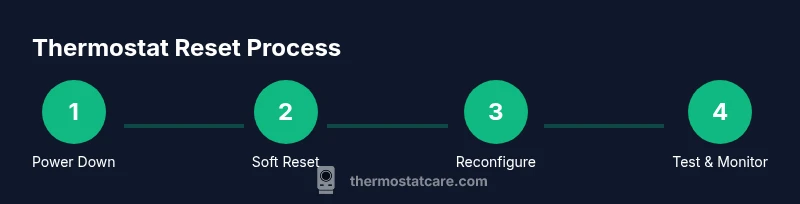
Steps
Estimated time: 45-90 minutes
- 1
Power down and prepare
Identify the thermostat’s power source and turn it off or cut power at the circuit breaker. If you must remove the faceplate, do so carefully with a screwdriver only if needed. Take a quick photo of the current wiring or settings to help with reconfiguration.
Tip: Preparing in advance prevents mistakes during the reset. - 2
Choose reset type
Decide between soft reset (power cycle) and factory reset. Start with a soft reset to preserve schedules and accounts. Review the manual to locate the exact reset option in the device settings or hardware buttons.
Tip: A soft reset is almost always the safest first step. - 3
Perform soft reset on non-programmable thermostats
For non-programmable units, remove power for 30–60 seconds or use the reset button if present. Reapply power and observe the reboot sequence. Confirm the display shows proper temperature and status indicators.
Tip: If there is a dedicated reset button, hold it as directed by the manual. - 4
Test after soft reset
After reboot, test basic functions: adjust temperature, switch modes, and monitor response times. If issues persist, proceed to a factory reset only if you’re comfortable reconfiguring settings.
Tip: Document any changes to compare pre- and post-reset behavior. - 5
Perform factory reset if necessary
Follow the manufacturer’s steps to perform a factory reset. Expect to re-enter Wi‑Fi credentials, time settings, and all schedules. This step should be a last resort for persistent glitches.
Tip: Ensure you have login credentials and access to the app or account before starting. - 6
Reconfigure settings after reset
Re-enter date/time, location, schedules, and any comfort settings. If you have a humidity sensor or occupancy features, re-enable and test them.
Tip: Start with essential settings and test gradually. - 7
Reconnect Wi‑Fi and accounts
For smart thermostats, reconnect to Wi‑Fi and re-link to your home ecosystem or voice assistants. Verify that automations trigger correctly.
Tip: Use a strong, stable Wi‑Fi connection during setup. - 8
Test performance and energy impact
Run through a full cycle to ensure heating and cooling respond as expected. Check for improved responsiveness and stable readings.
Tip: Note any improvement in comfort or energy use. - 9
Document and monitor
Record the reset method used and any adjustments. Monitor for the next 48–72 hours to confirm stability and absence of glitches.
Tip: Keep a simple log for future reference.
Questions & Answers
Will resetting erase my schedules?
A soft reset typically preserves schedules, but a factory reset will erase them. Always verify what your model resets before proceeding.
A soft reset usually keeps your schedules; a factory reset wipes them and you’ll need to set them up again.
What is the difference between soft reset and factory reset?
A soft reset restarts the unit without changing data, while a factory reset restores the device to its original state and deletes saved configurations.
Soft reset restarts without data loss; factory reset returns to factory defaults and removes saved settings.
Will a reset fix a thermostat not turning on?
If the unit is unresponsive, a soft reset may help. If there is a power issue or wiring fault, reset may not fix it and professional guidance could be needed.
It might help, but if there’s a power or wiring problem, you may need further assistance.
Do I need to disconnect power before resetting?
Yes, for safety and to ensure a clean reset, cut power to the thermostat or its circuit breaker before starting.
Yes—turn off power to the thermostat first.
Can I reset a thermostat without the app?
Some resets can be done on-device, but app-based resets are often the easiest for smart thermostats. Check your model's manual.
It depends on the model; apps often make resets easier for smart thermostats.
How long should I wait after factory reset?
After a factory reset, wait for the device to reboot and re-link to Wi‑Fi. This typically takes a few minutes.
Give it a few minutes to reboot and reconnect.
Watch Video
What to Remember
- Start with a soft reset to preserve data
- Use a factory reset only when necessary
- Smart thermostats require re-linking after reset
- Document settings before resetting
- Test after reset and monitor performance