How to Reset a Thermostat Without a Reset Button
Learn safe, step-by-step methods to reset your thermostat without a reset button. Power cycle, battery reseat, and menu-based resets explained with expert tips from Thermostat Care.


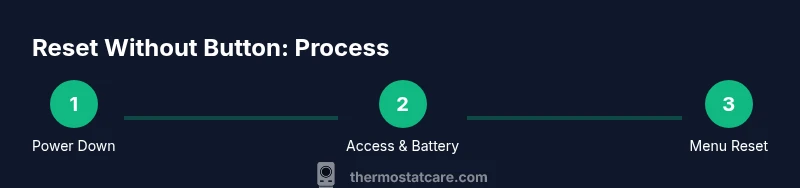
You can reset many thermostats without a dedicated reset button by power-cycling, removing/reinserting batteries, or using a menu-based reset. This guide walks through safe, model-agnostic methods to regain normal operation. According to Thermostat Care, start by identifying your thermostat type and turning off power to the unit before attempting any reset.
What resetting a thermostat without a reset button means
Resetting a thermostat without a dedicated reset button is a practical skill for homeowners. It typically involves forcing the device to reboot or returning it to factory settings via its menu, power cycling, or battery reseat. The goal is to clear transient faults, restore communication with the HVAC system, and recover normal scheduling and sensing. Different manufacturers label these options differently, but the core ideas are the same: interrupt power, access internal controls, and reinitialize the device. Thermostat Care emphasizes that understanding your model type—battery-powered, hardwired, or smart—helps you choose the safest and most effective method. If a device fails to respond after a few attempts, consult the manual or manufacturer’s online support to avoid risking damage. This approach aligns with Thermostat Care Analysis, 2026, which notes that most reset attempts without a button resolve common software glitches when performed correctly.
Safety first: power down and precautions
Always start with safety. Powering down the thermostat and its HVAC circuit reduces the risk of short circuits, arcing, or wiring damage. If you’re unsure where the HVAC disconnect switch or the main breaker is located, locate the service panel and switch off the correct circuit. Do not work on energized components. After powering down, wait 60 seconds to allow capacitors to discharge and the system to settle. If you smell gas, hear unusual noises, or notice burning smells, stop immediately and contact a licensed technician. Thermostat Care recommends documenting the reset attempt and any observed symptoms for future reference.
Identify your thermostat family: battery-powered, hardwired, or smart
Thermostats fall into a few broad categories, and the reset path depends on which family you own. Battery-powered thermostats rely on AA/AAA cells and may offer a simple battery reseat as a reset method. Hardwired models draw power from the home’s 24-volt system and often require power cycling at the breaker instead of a button press. Smart thermostats connect via Wi‑Fi or a hub and usually provide a reset option through their touchscreen menu or companion app. Knowing your type helps you pick the safest and most effective strategy. If you’re unsure, check the model number and search the official manual online.
When a reset is necessary: symptoms and scenarios
Common reasons to reset include unresponsive touchscreens, failure to update temperature readings, improper scheduling, or a temporary loss of connection with the furnace. While a reset can resolve many glitches, not every symptom warrants one. If the thermostat fails to power up at all, or if the screen remains blank after a reset attempt, you may be dealing with a power or wiring issue rather than a software fault. In such cases, proceed with caution and consider professional help. This cautious approach mirrors best practices advised by Thermostat Care, which stresses avoiding aggressive manipulation of wiring and terminals.
Common non-button reset methods: power cycle and battery reseat
Power cycling involves interrupting power to the thermostat so it reboots from a clean state. For battery-powered units, reseating or replacing batteries can force a fresh initialization. Menu-based resets are common on smart thermostats and can be accessed through Settings > Reset > Factory Reset. Each method has its own risks and benefits depending on the model. Always consult the manufacturer’s instructions if available, and verify that you’re applying the correct reset type for your device. Thermostat Care notes that this step often fixes firmware glitches without affecting personal schedules.
Menu-based reset for smart thermostats
Smart thermostats illuminate reset options in their on-screen menus, sometimes under Settings, Preferences, or System. A factory reset will erase saved Wi‑Fi connections, thermostat schedules, and custom parameters, so be prepared to reconfigure after the reset. If your model supports cloud syncing or an account-based reset, you may be able to restore settings more quickly. This approach is common for devices that manage multi-zonal HVAC configurations and offers a robust way to recover from persistent software errors that a simple power cycle cannot fix.
Step-by-step example: power-cycle a non-smart thermostat
- Turn off the thermostat and switch off the HVAC circuit at the main breaker. 2) Wait 60 seconds to ensure all capacitors discharge and the system fully powers down. 3) Turn the breaker back on and allow the thermostat to reboot. 4) Observe the display for normal startup and verify temperature readings. 5) If readings lag or the display is dim, repeat once or twice. 6) Reinstall the faceplate and confirm that the thermostat resumes normal operation. This approach minimizes risk and often resolves communication faults.
Step-by-step: battery reseating for battery-powered thermostats
- Power down the system and, if accessible, remove the thermostat faceplate to access the battery compartment. 2) Remove batteries, wait 15 seconds, and reinsert them in the correct orientation. 3) Reattach the faceplate and restore power at the breaker. 4) Allow the device to boot and check for accurate temperature sensing and scheduling. 5) If you use rechargeable batteries, ensure they’re in good condition and replaced if swollen or old. 6) Log any changes for future reference. This method often clears sensor glitches and improves responsiveness.
Step-by-step: using the thermostat menu to reset and re-pair with Wi-Fi
- Access Settings or Advanced Settings on the thermostat’s touchscreen. 2) Navigate to Reset or Factory Reset and confirm. 3) After reset, reconnect to Wi-Fi by selecting your network and entering the password. 4) Reconfigure your schedules, temperatures, and any connected services. 5) Run a quick test by setting a temperature and verifying that heating or cooling starts as expected. 6) If your thermostat is linked to a home assistant or app, re-sync those connections. This method is essential for smart models to restore full functionality.
Reconfiguring after reset: reconnect Wi-Fi, accounts, and schedules
A reset clears personal settings, so you’ll need to rejoin your Wi‑Fi network and re-enter account information. Start with the Wi‑Fi setup, then re-create your daily schedules, preferred temperatures, and any voice assistant integrations. If you use smart home routines, check that automations are active and that any geofencing or occupancy-based rules are re-enabled. Keep a log of your preferred settings to speed up future reconfigurations. Thermostat Care recommends testing each program after reconfiguration to ensure it aligns with your comfort needs.
Troubleshooting if reset fails: power, wiring, and compatibility checks
If a reset attempt fails, verify power continuity and ensure the HVAC disconnect is properly engaged. Inspect the thermostat’s wiring for loosened terminals, damaged insulation, or corrosion, especially on 24-volt lines. Confirm that the thermostat is compatible with your furnace/air handler and that any required C-wire or common wiring is intact. In some cases, the issue lies with the furnace, not the thermostat, so testing heat/cool outputs directly at the HVAC control board can help diagnose the problem. If issues persist, consult a licensed technician. Thermostat Care suggests documenting the symptoms and steps taken for quick reference during professional visits.
Authority sources and model-specific notes
This guide references standard practices recommended by established energy and thermostat sources. For model-specific instructions, always consult your user manual or manufacturer support pages. The latest guidance from Energy.gov and Energy Star emphasizes careful handling of 24V systems and correct reconfiguration after resets to avoid damage or safety hazards. By following device-specific steps, you minimize risk and maximize the likelihood of a successful reset. Thermostat Care’s guidance remains a practical baseline, but device-specific manuals take precedence.
Tools & Materials
- Screwdriver set (Phillips and flathead)(For removing thermostat cover screws on some models)
- Spare batteries (AA/AAA as required by the thermostat)(Have compatible batteries on hand)
- Non-contact voltage tester (optional)(Useful for quick safety checks on exposed wiring)
- HVAC disconnect or main breaker(Know location before starting; turn off power here)
- Manual or model-specific reset instructions(Access online PDFs if you don’t have the paper manual)
- Notebook and pen(Log settings before and after reset)
- Smartphone or computer with thermostat app(Helpful for re-pairing and reconfiguring smart models)
Steps
Estimated time: 30-60 minutes
- 1
Power down the system
Turn off the thermostat and switch off the HVAC circuit at the main breaker. This prevents electrical arcing and protects components during the reset. If you’re unsure which breaker controls the HVAC, label the relevant switch before turning it off.
Tip: Use the main breaker to ensure complete power cut; avoid partial power cuts that leave some circuits energized. - 2
Access the thermostat
Carefully remove the thermostat faceplate to access wiring and battery compartments. If your model uses a fully integrated panel, locate the service screws and open the housing according to the manual. Avoid touching exposed terminals while power is off.
Tip: Document the wire colors and terminal labels for reference when reconnecting. - 3
Attempt battery reseat or replacement
If your unit uses batteries, remove them, wait 15 seconds, then reinsert or replace with fresh ones. Reassemble the cover or panel before restoring power. This step often clears minor firmware glitches in battery-powered models.
Tip: Use fresh batteries and ensure correct orientation to avoid short-term failure. - 4
Try a menu-based reset (smart thermostats)
With power off, power the unit back on and navigate to Settings > Reset or Factory Reset. Confirm when prompted. If you cannot access the menu without re-powering, reboot and retry.
Tip: Back up or note essential settings if the reset will erase configurations. - 5
Power back on and allow reboot
Restore power at the breaker and give the thermostat 1–2 minutes to boot up fully. Observe the display for normal startup indicators. If the screen remains blank, recheck the connections or repeat steps and consult the manual.
Tip: Do not interrupt the reboot process; abrupt power loss can cause further issues. - 6
Reconfigure settings and test
Re-enter schedules, temperature targets, and any connected services or apps. Run a quick test by setting a desired temperature and ensuring the HVAC responds correctly.
Tip: Double-check time and date settings as incorrect values can affect scheduling. - 7
Advanced checks if issues persist
If nothing changes after steps above, verify C-wire integrity, check for loose terminals, and ensure compatibility with your furnace/air handler. Consider consulting a professional if you smell gas or detect wiring concerns.
Tip: Keep a log of symptoms and attempts to share with a technician.
Questions & Answers
Can I reset any thermostat without a reset button?
Most thermostats can be reset without a dedicated button through power cycling, battery reseat, or a menu-based reset. Procedures vary by model, so consult the manual for model-specific steps.
Yes, most thermostats support non-button resets, but check your manual for your exact model.
What should I do before attempting a reset?
Power down the system and HVAC circuit, have the manual handy, and identify whether your unit is battery-powered or hardwired. This reduces risk and helps you choose the correct reset method.
Turn off power and check the manual before starting.
Why do some thermostats not have a reset button?
Manufacturers often embed reset options in software or use a battery/reseat approach for home safety and to prevent accidental resets.
Many models rely on software or batteries rather than a physical reset button.
Will resetting delete my schedules and Wi‑Fi settings?
Factory or menu-based resets typically wipe saved settings, schedules, and Wi‑Fi connections. Be prepared to reconfigure after reset.
Yes, expect to reconfigure after a factory reset.
What if the thermostat still won’t reset after trying these steps?
If resets fail, the issue may be wiring, power supply, or compatibility with the HVAC system. Check connections and consider professional service.
If it still won’t reset, there could be wiring or power issues needing a pro.
Is it safe to reset a thermostat on a gas furnace?
Resetting a thermostat near a gas furnace is generally safe when power is off and you follow manufacturer instructions. If you smell gas or hear a leak, contact emergency services.
Safety first: power off and follow the manual; call for help if you suspect a leak.
Watch Video
What to Remember
- Power down before touching any thermostat hardware
- Battery reseat solves many glitch issues on battery-powered units
- Menu-based or factory reset is common for smart thermostats
- Reconfigure schedules and Wi‑Fi after reset