Honeywell Thermostat Reset Button: Step-by-Step Guide
Learn how to reset the Honeywell thermostat using the reset button. This Thermostat Care guide covers soft vs. factory resets, model variations, safety tips, and reconfiguring schedules for reliable performance.


According to Thermostat Care, resetting a Honeywell thermostat using the reset button can clear glitches and restore normal operation. This quick guide explains how to identify the correct reset method for your model, perform a soft reset or factory reset, and reconfigure schedules after the reset. Always power down first and consult your model manual before proceeding.
What is the honeywell thermostat reset button and when to use it
Thermostat resets can address unresponsive displays, inaccurate readings, or connectivity issues. The honeywell thermostat reset button acts as a trigger to restart the device's processor and reinitialize internal memory. Not all Honeywell models expose a dedicated button; for many, you initiate a reset via the on-screen menu or a recessed pinhole. In this section, we explain when to reset, what you can expect, and how to avoid common mistakes. According to Thermostat Care, reset is a diagnostic tool, not a cure-all; if issues persist after a reset, pursue professional service.
Soft reset vs factory reset: differences and outcomes
A soft reset restarts the thermostat while preserving most user data such as schedules and connected devices. A factory reset returns the unit to factory defaults and erases saved settings. Understanding the difference helps you choose the right action. In many cases, a soft reset resolves minor hiccups without needing to reprogram everything. If problems persist after a soft reset, consider a factory reset as a last resort, then re-enter your preferences.
Model variations: locating and using the reset button on common Honeywell models
Honeywell’s product lines include various series, including Wi-Fi-enabled and non-Wi-Fi variants. Some models have a recessed reset hole that requires a pin, while others provide a reset option in the menu or on the app. Always consult the model-specific manual for exact steps. If your thermostat has a reset button on the faceplate, avoid pressing multiple times. For recessed buttons, use a thin tool to avoid damaging the housing.
Safety considerations and best practices before you reset
Power should be removed if possible when you perform resets that involve hardware access. Do not attempt resets during an HVAC call or when the system is actively heating or cooling. If your thermostat is part of a smart home network, plan to re-adding the device after reset and ensure you have your Wi‑Fi credentials ready. Keep the manual handy for model-specific timing and sequence.
Step-by-step overview for a typical reset workflow
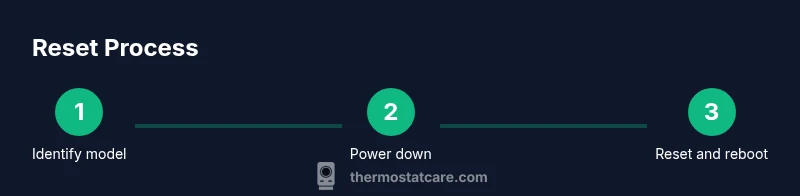
This section provides a high-level workflow that applies to many Honeywell models. Start by confirming your model's reset method, back up any schedules, then proceed with the reset. After reset, re-establish connectivity, re-enter settings, and test the thermostat across heating and cooling cycles.
Post-reset tasks: reconnecting to Wi-Fi, reconfiguring schedules, and verifying operation
Once the device restarts, re-connect to your home Wi-Fi network, re-download any mobile app settings, and re-create schedules and preferences. Verify temperature readings match room conditions, thermostat control responds promptly, and that your automation routines trigger correctly. If you use a smart home hub, re-link the device to your hub and test voice or app commands.
Tools & Materials
- Owner's manual or model-specific reset instructions(Include model number (e.g., X-Series) to confirm reset path)
- Pin or paperclip for recessed reset hole(Only if your model uses a recessed reset button)
- Smartphone with Honeywell Home app (optional)(For reconfiguring Wi-Fi and app-based settings)
- Flathead screwdriver (optional)(Only if you need to remove the faceplate on specific models)
Steps
Estimated time: 30-45 minutes
- 1
Identify model and reset path
Locate your Honeywell thermostat's model number on the back plate or in the manual. Check the user guide to determine whether you need a soft reset via menu, a recessed-reset pinhole, or a menu option labeled “Reset.”
Tip: Have the exact model number handy to avoid guessing the correct reset method. - 2
Power down safely
If possible, switch off the thermostat or cut power to the circuit that feeds the unit to reduce the risk of electrical shock or data loss during the reset.
Tip: If you must keep power, avoid touching wires and follow manufacturer safety notes. - 3
Prepare reset method
If your model uses a recessed button, prepare a pin or paperclip. If the reset is menu-based, navigate to Settings > Reset or similar option.
Tip: Use the exact wording in the manual to locate the correct reset path. - 4
Execute the reset
Perform the soft reset by pressing and holding the button or selecting the reset option until the display indicates a reboot. Do not rush the process.
Tip: Hold for the full duration specified in the manual (often 5–10 seconds) unless the model instructs otherwise. - 5
Restore power and reconnect
Turn power back on and allow the thermostat to boot. Reconnect to Wi-Fi or the Honeywell Home app if needed.
Tip: Have your Wi‑Fi password handy during re-setup. - 6
Reconfigure and test
Re-enter schedules, set preferences, and test temperature control across heating and cooling to confirm proper response.
Tip: Run a quick test by setting a noticeable temperature difference and observing response times.
Questions & Answers
What is the honeywell thermostat reset button?
The reset button initiates a reset sequence to restart the thermostat’s processor. Depending on the model, this may be a physical button or accessed through the on-screen menu.
The reset button starts the reset process, which varies by model.
Where is the reset button on common Honeywell thermostats?
Many Honeywell models do not have a dedicated reset button; others use a recessed hole or a menu option labeled Reset. Always check your specific model manual for exact steps.
Many Honeywell thermostats use a recessed reset or a menu option.
Will resetting erase my schedules?
A soft reset typically preserves schedules, but a factory reset can erase them. After a factory reset, you will need to re-enter schedules and preferences.
Soft reset keeps schedules; factory reset may wipe them.
Is it safe to reset during HVAC operation?
Avoid resetting while the system is actively heating or cooling. If possible, pause the HVAC function before beginning.
Don’t reset while the HVAC is running.
What if resetting doesn’t fix the problem?
If issues persist after a reset, check power, connectivity, and sensors. Contact Thermostat Care for further guidance or consult a licensed HVAC professional.
If problems persist, seek further help.
Watch Video
What to Remember
- Identify the correct reset method for your Honeywell model.
- Soft resets preserve schedules; factory resets erase user data.
- Always power down safely before resetting.
- Reconfigure Wi-Fi and schedules after reset and test thoroughly.
- If problems persist, consult Thermostat Care for guidance.